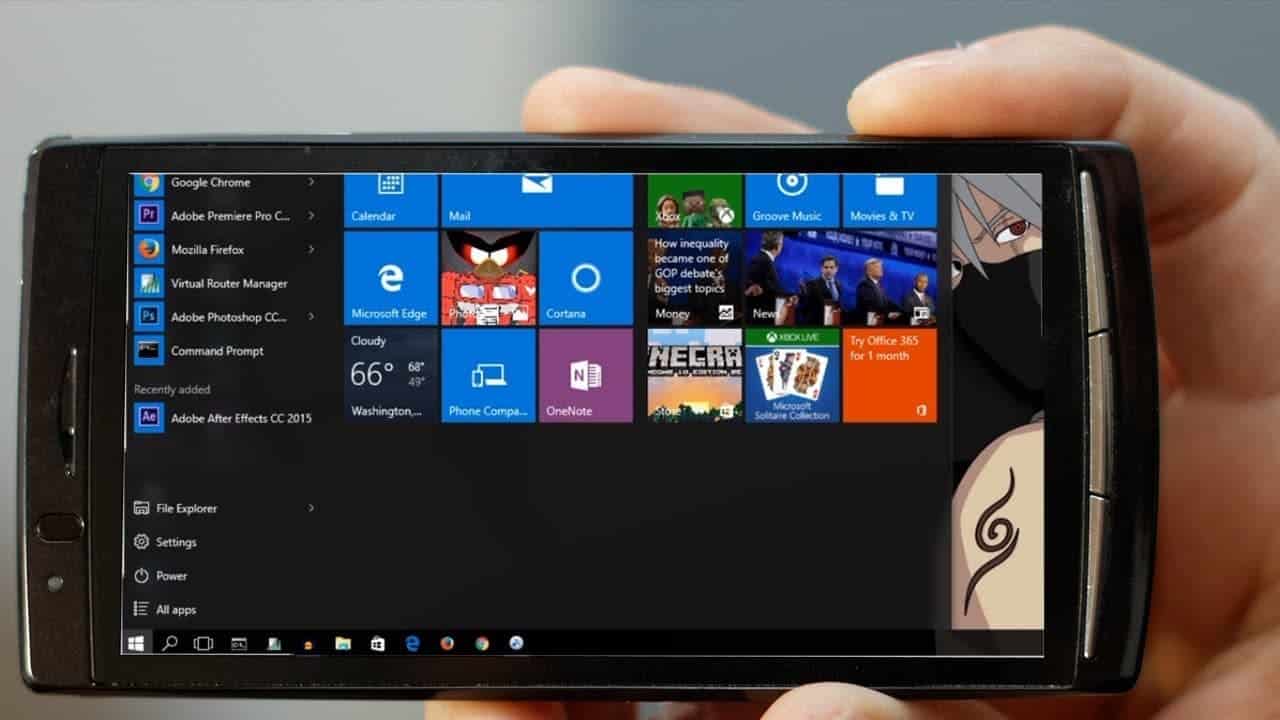
Running Windows on an Android smartphone has been on top of my tech bucket list. I’ve tried several methods and emulators to get somehow it working but unfortunately, none of it works, or the ones that do work are filled with bugs making it unusable. After thoroughly researching and trying various methods, we are bringing you a step by step guide which will help you in running Windows OS on your Android smartphone.
You’ll be able to run Windows 7,8 or even Windows 10 using this method on your smartphone, provided your smartphone has some good specs to run it. We won’t be fully installing Windows OS on your devices rather than that we’ll be emulating the full Windows experience on your phone. The app which we’ll be using to get this thing done is Limbo PC Emulator, now there are tons of emulator apps available on Play Store, but the reason why we are selecting Limbo PC Emulator is due to its simplicity over other emulators.
Now before we proceed with the process, Here are some of the Requirements.
Requirements
- Android device running Android v4.4 or above. At least 2GB of RAM and octa-core processor is recommended.
- Limbo PC emulator installed on the device ( Download link is given below)
- ISO/IMG Image file of Windows OS to be emulated
How to Run WINDOWS ON ANDROID
Step 1. Download Limbo from Sourceforge and install it on your Android device
Step 2. Download image file of the Windows version that you want to run and place it in a suitable directory in your device.
Step 3. Open Limbo app
Step 4. Click on Load Machine option and click New
Step 5. Create New Machine by entering any name.
Step 6. Select these Settings.
| Architecture | x86 |
| Machine Type | PC |
| CPU Model | Default |
| Core | 1 |
| RAM | 512MB (for running Windows 8 or above requires more ram) |
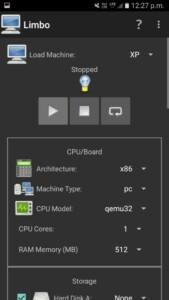
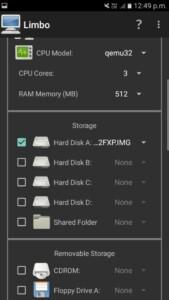
Step 6. Select the Storage option – Tick harddisk A and choose the path of the Windows XP image file.
Step 7. Go to User Interface settings on Limbo App and select Interface as SDL.
Step 8. Select Orientation as Landscape.
Step 9. Run the program by clicking the play button. Now, wait for 10-15mins to complete the loading of Windows XP.
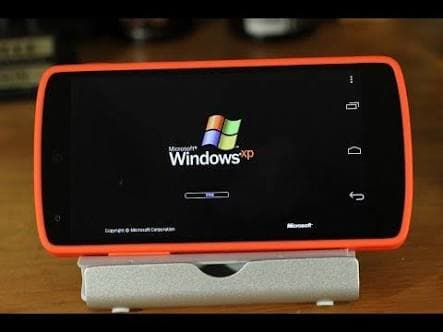
Voilla!!, you now have a running Windows OS on your smartphone.
Do let us know if you face any trouble following this guide in the comment section down below.

Comments are closed.