
There’s a specific moment when a phone stops being fast and starts being tolerable. Apps take a beat longer to open. The camera misses the shot. You stop opening things because you know how long they’ll take. Nothing is broken, exactly. It’s just wearing out around you.
If you’re not ready to spend money on a new one, plenty can be done. But most “speed up your Android” advice is written for phones that are basically fine and just need better settings. This is about older hardware, which has a different set of problems and a different set of fixes.
The quick answer: On an ageing phone, four things account for almost all the slowdown. First, storage pressure. A phone running near full gets dramatically slower, because flash storage needs free blocks to work efficiently, so getting below roughly 80% used is the single highest-impact fix. Second, a worn battery, which makes the system throttle performance to avoid shutdowns; a battery replacement on an otherwise healthy phone is the best money you can spend. Third, apps that have grown heavier than the hardware can handle: swap the worst offenders for lite versions or mobile web. Fourth, accumulated software cruft, where a clean factory reset genuinely helps. What won’t help: booster apps, RAM cleaners, and killing background apps by hand. And if the phone has stopped getting security updates, factor that into how long you keep it.
Start with storage, because it’s the biggest single cause
This is the one people underestimate. Phones use flash storage, and flash gets slower as it fills. The controller needs free blocks to write into; when it runs out of easy space, every write turns into a read-erase-rewrite cycle. Beyond that, Android itself needs working room for app updates, cache, and the temporary files apps constantly create.
The practical threshold is around 80% full. Above that, expect noticeably worse app launch times, camera lag, and stuttering. Above 90%, expect apps to start failing outright.
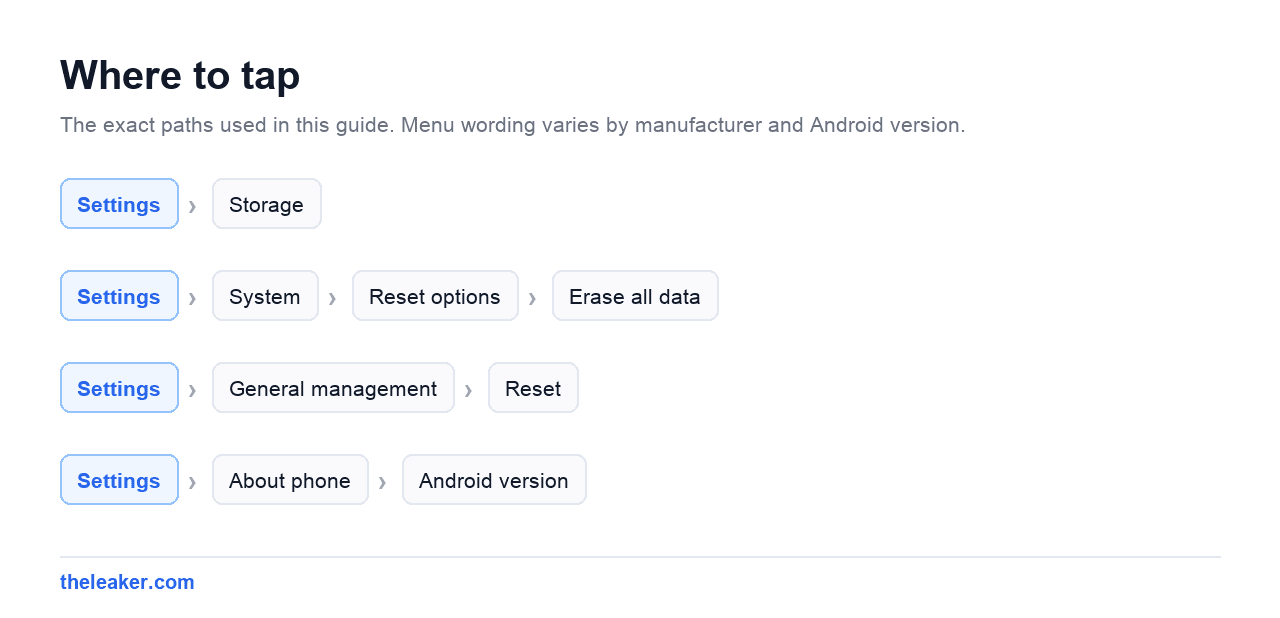
Check yours in Settings > Storage. On Samsung’s One UI it’s under Settings > Battery and device care > Storage. If you’re over 80%, that’s your project for the afternoon, and you don’t have to delete anything you actually want. We’ve covered the full method for freeing up Android storage without deleting anything, but the short version for an old phone:
- Offload photos and video to the cloud, then use the “free up space” function in your gallery app to remove the local copies that are already backed up. On most phones this alone recovers the most space by a wide margin.
- Uninstall apps you haven’t opened in months. Not “might need one day”: actually haven’t opened. Android’s app list can be sorted by last used.
- Clear the downloads folder. It’s usually full of PDFs and installers from two years ago.
- Check offline content in music, podcast and video apps. Downloaded seasons and playlists are silently enormous.
Once you’re comfortably under 80%, a lot of the “this phone is slow” feeling resolves on its own.
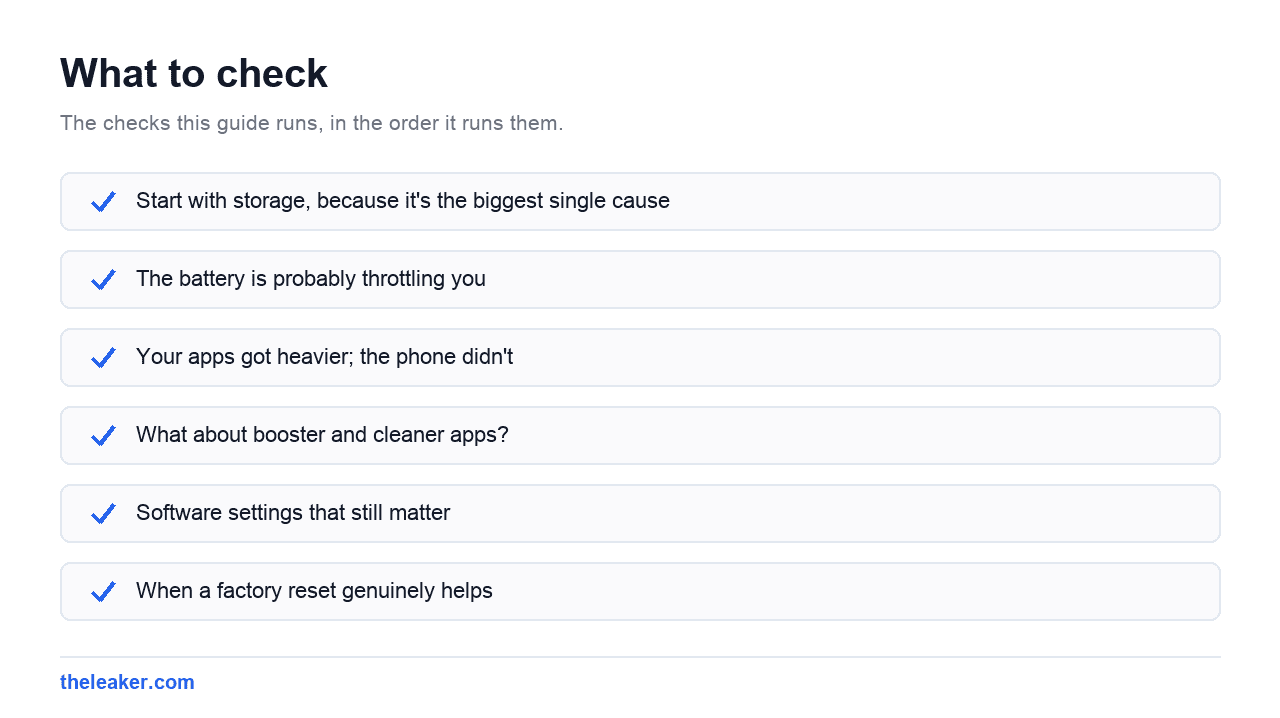
The battery is probably throttling you
Here’s the part people don’t connect. As a lithium-ion battery ages, its internal resistance rises and it can’t deliver current in short bursts as well as it used to. When the processor asks for a sudden spike of power (opening an app, loading a page, launching the camera) a worn battery sags in voltage, and the phone will shut down if that sag goes too far.
So the system protects itself by limiting how hard the processor is allowed to work. The phone gets slower to avoid dying. That’s not a bug, it’s the design, and it means a two-or-three-year-old battery is often the reason your phone feels sluggish even after you’ve cleaned everything up.
Signs your battery is the problem: the phone shuts down at 20 or 30 percent and then reboots showing a different figure, it drops in big sudden chunks, it dies fast in cold weather, or it’s visibly slower when the charge is low than when it’s full. That last one is the tell.
Battery replacement economics are genuinely good on an old phone. It’s one of the cheapest repairs available, it’s quick, and on a phone with a healthy screen and no other faults it can buy you another year or two of use. Compare that against the cost of a new phone and it’s rarely a close call. Do use a reputable shop with a decent cell. A cheap no-name battery in an old phone gives you the same problem back within months.
One caveat: on phones with glued-in batteries, the shop has to open the device, and that means the water resistance seal is compromised afterwards. On a four-year-old phone that’s usually an acceptable trade.
While you’re here, worth ruling out heat. A phone that’s persistently hot throttles hard, and there are specific fixes for a phone that keeps overheating that are worth working through if yours runs warm.
Your apps got heavier; the phone didn’t
The phone you bought four years ago ran the apps of four years ago. Those same apps have since added video feeds, stories, in-app browsers, AI features and a great deal of tracking. The hardware stayed put. This is the slow squeeze that no amount of cleaning fixes.
The fix is to be selective about which apps get to be heavy.
- Use the mobile web version for anything you check occasionally rather than constantly. Social apps in particular are far lighter as a browser tab, and you can add a shortcut to your home screen so it still feels like an app.
- Look for official lite builds. Several major services publish stripped-down versions of their apps aimed at lower-end hardware. Only install them from the Play Store, from the same publisher as the main app.
- Cut down on apps that run constantly. Anything with a persistent notification, a widget, or a background sync is competing for RAM. On an old phone with limited memory, every one of those means an app you were using gets evicted and has to reload from scratch when you return to it. That reload is what feels like slowness.
- Audit your launcher. Live wallpapers, animated icon packs and a screen full of widgets all cost memory and battery. A plain wallpaper and fewer widgets makes a real difference on constrained hardware.
Check Settings > Apps and sort by usage. If something you never open is high on the list, it’s running in the background for its own reasons, not yours. Uninstall it, or restrict its background activity in its battery settings.
What about booster and cleaner apps?
Skip them. RAM boosters work by force-closing background apps, which sounds helpful and isn’t. Android is designed to keep apps in memory precisely so they reopen instantly: empty RAM is wasted RAM. Killing everything means the phone has to reload each app from storage the next time you touch it, which is slower and uses more battery, not less.
Cleaner apps mostly delete cache files that the app will immediately rebuild, then show you a big number to justify their existence. And they themselves run in the background, on a phone that has no background capacity to spare. On an old phone, the single best “booster” is uninstalling the booster.
Software settings that still matter
Some settings changes do help, and they help more on weak hardware than on new phones. We’ve gone through the full list of hidden Android settings that make a phone feel faster. That’s the companion piece to this one, and worth doing alongside everything here. The short version for old hardware specifically: cut animation scales in Developer Options, turn off any “smooth”/high-refresh setting the phone can no longer sustain, and disable rather than tolerate manufacturer bloat you never use.
Two more worth calling out for old phones in particular. Turn off adaptive brightness if it’s making the display hunt constantly, and disable the always-on display: both are small drains, and on a phone with a worn battery, small drains show up as throttling sooner.
When a factory reset genuinely helps
Factory reset gets recommended reflexively, which has made people cynical about it. On an old phone, though, it’s one of the few things that reliably works, because years of app installs, updates, migrated data from a previous phone, and OS upgrades layered on top of each other leave real cruft behind.
A reset helps when: the phone was slow immediately after a major Android version upgrade, you’ve restored the same backup across two or three phones in a row, or you’ve genuinely tried the storage and battery fixes and it’s still bad.
A reset will not help when the problem is a worn battery or full storage that you’ll refill with the same data. If you restore an identical backup straight afterwards, you’ve mostly restored the problem too.
The way to do it properly:
- Back up photos, messages and anything not synced to an account. Write down which apps hold your two-factor codes and export their recovery codes first. This is the step people forget and regret.
- Reset from
Settings > System > Reset options > Erase all data. On One UI it’sSettings > General management > Reset. - Set the phone up fresh. Sign in, but decline the “restore all apps” option.
- Install apps back one at a time, over a week, as you actually need them. You’ll end up with maybe half of what you had, and the phone will stay fast.
That last step is the whole point. A reset followed by a full restore is a wasted afternoon.
Security updates: what running out actually means
Every Android phone has an end date for security patches. Once it passes, newly discovered vulnerabilities in the OS don’t get fixed on your device. Check yours in Settings > About phone > Android version, where the security patch level date is listed. If that date is more than a year in the past, you’re no longer receiving them.
Be realistic about what this means rather than alarmed. Google Play Services and the Play Store keep updating independently of the OS, so a lot of the security layer that matters day to day (Play Protect scanning, safe browsing, certificate handling) keeps working. Your apps keep updating too, for a while.
The real risk isn’t that you’ll be hacked tomorrow. It’s cumulative: unpatched OS-level flaws stack up, and the exposure grows the longer you run. The sensible position is a tiered one. If the phone is mainly for calls, messages, maps and a camera, an unpatched device is a manageable risk. If it holds your banking apps, your work email, and your authenticator, that risk is worth more than the cost of a new phone.
Two practical mitigations while you keep using it: install apps only from the Play Store, and move your most sensitive logins to a different device if you have one.
Honest criteria for “it’s time to replace it”
Repairs and tuning have limits. Replace rather than persist when several of these are true at once:
- Security updates ended over a year ago and you use the phone for banking or work.
- Apps you rely on are dropping support. When a core app says it needs a newer Android version, the clock has run out. This is usually the trigger.
- The battery needs replacing and something else is broken too. Two repairs on an old phone is throwing good money after bad.
- You’re out of storage even after a full cleanup. Onboard storage can’t be expanded on most modern phones.
- It’s stopped being reliable. Random reboots, missed alarms, a camera that fails to launch when you need it. A phone that can’t be trusted has stopped doing its job regardless of how fast it feels.
Conversely, keep it if the only complaint is speed, the battery is healthy or replaceable, storage is manageable and it’s still getting patched. A phone in that state has a good year or two left with an afternoon of maintenance.
Frequently asked questions
Does clearing the cache actually speed up an old phone?
Marginally and temporarily. Cache exists so apps don’t have to re-download or re-compute things, so clearing it makes the next few launches slower, not faster. It’s genuinely useful in two situations: when a specific app is misbehaving, and when you’re desperate for storage space. As a routine speed measure it does very little, which is why the apps that promise it as a feature are selling you a number rather than a result.
Is it worth replacing the battery on a four-year-old phone?
If the screen is intact, the phone still gets updates or recently stopped, and there’s nothing else wrong with it: yes, comfortably. It’s among the cheapest repairs, it directly addresses the throttling that makes old phones feel slow, and it usually restores most of a day’s battery life. It’s a bad idea if the phone has other faults, if it’s already lost app support, or if the cheapest shop nearby is fitting an unbranded cell.
Will installing a custom ROM make my old phone fast again?
Sometimes, and it’s a real option for a phone past its update window: some projects keep older hardware receiving security patches long after the manufacturer stopped. But it means unlocking the bootloader, wiping the device, and accepting that banking apps and some streaming services may refuse to run afterwards. It’s a project for a spare phone or a confident user, not a general fix.
My phone is fine most of the time but crawls when I open the camera. Why?
The camera is the most demanding thing most phones do. It’s the processor, the image signal processor and a burst of storage writes all at once. That combination surfaces every underlying weakness. If the camera specifically is slow, check storage first (it needs free space to write to), then look at the battery, since camera launch is exactly the kind of sudden power draw a worn cell can’t supply cleanly.

Akshay Mhatre is a Tech Journalist who likes to keep up with the latest from the tech world. He has worked at many popular news portals like BGR and TechRadar before joining TheLeaker as a News writer and journalist. A writer by day and a VFX artist by night. In his free time, he also likes to make motion graphics and concept art. You can find him on Instagram @akshayrazr_95 and contact him on akshaymhatre[@]theleaker.com.