
The fix that revives most dead Vizio TVs takes 20 seconds, and it uses the button on the TV, not the remote: unplug the TV from the wall, hold the power button on the set itself for 3 to 5 seconds, then plug it back in. That drains the leftover charge in the TV’s power board, which is what leaves a Vizio stuck and unresponsive. After that, let the power light guide you. No light means no power, so check the cord and outlet. A flashing or fading light usually means a connected device or the power board, so unplug every HDMI and USB device and try again. Sound but a black screen almost always means the wrong input or a failed backlight, and rarely a dead TV. The same steps apply to onn TVs, which Vizio builds.
A Vizio that will not turn on sends most people straight for the remote, then a new remote, then the store. The remote is rarely the problem. The steps below come from Vizio’s own support page, reordered so the fix that works most often comes first.
Start here: the power drain that fixes most of them
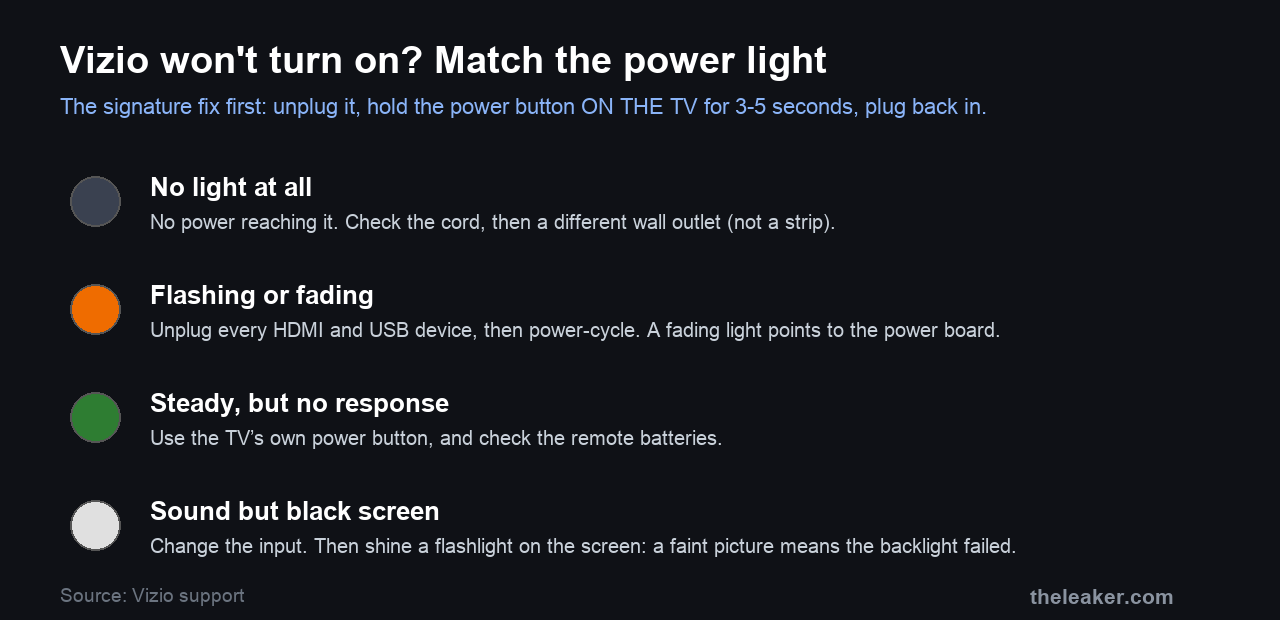
A Vizio holds a small charge in its power board even when it looks off, and when that charge gets stuck the TV will not respond to anything. Clearing it is the single most effective fix, and the important detail is that you press the button on the TV itself. The remote cannot reach it.
- Unplug the TV from the wall outlet.
- Wait at least 5 seconds. Longer, up to a minute, does no harm.
- Press and hold the physical Power button on the TV itself for 3 to 5 seconds. It is usually on the back, a bottom corner, or under the front edge. This step is the one people miss, and it is the one that drains the board.
- Plug the TV back in and turn it on with the remote or the TV’s own button.
Some Vizio sets power on by themselves once the outlet is live again. If yours does not, press the power button. If this brings it back, you are done. If not, read the light.
No light at all: the power problem
If there is no light anywhere on the TV, no power is reaching it. Work outward from the set.
- Check the power cord is firmly seated at the back of the TV and at the wall. A cord half-pulled from the TV after a move is a common and invisible cause.
- Test the outlet with a lamp or a phone charger. If that does not work, the outlet is the problem.
- Plug the TV straight into a wall outlet, bypassing any power strip, surge protector, or extension lead, at least while you test.
The light flashes, blinks, or fades off
A light that comes on and then flashes, blinks, or fades instead of staying steady is the telling case, and a connected device is a surprisingly common cause. Vizio’s guidance is to strip the TV back to nothing.
- Move the TV onto a known-good wall outlet with no power strip in the way.
- Unplug the TV for at least 5 seconds and reconnect it.
- Turn it on using the physical button on the TV itself.
- Disconnect every HDMI and USB device, then try again. A faulty soundbar, console, or streaming stick pulling on the HDMI bus can stop the TV powering up. If it comes on with everything unplugged, add devices back one at a time to find the culprit.
If the light fades off instead of flashing, and none of this helps, that points at the internal power supply board. An orange power indicator specifically suggests a failed power supply, which is a hardware repair.
Sound plays but the screen is black
If you can hear the TV but see nothing, the set is on and working. The picture is the problem, and it is usually one of two things.
- The wrong input. Press the Input button on the remote and cycle through until you reach the source you want, or the TV’s own SmartCast home screen. Disconnect HDMI devices and see if the Vizio menu appears on its own, which tells you the TV is fine and a connected device is the issue.
- A failed backlight. In a dark room, shine a flashlight at an angle onto the screen while the TV is on. If you can faintly make out a picture under the light, the panel is alive but the backlight behind it has died. That is a repair, and it is a common one on older Vizio sets.
It keeps turning itself off
A Vizio that powers on but then shuts off by itself, seemingly at random, is often being switched off by another device through a feature called HDMI-CEC. A cable box, soundbar, or console that goes to sleep can drag the TV down with it.
Turn CEC off to rule it out. On the remote, press Menu or the gear button, go to All Settings, System, CEC, and set it to Off. Then watch whether the TV stays on. If it does, a connected device was the cause, and you can leave CEC off or track down which device is misbehaving.
Stuck on the SmartCast loading screen
Vizio’s smart platform, SmartCast, can hang on its loading or logo screen, which looks exactly like a TV that will not start. The power drain at the top of this guide clears most of these. If it comes back, disconnect all HDMI devices, power-cycle once more, and give it a full two minutes to load before deciding it is stuck, since a slow software start can look like a freeze.
What this will not fix
- A failed power board or backlight. If the light fades and dies, or the screen is black under a flashlight test, that is hardware, and no reset brings it back.
- The remote, mistaken for the TV. If the TV’s own button works but the remote does not, replace the remote batteries and clear the sensor. That is a remote fault.
- A blown outlet or breaker. If other things on the same circuit are also dead, the fix is in your electrical panel.
Is it worth repairing?
The two most common hardware failures here, the power supply board and the backlight, are both repairable, and a board swap is often modest. Weigh it against the age and size of the set. On a small, older Vizio, a repair bill can approach the price of a new one, while on a large recent model a board replacement is usually well worth it over a full replacement. A repair shop can tell you which board failed before you commit.
Frequently asked questions
Why hold the button on the TV instead of using the remote?
Because the goal is not to send a signal, it is to discharge the TV’s power board while it is unplugged. The remote only talks to a TV that is already powered and listening. Holding the physical button with the set unplugged bleeds off the stuck charge that a remote press cannot reach.
My onn TV won’t turn on. Are these the same steps?
Yes. onn brand TVs sold at Walmart are built by Vizio and run the same platform, and Vizio’s own support page covers both. The power drain, the light checks, and the input steps are identical.
The power light is on but nothing happens. Is the TV dead?
Not necessarily. A steady light means the TV has power. Press the physical power button on the set, since the remote may be the real fault, and try the power drain above. Only if the button on the TV also does nothing, after a proper power-cycle, would you suspect the mainboard.
What does an orange or amber power light mean on a Vizio?
On many Vizio sets an orange standby light is normal when the TV is simply off and waiting. If it is orange and the TV will not respond after a power drain, it more often points to a power-supply problem, which is a repair. Colors and behavior vary by model, so treat it as a hint, and confirm before you commit.
The short version
Unplug the Vizio, hold the power button on the TV for 3 to 5 seconds, and plug it back in, because that drain fixes more dead Vizios than anything else. Then read the light: no light is a power fault, a flashing or fading light means unplug your HDMI devices and suspect the power board, and sound with a black screen is an input or a backlight problem, rarely a dead set. onn TVs follow the same steps. For the wider picture, our guides to any TV that will not turn on and to a Hisense TV that will not turn on cover the same problem on other brands.
Featured image: a wall-mounted flat-screen TV by BrokenSphere, via Wikimedia Commons, licensed CC BY-SA 3.0.

A tech Journalist and Photographer, Dhawal Sharma is a technology enthusiast who loves to research the latest innovations and technology. He has contributed to the Honor Community for a very long period and has crucial expertise in writing tech news and reviewing smartphones and laptops. Analyzing and bringing the facts about any piece of tech is what he loves the most. He is a great product photographer and is the Gizmopedia of TheLeaker. Find him on Facebook and Instagram, and you can also email him at [email protected].