

An app opens, flashes, and dumps you back on the home screen. Or you get the “app keeps stopping” dialog with a Close button and no explanation. Then it happens again. Then it starts happening in a second app. When Android apps keep crashing like this, most guides jump straight to one answer.
Almost every guide’s answer to this is “factory reset your phone.” That works, in the sense that burning down a house cures a wasp problem. There’s a proper order to this, and the reset sits at the very bottom of it.
The quick answer: Start by working out whether one app is crashing or everything is. If it’s one app: force stop it, clear its cache, then clear its data (which signs you out but keeps the app installed), then update it, and if the crashes started right after an update, uninstall the updates to roll back. If everything is crashing: check free storage first, because a phone near full will crash apps constantly; then update Android System WebView and Google Play Services, which are the two shared components that take every app down with them when they break. If it’s still happening, boot into safe mode, if the crashes stop there, a third-party app you installed is the culprit. Factory reset only after all of that, and only after you’ve backed up.
Step zero: restart the phone
Genuinely. Not “power off then straight back on”. A proper restart that clears memory. A surprising share of crash problems are a wedged system service or an app stuck in a bad state, and a restart fixes them in thirty seconds.
If a restart fixes it and it comes back a day later, that’s still useful information: something is degrading over time, which points at memory pressure or storage, both covered below.
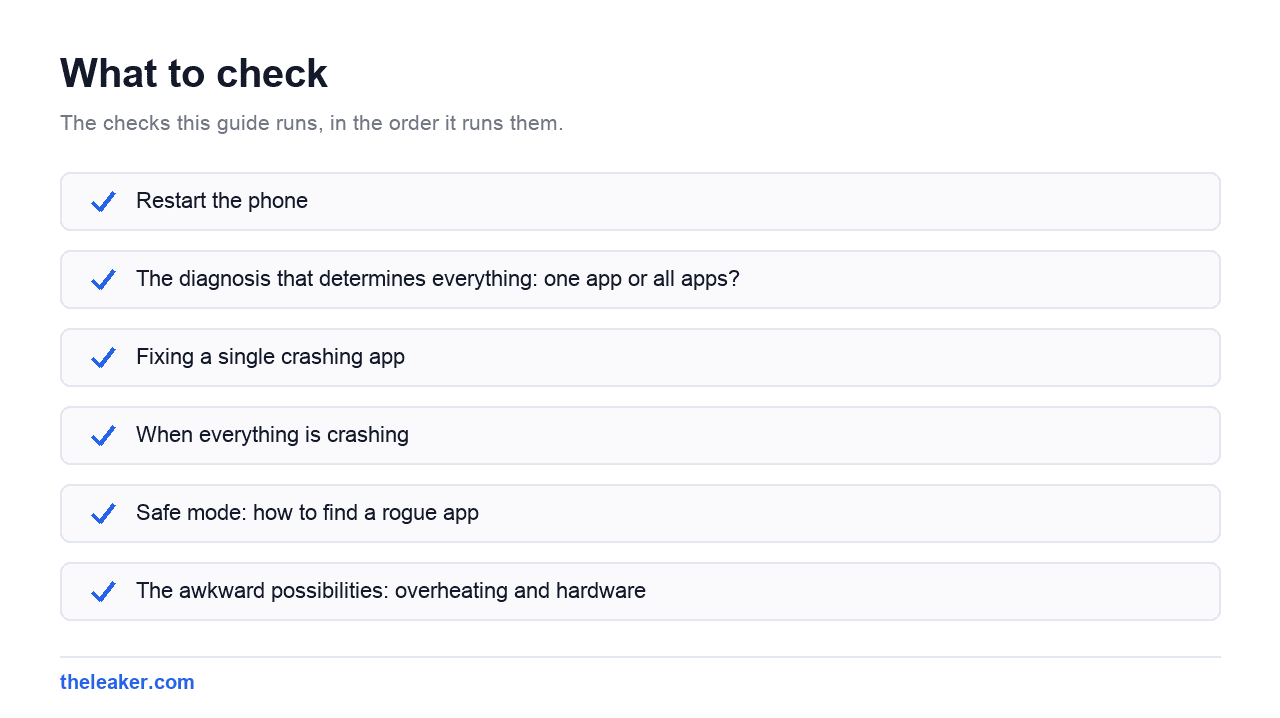
The diagnosis that determines everything: one app or all apps?
This is the fork in the road, and it’s worth being deliberate about it. Open five or six unrelated apps (the browser, the camera, a messaging app, a game, the settings app) and use each for a minute.
If one app crashes and the rest are fine, the problem is that app or its data. Go to the single-app section below.
If several unrelated apps crash, the problem is shared: storage, memory, a system component, or a rogue app interfering with everything. Skip to the system-wide section.
If it’s several apps but they have something in common. They all show web content, or they all use Google sign-in. That’s a strong clue. Apps that all display web pages point at Android System WebView. Apps that all sign in with a Google account point at Play Services.
Fixing a single crashing app
Do these in order. Each one is more disruptive than the last, so don’t skip ahead.
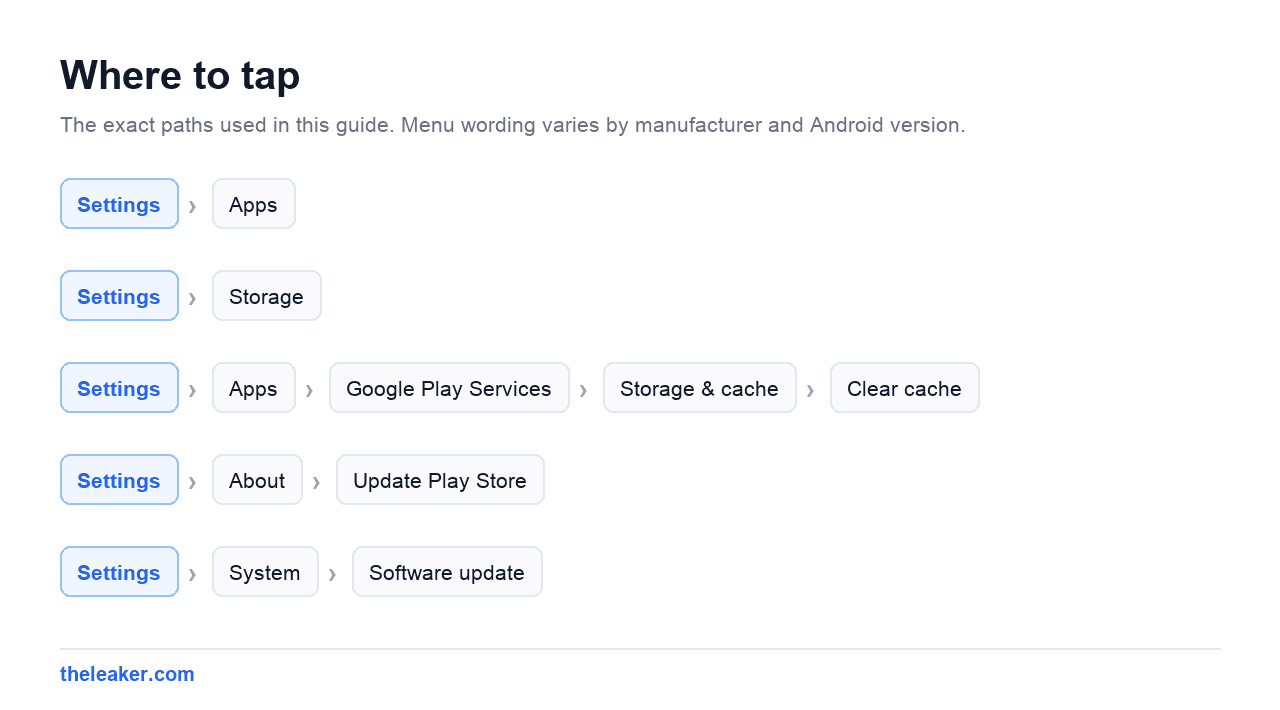
1. Force stop it. Go to Settings > Apps > [app name] > Force stop. This kills every process the app has running, including background ones a normal close leaves alive. Reopen it.
2. Clear the cache. Same screen, then Storage & cache > Clear cache. On Samsung’s One UI it’s Settings > Apps > [app] > Storage > Clear cache; on Xiaomi’s HyperOS you’ll find it under the app’s info screen as “Clear data”, which then offers cache separately. Cache is temporary files the app can regenerate: clearing it loses nothing, and a corrupted cache file is one of the most common causes of a crash-on-launch.
3. Clear the app’s data. Same menu, Clear storage or Clear data. This resets the app to how it was when you first installed it. You will be signed out and any local settings or offline downloads are gone. Anything stored on the app’s servers comes back when you sign in; anything stored only on the device does not. Check that distinction before you do it: for a chat app with local-only history, clearing data can lose your messages, so back that up first.
4. Update the app. Open the Play Store, tap your profile picture, then Manage apps & device > Updates available. Crashes are often already fixed in a build you haven’t installed.
5. Roll back an update. If the crashing started immediately after the app updated, the update is the suspect. For apps that came preinstalled, Settings > Apps > [app] > ⋮ > Uninstall updates reverts to the factory version. For apps you installed yourself, there’s no rollback: uninstall and reinstall is the closest equivalent, and if a bad build is live you may just have to wait for the fix.
6. Uninstall and reinstall. The blunt version of everything above. It clears data, removes any corrupted install files, and pulls a fresh copy.
7. Check the app’s permissions. Some apps crash rather than handle a denied permission gracefully. A camera app with camera access revoked, for example. Look at Settings > Apps > [app] > Permissions and see if something obviously required has been denied.
When everything is crashing
Check free storage first
This is the most common cause of phone-wide crashes and the least suspected. Apps need space to write temporary files. When the phone is nearly full, those writes fail, and an app that can’t write its temp files crashes.
Look at Settings > Storage. If you’re above 90% used, that’s almost certainly your answer, and no amount of clearing individual app caches will fix it until you free real space. If you’re above 80%, it’s still a strong contributor.
You don’t have to delete things you care about. Our guide to freeing up Android storage without deleting anything covers the offload-and-clean approach. The fastest wins are backing up photos to the cloud and then removing the local copies, clearing the Downloads folder, and deleting offline video and music downloads.
Update Android System WebView
WebView is the component that renders web content inside apps. The in-app browser you get when you tap a link in a social app, plus a great deal of app UI that’s quietly web-based. When WebView breaks, dozens of unrelated apps crash at once and nothing looks like it has anything in common.
Open the Play Store, search “Android System WebView”, and update it if there’s a button. Do the same for Google Chrome, which shares the underlying engine on many devices. This exact failure has taken out apps across huge numbers of Android phones simultaneously in the past, so if your crashes started suddenly and affected many apps on the same day, check this first.
Sort out Google Play Services
Play Services handles sign-in, notifications, location, in-app purchases and a long list of other plumbing. If it’s unhappy, apps that depend on it fall over.
Go to Settings > Apps > Google Play Services > Storage & cache > Clear cache. Do not clear its data unless you’re out of other options. That resets a lot of account plumbing and can require you to re-sign-in across the device. Then update it via the Play Store (search for Google Play Services and check for an update button), and update the Play Store itself from Play Store > profile > Settings > About > Update Play Store.
Check for a pending Android update
Settings > System > Software update, or Settings > Software update on One UI. Manufacturers do ship patches specifically for crash and stability bugs. Equally, if crashing began the day after a system update landed, note that. It doesn’t give you a rollback option, but it tells you what to search for and whether a fix update is expected.
Look at RAM pressure
On phones with limited memory, aggressive background apps can force the system to kill whatever you’re using. That looks exactly like a crash but is really an eviction. The tell is that apps close when you switch back to them after a while rather than crashing while you use them.
Reduce the number of apps allowed to run constantly. In each app’s battery settings, “Optimised” or “Restricted” limits background activity. Widgets, live wallpapers and persistent-notification apps all add to the pressure. Resist the temptation to install a RAM cleaner. Those make it worse, because they force-close cached apps that then have to fully reload.
Safe mode: how to find a rogue app
Safe mode boots Android with only the apps that shipped with the phone. Everything you installed yourself is disabled. It’s the cleanest way to answer “is one of my apps causing this?”
To enter it on most phones: press and hold the power button until the power menu appears, then press and hold the “Power off” option until a “Reboot to safe mode” prompt appears, and confirm. On Samsung phones, hold the power button, tap and hold “Power off”, then tap “Safe mode”. You’ll see a “Safe mode” label in the corner of the screen once you’re in.
Now use the phone the way you normally would for a while and see whether the crashes happen.
If crashes stop in safe mode, a third-party app is causing them. Restart normally, then uninstall recently installed apps one at a time, newest first, testing between each. The usual suspects are anything with system-wide reach: launchers, keyboards, screen overlay apps like colour filters or floating widgets, accessibility-service apps, and battery or cleaner utilities.
Screen overlay apps deserve special mention. Anything that draws on top of other apps can cause crashes and can block permission dialogs entirely. Check Settings > Apps > Special app access > Display over other apps and turn off anything you don’t recognise or need.
If crashes continue in safe mode, it’s not an app you installed. That points at a system component, storage, or hardware. Keep going.
To leave safe mode, just restart the phone normally.
The awkward possibilities: overheating and hardware
A phone that’s too hot throttles hard, and under enough thermal stress the system starts killing processes to reduce load. If your crashes cluster around gaming, camera use, navigation, or fast charging, heat is a strong candidate. Our guide to fixing a phone that keeps overheating walks through the causes worth ruling out.
Failing storage is rarer but real. Flash memory wears out, and a phone with degrading storage produces crashes that seem random, along with files that fail to save and photos that occasionally won’t open. If a factory reset doesn’t fix widespread crashing on an older phone, this is a plausible explanation, and it’s not economically repairable.
A worn battery contributes too. Under a sudden power demand, a degraded cell can sag enough to cause instability, and a phone that only crashes at low charge is telling you exactly that.
Factory reset: the actual last resort
Reach for this only after storage, WebView, Play Services, updates and safe mode have all come up empty. It works because it removes every layer of accumulated software state, but it costs you a full afternoon and only helps if the cause was software.
Do it properly:
- Back up first. Photos, videos, messages, documents. Critically: export recovery codes from any authenticator app before you wipe, or you’ll lock yourself out of your own accounts.
- Note your logins. You’ll be signing back into everything.
- Reset from
Settings > System > Reset options > Erase all data (factory reset). On One UI:Settings > General management > Reset > Factory data reset. - Set up as new and don’t restore the full backup. This is the important part. If a specific app or its data caused the crashing, restoring everything restores the problem. Install apps back gradually over the following days.
- Test before adding apps. Use the clean phone for an hour. If it still crashes with nothing installed, it isn’t software, and you’re looking at a hardware fault or a warranty conversation.
That final test is worth the patience. It’s the difference between “my phone is fixed” and “I wiped my phone for nothing and it’s still broken.”
A note on where you get apps
Stick to the Play Store, or your manufacturer’s own store like the Galaxy Store. Apps installed from random websites are a common source of crashes. They’re often built for different hardware, wrongly signed, out of date, or modified in ways that break as soon as the real app’s servers change. If crashing started after installing something from outside an official store, uninstall it and see.
Frequently asked questions
What’s the difference between clearing cache and clearing data?
Cache is temporary working files (thumbnails, downloaded images, precomputed layouts) that the app rebuilds automatically. Clearing it is safe and loses nothing permanent. Data is everything else the app stores on your phone: your login, settings, offline downloads, and in some apps your actual content. Clearing data resets the app to a fresh install. Always try cache first, and check what’s stored only locally before you clear data.
All my apps started crashing on the same day and I didn’t change anything. What happened?
That pattern almost always means a shared component updated badly. Android System WebView is the usual culprit, since so many apps render web content internally; Google Play Services is the other. Update both from the Play Store. Widespread same-day crashing across many phones has happened before with exactly this cause, so if a system update or a WebView update landed that day, that’s your answer.
Will clearing Google Play Services data fix crashes or break things?
Clearing its cache is safe and worth trying. Clearing its data is a bigger step. It resets account and sync plumbing, and you may have to sign back into Google services and reconfigure some settings. It occasionally fixes stubborn problems, but it’s not a first move. Try the cache, updates and safe mode before you touch Play Services data.
An app crashes only on my phone but works on my friend’s. Why?
The variables are your Android version, your manufacturer’s software layer, your available storage and memory, your permissions, and your specific app data. The most likely explanation is corrupted local data unique to your install, so clear cache, then clear data, then reinstall. If it survives a reinstall on a phone with plenty of free space, it’s likely a compatibility issue with your Android version or device, which is worth reporting to the developer.

Hello, folks, my name is Akshay, and from the beginning, I like to play with the latest phones, gaming consoles, PCs, Laptops’s and whatnot. When I get spare time, I like to do Photography, and you will always find me playing with Photoshop, Lightroom, Premiere Pro, etc. In Love with Gadgets, my gear Motorola Moto G5 Plus. You can contact him on akshaydua[@]theleaker.com.