
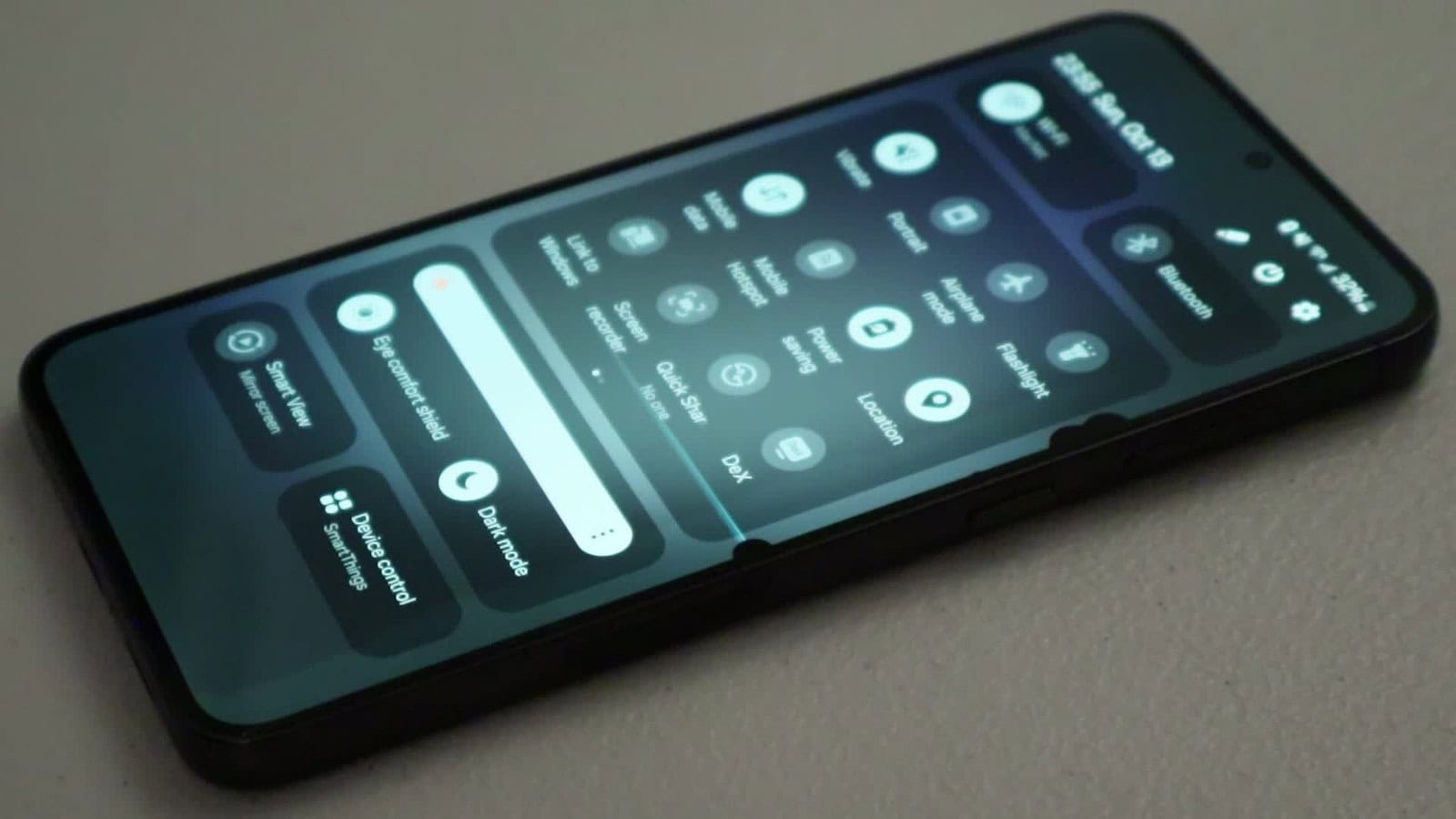
The short answer. Two questions sort almost every case. First, take a screenshot and open it on a different device. If the lines are in the file, software is likely drawing them, and a restart and an update are the first things to try. If the file is clean, the lines are likely coming from the display-side hardware, and the rest is confirming that. Second, look at the lines themselves. A persistent thin vertical line in green or purple on an OLED phone usually points to display-path hardware, and commonly ends in a new display after diagnosis. Horizontal lines, or lines of several colors that arrived with a drop, point at the panel or the connector behind it, and Samsung’s own guidance for that case is a display repair. One case stays open. Faint horizontal lines that only show at very low brightness or on the lock screen have no vendor explanation, and the section on them below is about narrowing it down, not a verdict.
This page is about what the direction and color of the line can and can’t tell you, and what to do about each case. It covers Samsung, Google, Apple and Motorola phones, with the manufacturer’s own pages linked where they exist and the gaps named where they don’t.
First test: is it the screen or the software?
Take a screenshot, then send it somewhere else. AirDrop or Quick Share it to a laptop, message it to a friend, or open it from your photo cloud on a computer. Looking at it on the broken phone tells you nothing, because hardware lines sit on top of whatever you open. iFixit’s Pixel troubleshooting guide puts the result as a likelihood, and that’s the honest reading. Lines in the file are likely software, and lines missing from the file are likely hardware somewhere on the display side, which still needs confirming at a repair bench. A Google Product Expert on the Pixel community told a Pixel 7 Pro owner whose two vertical lines were absent from a screenshot that this made him “99% suspect this to be a hardware failure”. That’s about the right confidence, and it’s the strongest test you have at home.
Touch usually keeps working. The pixel grid and the touch layer are separate parts.
Two more free checks add weight. Restart and watch the boot logo, which draws before any app loads, so lines across it lean toward hardware. And rotate the phone. Lines that stay fixed to the glass while the picture turns lean the same way. Both are supporting evidence, and neither settles where the fault sits.
Second test: which way do the lines run, and what color are they?
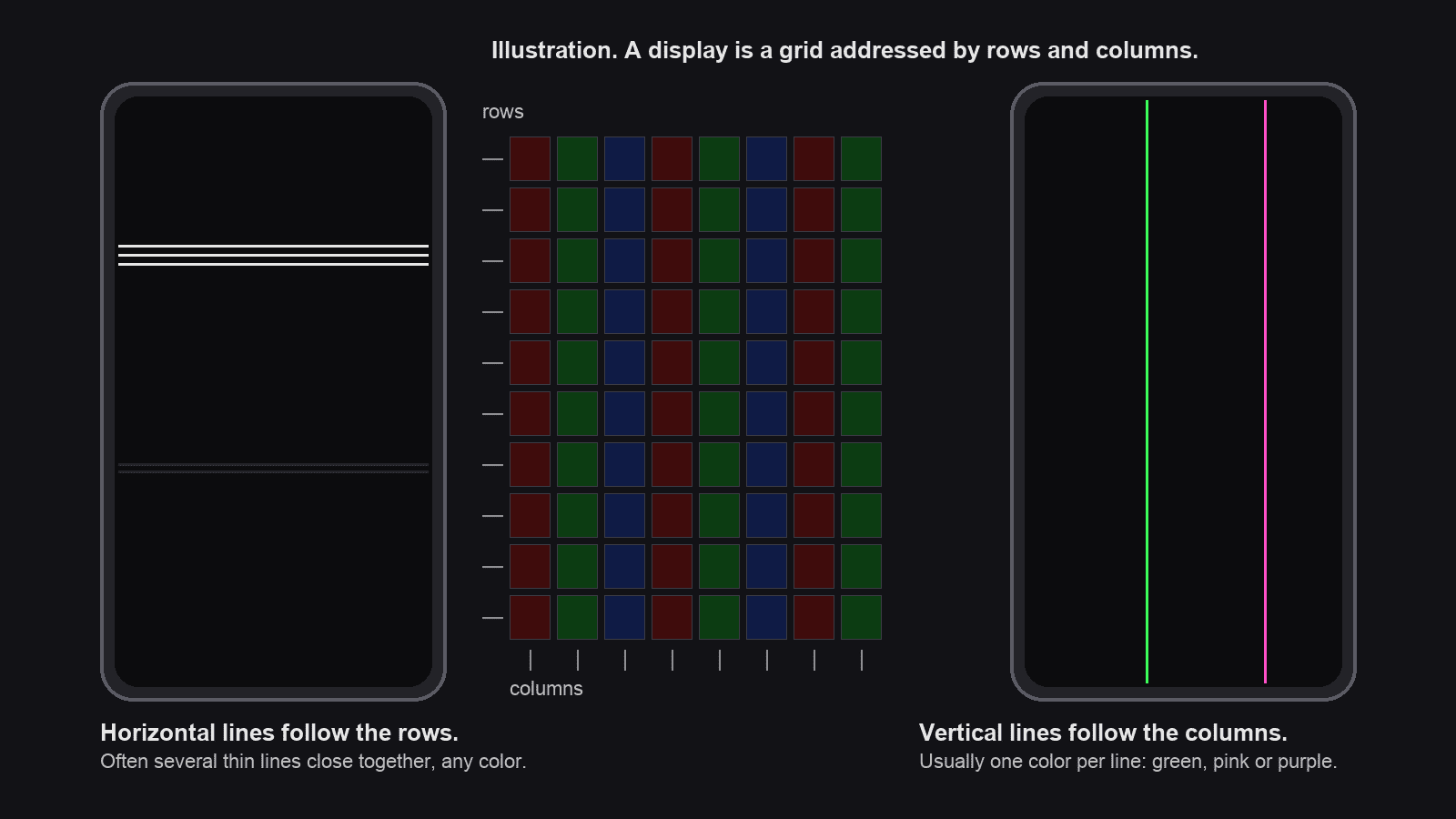
A screen is a grid. One set of wires drives the rows, another feeds each column of subpixels. When something in that wiring fails, the failure tends to follow the wire, which is why panel faults so often show up as lines. The direction is the symptom, and it points at one set of wires, but which wire, connector or driver has actually failed takes an inspection to find. The table is what the sources actually support, and where a color has no source behind it, the table says so.
| What you see | What it usually means | Who says so |
|---|---|---|
| One thin vertical line, green or purple, top to bottom, on an OLED phone | iFixit ties it to damage on the electrical lines feeding the green subpixels, which sit in aligned columns on these panels, and calls the result a green or purple line. Hardware, in the panel or its connection, in every case the repair guides describe. | iFixit’s Samsung guide and its Pixel guide. Google’s Pixel 9 Pro repair program covers a vertical line running bottom to top, without naming a color, and replaces the display for it |
| Pink lines, or scattered pink dots | Samsung says they “could be stuck or dead pixels”. Its ladder is update, Safe Mode, factory reset, then a service center. | Samsung, pink lines or dead pixels |
| Black lines, or lines of several colors, after a drop or a knock | Impact damage to the panel, even when the glass looks fine. Samsung’s page for this case says “Display repair is recommended.” | Samsung, screen is cracked or damaged |
| A line with other colors around it, or visible glass damage | Cracked screen, submit for repair. Motorola separates this from a single thin top-to-bottom line, which it says may still be resolvable with its software steps. | Motorola, troubleshooting lines on display |
| Thin horizontal lines across the whole screen, like an old TV, constant at any brightness | A fault somewhere in the panel or its connection, which only an inspection can place. In the iFixit thread linked here the accepted answer was a screen replacement, one user reported the lines clearing after a full charge, and the poster found that pressing near a cracked corner made them worse. | iFixit Answers, user reports. No vendor page describes this case |
| Faint horizontal lines only at very low brightness, in battery saver, or on the lock screen | Unresolved in every thread I found. See the next section for how to narrow it down before you book anything. | User threads only. Samsung’s green tint page is the nearest vendor text and it is about tint, not lines |
| White lines, rainbow lines | No manufacturer or repair source I could find assigns a meaning to white or multicolored lines beyond the impact rule above. Treat them by direction and by the screenshot test, and ignore any page that tells you white means something specific. | Nothing. Recorded so you know it was looked for |
The open case, lines only when the screen is dim
This one fills the Pixel forums and never gets a vendor answer. A Pixel 8 Pro owner described horizontal lines at the top of the panel on wake, only in battery saver at low brightness, gone in normal use, not captured by a screen recording, and back a few days after a factory reset. Eleven people said they had the same question. In the thread, a Product Expert first suggested hardware and then, after the lines stayed away during a short Safe Mode test, suggested a downloaded app, recommending a longer spell in Safe Mode and, if the lines persisted there, an inspection. The owner marked that as the answer and posted no outcome. A second Pixel 8 Pro owner reported flickering white lines at the top of the lock screen that vanished on unlock, and got a link to the generic screen article. Go back a decade and Galaxy Nexus owners were describing the same grain at low brightness, and the consensus in that thread was that it was “normal for amoled”, with unit-to-unit variation, and the remedy was an exchange under warranty.
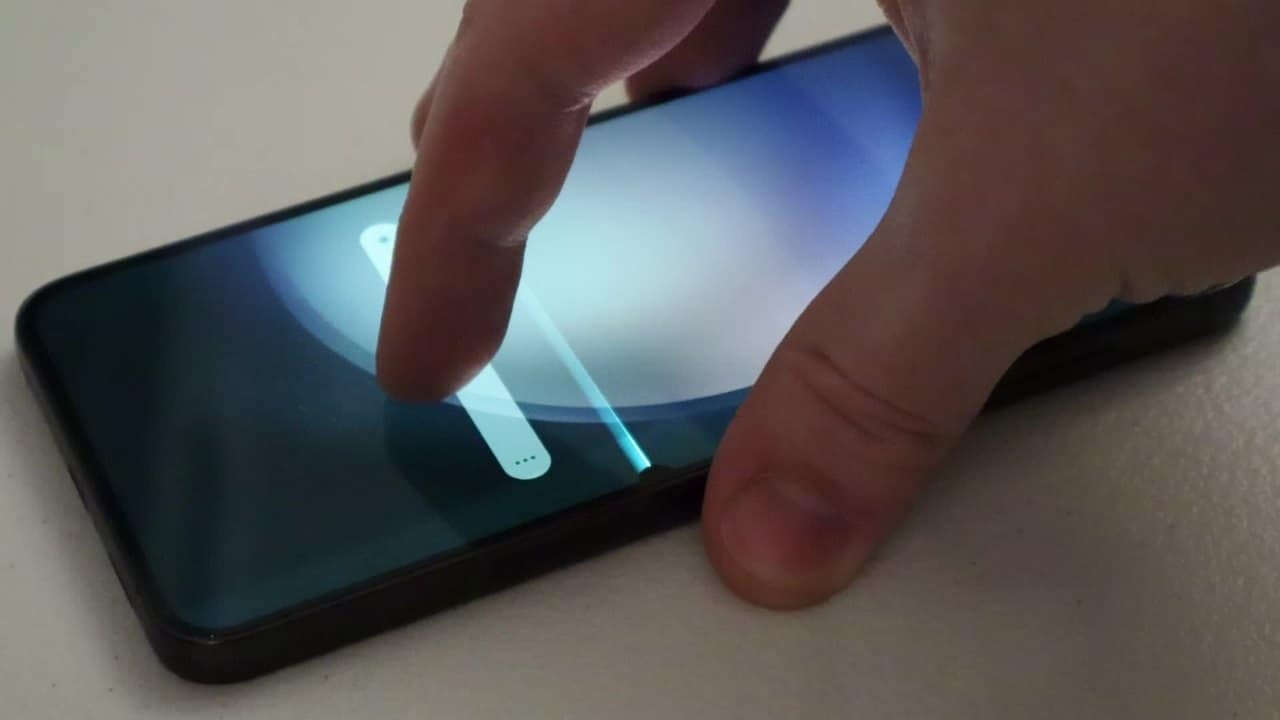
No vendor documents low-brightness lines. The closest is Samsung’s page on green tint on Galaxy screens, which says that when brightness is very low or the picture is dark, an AMOLED panel can show small variations in color, and treats that as expected behavior. Its fixes are to raise brightness, set Motion smoothness to Standard and use Light mode. That page is about tint, and I can’t stretch it to cover lines. What the threads support is a procedure. Run Safe Mode for longer than the gap between appearances, since the Pixel owner’s lines could stay away for days even after a reset, so a five-minute or one-day test proves little. If they never come back in Safe Mode over that longer stretch, software gets likelier, and you chase it by uninstalling recent apps. If they appear in Safe Mode too, take the phone in while it’s under warranty, because an exchange was how the Galaxy Nexus owners got rid of theirs. Either way, photograph it with another phone and keep the photo dated, in case it starts appearing at normal brightness too.
The software cases that really existed
People assume lines that appear after an update were caused by the update. Two cases actually were, and both were brief flashes rather than fixed lines. In January 2023 Apple told its repair staff that horizontal green and yellow lines flashing on the iPhone 14 Pro at power-on or unlock were a software bug and said an update was coming, per MacRumors’ report of the memo. In July 2025 a One UI 7 bug put a black line on Galaxy Z Flip screens after using Smart View in a particular mode, which cleared on its own and which Samsung was reported to be fixing in software, per SammyGuru. Neither was a permanent line, and both were treated as software by the vendor. The green and pink lines Galaxy S23 owners reported after One UI 8.5 in June 2026 remain user reports with no resolution on record, and Android Authority says Samsung has not commented.
What to try, in a cautious order
This order is mine. Google’s own page goes update, then support. Motorola’s goes force reboot, Safe Mode, updates, reset, repair. Samsung’s goes update, Safe Mode, uninstall any app that turns out to be the cause, reset, service. Each is linked below so you can follow your maker’s exactly.
- Update the phone. It’s Google’s only self-help step on its screen appearance page, which says flicker, green tint or lines mean “you may have a hardware issue” and to get the phone repaired if the update doesn’t clear it.
- Take off the case and the screen protector, and clean the glass. Apple’s screen-not-working page lists this for touch problems, and iFixit’s Pixel guide notes a protector can trap debris that looks like a mark on the display.
- On Android, boot into Safe Mode. It loads the phone without downloaded apps. On a Pixel 6 or later, Google’s safe mode page has you hold Power and Volume Up, then touch and hold Power off or Restart, and tap OK. On a Motorola, hold Power and Volume Up together, then touch and hold Power off until the Safe Mode prompt appears, per Motorola’s page above. On a Galaxy, Samsung’s pink-lines page walks it. If the lines vanish in Safe Mode, an app is drawing them. iPhones have no user-facing Safe Mode.
- Galaxy owners have a test menu. Samsung documents the code
*#0*#on its Swiss support site, opened from the Phone app’s keypad, without saying which models or builds carry it. Users describe solid-color screens in the menu it opens, and a line that stays put across those is strong evidence for the panel. If the code does nothing on your build, open the Samsung Members app and run its diagnostics, which reach the same tests through a supported door. - Factory reset, last, and only with a verified backup. It erases everything on the phone. Both Samsung’s pink-lines page and Motorola’s lines page list it before service and both require a backup first, and Samsung adds that an encrypted SD card must be decrypted before the reset. Confirm the backup finished and that you can sign in to the Google or Samsung account it’s tied to before you start. If the screenshot came up clean on another device, a reset is low-yield and I’d skip it, with the caveat that skipping it leaves software not fully excluded, which is why the Pixel expert above still asked for it. Do it if the screenshot showed the lines and nothing else cleared them.
Three things won’t help. Pressing on the screen, which one iFixit thread shows making cracked-panel lines worse; changing the wallpaper, which a user in the same thread reported “didn’t work”; and pixel-fixer videos, which cycle colors to free a stuck liquid-crystal cell and have nothing to act on in an OLED. One iPhone 6 owner found that Reduce White Point in Accessibility made white lines less visible, which is a mask, and a useful one if a replacement isn’t happening.
What a new screen costs, and who might pay
Samsung publishes its walk-in prices on its US repair page, as suggested prices before tax that can vary by location. As read on September 2, 2026, they were Galaxy S24 $174, S24+ $199, S24 Ultra $259; S25 $189, S25+ $209, S25 Ultra $279; S26 $209, S26+ $229, S26 Ultra $289. Screen-only repair needs an unbent frame and carries a 90-day warranty, with most walk-ins done the same day. Apple quotes its screen prices per model through its repair page’s estimator, and the reference figures are the ones 9to5Mac recorded from it in September 2025: $329 for an iPhone 17, Air or 17 Pro screen, $379 for a 17 Pro Max, and $29 with AppleCare+. Confirm on Apple’s page before you go. Google publishes no flat price at all; its repair charges page sends you through the repair estimator, and a Pixel 9 screen at uBreakiFix was put at $239.99 in a July 2026 repair-cost roundup, which is one shop’s US figure.
Two groups may pay nothing. A Pixel 9 Pro or 9 Pro XL with a vertical line running bottom to top qualifies for a free display under Google’s program for three years from purchase, decided at inspection, and cracked glass or liquid damage may disqualify it. And OnePlus India’s Green Line Worry-Free policy offers a lifetime display warranty against green lines for phones bought through authorized channels, while parts are in supply, excluding external damage, and subject to a service center’s assessment. Samsung India ran a free green-line replacement for the S21 series and S22 Ultra to September 2025 and, per one report, for the Galaxy S23 to December 2025; Android Authority still described the S23 offer as available within three years of purchase in June 2026, and Samsung has published nothing either way, so an Indian S23 owner should ask at a service center with the invoice and expect no particular answer. All of that, with the conditions, is in our separate guide to the green line specifically.
When to stop reading and book the repair
- The screenshot is clean on another device and the lines are there at every brightness.
- The lines arrived with a drop, a knock or a bag that got sat on, whether or not the glass cracked.
- More lines than last week.
- Any line plus a screen that’s lifting from the frame. Stop charging it and get it looked at, because a swelling battery may be the reason a panel lifts, and that’s a safety problem before it’s a display problem.
If the glass is cracked, the cost question changes and our guide to cracked-screen repair options takes over. If what you have is a spot or a patch rather than a line, the faults and the tests are different, and they’re in bright spots on a phone screen.

I am the chief editor of TheLeaker. I also maintain the backend stuff of the site. I’m a tech enthusiast and loves to do Python coding in my free time. I have worked at many giant publications like XDA Developers and NXTtech before starting TheLeaker.
You can get in touch with me at Garv[at]theleaker.com.