
Your phone says “Storage almost full” again, and the first thing it suggests is deleting your photos. Don’t. In most cases you can recover 10-30 GB on an Android phone without losing a single picture, video, or app you actually use. The trick is knowing where Android hides its junk.
Here’s the short version: most full storage on Android isn’t your photos. It’s cached files, duplicate WhatsApp media, forgotten downloads, and offline data from streaming apps. To free up storage on Android without deleting anything important, clear app caches from Settings, run the cleaning tool inside Files by Google, wipe WhatsApp’s “Media visibility” folders, back up photos to Google Photos and use its “Free up space” button, and clear the offline downloads inside Netflix, Spotify, and YouTube. Each step takes a couple of minutes, and together they routinely recover 15 GB or more: no factory reset, no deleted memories.
Now let’s walk through each step properly, in the order that frees the most space first.
First, find out what’s actually eating your storage
Before deleting anything, spend one minute looking at the real numbers. Open Settings → Storage (on Samsung phones it’s Settings → Device care → Storage). Android breaks usage down into Apps, Images, Videos, Audio, Documents, and the mysterious “Other” or “System” category.
Nine times out of ten, you’ll see one of these two patterns:
- Apps are huge: usually because of cached data and offline downloads, not the apps themselves.
- Videos are huge: usually WhatsApp forwards and screen recordings you forgot about.
Knowing which pattern you have tells you where to start. Now, the fixes.
1. Clear app caches: the safest 3-5 GB you’ll ever recover

Cache is temporary data apps store to load faster. It’s completely safe to delete: apps simply rebuild it as needed. You won’t lose logins, chats, or settings.
- Go to Settings → Apps.
- Sort by size and open the biggest one (Instagram, Chrome, and YouTube are usual suspects).
- Tap Storage → Clear cache. (Careful: Clear data is the other button. That one does log you out.)
Instagram alone often holds 1-2 GB of cache. Do this for your top five apps and you’ve likely cleared several gigabytes in under five minutes.
2. Run Files by Google’s cleaning suggestions
Files by Google is preinstalled on most Android phones (if not, it’s free on the Play Store). Open it and tap Clean. It finds the stuff you’d never dig out manually:
- Junk and temporary files
- Duplicate files and photos
- Memes and forwarded images (it detects them surprisingly well)
- Large files you haven’t opened in months
- Apps you haven’t used in ages
The key advantage: it shows you everything before deleting, so nothing disappears without your say-so. Review each card, untick anything you want to keep, and clean the rest.
3. Tame WhatsApp: the silent storage monster
If you’re in even a couple of active group chats, WhatsApp is quietly saving every photo, video, and “Good morning” forward to your phone. Over a year or two, this becomes enormous.
Inside WhatsApp, go to Settings → Storage and data → Manage storage. WhatsApp shows files larger than 5 MB and media sorted by chat. You can bulk-select and delete forwarded media from groups without touching your personal chats or the photos you took yourself.
Then stop the problem from coming back: in Settings → Chats, turn off Media visibility, and in Storage and data, set auto-download to Wi-Fi only or off. Your gallery stays clean from now on.
4. Back up photos, then let Google Photos clear the local copies
This is the step that feels scary but isn’t. Google Photos gives every account 15 GB of free cloud storage (shared with Gmail and Drive). Once your photos are safely backed up, the local copies on your phone are redundant. The cloud versions are yours, viewable and downloadable anytime.
- Open Google Photos → your profile picture → Turn on backup. Let it finish (keep the phone on Wi-Fi and charging overnight if you have years of photos).
- Once backup completes, go to profile picture → Free up space on this device.
- Google Photos deletes only the local copies of photos that are already safely backed up. Nothing is lost. Your entire library stays in the app.
For heavy photographers this single step recovers 10-20 GB. If 15 GB of cloud space isn’t enough, Google One’s cheapest tier is inexpensive, or you can back up to a computer first if you prefer keeping things offline.
5. Empty the downloads folder you forgot exists
Every PDF ticket, APK, voice note, and “download for offline viewing” file lands in your Downloads folder and stays there forever. Open Files by Google → Downloads, sort by size, and be honest with yourself about that boarding pass from 2023. This is often another quick 1-5 GB.
6. Clear offline content inside streaming apps
Netflix downloads, Spotify offline playlists, YouTube offline videos, and podcast auto-downloads all count against your storage, and they’re all re-downloadable whenever you want them.
- Netflix: Menu → My Downloads → delete what you’ve watched.
- Spotify: Settings → Storage → Remove all downloads (your playlists stay; only offline copies go).
- YouTube: Library → Downloads → remove old videos.
- Podcast apps: turn off auto-download, or cap it at the 3 newest episodes.
7. Still tight? Use these two last resorts (still nothing gets deleted)
Archive apps instead of uninstalling. On recent Android versions (Android 15 and newer), long-press an app → App info → look for Archive. Archiving removes the app’s bulk but keeps its icon and all your data: tap it later and it reinstalls exactly where you left off.
Move files to a USB drive. Most Android phones support USB-OTG. A small USB-C flash drive costs very little, plugs straight into your charging port, and Files by Google can move videos and documents onto it in bulk. Old family videos you want to keep but never watch are perfect candidates.
Don’t forget the trash bins (yes, plural)
Android doesn’t delete things immediately anymore. It moves them to per-app trash folders that keep files for around 30 days. If you cleaned up recently, gigabytes may still be sitting in limbo:
- Google Photos: Library → Trash → Empty trash. Deleted photos wait here for 60 days, still counting against your device if they weren’t backed up.
- Files by Google: Menu → Trash: anything you deleted through the app in the last 30 days.
- Samsung Gallery and My Files: each has its own Recycle bin in its settings, also 30 days.
- WhatsApp status downloads and voice notes hide in their own folders: Files by Google’s Clean tab surfaces these too.
Telegram users: check this one setting
If you use Telegram, there’s a good chance it’s one of your top three storage users, and also the easiest to fix. Unlike WhatsApp, Telegram keeps everything in the cloud permanently, so its local files are purely a cache. Go to Telegram → Settings → Data and Storage → Storage Usage and you’ll find two gems: a slider to auto-delete cached media after a set time (3 days, 1 week, 1 month), and a Clear cache button. Clearing it loses nothing: every photo, video, and file remains in your chats and re-downloads on tap. Heavy Telegram users routinely recover 5-15 GB here, more than every other step combined. Set the auto-delete slider and you never have to think about it again.
Why videos are the real storage killers (the actual numbers)
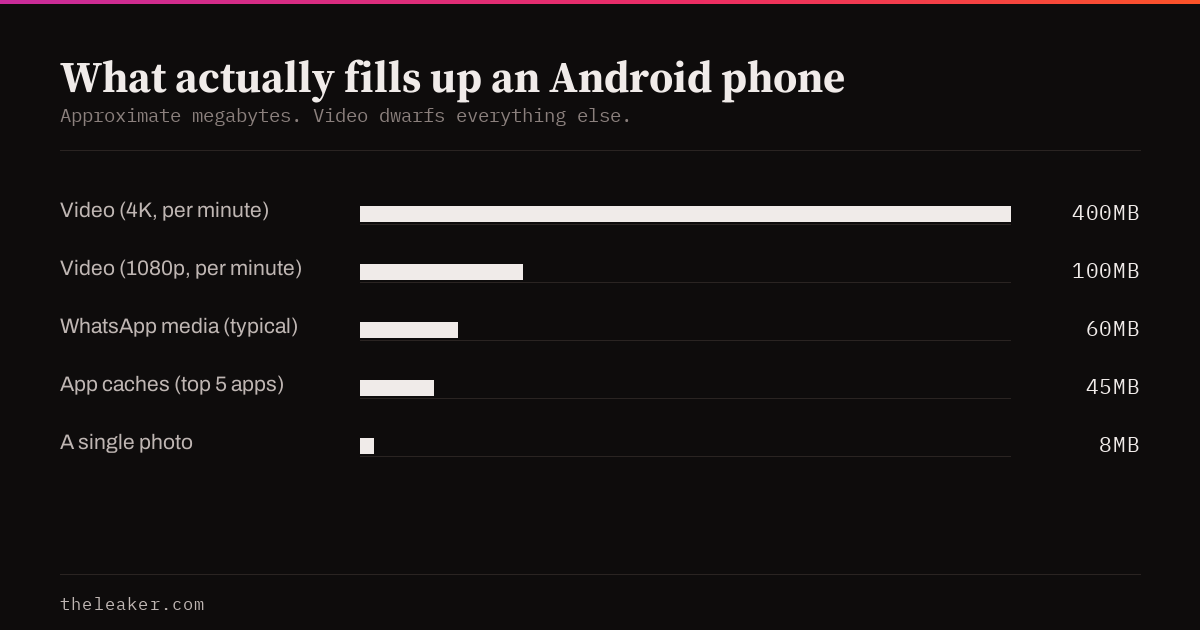
A sense of scale helps you aim your cleanup where it counts. A photo from a modern phone camera runs roughly 2-8 MB. Video is a different universe: 1080p recording eats roughly 60-100 MB per minute, and 4K recording around 170-400 MB per minute depending on your phone’s codec settings. One ten-minute 4K clip of a birthday party can outweigh two thousand photos.
Practical takeaways: sort your gallery by file size (Google Photos → search → “Videos”, or Files by Google → large files) and deal with the few biggest videos first: moving just five big clips to the cloud or a USB drive often beats deleting a thousand photos. And if your phone records 4K by default but you mostly watch clips on the phone itself, dropping the camera to 1080p/30 for everyday recording quietly halves your future storage problem. On phones that support it, enabling the “efficient” HEVC video format in camera settings cuts video size by roughly 40% with no visible quality loss.
Keep it from filling up again
Three habits prevent the next “Storage almost full” warning:
- Leave Google Photos backup on, and run Free up space once a month.
- Keep WhatsApp media auto-download off.
- Open Files by Google’s Clean tab whenever the notification nudges you. It takes 30 seconds.
Frequently asked questions
Will clearing cache delete my photos or log me out of apps?
No. Cache is temporary loading data only. The button to avoid is Clear data/Clear storage. That one resets the app completely.
Is “Free up space” in Google Photos safe?
Yes. It only removes local copies of photos that are already backed up to your Google account. You can still view, share, and re-download every photo from the Google Photos app or photos.google.com.
Why does my phone show storage as full when I barely have any apps?
Usually WhatsApp media, cached files, or offline downloads from streaming apps. Check Settings → Storage to see the breakdown, then follow steps 1-3 above. They cover the usual culprits.
Do phone-cleaner apps from the Play Store help?
Skip them. Most third-party “booster” apps show heavy ads and do nothing Files by Google doesn’t already do for free, and some actively make things worse by running in the background. Everything in this guide uses tools already on your phone.

I am the chief editor of TheLeaker. I also maintain the backend stuff of the site. I’m a tech enthusiast and loves to do Python coding in my free time. I have worked at many giant publications like XDA Developers and NXTtech before starting TheLeaker.
You can get in touch with me at Garv[at]theleaker.com.