
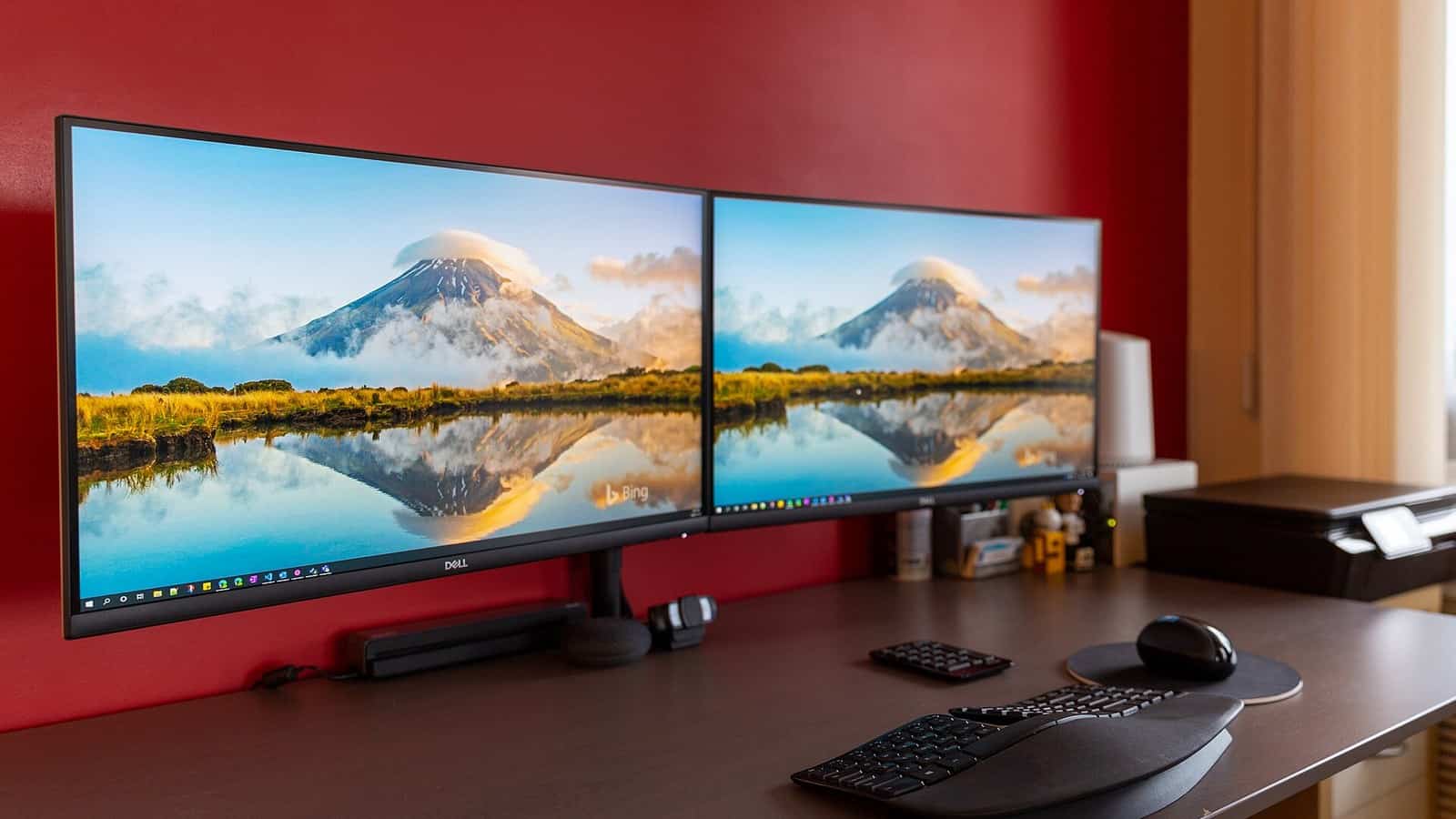
The short answer. Press Windows + P and choose Extend, or on a Mac open System Settings, Displays, hold the Option key and click Detect Displays. If the monitor still isn’t listed, stop guessing and find where the signal stops. Move the second monitor onto the port and cable your working monitor uses. If it lights up, the fault is the other port, the cable or the dock. If it stays dark there too, the monitor or its own settings are the suspect, and Microsoft’s advice is to test it on another computer. If the setup used to work and stopped after an update or a sleep, suspect a wake, driver, dock, firmware or connection problem, and the tests below will narrow it. And if it’s a MacBook Air with an M1 or M2 chip, check the limit below before you buy anything, because those Macs drive one external display natively.
The swap test narrows the fault to a group. The targeted checks below then pick out the port, cable, display limit, operating system or dock, with the manufacturer’s own page linked at each step and the cases where nothing on this page will help named as such.
Find where the signal stops
Microsoft’s external-monitor troubleshooting page starts by having you disconnect every dock, dongle and adapter, because “Connected docks, dongles, adapters and other hardware can cause conflicts.” Do that first, then run these in order and stop at the first one that tells you something.
- Plug the second monitor into the working monitor’s port, with the working monitor’s cable. That needs a connector both monitors accept. If your working monitor is HDMI and the second is USB-C or DisplayPort, borrow any known-good cable and port of the right type from another device, or test the second monitor on a different computer over its own input, which is Microsoft’s own suggestion. Lights up? The monitor is fine. The fault is in the second port, the second cable, or the dock, and the next section is yours.
- Still dark on the known-good port and cable? Check the monitor’s own input menu is on the input you’re using, then switch the monitor off at its power button, wait ten seconds, and switch it on. Now showing? It was asleep or on the wrong input. Still dark? Microsoft’s next step is to connect it to a different computer. Dark there too, and the monitor needs service. That’s the case this page can’t fix, and it’s better learned in the first five minutes than the last.
- Works on the good port but not its own port? Either the second port can’t carry video, or the computer can’t drive two displays. Both are in the next section, and the Mac limit table settles the second one in a glance.
- Works when plugged straight in but not through the dock? The dock section.
- Everything is plugged in as it always was and it stopped after an update, a sleep or a reboot? The operating-system section.
Two things this ladder can’t separate on its own. A monitor that appears on one port and not another can be a dead port or a display-count limit, which is why the next section covers both. And a monitor that’s detected but shows a black screen is a different fault from one that isn’t detected at all, so keep the two apart when you read on.
The port, the cable, or the number of displays
The port can’t carry video. A USB-C port only outputs a display signal if it supports DisplayPort Alt Mode or is a Thunderbolt port. Dell’s USB-C no-video article states it directly, and adds that “USB 2.0 and SuperSpeed USB ports on a computer do not support DP Alt Mode.” Alt Mode is per port. Lenovo’s own manual for the Legion 7 lists four USB-C ports and says one of them “does not support DisplayPort Alt Mode and therefore cannot be used to connect external displays.” Look for a small DisplayPort or lightning-bolt symbol beside the port, and if it’s unmarked, Dell’s advice is to check the manual.
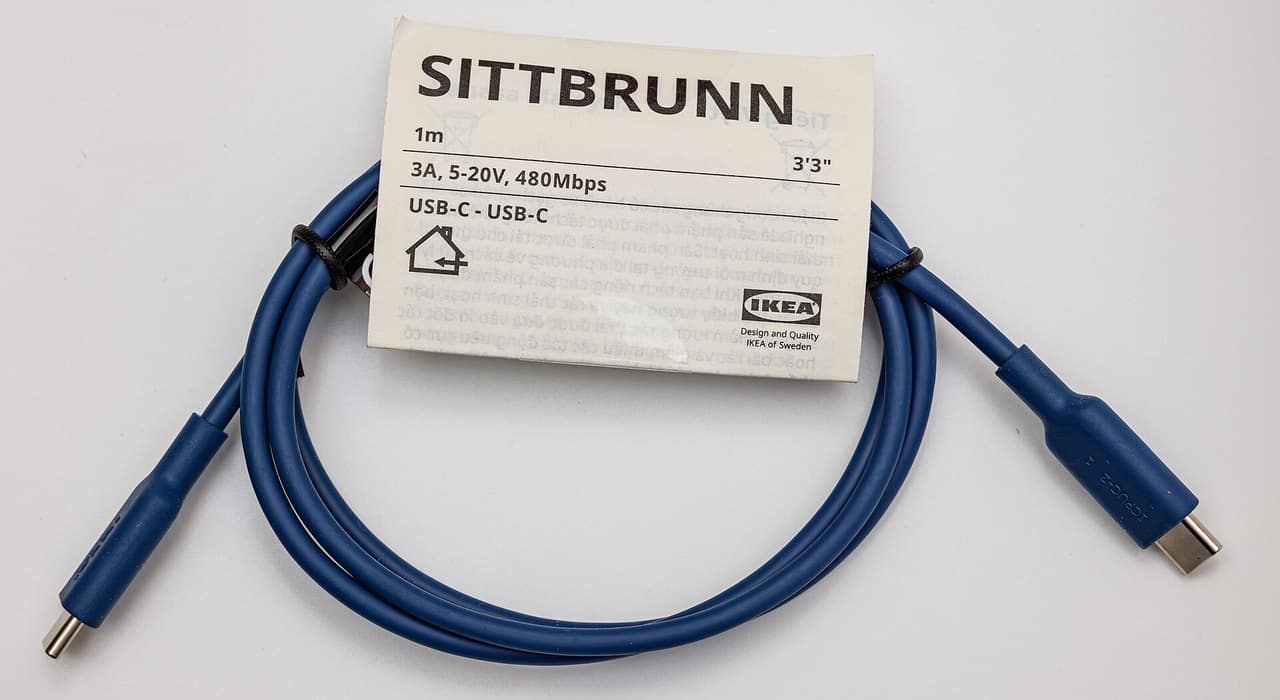
The cable can’t carry video. Plenty of USB-C cables are charge cables with USB 2.0 data inside. IKEA’s cable, pictured below, prints it on the label, 480 Mbps, which is the USB 2.0 data rate, and it’s sold for charging. Whether any given cable carries a DisplayPort signal depends on how it’s wired, and a charging cable is the one least likely to. If the cable came with a charger or a phone, assume it’s one of these and try a cable sold for video or one that came with a monitor or a dock.
The Mac has reached its native limit. This is in Apple’s spec sheets and in none of the Windows-only guides. The MacBook Air with M1 and with M2 each support “One external display”, per Apple’s M1 Air specs and M2 Air specs. A second independent external display isn’t supported natively on those machines, so it may stay dark or fail to appear as a separate display, and no cable changes that. The M3 Air runs two, but only if you “Close the MacBook Air lid to use a second external display”, and Apple’s dual-monitor guide for M3 requires an external keyboard and mouse, power connected, and macOS 14.3 or later before that works. The M4 and M5 Air support “Up to two external displays” with the lid open, and Apple’s page on the subject says closing the lid on an M4 “will not increase the number”.
| MacBook Air | External displays, natively | Source |
|---|---|---|
| M1 (2020), M2 (2022) | One | Apple, M1 specs; Apple, M2 specs |
| M3 (2024) | One with the lid open. Two with the lid closed, an external keyboard and mouse, power, and macOS 14.3 or later | Apple, M3 specs; Apple, dual displays on M3 |
| M4 (2025), M5 | Up to two, lid open | Apple |
The Pro models with Pro and Max chips have their own limits, and the pattern is the same. Apple’s connect-displays page says the count depends on the Mac model, so check your model’s tech specs page under Display Support before you buy a second monitor for a Mac. If you’re over the native limit, the indirect route is a DisplayLink dock or adapter, in the dock section.
Desktop plugged into an output that isn’t live. On a desktop with a separate graphics card, AMD’s multi-display FAQ says to make sure displays are “properly connected to the graphics card”. Which of the motherboard’s own ports stay active alongside a card varies by board and BIOS setting, so check the motherboard manual before you split monitors between the card and the board, and put both on the card if in doubt.
A splitter isn’t two outputs. Microsoft’s troubleshooting page says a splitter “is duplicating the same signal instead of creating two independent signals.” If your PC has one video output, you need a dock or a USB-C adapter that adds one, and Microsoft says so on the same page.
The monitor’s own settings
Input. Monitors don’t reliably switch inputs by themselves. Most need telling.
Press the monitor’s Input or Source button and pick the connector you’re actually on.
DisplayPort mode. Many monitors carry a DisplayPort version setting in their on-screen menu. Dell’s DisplayPort settings article covers the case where a monitor is detected but stuck at a low resolution, and the fix is to “configure DisplayPort input to DisplayPort 1.2 in the On-Screen Display (OSD) settings.” If you’re in that situation over DisplayPort, find the setting in the monitor’s menu. If the monitor isn’t detected at all, this setting is one thing to try flipping, and your monitor’s manual is the source for what its options mean.
HDMI bandwidth. High resolutions at high refresh rates need bandwidth from the port, the cable and the monitor together. The HDMI Forum’s 2.1 announcement puts that spec at up to 48 Gbps, names 4K120 among the modes it enables, and introduces the Ultra High Speed cable for it. How much bandwidth a given picture actually needs depends on color format, bit depth and compression, so if a monitor is detected and drops out at a high mode, the fix is to lower the refresh rate or resolution in the display settings and then check the port, cable and monitor specifications for the mode you want. That refresh-rate change needs a detected display to apply to. A monitor that isn’t detected at all has no setting for you to lower.
After sleep. Monitors that vanish after the computer sleeps are commonly reported. Two reversible tests before you change anything. Switch the monitor off and on at its own power button while the computer is awake, which forces a fresh connection. And look in the monitor’s own power or “Others” menu for a deep-sleep or power-save option, which some monitors carry, and try the other setting. Neither proves a cause. If the monitor keeps dropping after sleep with the dock out of the loop and a known-good cable, the driver section is next.
The operating system lost it
Windows. Windows + Ctrl + Shift + B restarts the graphics driver without a reboot, which Microsoft’s troubleshooting page says “may fix your issue”. Then Settings, System, Display, Multiple displays, Detect, which is on Microsoft’s multiple-monitors page for when a connected display “isn’t showing in Settings”. If Detect finds nothing, the driver is next. Take my own precaution first and download the current graphics driver from your PC maker or the GPU maker, so you have it on disk. Then follow Microsoft’s order. In Device Manager, under Display adapters, right-click the adapter, Properties, Driver tab, Roll Back Driver if the problem followed an update. If there’s nothing to roll back to, Microsoft’s wording is “select Uninstall device and Attempt to remove the driver for this device, then select Uninstall”, restart, then back in Device Manager choose Update driver and let it search automatically, or run the installer you downloaded.
Mac. System Settings, Displays, hold Option, click Detect Displays, per Apple’s dark-display page, which also has you unplug and reconnect, put the Mac to sleep and wake it, and restart. On a Mac with Apple silicon, skip anything you read about resetting NVRAM or the SMC. Apple’s pages say the NVRAM steps “don’t apply to Mac computers with Apple silicon” and that the SMC “resets automatically on Mac with Apple silicon”, so a restart, or a shutdown with the power connected, is the whole procedure. On an Intel Mac both resets still exist and Apple’s two pages give the key combinations. One more thing that catches people on an Apple silicon laptop. A new dock or adapter can trigger a permission prompt asking whether to allow the accessory to connect, and until you allow it, the displays behind it stay dark.
Linux. One Ubuntu Discourse thread from 2025 holds two unrelated cases. It opens with a laptop whose USB-C monitor threw “Your device does not support DP Alt mode” on Ubuntu while working on Windows, and later carries a different participant’s desktop fix that came down to mismatched NVIDIA driver packages. The lesson I’d take is narrower than a recipe. If the same port works on Windows, the hardware is fine and the driver stack is the suspect, and the thread’s diagnostics are the place to start, with a recovery plan before you remove any driver package.
It is the dock
Docks carry video by one of three paths, and some products combine them. A Thunderbolt or USB4 dock tunnels the computer’s own video through, so the Mac display limits above still apply, and the laptop’s port has to be Thunderbolt or USB4 for that to work. A plain USB-C dock passes the computer’s video over DisplayPort Alt Mode, so the port has to support that. A DisplayLink dock is different in kind. Its driver “picks up the pixels in the frame-buffer, encodes them” and sends them over ordinary USB to a chip in the dock that decodes them, per Synaptics, which makes DisplayLink, and the operating system sees the result “as if they were normally attached monitors.”
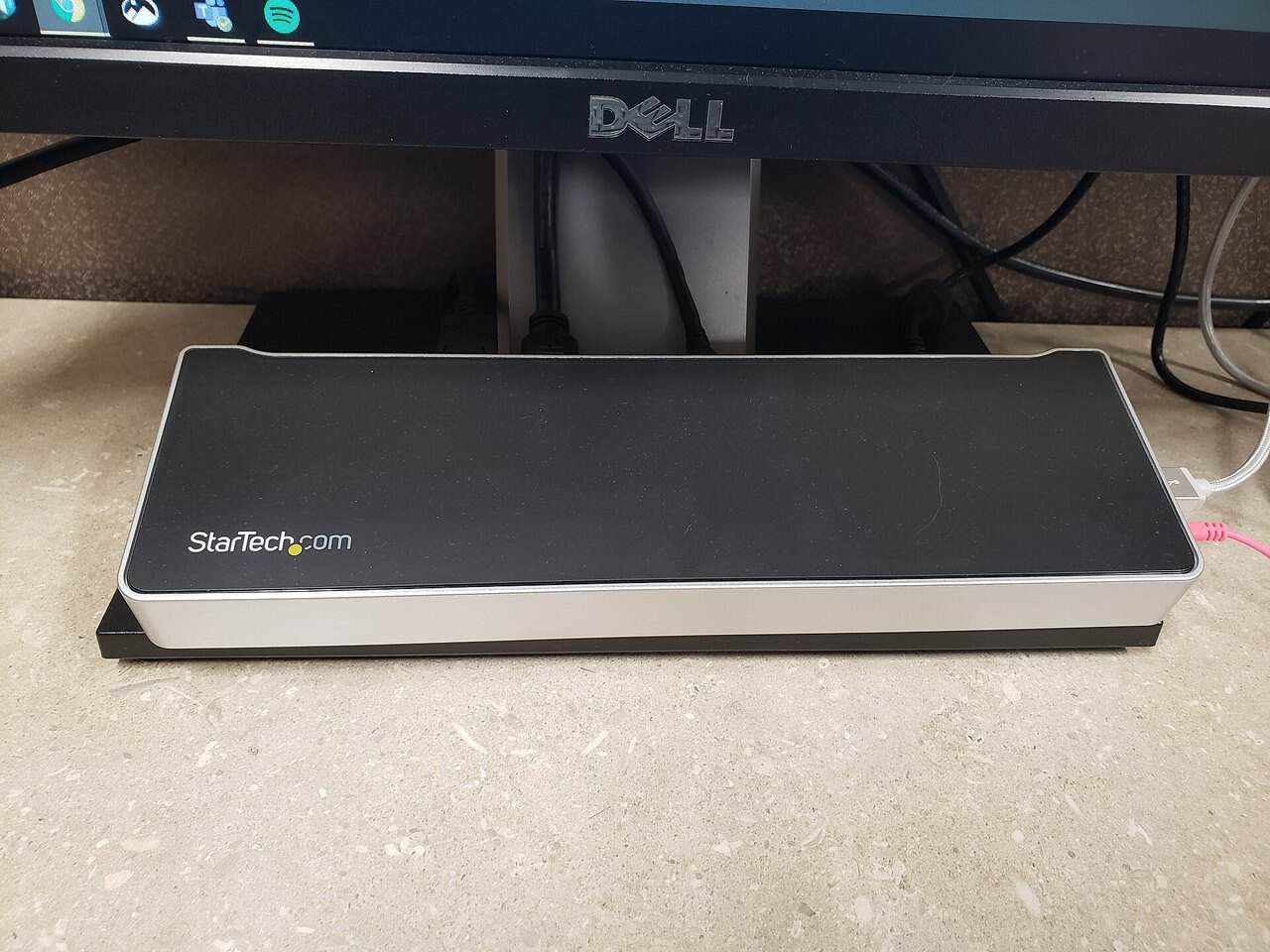
That difference is why a DisplayLink dock or adapter is the indirect way to add a display beyond the native limit. The video isn’t coming from the Mac’s display engine, so the limit doesn’t count it. Plugable documents that for M1 Macs, and the mechanism above is why it works. Before buying for an M2 or later, or for macOS 26, check the dock maker’s compatibility list for your exact model, because that page doesn’t cover them. Some docks mix a native Alt Mode output with DisplayLink outputs, so read which port on the dock does which. The costs are that DisplayLink needs its own driver, DisplayLink Manager on a Mac, which its install notes say must be granted Screen Recording permission, that macOS caps such virtual displays at four, and that the picture is being compressed in software, which Plugable says makes it a poor choice for gaming or color work.
So the dock checklist is short. If a dock output is DisplayLink, install or update DisplayLink Manager, and on a Mac check the accessory was allowed to connect and the app has Screen Recording permission; DisplayLink’s not-working-at-all guide has you confirm the dock shows in System Report first. If the output is native, over Thunderbolt, USB4 or Alt Mode, plug the monitor straight into the laptop to prove the port and cable, then check the dock maker’s support page for firmware. Dell, for one, documents intermittent monitor blanking on its WD19 and WD22TB4 docks with a list of causes that runs from loose cables and drivers to monitor firmware, and resolves its own dock case with specific firmware versions. Other docks have their own pages. And if the laptop port feeding the dock is the one without Alt Mode, no dock of the first two kinds will ever show a picture.
What to do tomorrow if it comes back
If the monitor drops out after every sleep, treat the monitor’s power-save behavior and the DisplayPort connection as the first hypotheses, run the swap test again with the dock out of the loop, and only then change something durable, whether that’s the monitor’s power menu, a different cable, or HDMI instead of DisplayPort on that screen. If it drops after every Windows update, keep the GPU maker’s installer on disk and roll the driver back the day it happens. And if it never worked on a MacBook Air with an M1 or M2, stop buying cables. Buy a DisplayLink dock or adapter, or accept one external display, because Apple’s spec sheet isn’t going to change.
A laptop that’s dark on its own screen too is a different fault, and laptop won’t turn on and Mac won’t turn on cover the four states that look identical from the chair.

Yash Jain writes about Android and Apple for The Leaker, focusing on how to guides, download resources, and top and best roundups. His articles walk readers through setup steps and app choices, compare options across categories, and follow news updates across both mobile platforms as they develop.