
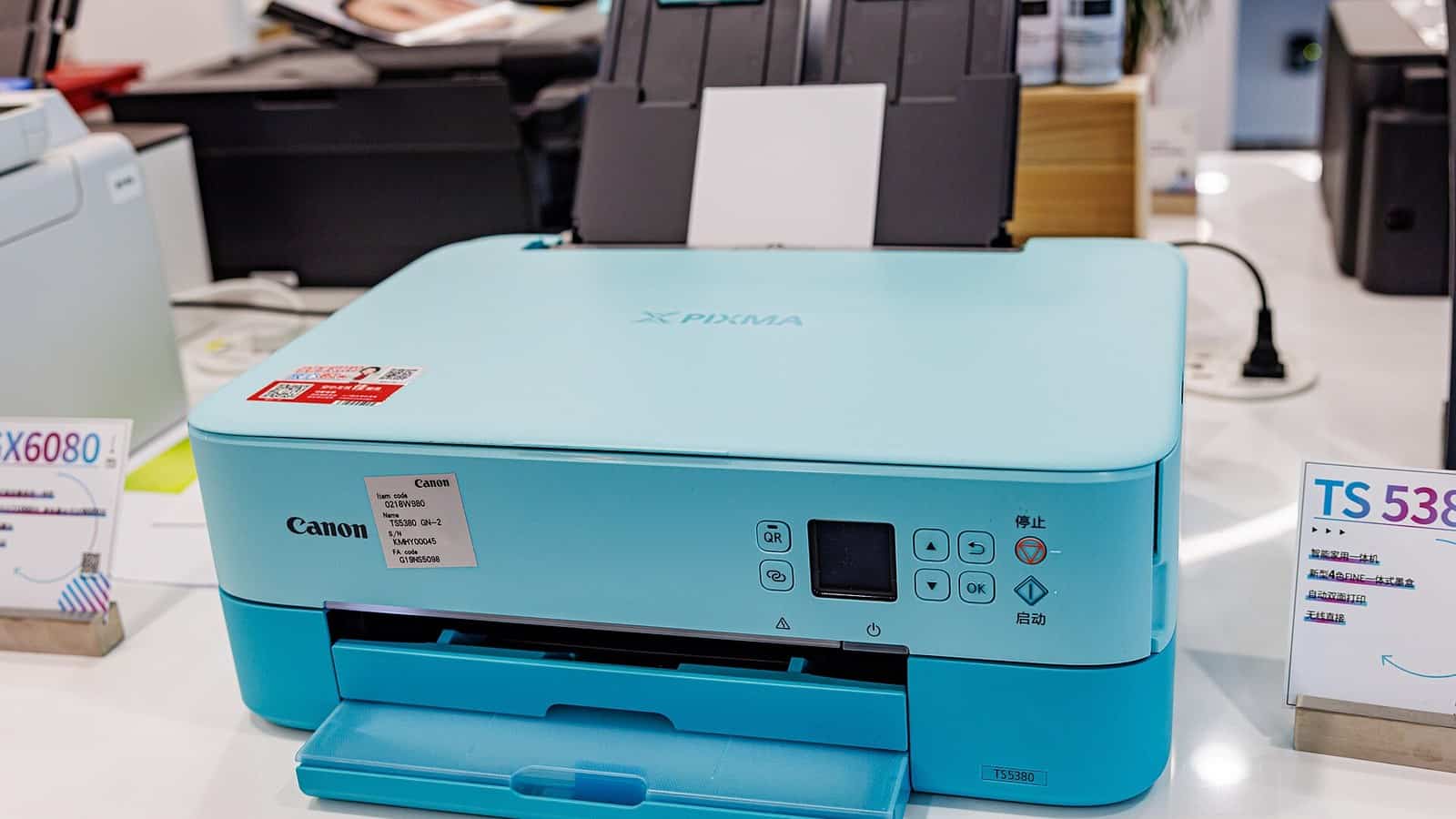
The short answer. “Offline” is your computer’s opinion of the printer, and the two disagree more often than the printer is actually dead. Start by turning the printer off and on and printing a test page from its own menu. If that prints, the printer’s print engine works and the fault is somewhere on the path between the two. The common categories are a Windows queue that has been left flagged offline, a printer whose network address changed while the computer kept calling the old one, a printer that isn’t on the same network as the computer, and a Mac or phone that can’t see it or has the queue paused. Each has its own section below with the manufacturer’s page linked. Most of the steps are tests you can undo, and the few that change something, the Mac printing-system reset and a firmware update, are flagged where they appear. Run them in order and stop when the printer comes back.
The page HP sends you to first says restart everything and install its app. Microsoft’s own Windows 11 page never mentions the checkbox behind a lot of these. So here is the version with the mechanism attached, for the day the printer is visibly on, visibly connected, and the computer still won’t have it.
Where to start, and what a test page proves
- Printer prints its own test page, Windows still says Offline, nothing on the network has changed. Start with the stuck flag.
- It stopped after a new router, a router reboot, a power cut, or a long sleep. Start with the address changed.
- It has never worked reliably, works from one device and not another, or you’re in a hotel, a dorm or on a mesh system. Start with the wrong network.
- Mac says Paused or Disconnected, iPhone says No AirPrint Printers Found, Android shows the printer grayed out. Start with Mac and phone.
Your printer’s manual says where its test print lives, usually under a menu called Setup, Maintenance, Reports or Tools. Epson’s offline FAQ for its ET-3850 makes a nozzle check the very first step, and the logic travels to any brand. A page that prints from the printer’s own panel proves the print engine works. It says nothing yet about the printer’s network connection or the computer’s queue, which is what the rest of this page is about. If the test page won’t print, stop here, because the fault is in the printer itself. Clear any error on its panel, check paper, jams and ink or toner, and if it still won’t print its own page, that’s the maker’s support line, not a network problem.
Windows says Offline and won’t change its mind
Windows keeps a per-printer setting called Use Printer Offline, and once it’s on, the queue stays Offline until someone turns it off. Microsoft’s offline-printer page tells Windows 10 users to open the queue and “clear Pause Printing and Use Printer Offline”. Its Windows 11 tab on the same page omits the checkbox entirely, and the Settings-style queue you reach from Printers & scanners doesn’t show a Printer menu. The setting still exists in the old Devices and Printers window, and reaching that window on Windows 11 takes one of two routes, both documented in replies on Microsoft’s Q&A site after Windows 11 22H2 started redirecting the Control Panel entry to Settings.
- Press Windows + R, paste
shell:::{A8A91A66-3A7D-4424-8D24-04E180695C7A}and press Enter. The classic Devices and Printers window opens. Or open Settings, Bluetooth & devices, Printers & scanners, choose your printer, and click More devices and printer settings at the bottom. - Right-click your printer and choose See what’s printing.
- Open the Printer menu at the top of that window. If Use Printer Offline has a check next to it, click it to clear it. Do the same for Pause Printing.
That is the route Epson gives in its offline FAQ, minus the Windows 11 detour. Microsoft documents one way the flag outlives your fixes in a Windows Server article. The setting is a registry value that “isn’t deleted” when you delete the queue, so a printer removed and added back under the same name “inherits the Offline status of the deleted print queue.” If removing and re-adding the printer changed nothing for you and it came back with the same name, that article is why, and clearing the checkbox is the fix.
If the box was already clear, the next thing to test is the status probe. A network printer on a Standard TCP/IP port is polled over a protocol called SNMP to ask how it’s doing, and Microsoft’s description of that port monitor says printers that don’t comply “do not return status information.” Xerox’s support article on the subject says that with the probe on, “SNMP Status will incorrectly report the machine as offline” on some setups. Xerox’s remedy is a reversible test on any brand. Printer properties, Ports tab, select the port in use, Configure Port, untick SNMP Status Enabled, OK, and try printing. If it prints, you’ve traded the computer’s paper and ink warnings for a working printer. If it doesn’t, tick the box back on and move to the next section, because the probe wasn’t the problem.
Still Offline? Microsoft’s Windows 11 list is best run in its order. The Get Help troubleshooter, unplug the printer for 30 seconds, check it’s on the same Wi-Fi as the PC, set it as default (the option is hidden while “Let Windows manage my default printer” is ticked), Cancel all in the queue, then restart the Print Spooler service. For that last one, press Windows + R, type services.msc, find Print Spooler, right-click, Restart, per Microsoft’s spooler page.
The printer’s address changed and the computer didn’t notice
Your router hands out addresses on a lease, and a printer that’s been asleep, or a router that’s been rebooted, can come back with a different one. The problem is how Windows talks to a network printer. A Standard TCP/IP port stores the address you gave it when it was created, in a field Microsoft labels “Printer Name or IP Address”. If the printer moves, the port keeps sending to an address nobody answers, and the status goes Offline.
Brother’s network printing guide is the clearest vendor version of the fix. Print the printer’s Network Configuration report from its menu. Check the IP address on it is a usable one, because 000.000.000.000, or anything starting 169.254, means the printer didn’t get an address from your router, and a 169.254 address isn’t usable for ordinary printing through a router, so reconnect the printer to the Wi-Fi first. Then, on the PC, open Printer properties, Ports, Add Port, choose Standard TCP/IP Port, click New Port, Next, enter the address from the report, Next, Finish, then Close, make sure the new port is the one ticked, and Apply. Brother’s guide for printers that stop printing after sleep includes the same port rebuild in its steps, alongside a firmware update, which is a fair hint that a post-sleep failure and a moved address overlap. The same page says Brother’s Sleep mode can’t be turned off, so don’t go looking for that switch.
Then stop it happening again, one of two ways.
- Reserve the address on the router. Netgear’s reservation guide puts it under ADVANCED, Setup, LAN Setup, Address Reservation, and a reserved device “is always assigned the same IP address”. Every router brand has the equivalent, usually under DHCP.
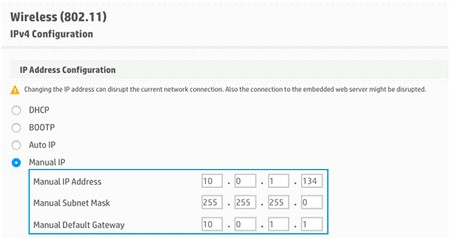
- Or set the address on the printer. HP’s offline document does it through the printer’s own web page. Type the printer’s current address into a browser, open the Network or Networking tab, then Wireless, then IPv4 Configuration, choose Manual IP, click Suggest a Manual IP Address, check the fields against the Network Configuration Page, and Apply.
One more address-shaped fault. If your printer was added through Windows’ plug-and-play discovery rather than by address, it sits on a WSD port, and WSD finds printers by broadcast announcements on the local network. A 2008 Microsoft engineering write-up of the WSD port monitor says the Network Discovery firewall exceptions have to be on for that to work, and Windows turns those off when it thinks you’re on a Public network. HP’s document has the consumer version of the fix. Click the network icon in the taskbar, open the network’s properties, and set the profile to Private. HP’s own caution on that step is the right one. Do it only on your own home or office network, never in a hotel or a café, because Private also makes your PC discoverable to everything else on that network. If a WSD printer keeps dropping, replacing its port with a Standard TCP/IP port on a reserved address ends the cycle.
It isn’t on the network you think it is
The printer only speaks 2.4 GHz. Many do. HP’s Wi-Fi troubleshooting document says “not all HP printers support both bands”, tells you to make sure the 2.4 GHz band is enabled and broadcasting, and, where the router broadcasts separate names for each band, to connect the printer to the 2.4 GHz one. Brother’s after-sleep guide says the same of its machines and recommends giving each band its own name. This is a setup problem, not a daily one. Once a 2.4 GHz-only printer has joined, it’s on the same network as your 5 GHz laptop and they talk normally. The trouble comes when a single-name mesh or router won’t let the printer join in the first place, and eero’s answer is a button in its app, under Troubleshooting, My device won’t connect, My device is 2.4 GHz only, which eero says pauses 5 and 6 GHz for ten minutes so the device can join. Epson’s advice for a 5 GHz-only router is to run it in dual band.
Guest and public networks. HP’s Wi-Fi document says a printer connection “cannot be established over public or guest networks” that need a login page or confirmation, which covers hotels, dorms and most cafés, and adds that on a restricted network the router administrator has to allow the printer’s address. At home, a guest network is a separate network by design, so a laptop on the guest network can’t see a printer on the main one. Related, and easy to miss on a home router, is a setting called AP isolation or client isolation, which TP-Link’s explainer says stops devices on the same Wi-Fi talking to each other and specifically breaks printer access. If it’s on, turn it off for the main network.
VPNs and direct connections. A VPN on the laptop is a suspect only if its client blocks local-network access, which some do by default, so if you run one, try printing with it disconnected. And HP printers broadcast their own network named DIRECT-xx-HP. Joining the laptop to that instead of the house Wi-Fi connects it straight to the printer and can drop its internet and everything else on your home network, which is why HP’s Wi-Fi document tells you not to connect to it during normal use.
Mac and phone use different words, and different fixes
Apple’s current guide to the printer status icons uses Paused, Disconnected and Error rather than one universal Offline state, though you can still meet the word in the queue window. Apple’s guide to checking a printer on Mac shows five conditions by icon. Paused, which “can be paused by a printer problem, a loss of connection, or another user.” Password-restricted. Disconnected, meaning the printer “isn’t turned on or isn’t connected to your Mac.” Shared, for a printer on another Mac. And Error, where Apple gives paper, ink and jams as examples. Apple’s printing problems page for macOS 26 has you click the Print Center icon in the Dock to open the queue, and if you see a Resume button in the toolbar, the printer is paused, so click it. Delete the job that’s showing an error, try printing from TextEdit to rule out the app, and re-add the printer from System Settings, Printers & Scanners if that fails.
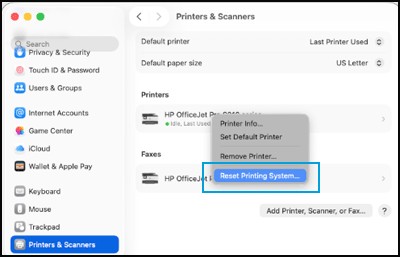
The last resort is an Apple procedure. In System Settings, Printers & Scanners, Control-click the printer in the list on the right and choose Reset Printing System. Apple’s page on it warns it removes every printer from the list, deletes the record of completed print jobs, and deletes your printer presets, so you add the printer back afterwards. One Apple Community thread that ranks for this query is a useful anecdote. The reset held only until the next job for one macOS 12.6 owner with an HP printer. What worked, on a fellow user’s advice, was powering off the router, the printer and the Mac together, waiting two to three minutes, powering on the router, waiting two to three minutes, powering on the printer, waiting a minute or two, then the Mac. One user’s result, and a free one to try.
iPhone and iPad. AirPrint has one rule and Apple repeats it on every page. The phone and the printer “must be on the same Wi-Fi network”, per the iOS 26 user guide. Apple’s AirPrint page adds that a printer plugged into an old AirPort base station’s USB port, or connected by Bluetooth, can’t use AirPrint at all. So when the phone says No AirPrint Printers Found, the first check is the network. Cellular and the guest network count as a different network, and a VPN is worth disconnecting as a test if its client blocks local-network access. If the phone is on the right Wi-Fi and the printer still doesn’t appear, the printer’s own AirPrint support, power state and the isolation settings above are the next suspects.
Android. Android phones print through a print service, and the Mopria service that Mopria’s FAQ says comes factory-installed on many phones works with Mopria-certified printers. The FAQ’s rule is the same one in more words. A wireless network connected to both, and not “public Wi-Fi hotspots, Bluetooth connections, or cellular data”, with one exception, which is Wi-Fi Direct from the phone straight to a printer that supports it on Android 9 and later. It also explains the grayed-out printer that confuses people. Printers “may be grayed out if they were used previously, but then disconnected”, or if the printer is off. If the printer never shows, Mopria lets you add it by IP address from the print service’s menu, using the address from that Network Configuration report. On a Pixel the printing settings live under Settings, Connected devices, Connection preferences, Printing, per Google’s page.
If none of that moved it
Firmware, then the vendor’s app. A firmware update changes the printer and usually can’t be rolled back, so run it on stable power and don’t switch the printer off mid-update. Brother’s after-sleep guide lists a firmware update among its steps, and HP’s offline document puts its own on the printer’s menu, with Setup, Printer Maintenance, Update Printer, Check Now as its example and a note that the path varies by model. Epson’s FAQ, for its part, has you switch Windows Firewall off temporarily while its software installs, on Windows 11 under Settings, Network & Internet, Advanced network settings, Windows Firewall, and switch it back on when the install is done, which is an installation step rather than a diagnostic. The vendor apps, HP’s Diagnose & Fix in particular, are good at the one thing the sections above do by hand, which is finding the printer’s current address and re-pointing the queue. They’re a fair last step. They’re a poor first one, because they don’t tell you what they changed, and the next time it happens you’re back at the start.
If you got here because the router itself changed, its admin page is where the reservation above lives, and our guide to the router’s device list shows how to get in and find the printer’s entry. More phone and home-network fixes are in our guides hub.

Akshay Mhatre is a Tech Journalist who likes to keep up with the latest from the tech world. He has worked at many popular news portals like BGR and TechRadar before joining TheLeaker as a News writer and journalist. A writer by day and a VFX artist by night. In his free time, he also likes to make motion graphics and concept art. You can find him on Instagram @akshayrazr_95 and contact him on akshaymhatre[@]theleaker.com.