
Your phone isn’t slow because it’s old. It’s slow because Android ships with settings tuned for looks and battery stats, not speed. The fix is a handful of hidden Android settings buried where most people never look. None of the tweaks below need root, a “booster” app, or anything from outside your phone. Ten minutes, real results.
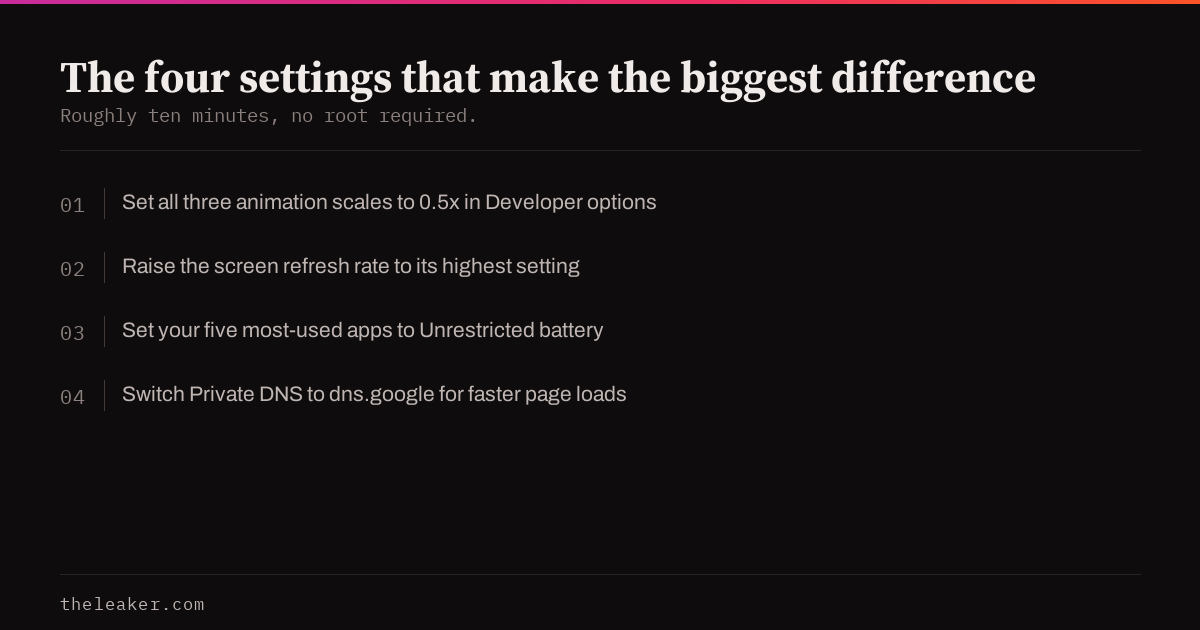
The quick list: the fastest wins are cutting animation speed in Developer Options (makes any phone feel dramatically snappier), switching your screen to its highest refresh rate, turning off animations you don’t need, killing battery optimization for your most-used apps, enabling Private DNS to speed up browsing, and stripping out the preinstalled apps you never open. Each one is a hidden Android setting: off by default, free, and reversible.
Let’s go through them, starting with the one that makes the biggest difference.
1. Speed up animations: the classic Developer Options trick
Every tap on Android triggers an animation: windows zoom open, menus slide in. They look nice, but each one adds a delay you feel hundreds of times a day. Cut them in half and your phone instantly feels like it got a hardware upgrade.
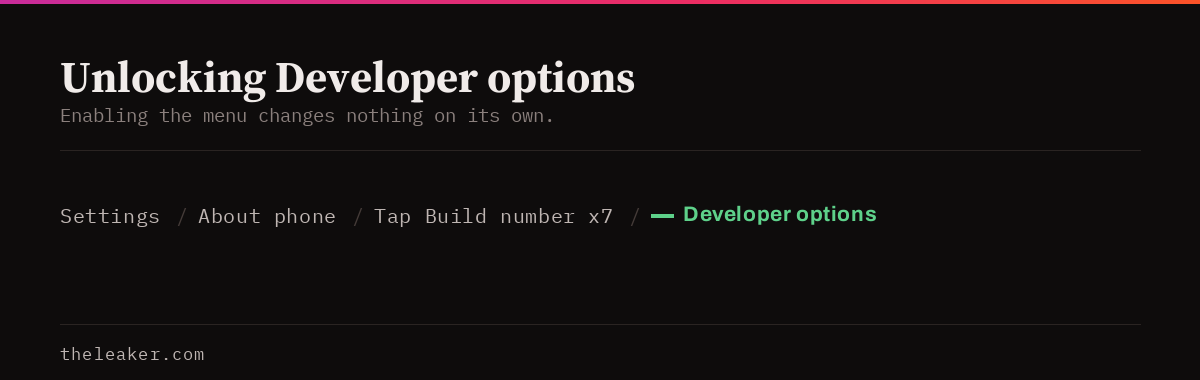
First, unlock Developer Options (it’s hidden by default):
- Go to Settings → About phone.
- Tap Build number seven times. You’ll see “You are now a developer!”
Now go to Settings → System → Developer options, scroll to the Drawing section, and set all three of these to 0.5x:
- Window animation scale
- Transition animation scale
- Animator duration scale
That’s it. Open a few apps and feel the difference. It’s the single most noticeable free speed boost on Android. (Setting them to “off” is even faster, but 0.5x keeps things smooth-looking.)
2. Max out your screen’s refresh rate
Many phones ship with a 90Hz or 120Hz display but run at 60Hz out of the box, or in an “adaptive” mode that plays it safe. Check Settings → Display → Refresh rate (Samsung calls it Motion smoothness) and pick the highest option. Scrolling instantly looks and feels smoother. It costs some battery, but if speed is what you’re after, this is the trade worth making.
3. Stop Android from killing your favorite apps
Ever notice WhatsApp taking forever to load messages, or music stopping when the screen is off? That’s aggressive battery optimization shutting apps down behind your back, and the restart-from-cold is what feels slow.
For the five apps you use most: long-press the app icon → App info → Battery → set to Unrestricted. Those apps now stay warm in memory and open instantly. Don’t do this for everything: just your daily drivers.
4. Switch to a faster Private DNS
Every website and app connection starts with a DNS lookup, and your carrier’s default DNS is often slow. Android has a hidden system-wide fix:
- Go to Settings → Network & internet → Private DNS.
- Choose Private DNS provider hostname.
- Enter
dns.google(orone.one.one.onefor Cloudflare) and save.
Pages start loading sooner, and as a bonus your DNS lookups are now encrypted. Your network can’t see which sites you’re resolving.
5. Uninstall or disable the bloatware you never asked for
Preinstalled apps sync, update, and push notifications in the background whether you open them or not. Go to Settings → Apps, sort the list, and for anything you never use hit Uninstall, or Disable if uninstall isn’t offered. A phone with 40 apps will always feel quicker than the same phone with 140.
Can’t decide? The rule of thumb: if you haven’t opened it in three months and can’t say what it does, disable it. You can re-enable anything later with zero loss.
6. Clear cache for your heaviest apps
Bloated caches slow apps down and eat storage. For your biggest apps (check Settings → Apps, sorted by size): open the app’s info page → Storage → Clear cache. Safe, instant, and nothing gets logged out. A phone that’s nearly out of storage also slows down system-wide, so if you’re above 90% full, storage cleanup is a speed tweak.
7. Turn off animations and effects your launcher adds
Samsung, Xiaomi, and other brands layer their own eye candy on top of Android’s. Worth checking:
- Samsung: Settings → Accessibility → Vision enhancements → Remove animations (one switch, big effect).
- Xiaomi/HyperOS: Settings → Home screen → turn off animation-heavy transitions; consider a lighter launcher.
- Any phone: live wallpapers are a constant GPU tax. A static wallpaper is measurably lighter.
8. Schedule an automatic weekly restart
A restart clears leaked memory and stuck background processes. It’s why “turn it off and on again” genuinely works. Most Android skins can do it for you while you sleep: on Samsung it’s Settings → Device care → Auto optimization → Auto restart; Xiaomi, OnePlus, and others have an equivalent under battery or maintenance settings. Set it for 4 a.m. once a week and forget about it.
9. Check what’s draining you in the background
Back in Developer Options there’s a gem called Running services. It shows exactly which apps are sitting in your RAM right now. If some app you barely use is always there, that’s your cue to disable it, restrict its battery, or uninstall it. This is the honest version of what “phone booster” apps pretend to tell you.
10. On Android 16 or 17? Two new ones worth flipping
If your phone has been updated recently, you’ve got a couple of extra toys. Android 17’s Bubbles lets you keep any app in a small floating window, long-press a notification and choose the bubble icon, which is much faster than switching apps back and forth. And check Settings → Security to confirm Theft Detection Lock is on; Android 17 enables it by default on new devices, but upgraded phones sometimes need the toggle flipped manually. Not a speed tweak, but it’s the one hidden setting everyone should verify.
11. Turn off sync for accounts you don’t use
Every Google account, email account, and app account on your phone syncs in the background on its own schedule: contacts, calendars, mail, app data. Most people have at least one dead account still dutifully syncing years later. Go to Settings → Passwords & accounts, tap each account, and either remove the ones you no longer use or switch off sync categories you don’t need (does your work account really need to sync its calendar to your personal phone?). Fewer sync jobs means fewer background wakeups, which means more headroom for the apps you’re actually using.
12. RAM Plus / virtual RAM: less is often more
Here’s a counterintuitive one. Samsung, Xiaomi, and others ship “RAM Plus” or “Memory extension”. A feature that uses a slice of your storage as pretend RAM. It sounds like free performance. In practice, storage is orders of magnitude slower than real RAM, and on phones with 8 GB or more of actual memory, the feature can make app switching slower while adding wear to your storage. Find it under Settings → Battery and device care → Memory → RAM Plus (Samsung) or the equivalent memory-extension toggle on other brands, and set it to the minimum, or off, where allowed. On a RAM-starved budget phone (4-6 GB), it can still help; on anything mid-range or better, it’s a brake pedal pretending to be an accelerator.
Two “speed tweaks” you should NOT do
Part of making a phone fast is refusing folklore that makes it slower. Two Developer Options myths worth killing:
- “Force GPU rendering”: leave it off. Modern apps already use the GPU where it helps. Forcing it globally pushes work onto the GPU that was never designed for it, which costs battery and can cause visual glitches in older apps. It’s a relic from a decade ago.
- “Background process limit”: leave it at standard. Capping background processes sounds like it should free resources, but it fights Android’s memory manager, forces cold restarts of every app you switch to, and makes the whole phone feel slower. Same trap as task-killer apps, just built-in.
The honest rule: if a tweak works by fighting Android’s own resource management, it will lose. Everything else in this guide works because it removes real work (animations, sync jobs, bloatware) instead of just shuffling it around.
What about task killers and RAM booster apps?
Don’t. Android manages memory well on its own: apps held in RAM are why they reopen fast. Task killers force-close everything, and then your phone burns CPU and battery reopening it all from scratch. Every tweak in this guide works with Android’s design instead of fighting it.
Frequently asked questions
Is it safe to enable Developer Options?
Yes. Enabling the menu changes nothing by itself. It just reveals settings. Stick to the animation scales and Running services mentioned here and you can’t break anything. You can hide the menu again anytime from its own toggle at the top.
Will these tweaks hurt my battery?
Only the refresh rate one has a real battery cost. Faster animations actually finish sooner, disabling bloatware saves battery, and unrestricting five apps is negligible. If battery matters more to you than smoothness, skip tweak #2 and keep the rest.
My phone is still slow after all this. What now?
If storage is above 90% full, fix that first. A nearly-full phone slows everything down. Beyond that, check for a pending system update, and as a last resort a factory reset (after backing up) gives an old phone a genuine second life. If it’s still crawling after a clean reset, the hardware has simply reached its limit.
Do I need to root my phone for any of this?
No. Every setting in this guide is built into stock Android or your manufacturer’s software. Rooting in 2026 is rarely worth it for performance alone.

A tech Journalist and Photographer, Dhawal Sharma is a technology enthusiast who loves to research the latest innovations and technology. He has contributed to the Honor Community for a very long period and has crucial expertise in writing tech news and reviewing smartphones and laptops. Analyzing and bringing the facts about any piece of tech is what he loves the most. He is a great product photographer and is the Gizmopedia of TheLeaker. Find him on Facebook and Instagram, and you can also email him at [email protected].