
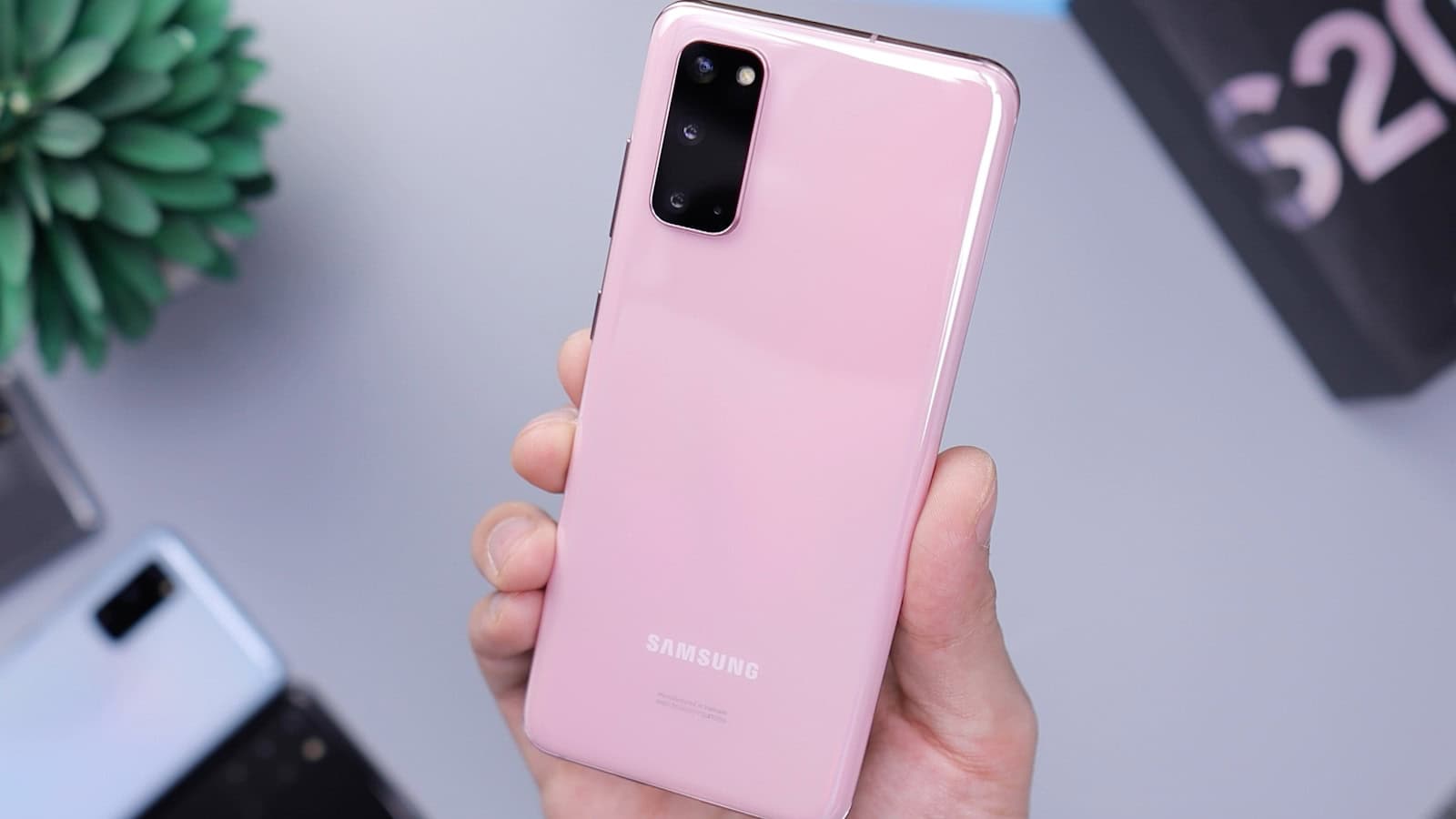
Secure Folder is the most useful Samsung feature that people either ignore completely or use wrong. It gets described as “the place you hide stuff,” which is technically true and misses the point entirely. It’s a second, encrypted phone living inside your phone: with its own apps, its own accounts, and its own storage.
The quick answer: Secure Folder creates an encrypted, separately-locked container on your Galaxy phone. Apps and files inside it are isolated from the rest of the system. A photo in Secure Folder doesn’t show up in your normal Gallery, and an app installed inside it can’t see your main account data. You set it up from Settings → Security and privacy → Secure Folder, sign in with a Samsung account, and pick a separate PIN, password, or pattern. The most common use isn’t hiding things from other people at all: it’s running a second copy of an app so you can be logged into two accounts at once. The two things you must understand before relying on it are that a factory reset destroys the contents permanently, and that recovery depends entirely on the Samsung account you set it up with. Lose access to that account and the data is gone.
What Secure Folder actually is under the hood
Secure Folder is built on Android’s work profile system, the same mechanism companies use to keep corporate apps separate from personal ones on employee phones, with Samsung’s Knox security platform layered on top.
That architecture matters, because it explains the behaviour that confuses people. Secure Folder isn’t a folder. It’s a separate user space. Apps inside it are genuinely separate installations with their own data directories. That’s why:
- You can install the same app twice (once outside, once inside) and sign into different accounts in each.
- Files moved into Secure Folder disappear from the main Gallery and file manager entirely, rather than being flagged as hidden.
- Apps inside can’t read contacts, photos, or storage from outside unless you explicitly move that data in.
- Notifications from inside can be configured to show no content, or nothing at all, on the lock screen.
The encryption is real. The contents sit in an encrypted container tied to your lock credential and the device’s hardware-backed keystore. Someone who plugs your phone into a computer doesn’t get a browsable folder of your files. Someone who picks up your unlocked phone still hits a lock screen when they tap the Secure Folder icon.
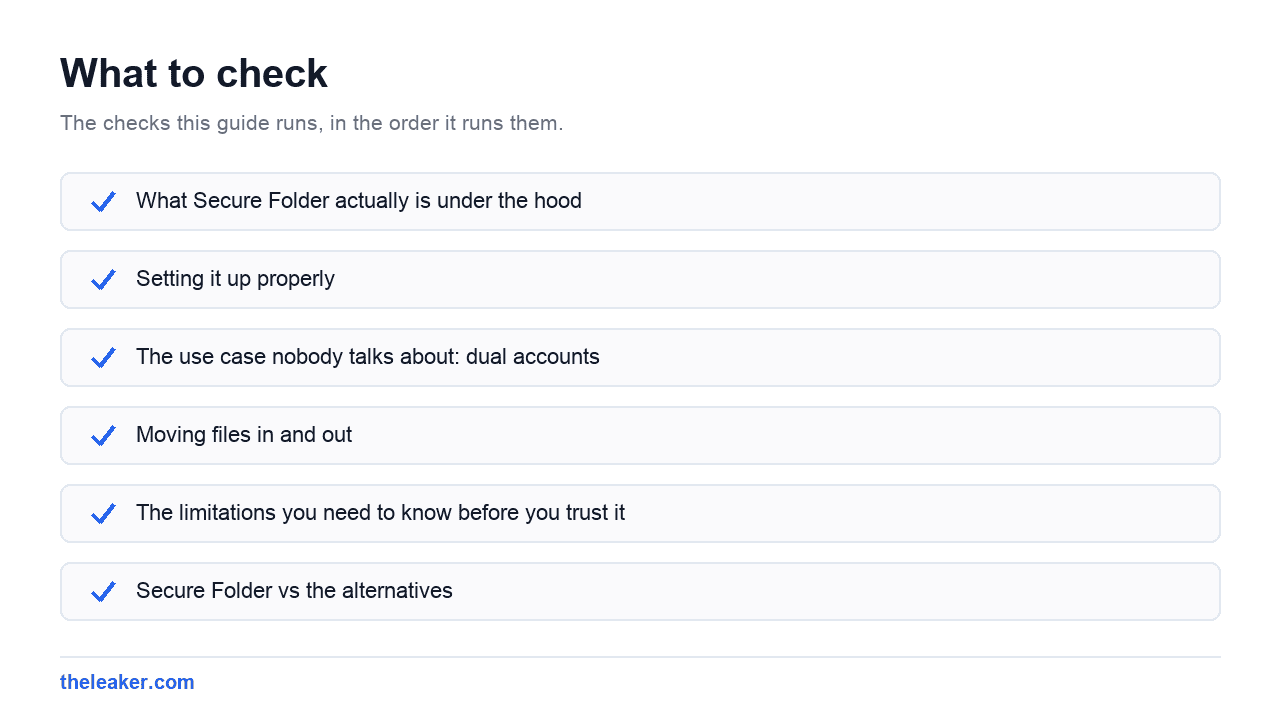
Setting it up properly
Go to Settings → Security and privacy → Secure Folder. On most recent Samsung phones it’s there; on some it sits under Biometrics and security instead. If you can’t find it, search “secure folder” in the settings search bar.
You’ll need to sign into a Samsung account. This isn’t optional and it isn’t just Samsung being pushy. The account is the recovery mechanism. If you forget your Secure Folder lock, the Samsung account is how you reset it. There is no other path.
Then you choose a lock type. Here’s the first thing most people get wrong: use a different credential from your main lock screen. If your phone unlocks with PIN 4471 and Secure Folder also unlocks with 4471, you’ve built a vault with the same key as the front door. Anyone who watched you unlock the phone can open the folder. Pick something separate.
You can add a fingerprint on top for convenience. That’s fine. The fingerprint is a shortcut to the credential, not a replacement, and the underlying PIN or password still protects the container.
Settings to change immediately after setup
Open Secure Folder, tap the menu, and go into its own Settings. Three things are worth adjusting straight away.
Auto lock. By default Secure Folder may stay unlocked until the screen turns off. Change it to lock immediately on screen off, or after a short timeout. An unlocked Secure Folder on a phone you handed to someone defeats the whole purpose.
Hide Secure Folder. There’s a toggle that removes the icon from your app list and quick settings. With it hidden, the folder is reached by searching for “Secure Folder” in settings, or via a quick settings tile you re-enable. This is genuinely useful if the point is that people shouldn’t know the folder exists. It’s also an excellent way to forget you have it, so make a note somewhere.
Notifications. Decide whether apps inside can show notification content outside. The default varies. If you’re running a second messaging account in there, you probably want the notification to say nothing more than that something arrived.
The use case nobody talks about: dual accounts
Most articles about Secure Folder assume you’re hiding something embarrassing. In practice, the single most common reason people use it is far more boring and far more useful: running two accounts of the same app at once.
Install WhatsApp inside Secure Folder and you have a second WhatsApp with a second number, running simultaneously with the first. Same for a second work email account, a second social profile, a second instance of a banking or shopping app. The two installations don’t know about each other. They don’t share logins, cookies, or cached data.
This is dramatically cleaner than the alternatives. Android’s built-in Dual Messenger feature (also a Samsung thing, found under Advanced features) does something similar for a limited list of apps. Secure Folder works for essentially anything you can install, and adds the encryption on top.
The second underrated use is separating work from personal without letting your employer manage your phone. Put work email, work chat, and work file storage inside Secure Folder. They’re isolated, they’re lockable, and when the workday ends you close the folder and they stop existing. No MDM profile, no IT department controlling your device.
Moving files in and out
There are two directions and they behave differently.
Moving files in: the easiest route is from inside Secure Folder. Open it, open its own Gallery or My Files app, tap the menu, and choose Add files. You’ll browse your main storage and select what to bring across. You get the option to move or copy: move removes the original, copy leaves it behind. If you’re doing this for privacy reasons, move is what you want, and you should also empty your Gallery’s recycle bin afterwards, because a moved photo can sit in the trash for weeks.
You can also share into Secure Folder from outside. In the main Gallery, select photos, tap share, and look for “Move to Secure Folder” in the sheet.
Moving files out: from inside Secure Folder, select the file and choose “Move out of Secure Folder.” It lands in your normal storage.
What you cannot do is browse Secure Folder contents from a computer over USB, from a file manager app, or from any backup tool that isn’t Samsung’s own. That’s the point of the encryption, but it does mean your normal backup routine is not covering this data.
The limitations you need to know before you trust it
This is the section most guides skip, and it’s the one that actually matters.
A factory reset deletes everything inside, permanently. Not “you lose it unless you restore a backup”: permanently. The encryption keys are tied to the device. Reset the phone and the container is unrecoverable even by Samsung. If you’re troubleshooting a problem and someone suggests a factory reset, get your Secure Folder contents out first.
It doesn’t transfer to a new phone automatically. Smart Switch and standard Android backups don’t carry Secure Folder across. Samsung provides a backup option inside Secure Folder’s own settings that pushes contents to Samsung Cloud, and that’s the mechanism for moving to a new device, but you have to enable it deliberately, and it has storage limits. Assume nothing is backed up unless you turned it on.
Forgetting the credential is a real risk. Reset goes through your Samsung account. If you set up Secure Folder with an account you’ve since abandoned, or one whose password you don’t remember and whose recovery email is dead, you are locked out with no appeal.
It’s not protection against a compromised phone. Secure Folder defends against someone picking up your device, and against apps outside reading data inside. It does not defend against malware running with high privileges, a device that’s already been compromised, or someone who can watch you type the PIN. It’s a strong lock on an interior door, not a bunker.
It uses storage and battery. A second copy of an app is a second full installation. Running several apps inside a work profile has a real background cost. If your phone is tight on space, that second Instagram is costing you real gigabytes: worth keeping in mind alongside the usual storage cleanup tactics.
Secure Folder vs the alternatives
People ask how it compares to a few other options, so briefly:
Versus Android’s Private Space (a newer stock Android feature): they solve the same problem with the same underlying work-profile mechanism. Private Space is available across Android brands; Secure Folder is Samsung-only but has been around far longer and integrates more deeply with Samsung’s own apps. On a Galaxy phone that offers both, Secure Folder is the more mature option.
Versus Gallery’s hidden album: not comparable. Hiding an album flags photos so the Gallery doesn’t display them. The files are still sitting in normal storage, visible to any file manager. It’s tidiness, not security.
Versus a third-party app locker: app lockers put a password prompt in front of an app. The app’s data is still in normal storage, unencrypted, readable by other apps with storage permission and by anyone with a computer. Secure Folder encrypts the data itself. It’s a different category of protection.
Frequently asked questions
Can Secure Folder be accessed without the password?
Not by normal means. The contents are encrypted and tied to your lock credential plus the device’s hardware keystore. The only supported reset path is through the Samsung account you registered during setup, which requires that account’s password and any two-factor method attached to it. There’s no manufacturer backdoor and no recovery code you can write down instead.
Does Secure Folder show up if someone checks my phone?
By default, yes. There’s an app icon and it appears in the app list. If you turn on the hide option in Secure Folder’s settings, the icon disappears from the app drawer and the folder becomes reachable only through settings or a quick settings tile. Someone who knows Samsung phones well can still check whether it exists by looking in the security settings menu, so treat hiding as discretion rather than concealment.
Do apps inside Secure Folder still get updates?
Yes. Apps inside install from the Play Store or Galaxy Store as normal and update through the same mechanism. You’ll see a separate Play Store instance inside the folder. Updates for the inside copy and the outside copy are independent, which occasionally means one is a version ahead of the other. That’s normal and harmless.
Will Secure Folder slow my phone down?
Marginally, and only if you load it up. The container itself is idle when locked. Apps running inside it are real apps consuming real RAM and battery, exactly as they would outside. Two copies of a heavy social app means twice the background work. If you’re noticing sluggishness or heat after setting it up, look at what you’ve installed inside rather than blaming the feature, and if the phone is running hot generally, that’s usually a separate issue worth diagnosing.
The bottom line
Set it up with a different PIN from your lock screen, turn on auto lock, and enable the Samsung Cloud backup inside its settings. Do those three things and Secure Folder is one of the genuinely best reasons to own a Galaxy phone. Skip them and you’ve built a vault you might one day lose the key to.
Related: WhatsApp Privacy Settings You Should Change Right Now

I am the chief editor of TheLeaker. I also maintain the backend stuff of the site. I’m a tech enthusiast and loves to do Python coding in my free time. I have worked at many giant publications like XDA Developers and NXTtech before starting TheLeaker.
You can get in touch with me at Garv[at]theleaker.com.