

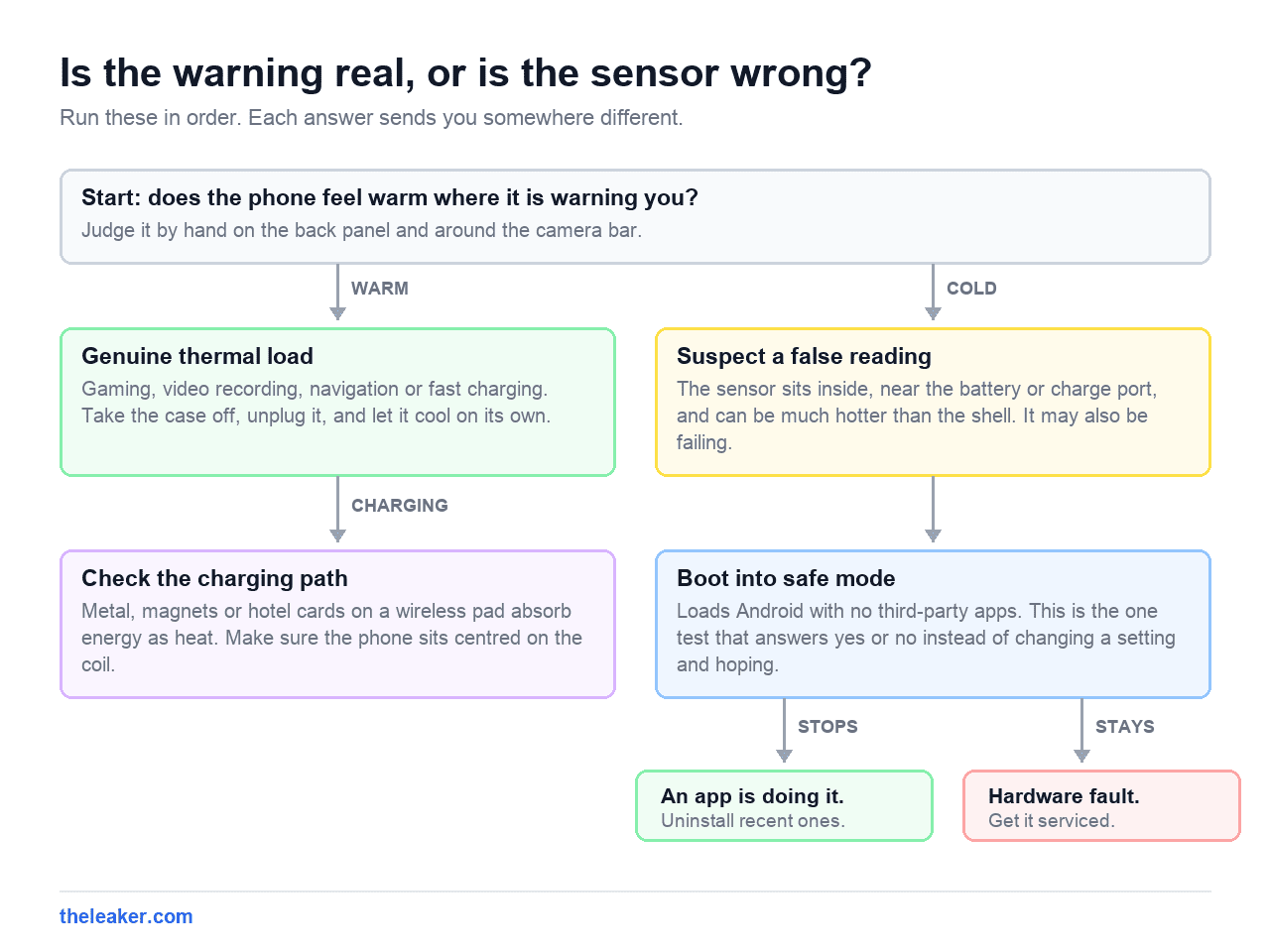
If your Galaxy shows a cooling or overheating notice while the phone feels cool to the touch, the warning is usually still real. It reports the temperature of a sensor inside the phone, most often near the battery or the charging port, and that sensor can be far hotter than the back panel you are touching. Samsung does not publish a temperature figure for phones, so there is no number in Settings you can check against. The fastest way to separate a software problem from a hardware fault is safe mode. If the warning stops in safe mode, an app is driving it. If it appears at idle, at room temperature, on a phone that is cold, the sensor or the board is the likely cause and no amount of app-clearing will fix it.
This guide is about the warning message itself, and specifically about deciding whether it is telling you the truth. If your phone is actually running hot and you want to bring the temperature down, our guide to stopping a phone from overheating covers that side.
What the warning actually says
Most pages about this problem quote wording that Samsung has never used, which makes it hard to work out which message you actually have. These are the strings Samsung documents on its own support pages, and each one means something different.
- “Cooling down.” The phone is above its normal operating temperature and is limiting itself. Samsung says this stage restricts brightness, performance and charging, and can close running apps.
- “Device cooling down” is the popup version of the same state.
- “Exit Camera. Battery temperature too high.” The camera app specifically has been shut because battery temperature left the normal range. Video recording and long camera sessions trigger this one most.
- “Your device is overheating. It will now power off to cool down.” Second stage. A shutdown is coming.
- Post-shutdown, you get a notice saying it powered off to prevent damage.
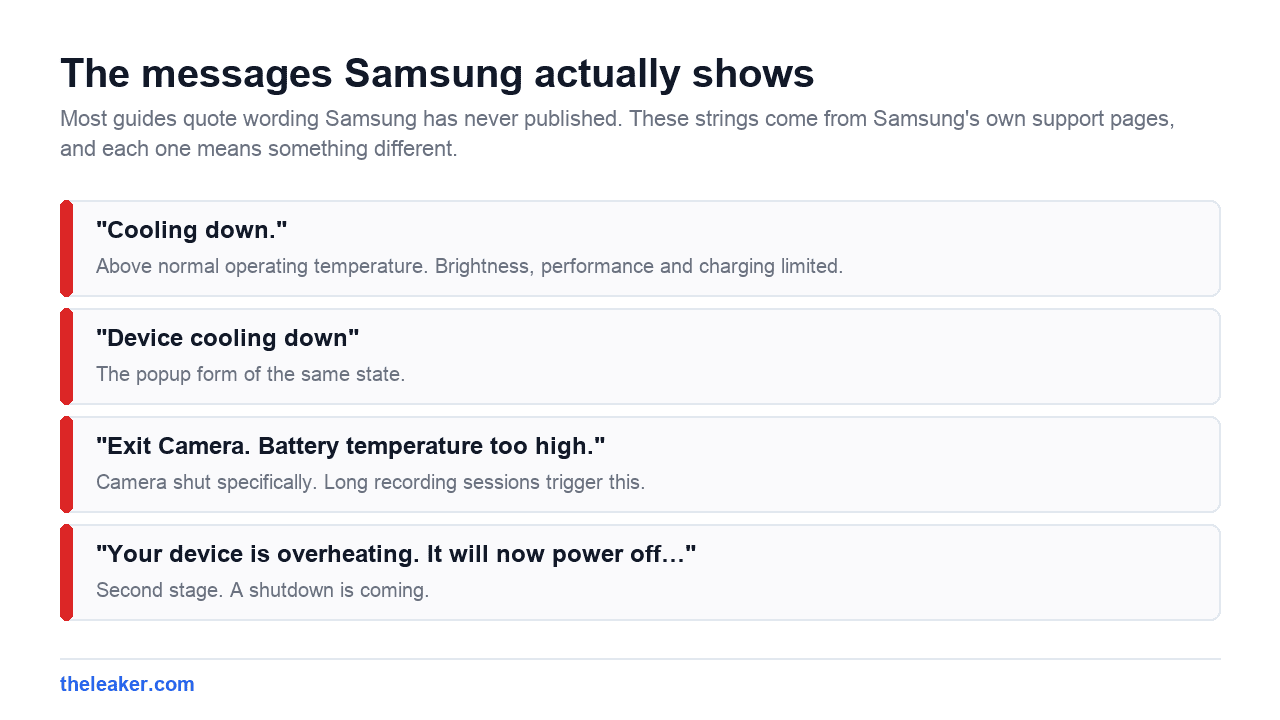
Samsung’s UK support page states the warning wording varies by model, and the company has never published a table mapping messages to One UI versions. If you have seen a phrase quoted elsewhere that does not appear above, treat it as somebody’s paraphrase rather than a message with a distinct meaning. Sources: Samsung support, normal operating temperature and Samsung on the camera popup.
Why there is no temperature number to check
This is the part that trips people up, and it explains why every “check your phone’s temperature” tip fails.
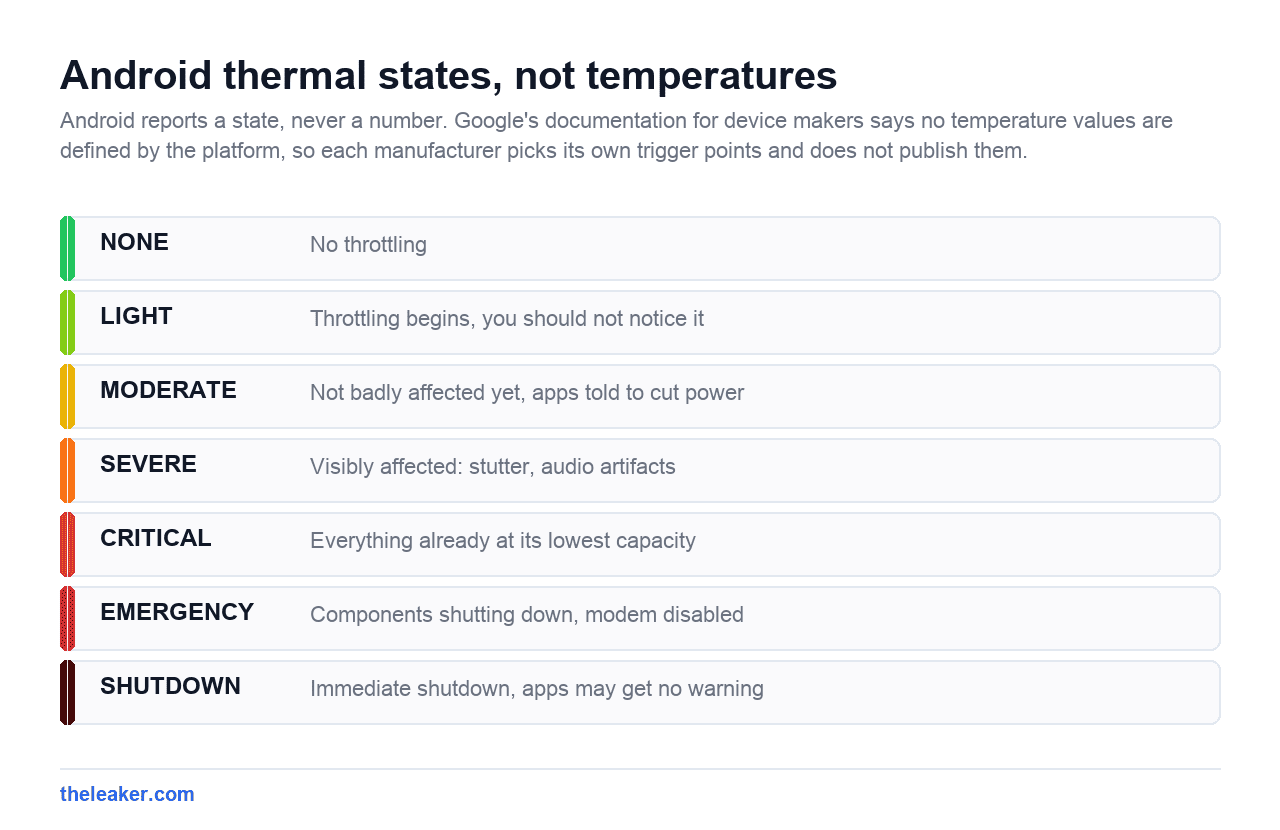
Android defines thermal states, not degrees. The platform exposes seven levels through its thermal API, running from NONE through LIGHT, MODERATE, SEVERE, CRITICAL and EMERGENCY to SHUTDOWN. At SEVERE the user experience is meant to be visibly affected. At EMERGENCY the phone starts disabling components including the modem.
Google’s own documentation for device makers is explicit that Android defines no temperature values for these levels. Manufacturers set their own trigger points, and are permitted to use custom numerical representations rather than actual temperatures. So a Galaxy hitting SEVERE and a Pixel hitting SEVERE are not at the same temperature, and neither figure is published. See Android’s thermal mitigation documentation.
The only temperature Samsung publishes for phones is an ambient operating range of 0 to 35°C (32 to 95°F). That describes the air around the phone rather than the phone itself, and it is not the trigger for the warning.
What this means practically. There is no reading you can compare against a threshold. Diagnosis has to come from behaviour instead, which is what the rest of this guide does.
Work out which problem you have
Run this before trying any fix. Each branch leads somewhere different.
| What you observe | Most likely cause | Go to |
|---|---|---|
| Warning during gaming, video recording, navigation or fast charging, and the phone is warm | Genuine thermal load | Reduce the load |
| Warning only while charging, especially on a wireless pad | Charging setup | Check the charging path |
| Warning stops in safe mode | A third-party app | Isolate the app |
| Warning at idle, phone cold, sometimes right after boot | Sensor or board fault | Stop and get it serviced |
| Started immediately after a software update | Possibly firmware | See the firmware section |
| Started right after a drop or a soaking | Physical damage | Stop and get it serviced |
The fixes, cheapest first
These run from something you can do in ten seconds to something that costs money.
Take the case off and unplug it. A case traps heat against the back panel, which is the surface the phone relies on to shed it. Removing it lowers the internal temperature directly rather than masking the symptom. Samsung lists this first among its own immediate steps.
Check what is between the phone and a wireless charger. Samsung is specific here. Metal objects, magnets, and cards with magnetic stripes or RFID chips, including hotel door cards, should never sit between the device and the pad. They absorb energy from the coil and turn it into heat directly under the phone, and Samsung warns this can cause the device to overheat and be damaged. Alignment matters too, because a phone off-centre on the pad wastes more energy as heat. Details on Samsung’s wireless charging page.
Run safe mode. This is the single most informative test, because it answers a yes or no question rather than changing a setting and hoping. Safe mode loads Android without third-party apps. If the warning disappears, something you installed is responsible, and you can uninstall recent apps one at a time until it stops. If the warning still appears in safe mode, you have ruled out every app on the phone in one step, which is worth more than the fix itself.
Update the software. Settings, then Software update, then Download and install. This is worth doing before anything drastic, though see the caveat below about updates causing the problem rather than solving it.
Run Samsung’s own diagnostics. Open the Samsung Members app, go to the Discover tab, then Diagnostics, then Phone diagnostics. Tap Battery status for a health readout that reports as Normal, Weak or Bad. A Weak or Bad result alongside repeated warnings changes the picture, because that combination points at the battery rather than at software. Samsung notes the available tests vary by model. Instructions on Samsung’s diagnostics page.
What does not work
Wipe cache partition. Almost every guide still lists this. It is no longer there. Samsung’s February 2026 update removed wipe cache partition and most other recovery mode options across current Galaxy phones including the S25 and the Z Fold 7, with no changelog entry and no stated reason, as SammyGuru reported. Clear individual app caches in Settings instead.
Cooling the phone quickly. Putting it in a fridge or in front of a fan drops the surface temperature while the inside stays hot, and it risks condensation inside the chassis. The warning is driven by an internal sensor, so cooling the outside faster does not clear the state any sooner.
Temperature monitor apps. They read the same sensors Android exposes and cannot tell you the threshold Samsung uses, because that number is not published. An app showing you 42°C gives you no way to know whether 42 is fine.
If it started after an update
Be careful how much weight you put on this. There are real reports of it and no confirmation.
Following the July 2026 update on One UI 8.5, Galaxy S25 and S24 owners reported heavy battery drain and overheating, with the Ultra models most affected. 9to5Google covered the reports on 30 July 2026 and noted that Samsung had not acknowledged the problem. PhoneArena reported the same pattern.
Samsung has never published a changelog entry describing a fix for false or oversensitive thermal warnings, and I could not find one. So if your warnings began with an update, the honest position is that other people have seen the same thing and there is no confirmed cause and no confirmed fix. Reporting it through Samsung Members is more useful than waiting.
When to stop troubleshooting
Some patterns mean the problem is physical, and continuing to clear caches wastes time. Repair reference iFixit lists these indicators, and notes that the charge port assembly contains sensors that commonly trigger false overheating warnings when they fail.
- The warning survives safe mode and a factory reset.
- It appears at idle, at room temperature, on a cold phone, sometimes seconds after boot.
- It began immediately after the phone was dropped or got wet.
- One specific area gets hot while the rest stays cool.
- Samsung Members reports battery status as Weak or Bad.
Any of those means a service centre. A charge port assembly replacement is a common and relatively cheap repair compared with a board fault, so it is worth having diagnosed rather than living with.
Safety: swollen batteries
This is standard lithium-ion safety rather than something Samsung publishes, and it matters more than anything else here. Stop using the phone immediately if the back panel no longer sits flat, the screen is lifting at an edge, gaps have opened at the seams, or the phone feels thicker than it did. Do not charge it. Do not press on it and do not puncture it. Take it to a service centre or a battery disposal point rather than leaving it charging overnight or putting it in household waste.
Common questions
Does the warning damage the phone, or prevent damage? It prevents it. The escalation Samsung documents goes from limiting performance and charging, to closing apps, to a full shutdown, and the shutdown exists to stop the cells reaching a temperature that degrades them permanently. A phone that warns and throttles is behaving correctly.
My phone shows a water drop icon and will not charge. Is that the same problem? No, and this is worth separating because people conflate them. That is a moisture detection warning, not a temperature one. Samsung’s fix is to power off and dry the port in a ventilated space, and if the icon persists, clear the USB Settings cache through Settings, Apps, then Show system apps, then USB Settings, Storage, Clear cache. Samsung documents this separately.
Why does my phone throttle so aggressively when the hardware is supposed to be better? Because cooling hardware and thermal software are separate decisions. The Galaxy S25 range shipped with noticeably larger vapour chambers, yet PhoneArena’s stress testing found the S25 Ultra dropping from roughly 6,200 to around 3,000 points within the first few minutes of a twenty minute run. Better cooling does not stop a manufacturer setting conservative limits in software.
Can I change the temperature at which it warns me? Not on a retail phone. The thresholds are set in firmware by the manufacturer and are not exposed in Settings.

A tech Journalist and Photographer, Dhawal Sharma is a technology enthusiast who loves to research the latest innovations and technology. He has contributed to the Honor Community for a very long period and has crucial expertise in writing tech news and reviewing smartphones and laptops. Analyzing and bringing the facts about any piece of tech is what he loves the most. He is a great product photographer and is the Gizmopedia of TheLeaker. Find him on Facebook and Instagram, and you can also email him at [email protected].