

WhatsApp’s default settings are built for convenience, not privacy. Out of the box, strangers can see your profile photo, anyone with your number can see when you’re online, and a person you’ve never met can drop you into a group chat.
None of that is inevitable. WhatsApp has a genuinely deep set of privacy controls: most people just never open the menu. Here’s what to change, in the order that gives you the biggest improvement fastest.
The quick answer: Open WhatsApp, go to Settings, then Privacy. The changes that matter most: set Last seen and Online to My contacts or Nobody so strangers can’t track when you’re active; restrict your Profile photo and About to My contacts; change Groups from Everyone to My contacts so you can’t be added to random groups; turn on Silence unknown callers to kill spam calls; and enable Advanced privacy settings to hide your IP address during calls. Then go to Settings, Account, and switch on two-step verification with a PIN. This is the single most important protection against someone hijacking your number. Finally, run WhatsApp’s built-in Privacy Checkup, which walks you through the rest. Ten minutes of work, permanently better.
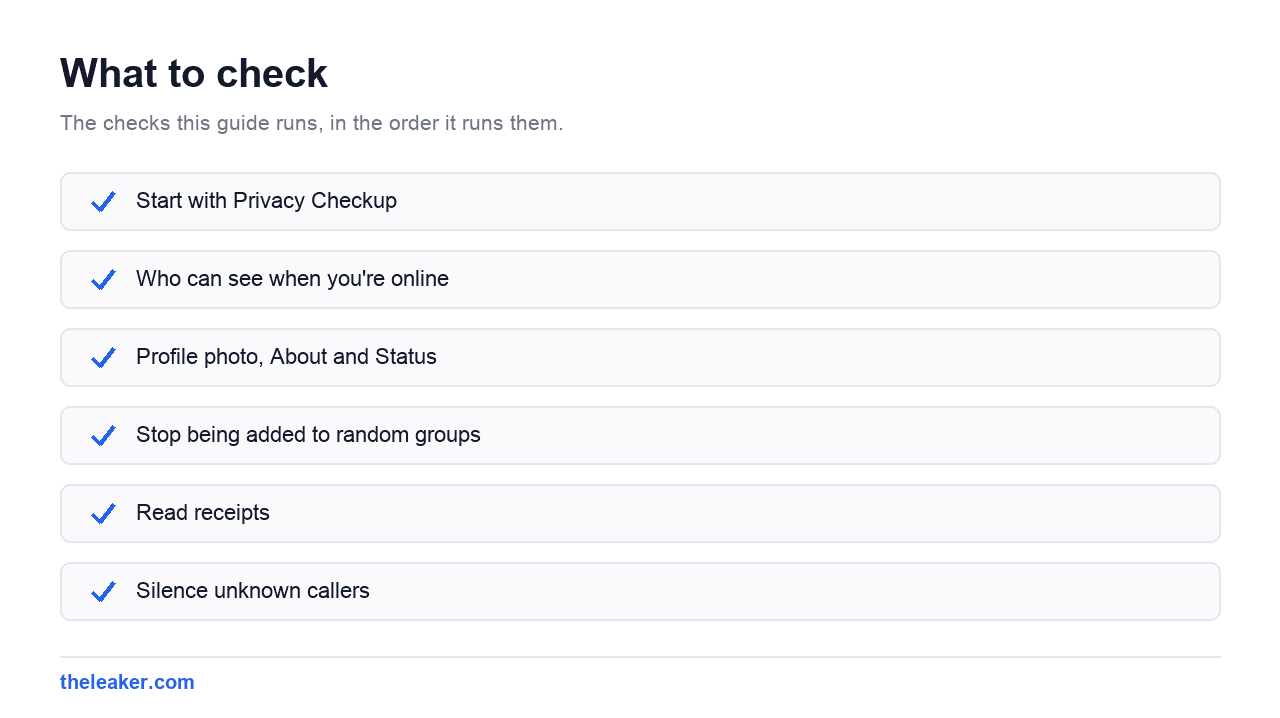
Start with Privacy Checkup
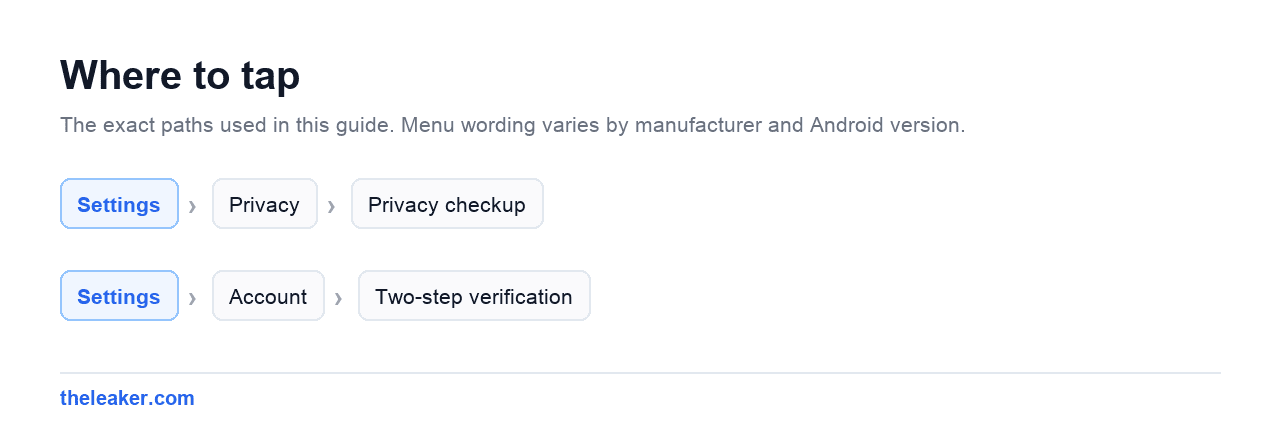
Before manually hunting through menus, WhatsApp has a guided tool. It’s in Settings → Privacy → Privacy checkup, usually at the top.
It groups the settings into four themes: who can contact you, what personal info is visible, how you add protection to chats, and how you secure the account, and steps you through each. It’s the fastest route to a decent baseline. Everything below explains what those choices actually mean.
Who can see when you’re online
These are two separate settings, and most people only change one.
Last seen controls whether people see the timestamp of when you were last in the app. Options are Everyone, My contacts, My contacts except…, and Nobody.
Online is different. It’s the live “online” indicator that shows while you’re actively in the app. This has fewer options: Everyone, or “Same as last seen”. There’s no standalone Nobody. So if you want to hide your live online status, you must set Last seen to Nobody or My contacts first, then set Online to match it.
There’s a catch worth knowing: hiding your last seen also hides everyone else’s from you. WhatsApp enforces reciprocity. Same rule applies to read receipts. That’s a deliberate design choice, and there’s no way around it in the official app.
Profile photo, About and Status
By default, your profile picture is visible to anyone who has your number in their phone: including a scammer who bought a list of numbers. Your photo is a real piece of personal information, and it’s routinely scraped for fraud.
Set Profile photo and About to My contacts at minimum. If you deal with strangers through WhatsApp for work, “My contacts except…” lets you keep a specific person out.
Status deserves separate thought. By default it goes to all your contacts, which for most people includes plumbers, old colleagues, and people they messaged once about a marketplace listing. Use the exclusion list, or switch to “Only share with…” and pick a small circle.
Stop being added to random groups
This one is under Privacy → Groups, and the default is Everyone. That means anyone who has your number can add you to a group without asking.
Change it to My contacts. People outside your contacts can then only send you a private invitation, which you accept or ignore. It’s the difference between being spammed into a group of 200 strangers and being asked first.
Read receipts
Turn off Read receipts and your blue ticks disappear, but so does your ability to see anyone else’s. And it doesn’t apply in group chats, where read receipts always work regardless of your setting. Voice notes also keep showing when they’ve been played.
Honest assessment: most people turn this off, miss being able to see whether their own messages landed, and turn it back on within a week. Try it and see.
Silence unknown callers
Under Privacy → Calls, this stops calls from numbers not in your contacts from ringing. They still appear in your call list and notifications, so you’re not missing anything genuine. You just don’t get interrupted by it.
If you get WhatsApp spam calls from international numbers, this single toggle fixes it.
Advanced privacy settings
Under Privacy → Advanced, there are two options that a lot of people never find.
Protect IP address in calls routes calls through WhatsApp’s servers instead of connecting your device directly to the other person’s. Without it, a WhatsApp call reveals your IP address to the person you’re speaking to, which is enough to approximate your location. Turning it on slightly reduces call quality in exchange for hiding that. If you take calls from people you don’t fully trust, enable it.
Disable link previews stops WhatsApp from fetching a preview image when you send a link, which otherwise means contacting that website from your device. Niche, but relevant if you’re sharing links you’d rather not touch directly.
Lock down individual chats
Chat lock moves a specific conversation into a separate locked folder, hidden from your main chat list and requiring your fingerprint, face, or device PIN to open. Notifications for locked chats hide the sender and content. Open a chat, tap the contact name at the top, and look for the lock option.
Chat lock leans on your phone’s own biometric setup, so if fingerprint unlock is flaky the feature will be too: worth checking alongside the other hidden Android settings most people never touch.
There’s also a secret code option, which lets you hide the locked chats folder entirely. It only appears when you type the code into the search bar. Genuinely well designed.
Advanced chat privacy is a per-chat setting that tightens things further: it blocks exporting the chat, stops media auto-saving to the other person’s gallery, and restricts some AI features in that conversation. It’s not a guarantee, someone can always screenshot or photograph a screen, but it raises the bar on casual leaking.
Disappearing messages
You can set a default timer for all new chats under Privacy → Default message timer, choosing 24 hours, 7 days, or 90 days. Existing chats keep their own settings.
Be realistic about what this does. It clears messages from both devices after the timer, which is great for reducing clutter and limiting what’s sitting on a phone that might get lost or stolen. It does not stop the other person screenshotting, forwarding a message before it expires, or simply photographing the screen with another phone. Treat it as tidying, not secrecy.
If you sent something you regret right now, disappearing messages won’t help retroactively: see our guide on deleting or editing sent WhatsApp messages instead.
Secure the account itself
Everything above protects your privacy from other users. This protects the account from being stolen, which matters more.
Go to Settings → Account → Two-step verification and set a six-digit PIN. Add a recovery email address. From then on, anyone trying to register your number on a new device needs that PIN. This is the defence against the most common WhatsApp attack: someone tricks you or your carrier into handing over an SMS verification code, then takes over your account and starts messaging your contacts asking for money.
If your version offers passkeys, set one up. It replaces SMS verification with your device’s biometrics, which removes the SMS interception risk entirely.
Also check Linked devices periodically. It shows every browser and computer with access to your account. If there’s an entry you don’t recognise, log it out immediately and change your two-step PIN.
Location sharing
Live location is one of WhatsApp’s most useful features and one of the easiest to forget you left running. It’s end-to-end encrypted and time-limited, but the timer can be set to eight hours: long enough to forget entirely. If you use it, get in the habit of stopping it manually. Our guide on sharing live location on WhatsApp covers how to check what’s currently active.
Skip the modified WhatsApp apps
Unofficial WhatsApp clones market themselves on privacy features: hiding blue ticks while still reading messages, seeing deleted messages, and so on. Don’t. These apps are built by anonymous developers, they sit between you and WhatsApp’s encryption, and there’s no way to verify what they do with your messages. Installing one to improve your privacy is exactly backwards. They also get accounts permanently banned. Everything worth having is in the official app, in the menus above.
Frequently asked questions
Can I hide my online status from just one person?
Not directly. Last seen supports “My contacts except.”, so you can exclude specific people from seeing your last seen timestamp. But the live Online indicator only offers Everyone or “Same as last seen”, so excluding someone from last seen also excludes them from your online status. That’s the closest you can get without blocking them.
Will someone know if I turn off read receipts?
Not through any notification, but it’s fairly obvious. Your ticks stop turning blue, which regular contacts will notice. They also lose nothing themselves. Your setting only affects your own receipts. And it doesn’t apply in groups, where blue ticks keep working normally regardless.
Does WhatsApp read my messages?
Message content is end-to-end encrypted, so WhatsApp cannot read what you send. What it does collect is metadata (who you message, when, how often, your device details and IP address) and some of that is shared within Meta. Encryption protects the content of your conversations, not the fact that they happened.
Should I turn on end-to-end encrypted backups?
Yes, if you can be trusted with a password. It stops your backup being readable by anyone including Google, Apple and WhatsApp. But if you lose the password or 64-digit key, the backup is gone permanently. There’s no recovery process by design. Store the key in a password manager, not on the phone you’re backing up.

Akshay Mhatre is a Tech Journalist who likes to keep up with the latest from the tech world. He has worked at many popular news portals like BGR and TechRadar before joining TheLeaker as a News writer and journalist. A writer by day and a VFX artist by night. In his free time, he also likes to make motion graphics and concept art. You can find him on Instagram @akshayrazr_95 and contact him on akshaymhatre[@]theleaker.com.