
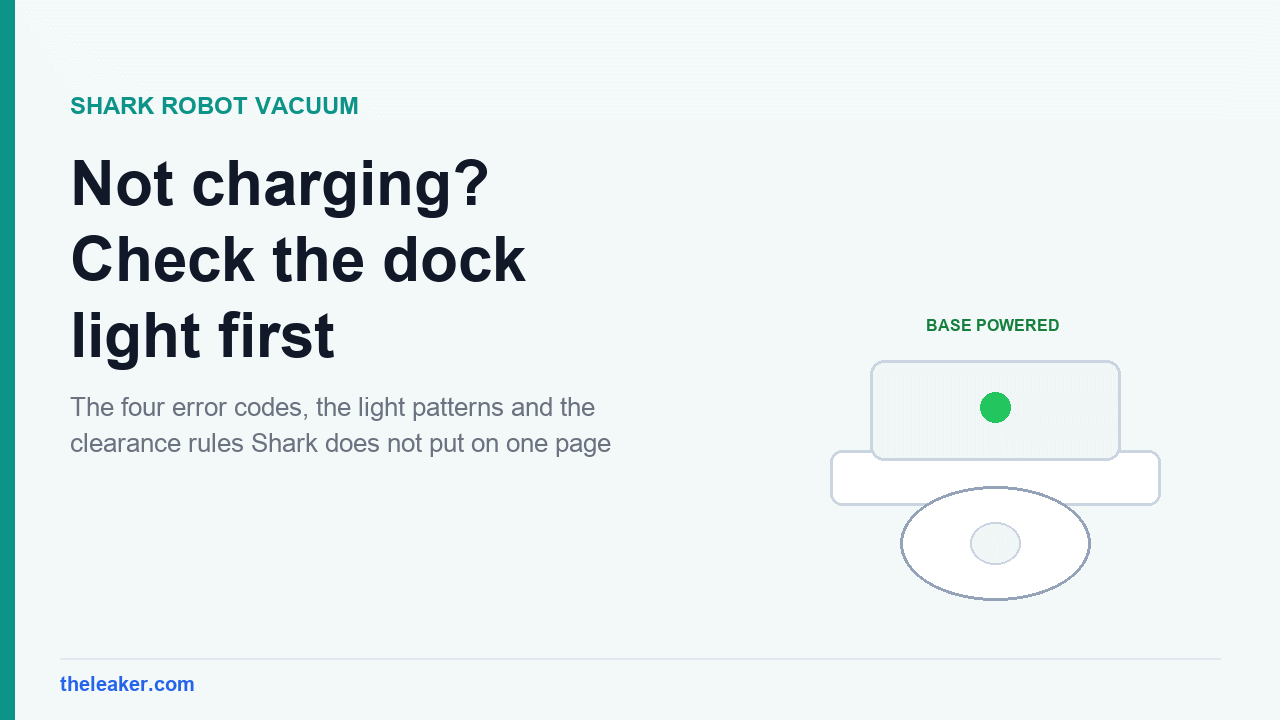
If your Shark robot vacuum will not charge, check the dock light first. On every current Shark model the base shows a green light when it has mains power. No green light means the problem is the outlet, the cord or the base, and nothing you do to the robot will help. If the base is green but the robot stays dark, lift the robot off, wipe the metal contacts on both the robot and the dock with a dry cloth, and set it back down squarely. Then wait. A deeply discharged Shark can sit for several minutes before any light appears, and on some models it beeps when charging actually starts. If the robot still shows nothing after a full charge cycle, the battery or the charging circuit has failed.
Find your model family first, because the answers differ
Shark sells robot vacuums under at least seven family names and the charging behaviour is not consistent between them. Two robots both sold as “Shark ION” can have contradictory light patterns. Before following any advice, including ours, check which of these you own.
- ION with a SPOT button (RV700, RV750, RV755, RV760, RV770). Has a red “Replace” battery light.
- ION with a MAX button (RV700 Series 3, RV850, RV870). No Replace light, and the dock has its own indicator.
- IQ (RV1000, AV1010AE, UR1005AE). Blue charge lights, and a power switch on the back of the dock as well as on the robot.
- AI and AI Ultra (RV2000, RV2502AE). Charge lights are white rather than blue.
- Matrix (RV2300 series). White charge lights, green dock light that turns blue on contact.
- PowerDetect and Detect Pro (RV2800, RV2820). The battery light changes colour with charge level.
- ThermaCharged (RV2900). Newest, and the only family with a documented battery fault code.
The model number is printed on a label underneath the robot.
The dock light tells you where the fault is
This one check splits the problem in half, and most people skip it.
| Dock light | What it means | Do this |
|---|---|---|
| Green | The base has mains power | The fault is the robot, the contacts or the seating |
| Blue | The robot is docked correctly and charging | Nothing. It is working |
| No light | The base has no power | Try a different outlet before touching the robot |
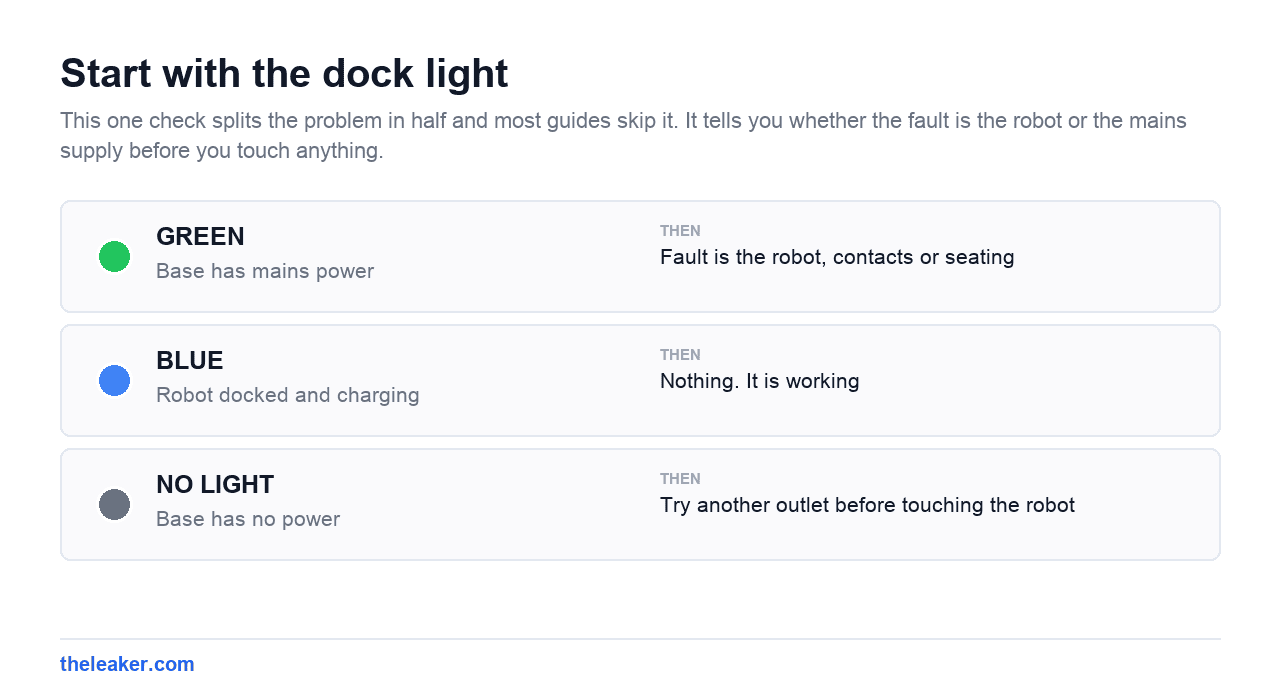
Shark’s own instruction for a dark base is to plug the dock into a different outlet. On the IQ family there is a second trap, because the dock has a power switch on the back that is separate from the robot’s own switch. Both must be on.
Note that the older ION models with a SPOT button have no documented dock light at all, so on those the base gives you no diagnostic information.
The charging error codes, and why you will not find them in the manual
Shark’s SharkClean app reports numbered error codes, and four of them relate to charging. These codes do not appear in the printed owner’s guides. They exist only on Shark’s support site, which is why most guides to this problem never mention them.
| Code | Shark’s own name | What it points at |
|---|---|---|
| 8 | Battery Abnormal | Battery loose, disconnected or failed. RV2900 family only |
| 11 | Charging Voltage Error | The power path, not the battery |
| 24 | Battery Low Error | Critically low, needs manual placement on the base |
| 37 | Dock Charging Overcurrent Error | The dock’s charging circuit |
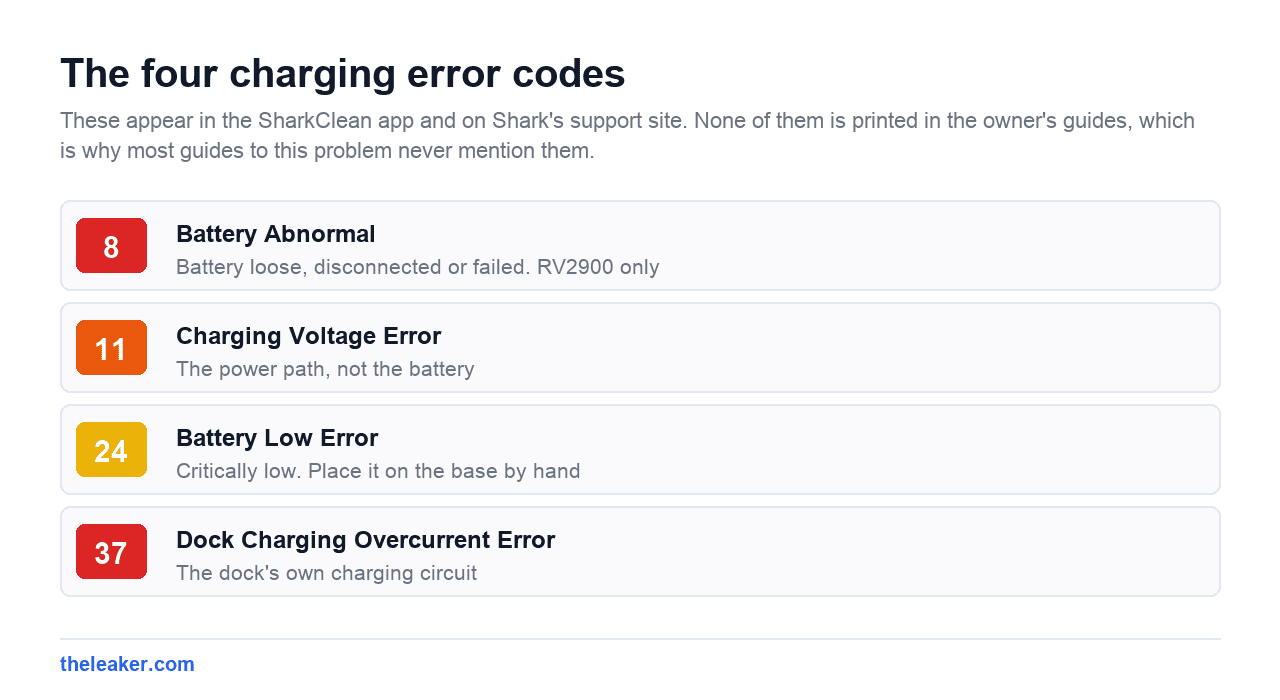
These names are Shark’s, taken from its published error code index for the RV2800 PowerDetect series and the RV2900 series. Error 11 in particular is widely dismissed online as something people have invented. It is real, and Charging Voltage Error is Shark’s own wording for it.
For code 8, Shark publishes a full repair procedure. Its instructions are to power the robot off by holding the power button for three seconds, remove the battery door with a Phillips screwdriver, unplug the white connector and lift the battery out, pause for about a minute, then reconnect until the connector clicks and refit the door. Shark rates this as under ten minutes. The full procedure is on Shark’s site.
Dock clearance, where the numbers are not what you expect
Shark requires clear space around the dock, and the requirement changed dramatically between generations. Getting this wrong causes docking failures that look exactly like charging failures.
| Family | Each side | In front |
|---|---|---|
| ION (RV700, RV755, RV870) | 3 ft (1 m) | 5 ft (1.5 m) |
| IQ (RV1000) | 3 ft | 5 ft |
| Matrix (RV2300) | 3 ft | 5 ft |
| PowerDetect (RV2800) | 1 ft | 2 ft |
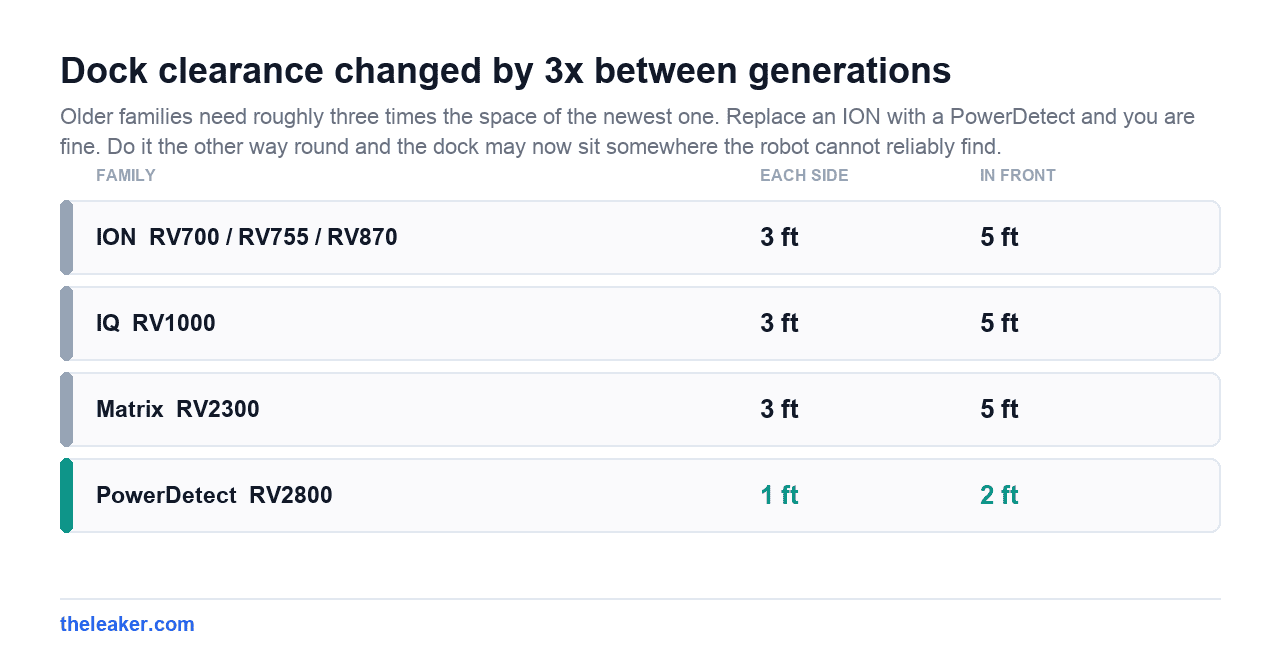
The older families need roughly three times the clearance of the newest one. If you replaced an ION with a PowerDetect and kept the dock where it was, you are fine. If you did the reverse, the dock may now be in a spot the robot cannot reliably find. PowerDetect adds a further rule, which is that carpet should start at least 4 feet in front of the base. Matrix and IQ owners should also keep BotBoundary strips at least 10 feet from the dock and avoid placing the dock under a skylight.
How the robot has to sit on the dock
Seating is fussier than it looks, and the requirement is model specific.
- RV870: leave about half an inch of space between the front of the robot and the face of the dock.
- Stratos: slide it up the ramp with the Shark logo upside down.
- RV2900: same, logo upside down, so the metal contacts line up.
Then leave it alone. Shark’s own published settling times are inconsistent, ranging from 5 seconds to 60 seconds depending on which support page you read, and its AI Ultra guidance adds “or longer if the battery is depleted”. The practical version is to wait a full minute before deciding it has not worked, and to wait that long again between adjustments. Repeatedly lifting and re-placing the robot is the most common way people convince themselves a working dock is broken.
When it looks like it is charging but clearly is not
This is the version of the problem people describe most often, and it is a different fault from a robot that shows nothing at all. The lights cycle, the dock turns blue, everything behaves as though it is charging, and then the robot runs for a few minutes and dies, or reports a full charge it plainly does not have.
That pattern points at the battery rather than the charging path. A lithium pack that has lost most of its capacity still accepts a charge and still reports itself as full, because the charge indicator reads voltage rather than how much energy the cells can actually hold. A pack at the end of its life reaches full voltage almost immediately and empties just as fast, so the robot looks healthy on the dock and useless off it.
Two checks separate it from a contact problem. If runtime has been falling steadily over months, it is capacity loss. If the robot cuts out abruptly at a random charge level and the lights are erratic, suspect the contacts or the connector instead. Consumer Reports found battery problems affect 19 percent of robot vacuums, with deteriorating battery life the single most common complaint at 12 percent, so this is the likeliest ending for an older machine.
Clean the contacts, but not the way most guides tell you
Shark’s instruction is to gently dust the contacts and sensors with a clean dry cloth, and to do it about every 30 days.
Shark never recommends isopropyl alcohol, abrasives or a pencil eraser on the contacts. Those appear in many of the top-ranking guides for this problem and none of them come from Shark. An eraser is mildly abrasive and the contacts are thinly plated, so it is possible to make the connection worse permanently. A dry cloth is the documented method.
Two causes almost nobody mentions
Temperature. Shark states its robots should not be stored, charged or used below 50°F (10°C) or above 104°F (40°C). A dock in an unheated garage, a conservatory or a porch can sit outside that range for months of the year, and a lithium pack will refuse to charge when it is too cold. This is the first thing to check if the problem is seasonal.
Long storage. Shark’s guidance is to recharge the robot at least once every three months if it is not in use, and to switch it off at the power switch during storage. A pack left flat for a long period may not recover.
There is a related question Shark does not answer. Many guides tell you to leave a completely dead Shark on the dock for 24 or 48 hours to revive it. Shark publishes no trickle recovery time at all. The only official figures are full charge times, which run from about 3 hours on the older RV755 to 6 hours on the IQ, AI Ultra, Matrix and RV2800. Leaving it docked overnight is harmless and reasonable, but the specific 24 and 48 hour numbers are not from Shark.
What does not work
The factory reset button combinations. This matters more than the rest of this section. Search this problem and you will be told to hold DOCK and CLEAN together for 10 seconds, or 15 seconds, or to press CLEAN for 20 seconds, or to find a paperclip reset hole. Shark publishes no factory reset button combination for its robot vacuums anywhere in its manuals or on its support site. Every combination in circulation traces back to third-party blogs copying each other.
One of them does something, and it is not what you were told. On the IQ family, holding CLEAN for 15 seconds toggles Recharge and Resume. Readers following that advice are silently changing a cleaning setting and then wondering why nothing was fixed.
What Shark actually documents is a power cycle, and where the control lives depends on the model. ION, IQ and AI robots have a physical O/I switch on the side. Matrix and PowerDetect have no switch, and you hold DOCK for 5 to 7 seconds instead. The RV2900 uses its power button held for 3 seconds. Shark’s own error recovery step for the RV870 is to switch off, wait five seconds, and switch back on.
Blaming the firmware. Shark documents no firmware fault affecting charging, and no reputable publication has reported one. If an update coincided with your problem the timing may be a coincidence.
When to stop and replace the battery
Shark’s own escalation ladder for a battery fault runs reseat the battery, then replace the battery, then replace the robot. When the manufacturer’s third step is “replace the robot”, further troubleshooting is not going to help.
Stop when any of these is true.
- The red “Replace” light is lit on an ION with a SPOT button. Shark’s own wording is that the battery is ready to be replaced. No further diagnosis needed.
- Error 8 persists after reseating the battery.
- Error 11 or error 37 persists after cleaning the contacts and trying a known-good outlet. Both are power-path faults.
- On an ION with a SPOT button, CLEAN flashing red with a solid red exclamation mark. Shark’s chart calls this a charger fault and routes it to customer service.
- Everything is still dark after the power switch is confirmed on, the dock is green, contacts are clean, seating is correct, and a full 6 hour charge window has passed.
What a replacement costs
Shark’s own battery prices, checked on 6 August 2026, are $59.95 for the RVBAT850, $65.99 for the RVBAT850A, and $107.99 for the RVBAT85014 used by the RV2900 family. Three of Shark’s four robot battery packs were out of stock on its own store at the time of checking, leaving only the most expensive newest-generation pack available. iFixit sells an aftermarket RVBAT850 equivalent for $34.99 with a one year guarantee.
The job itself is genuinely easy. iFixit rates most Shark battery swaps as easy or very easy, typically two Phillips screws and a hatch on the underside, with no adhesive and no soldering. Before ordering, photograph the connector on your old pack, because two-prong and three-prong variants exist within the same part number listings and a mismatch is the most common ordering mistake.
One inconsistency to be aware of. Shark’s newer manuals state the robot contains no serviceable parts, yet the same manuals label a battery door and list the battery as a replacement part, and Shark’s own current support article for error 8 walks you through removing it with a screwdriver.
Common questions
How long is the battery under warranty? Shark runs a separate two year limited battery warranty alongside the machine warranty, which produces an odd result. On a Matrix with a one year unit warranty the battery is covered for longer than the vacuum. On a PowerDetect with a three year unit warranty it is covered for less. The exclusion that matters is the first one listed, which is normal wear and tear of the battery. Capacity fade is the normal way lithium cells fail, so a pack that simply holds less charge is unlikely to be covered, and Shark defines no capacity threshold at which fade counts as a defect. Terms are on Shark’s warranty page. Registration is required for coverage.
Does fitting a third-party battery void my warranty? Shark does not say that it does. Its warranty excludes units that have been tampered with and defects caused by unauthorised repair, which is narrower than a blanket void. Under the US Magnuson-Moss Warranty Act a manufacturer generally cannot void an entire warranty simply because a third-party part was used, as the FTC has set out. Shark can still decline to cover damage the swap itself caused, so this is not a free pass.
Why is there no official Shark page explaining this? There is one, and it is almost empty. Shark’s support article titled how to resolve charging issues with your Shark robot vacuum consists of a heading, a date and an embedded video, with no troubleshooting text at all. That video runs for 58 seconds and has been viewed more than 218,000 times. The detail in this guide comes instead from Shark’s model-specific owner’s guides and its error code articles, which is where the information actually lives and where almost nobody looks.
How long should a full charge take? Between 3 and 6 hours depending on model. Shark quotes about 3 hours for the RV755 and up to 6 hours for the IQ, AI Ultra, Matrix and RV2800 families. The RV2800 guide contradicts itself, saying up to 4 hours in one place and 6 hours in its specification table, so allow the longer figure before concluding anything.
Is my Shark affected by the 2026 security issue? That was a separate cloud vulnerability disclosed in July 2026 and SharkNinja says it was fixed later the same month through a server-side change requiring no action from owners. It has nothing to do with charging.

I am the chief editor of TheLeaker. I also maintain the backend stuff of the site. I’m a tech enthusiast and loves to do Python coding in my free time. I have worked at many giant publications like XDA Developers and NXTtech before starting TheLeaker.
You can get in touch with me at Garv[at]theleaker.com.