

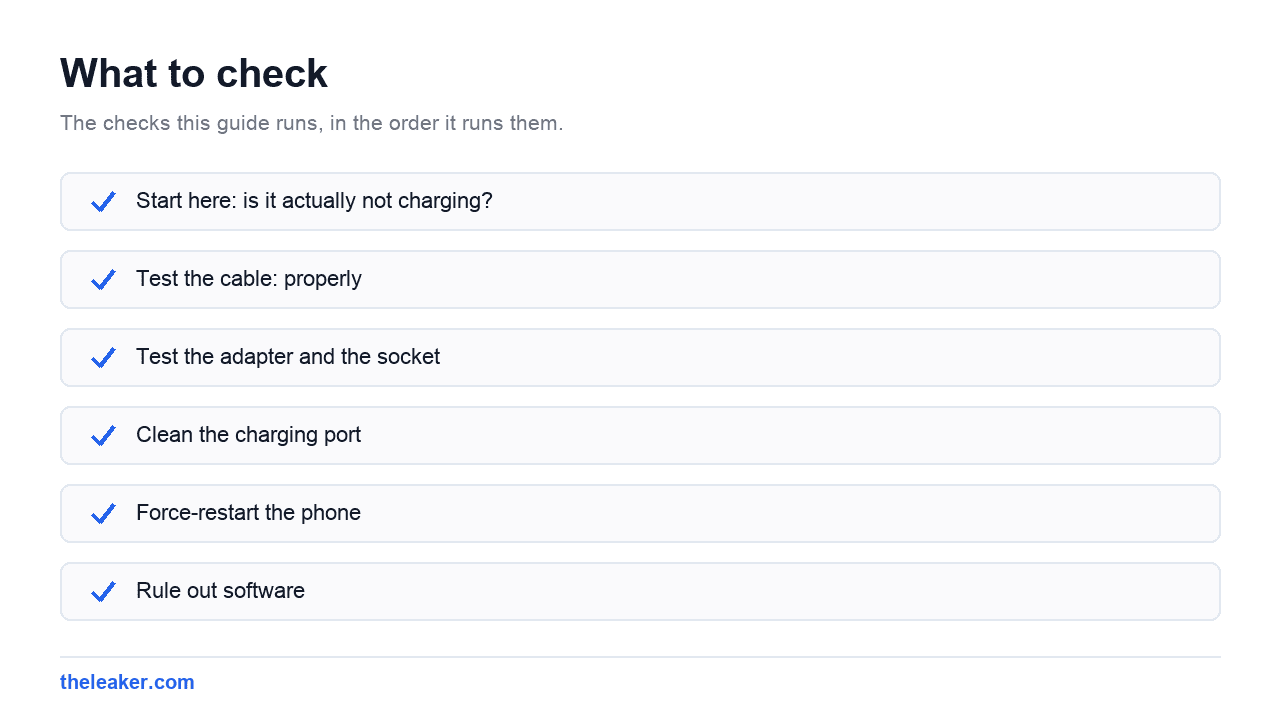
Your “Android charger” is really three separate things, and fixing it means finding which one failed, the cable, the wall adapter, or the phone’s charging port. Work cheapest first. Swap the cable (it fails more than anything else), then the wall adapter, then the socket, changing one thing at a time. Next, shine a light in the port and clear any packed lint with a wooden toothpick, never metal. Then force-restart the phone, since a crashed charging service can block power even with perfect hardware. Only after all that should you suspect the battery or the port itself. One thing overrides everything. If the back or screen is bulging or the battery looks swollen, stop charging immediately and get it to a repair shop.
The reassuring part is that most “not charging” problems come down to a cable, a bit of pocket lint, or a software hiccup. Actual hardware failure is the last thing to suspect, well behind a bad cable or lint. Here is how to work through it in the right order, and how to tell which part of the charger is really at fault.
First, is it actually not charging?
Two different problems get described the same way, and they need different fixes.
No charging at all. No charging icon, no lightning bolt, percentage doesn’t move or keeps falling while plugged in. Something in the power chain is broken.
Charging, but slowly or partially. It charges, just at a crawl, or it stops at a certain percentage. That’s usually normal behavior, a mismatched charger, or heat, and we’ll cover it further down.
Also check the obvious, and leave it plugged in for fifteen minutes before deciding. A deeply drained battery can take a while before the screen responds at all. A phone at absolute zero sometimes shows nothing for ten minutes, then wakes up with an empty-battery icon.
Fix 1: Test the cable properly
Cables are the number one culprit and it isn’t close. They flex thousands of times, get yanked out at angles, and get wound tight in bags. The damage is usually internal, right at the strain point where the cable meets the connector, and it’s invisible.
Don’t just look at the cable. Test it.
- Try a different cable with the same adapter. If it charges, the cable was the problem.
- Try the suspect cable on a different device. If nothing charges with it, it’s dead.
- Wiggle the connector gently while plugged in. If charging flickers on and off, the cable or the port is worn.
One thing people miss is that some cables are charge-only or data-only, and some cheap USB-C cables aren’t rated for the power your phone wants. A cable that came bundled with a pair of headphones or a power bank may only carry a trickle. If a spare cable charges slowly where the original charged fast, that points to the cable’s power rating.
Your phone will sometimes name the culprit for you. If you get a “Check charging accessory” notification, Google’s own support page says the cable or adapter is damaged or incompatible, and the fix is to switch to a compatible one. That message is the phone confirming the charger is at fault.
Fix 2: Test the adapter and the socket
Change one thing at a time or you’ll learn nothing. With a cable you’ve confirmed works.
- Try a different wall adapter.
- Try a different wall socket, ideally in a different room.
- Avoid extension leads and multi-way strips during testing.
Skip the computer USB port for diagnosis. Most laptop USB-A ports deliver a fraction of what a wall charger does, and some deliver almost nothing when the laptop is asleep. A phone that “charges from the wall but not the PC” is usually behaving exactly as designed.
Fix 3: Clean the charging port
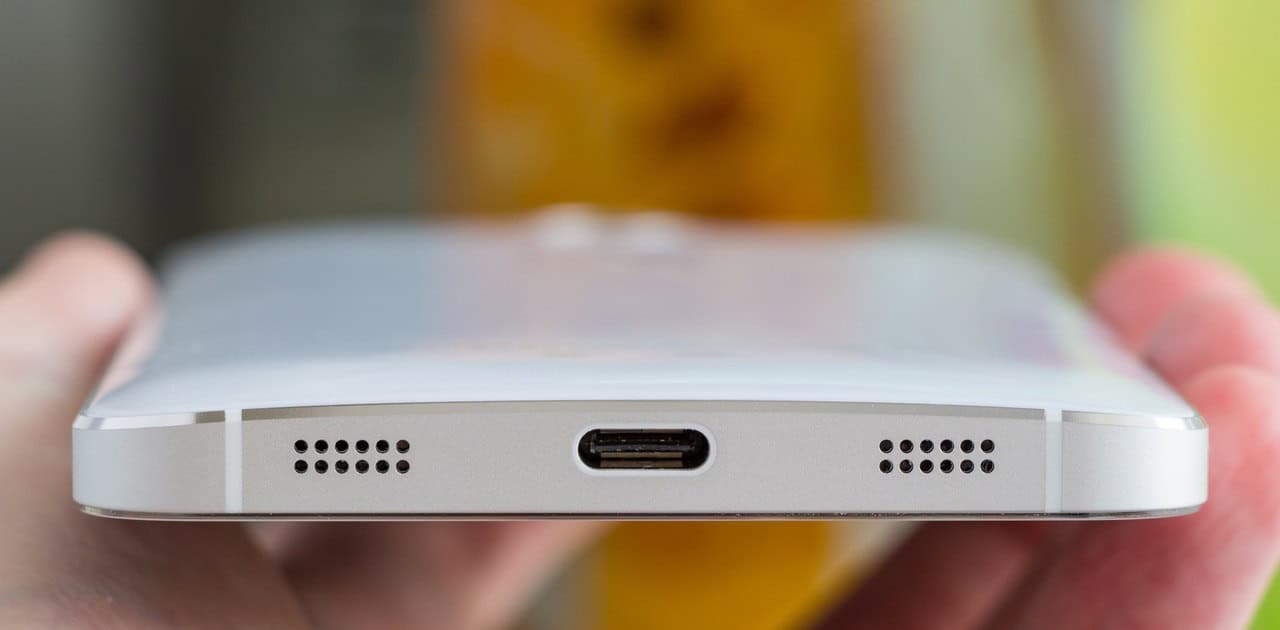
This fixes an astonishing number of phones and costs nothing. Your pocket is full of lint, and every time you put the phone away, a little more gets pushed into the port. Over a year or two it compacts into a dense plug at the bottom. The cable then can’t seat fully. It looks connected but the contacts never meet.
The tell is a cable that feels loose, doesn’t click in firmly, or only works if you press it hard. That is almost always lint rather than a broken port.
How to clean it safely.
- Power the phone off first.
- Shine a bright light into the port and look. You’ll usually see gray fluff packed at the back.
- Use a wooden or plastic toothpick, or a plastic dental pick. Never metal. A paperclip or SIM tool can short the contacts or bend the center tongue in a USB-C port, which turns a free fix into a repair bill.
- Work gently from the edges toward the middle, scraping the lint loose and pulling it out. Take your time.
- Finish with a short puff from a can of compressed air held upright and a few inches away.
Don’t use compressed air as your first move. It just packs the lint tighter. And don’t use isopropyl alcohol or any liquid unless you know what you’re doing; it isn’t necessary for lint.
People are routinely surprised by how much comes out. A phone that “needed a new port” often just needed thirty seconds with a toothpick.
Two vendors phrase the tool rule slightly differently, and the difference matters. iFixit is blunt that you must never put metal in the port, because bridging the pins together can cause electrical damage. Samsung’s guidance is to gently blow the port out but insert nothing at all. The safe reading of both is the method above. Lift the lint with a wooden or plastic pick, finish with a short burst of compressed air, and keep anything metal away from the contacts. For the full method on the port, speakers and earpiece, see our guide to cleaning your phone safely.
Fix 4: Force-restart the phone
Android runs a charging service, and like any service it can crash. When it does, the hardware is fine but the phone won’t negotiate power. A force restart clears it.
Hold the power button and volume down together for around ten to twenty seconds until the screen goes black and the logo appears. This isn’t the same as tapping Restart in the menu. It’s a hard reset of the system, closer to pulling the battery on an old phone. On some Samsung and Xiaomi devices the combination or hold time differs slightly, but power plus volume-down held long is the standard.
Do this while the phone is plugged in. Sometimes it starts charging the moment it reboots.
Fix 5: Rule out software
A few software issues can block or throttle charging.
Battery protection features. Many phones now cap charging at 80 or 85 percent to extend battery lifespan, or learn your sleep schedule and hold at 80 overnight before topping up before your alarm. If your phone “won’t charge past 80,” look for a setting called something like Battery protection, Optimized charging, or Charging limit under Settings → Battery. It is a deliberate feature, and honestly, one to leave on.
Battery saver and adaptive modes. These don’t block charging, but aggressive power modes combined with heavy background use can make charging appear to stall.
A bad update. If charging broke immediately after a system update, check for a newer patch. Manufacturers occasionally ship charging regressions and fix them fast.
Safe mode test. Hold the power button, then long-press the Power off option until you’re offered Safe mode. In safe mode, third-party apps don’t run. If the phone charges normally there but not otherwise, an installed app is interfering: often a battery-monitor or automation app. Uninstall recent additions one at a time.
Storage and system health. A phone that’s completely full behaves strangely in many ways. If yours is near capacity, our guide to freeing up storage without deleting anything is a quick win regardless.
Fix 6: The “Moisture detected” warning
If your phone shows a water-drop icon or a “Moisture detected” message and refuses to charge over the cable, that is the phone protecting itself on purpose. Phones rated IP68 sense dampness in the port and block wired charging to stop the contacts corroding. Samsung’s instructions are to unplug, wipe the port with a dry cloth or gently shake the phone with the port facing down, then let it air dry in a ventilated spot. Give it one to two hours. Wireless charging still works while the port dries, so a phone with a wireless pad is not stuck. Do not force a wired charger in, and skip the hair dryer, since direct heat can do its own damage. If the warning survives a full day of drying, that points to a stuck sensor or debris rather than water, and it is worth a service visit.
The safety part, when to stop immediately
This is the section that matters most, so read it even if you skip the rest.
Stop using the phone and unplug it right now if you see any of these:
- The back panel is lifting, bulging, or separating from the frame.
- The screen is being pushed up at one edge or has developed a gap.
- The phone rocks on a flat table when it used to sit flush.
- It gets too hot to hold while charging, well past merely warm.
- Any smell of chemicals, or visible discoloration around the battery area.
Those are signs of a swollen lithium battery. The cell is generating gas internally, and the swelling means the internal structure has failed. A swollen battery is a fire risk. It doesn’t get better, it doesn’t deflate, and continuing to charge it makes it worse.
What to do: unplug it, power it off, keep it away from anything flammable, don’t put it in a drawer or under a pillow, and take it to a repair shop or your carrier. Never puncture it, never try to compress it back down, and never try to pry the battery out yourself. Puncturing a lithium cell can cause it to ignite. Don’t put it in household trash either; damaged batteries need proper disposal.
The same applies to a phone that’s been through water. Charging a wet port can corrode the contacts or short them. Dry it thoroughly (days, not hours) before plugging anything in. And skip the bag of rice; it does very little beyond keeping starch out of your port.
Separately, a phone that runs hot but isn’t swollen will throttle its own charging to protect itself. That’s normal and self-correcting. Our guide on what to do when your phone overheats covers why it happens and how to bring the temperature down safely.
Wireless charging problems
If wireless charging specifically has stopped working.
- Alignment. Wireless coils are small. A few millimeters off center and nothing happens. Slide the phone around slowly until the charging indicator appears.
- The case. Thick cases, and especially anything with metal or a magnetic mount plate, block the field. Take the case off and test.
- Objects in between. A card, coin, or key on the pad will block charging and can heat up dangerously.
- Heat. Wireless charging is inherently less efficient and generates more heat. In a warm room, a phone may slow or pause wireless charging on purpose.
If wired charging works and wireless doesn’t, the battery is fine. You’re looking at the pad, the case, or positioning.
Slow charging is usually not a fault
Common reasons a phone charges slower than it used to.
- Wrong adapter. Fast charging needs both a charger and cable rated for it. A 5W brick will charge a modern phone at a crawl no matter what.
- Using it while charging. Gaming or navigating while plugged in can consume nearly as much as the charger supplies.
- Heat. Charging slows above certain temperatures. Get the phone off the sofa, out of the sun, and out of its case.
- Battery age. After a few hundred cycles, capacity drops and the charging profile becomes more conservative. This is ordinary battery wear.
- Background activity. A phone busy syncing and updating charges slower.
When it’s time for a repair
Consider the port or battery faulty if, after all the above, you still see any of these.
- Multiple known-good cables and adapters all fail on this phone but work on others.
- The connector is visibly loose or wobbles even after a proper clean.
- You can see bent or missing pins inside the port.
- The battery drops from a high percentage to near-empty in seconds, or shuts down at 30 percent.
- The phone only charges when you hold the cable at a specific angle.
Charging port replacement is one of the cheaper common repairs. Battery replacement is more, but usually far less than a new phone, and if your phone is two or three years old and everything else works, a fresh battery often makes it feel new.
Frequently asked questions
Why does my phone stop charging at 80 percent?
Almost always a deliberate battery-protection feature working as intended. Lithium batteries age faster when kept at full charge, so manufacturers added caps and adaptive charging that holds at 80 percent overnight and finishes just before you wake. Look under Settings → Battery for an option like Battery protection, Charging optimization, or Adaptive charging. You can turn it off, but leaving it on extends battery lifespan.
Is it bad to leave my phone charging overnight?
Not dangerous. Phones stop drawing significant power once full, and modern adaptive charging is designed around overnight use. The mild downside is that sitting at 100 percent for hours accelerates chemical aging slightly. If your phone offers adaptive or optimized charging, turn it on and stop worrying. Charge on a hard surface rather than a bed or sofa, so heat can escape.
Can a dead phone be too dead to charge?
A completely drained battery can take ten to twenty minutes on a wall charger before it shows anything on screen. Leave it plugged in with a known-good charger for at least half an hour before concluding it’s dead. If there’s still nothing after that, try a force restart while it’s plugged in. Batteries left flat for months sometimes drop below the level the charging circuit will accept, which needs a shop.
Should I use the charger that came with my phone?
If you have it, yes. It’s matched to your phone’s charging profile. If not, a reputable third-party charger rated at or above your phone’s wattage is fine; the phone and charger negotiate a safe rate. What to avoid is unbranded, very cheap adapters with no safety certification. The saving is a few dollars and the risk is real. Match the cable to the charger too. A fast charger with a low-rated cable gives you slow charging.
Updated in August 2026. Added a section on the “Moisture detected” warning, and linked Google, Samsung and iFixit’s own charging guidance for the cable, port-cleaning and moisture steps.
Related: Fast Charging Explained: Will It Really Kill Your Battery?

Hello, folks, my name is Akshay, and from the beginning, I like to play with the latest phones, gaming consoles, PCs, Laptops’s and whatnot. When I get spare time, I like to do Photography, and you will always find me playing with Photoshop, Lightroom, Premiere Pro, etc. In Love with Gadgets, my gear Motorola Moto G5 Plus. You can contact him on akshaydua[@]theleaker.com.