

Press the power button, then press Caps Lock and watch for its light. If the light responds, the machine has power and its firmware is running, so the fault sits past the power supply. The rest of this page is about power and will not help you. If the key does nothing and there are no lights, no fan and no sound at all, that is a real no-power fault and the steps below are for you. Some keyboards have no Caps Lock indicator. Those machines are harder. A power LED shows only that current is reaching the board, and while a spinning fan means rather more than that, neither shows the machine reading your keypress the way Caps Lock does. Listen for a fan or drive noise. Total silence puts you in the no-power case below, and noise with a blank screen puts you in one of the other three, which is the table again.
The detailed procedure here is Dell’s published guide, which is the most complete one I could get at. HP, Lenovo and Apple publish their own and they differ in the detail. The four-way split is Dell’s, and my own view is that it transfers to any laptop because the underlying stages do. The timings and the reset are Dell-specific and I flag where that matters.
Four different faults look identical from the chair
Most advice treats “won’t turn on” as one problem. Dell splits it into four, and the split is the useful part, since three of the four are not power faults at all and the fixes do not overlap.
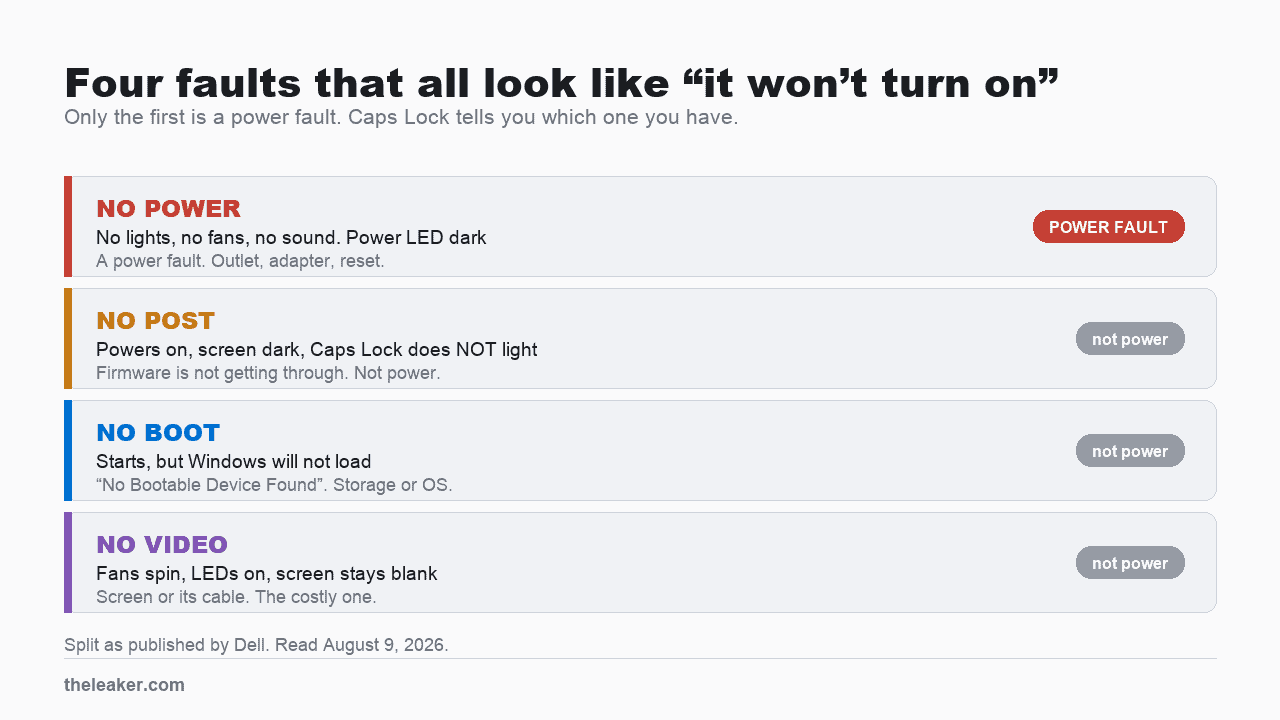
| What you see | Dell calls it | Is it a power fault? |
|---|---|---|
| No lights, no fans, no sounds. Power button LED dark | No Power | Yes. Read on |
| Powers on, screen dark, Caps Lock does not light, maybe beeps or blinking lights | No POST | No |
| Gets past startup, Windows will not load, “No Bootable Device Found” | No Boot | No |
| Fans spin, status LEDs on, screen stays blank | No Video | No |
Dell attaches the Caps Lock question only to the second case. My own reading is that the key lights in the fourth as well, since a machine running well enough to spin fans and hold its status LEDs is running firmware, but Dell does not say so. Treat that row as identified by the fans. Dell’s wording for the second case asks, “Does the caps lock key not light up when pressed?” That single key is doing real work. A laptop that toggles the Caps Lock light has reached a state where firmware is running and reading the keyboard, so whatever is wrong sits past the power supply.
The distinction matters because it decides who you call and what you pay for. A power fault can end at a fifty dollar adapter. A no-video fault sends you to an external monitor first, and Dell’s guide puts the graphics hardware or the system board in frame if that is blank too, which is a different technician and a different bill from a screen cable.
Start with what costs nothing
Dell’s basic checks start at the power button and the cable, then the peripherals, then the LEDs, before its laptop sequence reaches the outlet. I have put them in cheapest-first order instead.
- Prove the outlet by plugging a lamp or a phone charger into it first.
- Bypass the power strip or surge protector and plug straight into the wall.
- Look at the adapter and the cable along their length. Dell’s instruction if you find damage is unambiguous: “stop using the device immediately” and contact support before testing it further.
- Reseat both ends, at the wall and at the laptop.
- Unplug every peripheral. Printers, drives, dongles, everything. Dell’s reasoning is that a faulty device can stop the machine powering on.
- Try a different adapter if you can borrow one. Dell’s wording is to “test with a known working adapter to check if the adapter is faulty”. Match the wattage as well as the plug, for the reason below, or a borrowed adapter that works fine on its own laptop can still be too small for yours and tell you nothing.
Use the adapter that came with the machine if you possibly can. Dell’s line is “Always use Dell provided or Dell-approved adapter or charger”, and while that reads like brand protection, wattage does differ across models in a way a matching barrel or USB-C plug will not tell you.
If the battery comes out, take it out
On a laptop with a removable battery, Dell’s step is to take the battery out and try to start the machine on the adapter alone. Know what it tells you before you do it. If the machine starts without the battery, the battery is implicated, though the cell, its connection and its charging circuit are all still in frame, and Dell routes that straight to support with no further home step.
Most laptops sold in the last several years have a sealed battery and this step is simply unavailable. That is not a dead end, since the reset below does not need the battery out.
The reset with a window you can miss in both directions
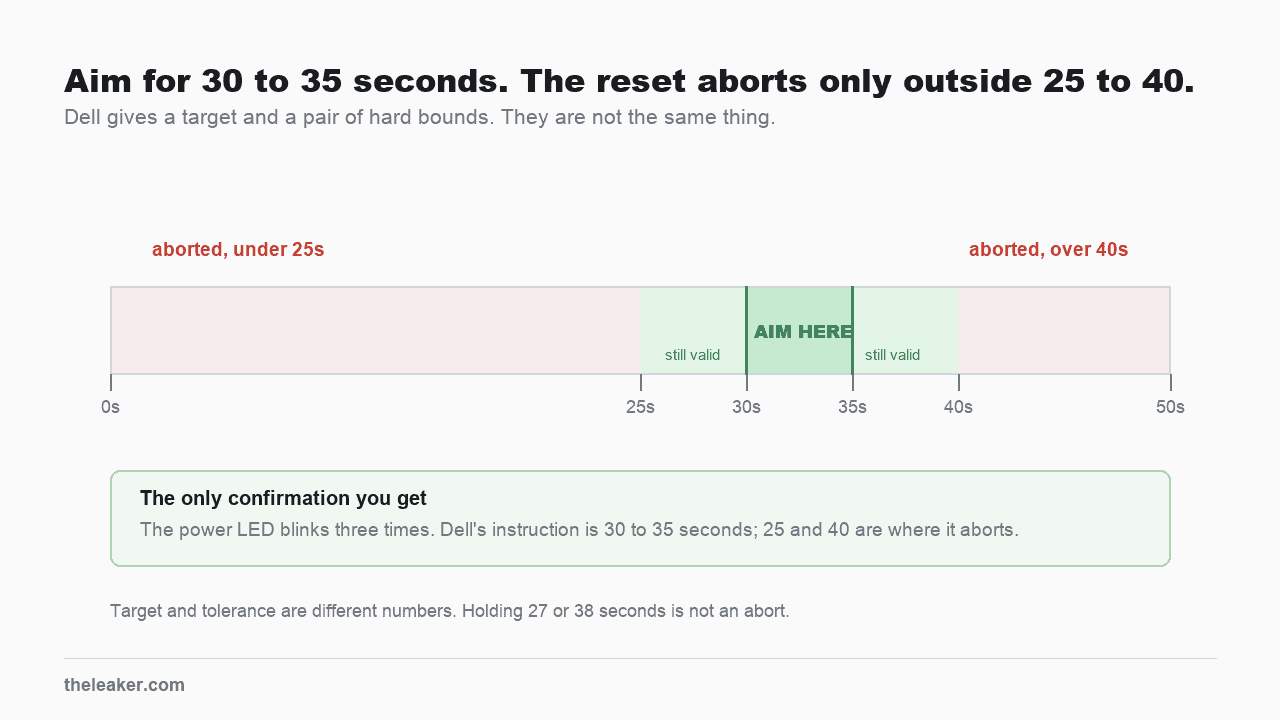
This is the step most articles get approximately right and therefore useless. Dell’s real-time clock reset has a tolerance, and holding the button for the wrong length of time silently does nothing.
Know what it does before you run it. Dell states the reset “restores the BIOS to factory default settings and resets the date and time”, and that “The reset process may restart the laptop several times depending on how it is configured”. So a machine that comes back may boot to the wrong date, and repeated restarts during the process are expected behavior. Restoring BIOS defaults means more than the clock on a machine that has been configured. Boot order, storage mode and security settings go back too, and on a work laptop that can be the difference between a machine that starts and one that no longer finds its drive. Note anything non-default first, and if an employer manages the laptop, ask them before running this.
- Disconnect every external device.
- Plug the AC adapter in.
- Press and hold the power button for 30 to 35 seconds, until the power LED blinks three times.
- Release the button, then press it normally to start the machine. Leave the peripherals disconnected until it boots, or a faulty one can spoil a reset that worked.
Count, and watch for the blinks at the same time. Release as soon as you see three, and if you have not seen them by about 35 seconds release anyway, because Dell states that “If the power is interrupted or the power button is held for less than 25 seconds or longer than 40 seconds, the reset process is aborted”. Holding on in hope past 40 guarantees the abort you are trying to avoid.
Read the two numbers carefully, because they are not the same thing. Thirty to thirty-five seconds is the hold Dell instructs. Twenty-five and forty are where it says the reset “is aborted”. A hold of twenty-seven or thirty-eight seconds sits inside those bounds and is not an abort, so if you released a little early or late you have probably run the reset rather than missed it.
If no blinks come, Dell’s own next line is to “Attempt to reset the RTC again”. My rule is two tries before moving on, since a third identical attempt is unlikely to behave differently. A machine that produces no light at any point has not told you it is unfixable, only that this procedure could not confirm itself, which is a reason to move on to the checks below and no more than that.
Scope, because this one is brand-specific. Dell states the RTC reset “is only available on some Alienware, Inspiron, Latitude, Precision, Vostro, and XPS laptops”. Other manufacturers document their own power-drain procedures with their own timings, so do not carry Dell’s 30 to 35 seconds onto an HP or a Lenovo and assume it applies.
What this will not fix
- Liquid, at any point, on any part of it.
- A machine that starts and then dies within seconds, which is its own fault.
- Visible damage to the adapter or the charging port. Dell’s instruction there is to stop testing and contact support.
- Anything requiring the case to come off. Laptop batteries are lithium cells, and a swollen one is a fire risk. Do not improvise with it.
When it is a repair
A laptop that stays completely dark on a proven outlet, with a borrowed adapter of the right wattage and no peripherals attached, has an internal fault. That holds whether or not the reset ever confirmed itself, because by this point the outlet, the cable, the adapter and the peripherals have each been ruled out on their own evidence. Dell routes that to support with warranty status as the first question, which is the right question to ask any repairer.
On a laptop the two expensive outcomes are the board and the screen, and they sit far apart in price, so ask what the assessment costs and treat any figure quoted before the machine is opened as a guess.
If your answer was one of the other three, this page is the wrong one and Dell publishes a separate guide for each, linked from the same article: one for a machine that will not complete startup, one for a machine that will not boot into Windows, and one for display and video faults. Take your answer from the table to whichever matches.
Consoles and televisions produce the same confusion, where an indicator gets read as proof of something it does not prove. See TV won’t turn on and PS5 won’t turn on.
Sources
- Dell, Computer Won’t Turn On: Troubleshoot Power Issues, for the four-way fault split, the Caps Lock question, the free checks, the battery-out test, the RTC reset with its 30 to 35 second window and 25 to 40 second abort tolerance, and the models it applies to. Read August 9, 2026.
Related: Lenovo Laptop Won't Turn On? The Reset Most Owners Do Not Know They Have · Mac Won't Turn On? The 4 States, and Which Reset Applies to Your Chip

A tech Journalist and Photographer, Dhawal Sharma is a technology enthusiast who loves to research the latest innovations and technology. He has contributed to the Honor Community for a very long period and has crucial expertise in writing tech news and reviewing smartphones and laptops. Analyzing and bringing the facts about any piece of tech is what he loves the most. He is a great product photographer and is the Gizmopedia of TheLeaker. Find him on Facebook and Instagram, and you can also email him at [email protected].