
If your Hisense TV won’t turn on, start by looking at the standby light, not the remote. No light at all usually means the TV isn’t getting power. Hisense’s Roku documentation says the standby light is meant to be lit whenever the TV has power but is sitting in standby, so on a model where that light is enabled, a light that is on tells you power is reaching the set and the fault is past that point. Hisense TVs ship on several smart-TV platforms, and the reset button, remote pairing and menu paths differ by platform. This article has primary-source documentation for the Google/Android TV and Roku lines; if yours runs VIDAA, Amazon or XClass, the standby-light logic below still applies but check your exact model’s manual for the button and remote steps.
Start here: what is the standby light doing?
Go to the section that matches your light. One caveat before you start: some Hisense models let you turn the standby light off entirely in the settings menu, so if someone in your household disabled it, a dark light on an otherwise working TV does not mean what this article assumes. Check that setting first if the TV was working normally before this happened.
- No light at all, screen completely dark (a power delivery problem)
- Light is on (steady), but pressing power does nothing (remote, software, or panel fault)
- Light blinks or flashes on its own (usually normal on Roku-platform sets; see what each pattern means)
No standby light at all
These run cheapest and fastest first, since a bad outlet costs nothing to rule out and a repair costs real money.
- Plug a different device into the same outlet. A lamp or phone charger establishes whether the outlet itself is supplying power, independently of the TV.
- Check the cable at both ends. Reseat it at the wall, the surge protector if you’re using one, and the TV. A loose IEC connector on the back of the set is a common, boring cause that looks identical to a dead TV from the front.
- Unplug the TV for a full 60 seconds, then plug it back in directly to the wall (not a surge protector or smart plug) and try again. Hisense’s own quick-start guide gives this 60-second step, though for a related symptom (sound with no picture, or a black-and-white picture) rather than for a completely dead set. It is a standard first move worth trying here, but Hisense does not document it as the fix for a dead TV, so treat it as a cheap attempt rather than a guarantee.
- Try a different wall circuit entirely, not just a different outlet on the same one, in case the breaker for that circuit tripped without your noticing.
If none of that brings the light back, the basic power checks are exhausted and the next step is model-specific service rather than a settings change. That is covered further down under when to call a technician.
Standby light is on, but the TV won’t respond
Here the light tells you power is reaching the set, so the fault is in the remote, the software, or the panel rather than the power cord. Which fix applies next depends on which smart-TV platform your Hisense set runs, since Android TV and Roku models handle remotes and resets differently.
- Replace the remote batteries, even if they seem fine. A remote with marginal battery voltage can still power its own indicator while failing to send a usable signal.
- Use the power button on the TV itself, not the remote, to isolate which one is at fault. Newer Hisense sets increasingly ship with fewer physical buttons (Hisense’s own words are “fewer and fewer buttons” on recent models), so check the underside or side edge near the logo for a power button before assuming it’s not there.
- On Roku-platform Hisense TVs, re-pair the remote. Hisense’s Roku documentation gives a specific procedure: remove the battery cover, hold the small pairing button for 3 seconds or longer until the adjacent LED lights up, then either turn the TV on with the panel’s own power button (pairing happens automatically during startup) or use the Roku mobile app or a second working remote to go to Settings, then Remotes and devices, then Pair new device, then Remote.
- On Android-platform Hisense TVs, reset the remote. Hisense’s quick-start guide for its U7G series, an Android TV line, says that if the remote misbehaves while battery power tests normal, remove the batteries and press any button for one to two seconds before reinserting them.
- Try a remote factory reset through the service menu. Hisense’s general FAQ says to press and hold the Exit button on the remote for 15 seconds until a Factory Service menu appears, select OK, then turn the TV off for at least 20 seconds and back on. This is the remote-only path, useful when the set is wall-mounted and the rear button is hard to reach.
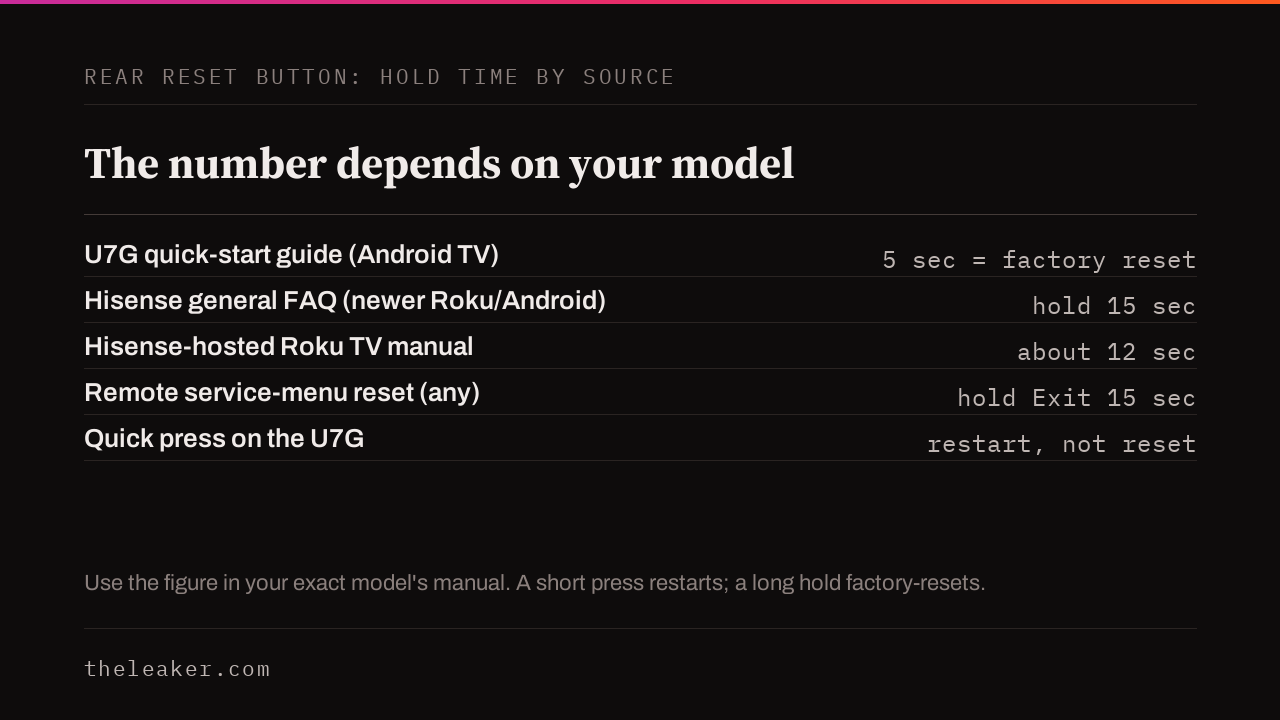
- Try the recessed reset button on the back or underside of the TV, if your model has one. The exact hold time is not the same across Hisense’s hardware, so use the figure for your model rather than a single number. The quick-start guide for the U7G Android series says a quick press restarts the TV and a 5-second hold performs a factory reset; Hisense’s general FAQ, describing newer Roku or Android sets, says to hold the button for 15 seconds; and the Roku manual Hisense hosts says to hold the recessed RESET button for about 12 seconds until the standby light comes on dim. If you are not sure which applies, a short press restarts on the U7G, so start short before committing to a long hold that triggers a factory reset.
- On Roku-platform Hisense TVs, if you can still reach the menus, use the software reset path instead of the button. Go to Settings, then System, then Advanced system settings, then Factory reset. “Reset TV audio/video settings” clears only picture and sound settings; “Factory reset everything” erases apps, logins and network settings and asks you to enter a code shown on screen to confirm.
- If the menus are unreachable on a Roku-platform TV and there’s no visible RESET button, Roku’s manual gives a manual override: hold Mute and Power together on the TV’s own panel (not the remote) while unplugging and replugging the power, then release the buttons once the startup screen appears.
If the light is on, the remote is confirmed working (test it on another device or watch for the remote’s own indicator flashing when you press a button), and none of the above produces a picture or sound, the fault is past what a menu can reach and needs model-specific service diagnosis.
Standby light blinks or flashes on its own
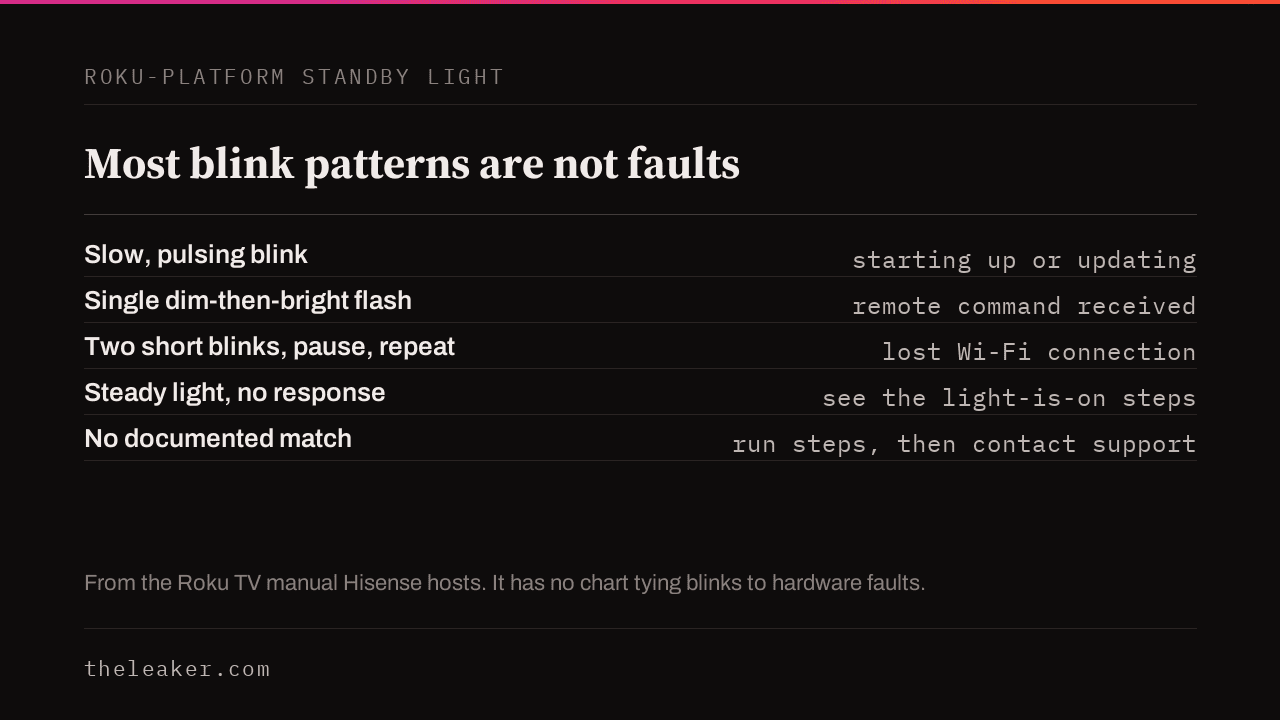
On Roku-platform Hisense TVs, Hisense’s own documentation assigns specific meanings to blink patterns, and most of them aren’t faults at all. A slow, pulsing blink means the TV is starting up, installing a USB update, or powering down to standby, and it clears on its own once that process finishes. A single dim-then-bright flash means the TV just received a command from the remote, which is normal feedback rather than a problem. Two short blinks followed by a pause, repeating, specifically means the TV lost its network connection after previously being linked to an account: check your router and Wi-Fi password rather than looking for a hardware fault.
The Roku manual Hisense hosts does not include a chart tying blink patterns to internal hardware faults, the way some manufacturers document fault codes. If a blink pattern does not match one of the three normal cases above, work through the light-is-on steps first, since the set clearly has power, then contact Hisense support with the exact pattern and your model number rather than trust a blink-code chart written for a different TV brand.
On Hisense TVs running other platforms, such as Android, VIDAA or Amazon, no source checked for this article includes a status-light blink table, so treat any blink-code claim for those sets as unconfirmed. Run the light-is-on steps and, if the set stays unresponsive, contact Hisense support with the pattern and model number.
What doesn’t work
“Hold the power button on the remote for 30 seconds to factory reset it.” The three cited Hisense sources do not document a power-button hold on the remote as a reset. Their documented paths are the rear panel button, the Roku pairing and menu steps above, and the 15-second Exit-button service-menu reset. Use one of those instead.
“A blinking light always means the backlight has failed.” Not on a Roku-platform Hisense TV: a slow pulse or the two-short-blinks pattern are normal, documented states (startup, an update, or a dropped network connection), not fault indicators. Treating every blink as a hardware failure risks an unnecessary repair call.
“Unplugging it overnight will fix a completely dead TV.” If a 60-second unplug and a clean outlet don’t bring the standby light back, leaving it unplugged longer is not a documented fix. Move to the service step instead.
What this won’t fix
Stop here and skip straight to a technician or a warranty claim if any of these apply, since no reset or cable check addresses them:
- The screen shows a visible crack, dark spot, or physical impact damage.
- You can hear the TV’s startup chime or see a brief flash of backlight, but the picture never fully loads. That is a no-picture fault rather than a no-power one, and the brand-agnostic guide below covers the backlight and panel cases; a backlight repair is a technician job.
- The TV turns on fine but a specific streaming app won’t open. That’s an app or account problem rather than a power problem, and none of the steps above touch it.
- There’s a burning smell, visible scorching, or the TV has been exposed to liquid. Don’t power-cycle it at all; unplug it and stop.
When to call a technician
A failed power supply board or a failed mainboard is a component-level repair. US repair shops commonly quote somewhere in the neighborhood of $100 to $250 for this kind of board swap depending on the part and your region, though that figure isn’t from Hisense and should be treated as a general estimate rather than a quote for your specific set. Weigh it against your TV’s age and what a similar-sized replacement costs new; for an older set, replacement is often the more practical choice, but that’s a judgment call specific to your TV’s condition. If your TV is still within Hisense’s warranty period, contact Hisense support directly with your model number and the exact symptom (light on or off, any blink pattern) before paying anyone out of pocket.
Do not open the TV’s case yourself. Capacitors on a TV’s power supply board can retain a hazardous electrical charge after the set is unplugged. This is standard electronics safety guidance rather than a Hisense-specific claim, and it’s the reason board-level repairs go to a technician rather than a DIY fix.
FAQ
Does the standby light color mean anything on a Hisense TV?
It depends on the model. Hisense uses different standby-light colors across its lineup, so the same color can mean different things on two Hisense sets, and a color code written for another brand does not transfer. Check your exact model’s manual for what its standby color indicates rather than reading significance into red versus blue versus white on its own.
My Hisense TV turned on by itself with no remote nearby. Is that a fault?
Not necessarily. Many smart TVs, Hisense included, support HDMI-CEC, which lets a connected device like a game console, soundbar, or streaming stick wake the TV automatically. If this happens unexpectedly, check your HDMI-CEC setting (sometimes labeled a brand-specific name in the picture or system menu) before assuming a hardware fault.
Will a factory reset delete my TV’s warranty history or firmware?
No. A factory reset, through whichever of the reset paths above applies to your model, clears your app logins, network settings and picture preferences. It does not roll back the TV’s firmware version. Warranty service is handled through Hisense support, which may ask for your model and serial number and proof of purchase, and a reset does not change your eligibility.
Is it safe to keep unplugging and replugging a TV that won’t turn on?
Doing it a handful of times while troubleshooting, as described above, is standard practice and won’t hurt the TV. If it doesn’t bring the TV back after a few attempts, repeating it further isn’t likely to help, and the next step is the technician step rather than more cycling.
If your TV isn’t a Hisense, the standby-light logic still applies in principle, but the specific button locations, hold times and menu paths are different by brand. See how the standby light works on Samsung, Sony and Roku-based sets if you’re troubleshooting a different manufacturer’s TV, including the no-picture and backlight cases.
Sources
- Hisense USA: Televisions, Common Questions (reset instructions, remote pairing without a remote)
- Hisense 65U7G Quick Setup Guide (Android TV; troubleshooting table, RESET port behavior, remote troubleshooting)
- Hisense-hosted Roku TV User Guide (status indicator table, remote pairing, factory reset paths)

I am the chief editor of TheLeaker. I also maintain the backend stuff of the site. I’m a tech enthusiast and loves to do Python coding in my free time. I have worked at many giant publications like XDA Developers and NXTtech before starting TheLeaker.
You can get in touch with me at Garv[at]theleaker.com.