
Two things first, because everything below assumes neither has happened. If liquid has been spilled on it, do not connect it to power at all. Leave it unplugged and off until you can get it looked at. If the case is bulging, the trackpad sits proud, or the laptop rocks on a flat desk, the battery has swollen. Do not charge it, do not press on it, and take it in.
Otherwise, reseat the power cable at both ends in a known-good outlet, then press and hold the power button for about 10 seconds, release, and press it normally. If nothing changes, unplug every accessory and repeat that hold. Those are the first three steps of Apple’s published procedure for a Mac that doesn’t turn on, in Apple’s order: power connections, then the hold, then accessories.
On a MacBook with Touch ID, Touch ID is the power button, and Apple’s blank-screen page is specific about how to use it: “Don’t lightly touch it as you would when using Touch ID, but press it down.”
What that page does not do is sort you into the four situations people mean by “won’t turn on”, and the situation decides everything after step three. Three of the four point somewhere other than the power path, and one has a fix Apple documents on a completely different page, so the reader who needs it most is the least likely to find it.
Below I have kept Apple’s steps and added the routing. Where a claim is Apple’s I link the page it sits on, and where a judgment is mine I say so.
Which of the four states is yours
Work out which line you are on before you try anything else. The four end in four different places.
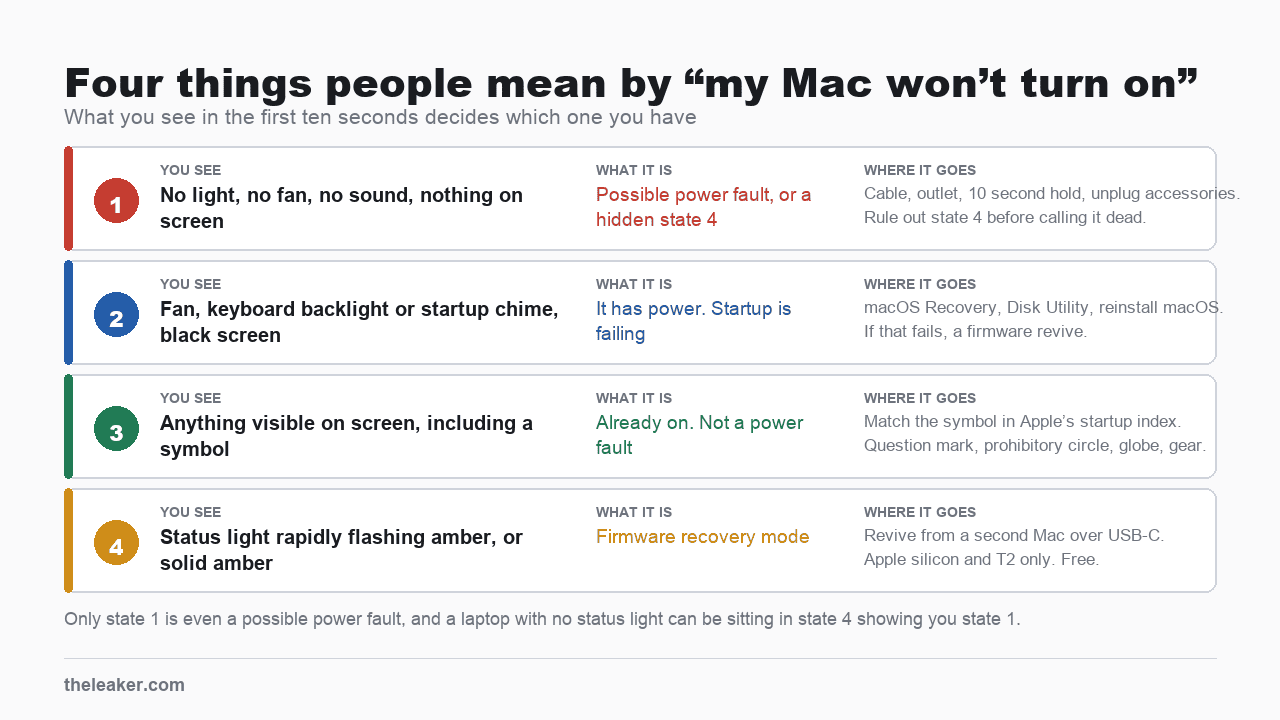
| What you observe | What it is | Where to go |
|---|---|---|
| No light, no fan, no sound, nothing on screen | Power path; on Apple silicon or T2, try a revive before service | State 1, below |
| Fan, keyboard backlight or startup chime, but a black screen | It has power. Something in startup is failing | State 2 |
| Anything visible on screen at all, including a symbol | Already on; start with the startup path, though this alone does not rule out a power fault | State 3 |
| Status light rapidly flashing amber, or solid amber | Firmware recovery mode | State 4 |
These are diagnoses, not a sequence to run in order. Find your state and go straight to it. They happen to be listed by how much each costs to rule out, from a cable swap in state 1 to a borrowed Mac in state 4. A Mac that will not wake from sleep is covered by the state 1 and state 2 steps too.
Find out which chip you have first
State 1’s first steps need no chip knowledge, so if your Mac shows no light at all, go straight there and come back here before any reset. For everything past that step, the reset procedures differ by chip. An Apple silicon Mac, a Mac with the T2 chip and an Intel Mac without T2 take different sequences, and the differences are not cosmetic. Two of them use a different Shift key.
Open the Apple menu and choose About This Mac. Apple’s test is the label: Apple silicon shows an item called Chip, an Intel Mac shows one called Processor. If the machine is too dead to check, work from the model name instead. Apple lists every Apple silicon Mac and, separately, every Intel Mac carrying the T2 chip, and between them those two pages settle which of the three groups you are in.
- Apple silicon (M-series). There is no SMC reset to perform. Apple’s own SMC page says plainly that “SMC resets automatically on Mac with Apple silicon”, and the whole Apple-silicon instruction there is to restart or shut down normally.
- Intel with T2. SMC reset, and revive too.
- Intel without T2. An SMC reset exists, and it is not the same key sequence as the T2 one. Revive does not apply at all.
Apple opens the SMC page with a sentence I would put above every Mac troubleshooting article ever written: “You most likely do not need to reset the SMC.”
State 1: no light, no fan, no sound
Apple’s first three steps are for exactly this case, and they are worth doing in order.
Check that the power cable is undamaged and pushed fully into both the Mac and a working outlet, and if you have a second compatible adapter or cable, try it. If the Mac has no built-in display, confirm the external display is powered, connected and switched on. Then hold the power button for about 10 seconds, release, and press it normally. Apple’s page states the hold duration and never explains it, so treat it as an instruction and do not try to reason forward from it.
Then unplug everything. Apple names printers, drives, USB hubs and mobile devices, and asks you to repeat the ten second hold with all of them disconnected. A hub or a failing external drive can be the whole fault, and this is how you rule that out before touching anything else.
If the machine is a laptop and the battery is not charging, Apple gives one more instruction on a different page, under that exact heading. Its line is “Shut down your Mac, close its lid for 30 seconds, then try to charge again.” Apple does not say why 30 seconds. Try it anyway.
Two things about adapters. Wattage matters. Apple warns that an adapter that “isn’t rated for at least the wattage that your Mac requires” may charge slowly or unreliably even though it fits. And a USB-C connector fitting the port tells you nothing about the wattage, which is a caution I am adding, and Apple writes nothing of the kind.
Do not conclude it is dead yet
Apple does not connect these two sections, so what follows is my own routing between them.
A current MacBook has no status indicator light, so if it were in firmware recovery mode it would have no way to show you. That is not a reason to assume a fully inert Mac is secretly in that state. Apple documents firmware recovery by the amber status light and by the blank-screen path in state 2, not by a total absence of signs. But if the state 1 steps above produce nothing and your Mac is Apple silicon or has a T2 chip, a revive (state 4, below) is Apple’s documented attempt for rare firmware failures and is worth one try before you pay for service. You settle whether the machine qualifies from the two model lists above, not from About This Mac. A Mac showing no signs at all is more often a power or hardware fault, so if a revive does nothing, service is the next step.
If the Mac does start after one of the steps above, run Apple Diagnostics before you trust it. On Apple silicon, press and hold the power button, release it when Options appears, then press and hold Command-D until the Mac restarts. On Intel, hold D as it starts, or Option-D if that fails. Apple’s wording is conditional twice over. If the results do not let you resolve it yourself, and if you see one or more reference codes, those codes are what you give an Apple Store, an Apple Authorized Service Provider or an Independent Repair Provider.
State 2: it has power, the screen is black
A fan, a keyboard backlight or a startup chime tells you power is reaching the machine. I am reading more into those signs than Apple does, and its own framing is looser. Apple separates the case where the Mac seems to be turning on but the screen is blank, and gives that case its own page, which opens with the same ten second hold and then sends you to macOS Recovery.
Getting into Recovery differs by chip, and Apple publishes both routes. With the Mac off, an Apple silicon machine wants the power button held down until startup options load. An Intel machine wants the power button pressed and released, then Command-R held immediately. If nothing ever appears on the screen, rule the display out first (below), then treat it as the firmware case in state 4.
In Recovery, Apple’s order is Disk Utility first to repair the startup disk and restart, and only if the blank screen returns, reinstall macOS from Recovery. Apple’s own wording is that “Reinstalling macOS doesn’t remove your apps or personal data”. I think that is the distinction people lose in a panic, and it is why machines get handed over that were recoverable at home.
If your Mac drives an external display and has no built-in one, rule the display out before you rule the Mac out. Apple keeps that as a separate branch, and it takes about a minute.
And if Recovery does not fix it, Apple’s page names an exit: a Mac with Apple silicon or a T2 chip “might need to revive or restore the firmware”. That is state 4’s fix, reached from a machine whose status light you may not have.
State 3: there is something on the screen
Then your Mac turned on. Whatever is wrong is happening after power, which is a different problem with a different set of answers, and Apple keeps an index of startup symbols that maps each one to its own page.
Match yours exactly, because the symbols look similar and lead to opposite advice. The first four are faults. The last two are the Mac working correctly and telling you so.
- Flashing folder with a question mark. The startup disk is not being found.
- Circle with a line through it, the prohibitory symbol. The disk was found but the macOS on it cannot be used.
- Globe with an exclamation point. It tried to start from internet Recovery and could not.
- An Apple logo or progress bar that stalls, or that restarts the machine before it finishes. Apple has a page for this one.
- Lock icon with a password field. A firmware password is set and is doing its job.
- Gear icon labeled Options. Startup options. Recovery lives there.
One entry in that index is worth reading twice. A drawing of the underside of a Magic Mouse or the back of a Magic Keyboard, with a small arrow at the power switch, means the Mac “can’t detect your built-in or external mouse, trackpad, or keyboard”. Apple stops there, and so should you. A switched-off Magic Keyboard produces that screen, but so does a flat one, and so does a real input fault. Check the switch before anything else.
State 4: an amber status light, and the fix Apple files somewhere else
This is the one I would most want to know about if my Mac were dead on a desk. It is the state that Apple’s no-power page never mentions, because the fix is documented under status lights and blank screens instead.
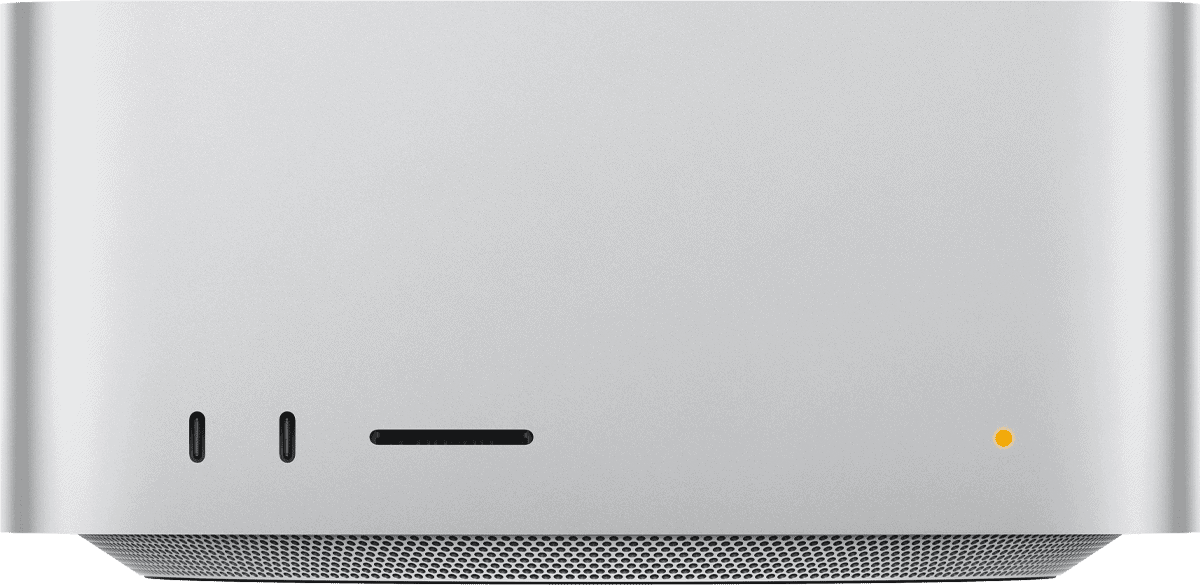
Mac mini, Mac Studio and Mac Pro carry a status indicator light, as do some earlier MacBook, MacBook Pro, MacBook Air and iMac models. Apple documents what its states mean, and one of them is not a hardware failure. If the light “rapidly flashes amber or is solid amber” and the display is blank, the Mac is in firmware recovery mode.
Two limits on that test, and Apple’s status-light page states neither, so treat both as mine. A Mac with no status light can still be in this state and simply has no way to show it, which is the state 1 trap above. And the repair Apple offers covers Apple silicon and T2 machines only, so an older Mac with a status light may show amber and still have nowhere to go but service.
Apple calls the repair a revive, and describes when it applies. Firmware needing revival “can occur in certain rare circumstances, such as after a power failure interrupts macOS installation”. A revive is the gentle one of the two options, and Apple’s instruction is unambiguous about which to try: “Try reviving first. It can be faster than restoring, and it doesn’t erase your Mac.” A restore erases the machine and returns it to factory settings, so it is the last resort.
What a revive needs
All of these are Apple’s requirements, from its revive and restore page.
- Apple silicon or a T2 chip in the dead Mac. No other model qualifies.
- A second Mac of any model running macOS 14 or later, on power and online, with enough free space to download what it needs. Apple says 32GB “should be more than enough”.
- A USB-C to USB-C cable that supports data and charging. Apple explicitly says not to use a Thunderbolt 3 cable, and separately advises plugging directly into each Mac, never through a hub.
- Both Macs on power.
What you are working towards is a window in the Finder on the host Mac, showing “Mac” in its sidebar. That window is where the Revive Mac button lives, and until it appears nothing has happened.
Which port, exactly
The cable does not go into any port. It goes into the DFU port, which Apple says “looks identical to other ports that accept a type USB-C connector”, and whose location changes by model.
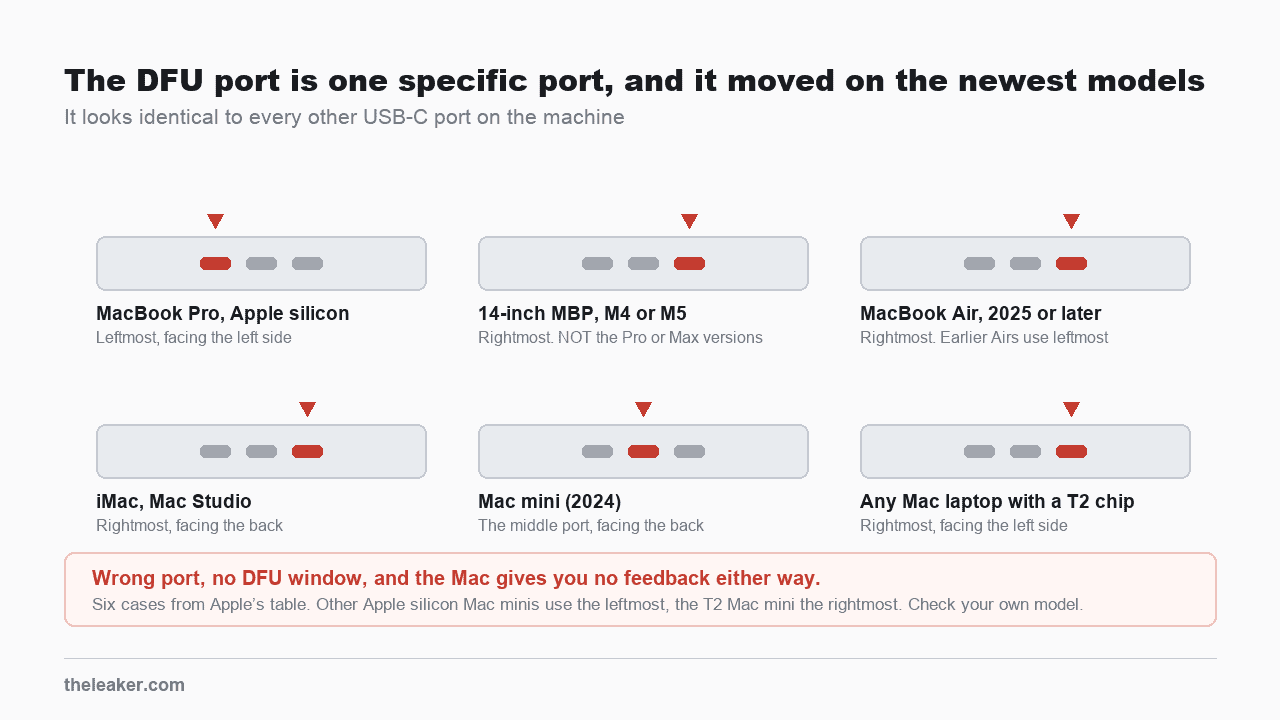
Find your model in Apple’s table before you plug anything in, because the chart above is six common cases and the Mac mini alone has three answers. The 2024 model uses the middle port, the T2 model the rightmost, everything else the leftmost. Note also that Apple’s 14-inch exception is narrower than it looks, reading “excluding Pro or Max versions”, so a 14-inch M4 Pro uses the leftmost port like other Apple silicon MacBook Pro models, while a T2 MacBook Pro uses the rightmost.
Then plug the cable into that port on the affected Mac and into any USB-C port on the host. Apple asks that nothing be plugged into any other USB port “except as needed to connect your Mac to power”, and says to use the MagSafe port for power if the machine has one.
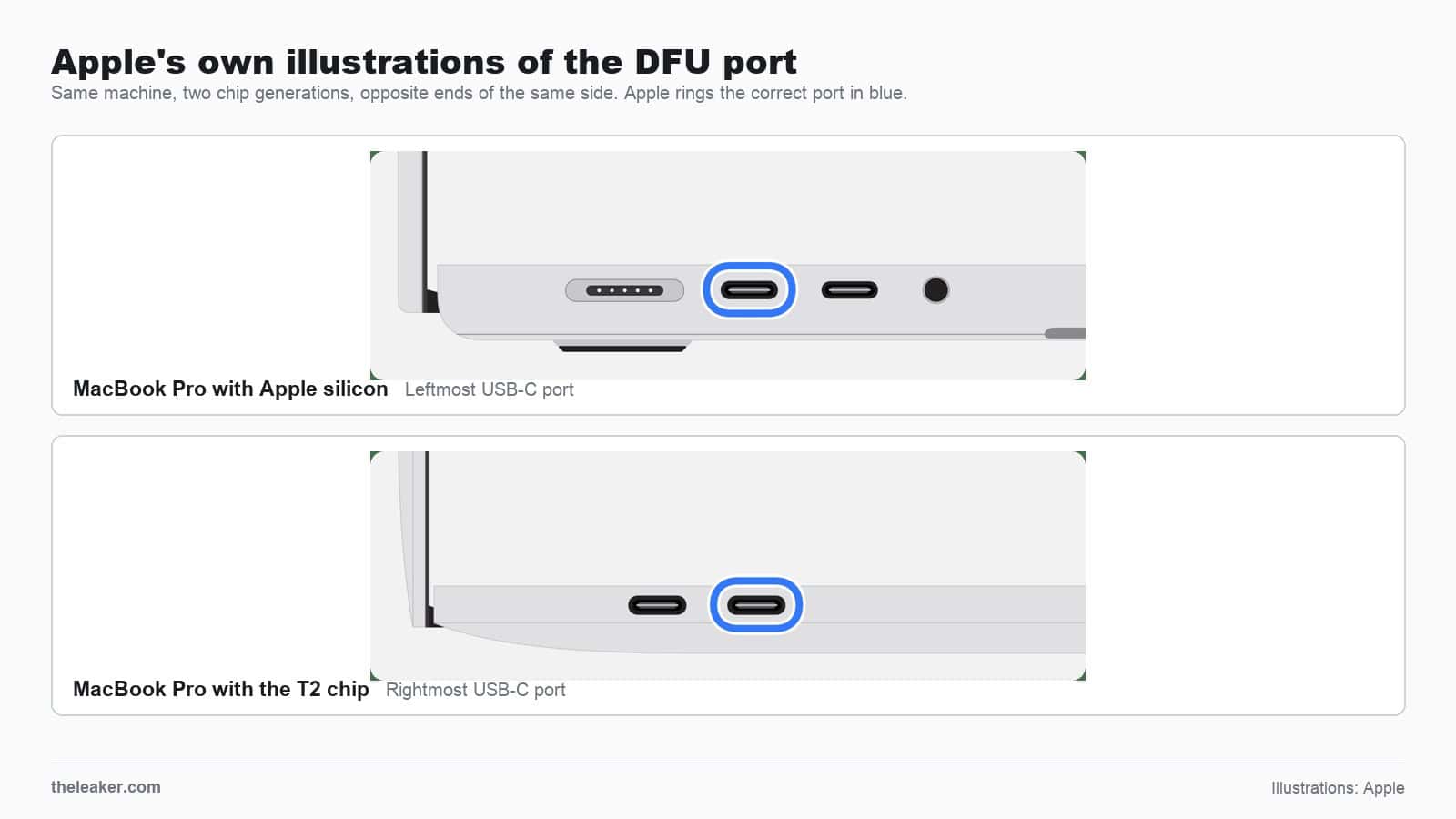
Entering DFU mode is a timed key sequence, and it differs by machine. On a laptop, first hold the power button up to 10 seconds until the Mac turns off (if it turns on instead, repeat). Then run the sequence for your machine:
| Machine | DFU key sequence |
|---|---|
| Apple silicon laptop | Press and release power, then immediately hold Control (left), Option (left), Shift (right) and power together for about 10 seconds. Release Control, Option and Shift, then hold power alone for up to 10 seconds more. |
| T2 laptop | Press and release power, then immediately hold the same three keys plus power together for about 3 seconds. |
| Desktop | Unplug it, hold the power button, and keep holding while you plug it back in, for up to 10 seconds. |
Apple’s own troubleshooting note for this step is the tell: “Proper timing of key presses is important.” Expect to repeat it. The affected Mac stays blank throughout, so the Finder window on the host is the only thing that will ever tell you it worked.
The reset advice that no longer applies to your Mac
Two resets have been the reflex for a Mac that will not start since long before Apple silicon existed. Neither applies to an M-series Mac, as the two sections below show.
Resetting the SMC. On Apple silicon there is nothing to reset. Apple’s page says the reset happens automatically and that the Apple-silicon procedure is simply to restart or shut down. My own reading of why the advice survives is that an Intel key combination on an M-series Mac throws no error and looks exactly like a reset that worked.
Resetting NVRAM or PRAM. Apple’s startup-key page lists Option-Command-P-R only under Intel-based Macs, so there is no NVRAM reset to perform on Apple silicon at all. Neither reset appears in Apple’s no-power procedure either, so it is not part of fixing a Mac that draws no power.
On Intel machines the SMC reset is real, and an earlier draft of this article had the wrong sequence in it. Apple publishes four separate procedures, three of them chip-specific and one shared by every Intel desktop. The two laptop sequences are the ones people conflate, and they differ in which Shift key you hold and for how long.
| Machine | Apple’s procedure |
|---|---|
| T2 laptop, first try | Shut down. Hold the power button or Touch ID for 10 seconds. Release, wait a few seconds, turn it back on. |
| T2 laptop, if that fails | Shut down. Hold Control on the left, Option on the left and Shift on the right for 7 seconds, then add the power button for another 7. Release all four, wait a few seconds, then press the power button. |
| Intel laptop without T2 | Shut down. Hold Shift on the left, Control on the left and Option on the left, add the power button, and hold all four for 10 seconds. Release everything, then press the power button. |
| Any Intel desktop, T2 or not | Shut down, unplug the power cord, wait 15 seconds, plug it back in, wait 5 seconds, press power. |
What this will not fix
- Liquid damage or a swollen battery. Both are covered at the top, and both are a service job, not a reset.
- Physical damage to the logic board or power circuitry. No reset sequence addresses it.
- An Intel Mac without a T2 chip in state 4. Revive needs Apple silicon or T2, so an older Mac with the same symptoms goes to service.
- A Mac that was dropped. Start at service.
When it needs service, and what it costs
Every step above is free except the revive, which costs a USB-C cable if you do not already own one, plus access to a second Mac. If you cannot borrow one, an Apple Store or Apple Authorized Service Provider has both, and it is worth asking specifically for a revive before agreeing to anything larger.
If the fault turns out to be the battery, and the Mac starts well enough to check, Apple publishes the threshold instead of leaving it to a technician’s judgment. In System Settings, Battery, the Battery Health reading is either “Normal” or “Service Recommended”, and Apple’s guidance is that you can safely keep using a Mac showing Service Recommended. Under an AppleCare Protection Plan, a laptop battery that “retains less than 80 percent of its original capacity” is replaced at no charge. Without coverage there is a fee, which Apple quotes per model, so get the quote before you commit.
If you are here because a laptop from another manufacturer will not start, the power-path logic is similar but the reset procedures are not interchangeable at all. Our general guide to a laptop that will not turn on covers the brand-agnostic version.
FAQ
My MacBook shows no sign of life but the charger brick is warm. Does that mean it is charging?
Not on its own. A warm adapter is weak evidence that current is flowing somewhere, and a faulty adapter runs warm too, so warmth cannot tell you the Mac is accepting anything. What to do instead is Apple’s instruction, which is to shut the Mac down, close the lid for 30 seconds, then try charging again. That step is documented for a battery that is not charging rather than a machine showing no sign of life, so treat it as one thing to try, not a fix for a dead Mac. Open the lid, press the power button, and watch for any change at all: a chime, a fan, a backlight, a charging indicator on a MagSafe cable.
How long should I leave a completely flat MacBook on the charger before deciding it is dead?
Apple’s no-power page gives no waiting period at all, which is a real difference from other manufacturers. Lenovo’s equivalent document, for instance, tells you to “allow it to charge for at least 5 to 10 minutes” before judging anything. The one figure Apple does publish is conditional. Its Mac User Guide says a computer just out of long-term storage “may require 20 minutes of charging with its power adapter before you can use it again.” For an everyday flat battery Apple gives no threshold, so leave it on a known-good adapter and stop pressing the button while it sits there.
Can I revive a Mac using an iPad or a Windows PC as the host?
No. Apple’s requirement is another Mac running macOS 14 or later. There is no supported route from any other device.
Does a revive delete my files?
Apple’s wording is that reviving “doesn’t erase your Mac”, and the erase-everything option is the separate restore, which returns the machine to factory settings. Apple’s own instruction is to try the revive first.
My Mac starts, shows the Apple logo, then shuts off. Is that this article?
Not really. Your Mac is reaching the logo, so it is powering on, and the page you want is Apple’s own on a Mac that starts up to an Apple logo or progress bar. I would not rule out a power or battery fault on that symptom alone, since a machine that dies mid-boot may be losing power when software is not the problem at all, but the steps in this article are written for a Mac that shows you nothing at all.
Sources
Apple support pages, all read on 10 August 2026: If your Mac doesn’t turn on (published 2 June 2025, per the page’s own datePublished value, which carries a date and no timezone), If your Mac starts up to a blank screen, If your Mac doesn’t start up all the way, How to start up from macOS Recovery, How to reinstall macOS, Reset the SMC of your Mac, Mac computer status indicator light behavior, How to revive or restore Mac firmware, Find the DFU port on your Mac, If you see battery “Service Recommended” on your Mac laptop, Mac computers with Apple silicon and Use Apple Diagnostics to test your Mac. Also cited: Mac computers with the Apple T2 Security Chip, If your Mac starts up to an Apple logo or progress bar, Mac startup key combinations, and the Mac User Guide battery page. The one non-Apple source is Lenovo’s no-power document HT510410, quoted once in the FAQ for contrast.
Apple’s pages are the authority for every step above, and every quoted string is Apple’s except the one from Lenovo in the FAQ, which is linked where it appears and listed below. The routing into four states is mine, and so is any judgment flagged as such in the text. I have summarized, so open the pages themselves for the sub-steps I compressed, in particular the full DFU port table and the restore branch of the firmware page.

I am the chief editor of TheLeaker. I also maintain the backend stuff of the site. I’m a tech enthusiast and loves to do Python coding in my free time. I have worked at many giant publications like XDA Developers and NXTtech before starting TheLeaker.
You can get in touch with me at Garv[at]theleaker.com.