
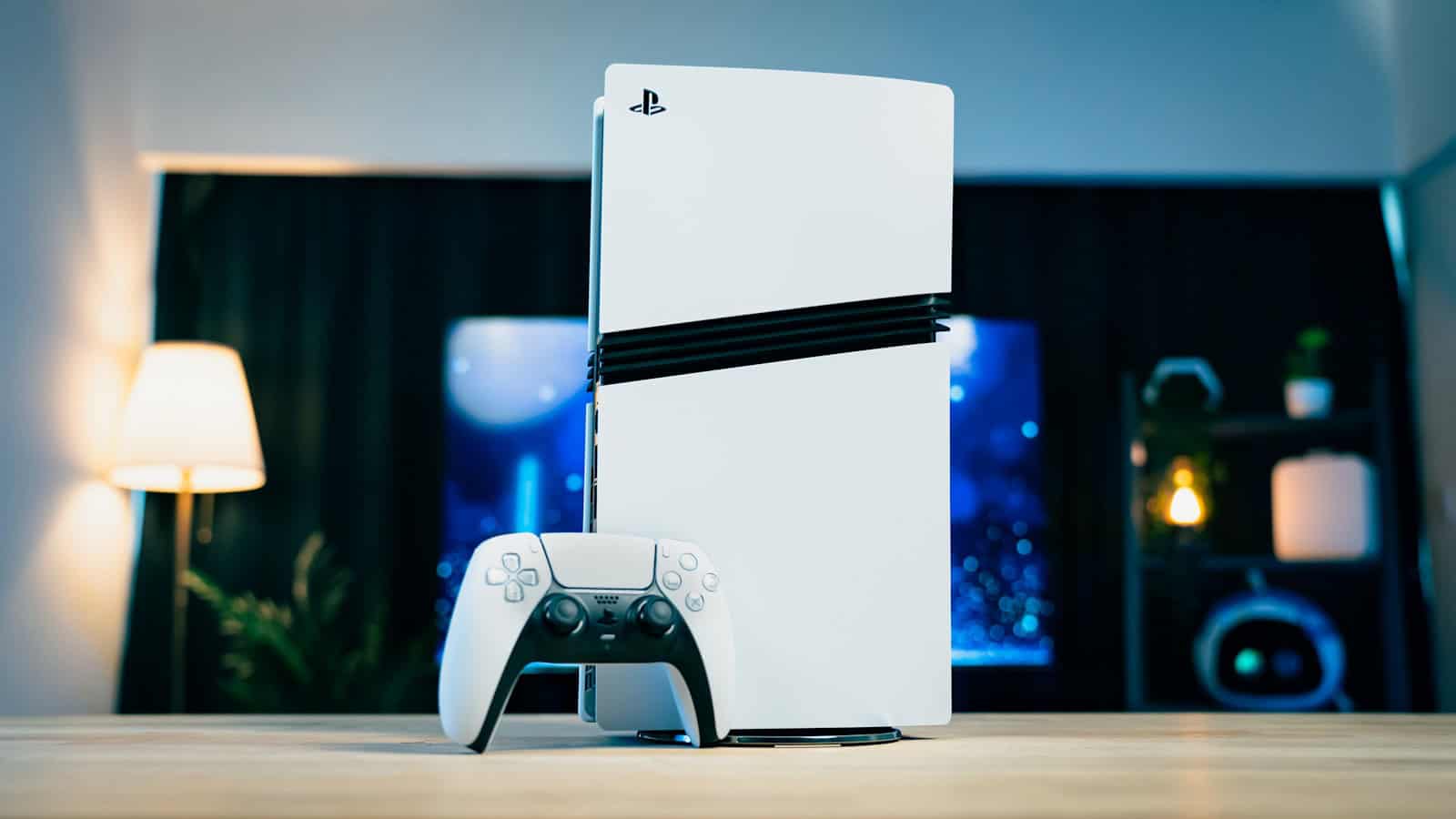
Look at the power indicator before you touch anything else. Dark, orange, stuck on an error color, or solid white with a black screen. Those four cover most of what brings people here, they need completely different things done to them, and picking the wrong one wastes twenty minutes. A console that lights up and then dies within seconds is its own case, and it goes straight to the repair section.
Unplug it now if any of this is true
Mains power and a sealed box. Three things here override everything below.
- A burning or hot-plastic smell, unusual noises, or a console too hot to touch. The safety guide says to stop use and disconnect immediately on any of those.
- A power cord that is visibly damaged or has been modified. Do not plug it in to test it.
- Liquid has been in or on it.
- The mains cable wobbles in its socket or has to be held at an angle to work.
None of those is a troubleshooting problem. The third one is worth one test and no more. Try a second C7 cord, because a worn plug on an old cord is cheap to fix. If the wobble is in the console socket itself, stop there and take it to a repair shop, since propping a cable at an angle to keep a console running is how a small repair becomes a large one.
Find your light, then follow one branch
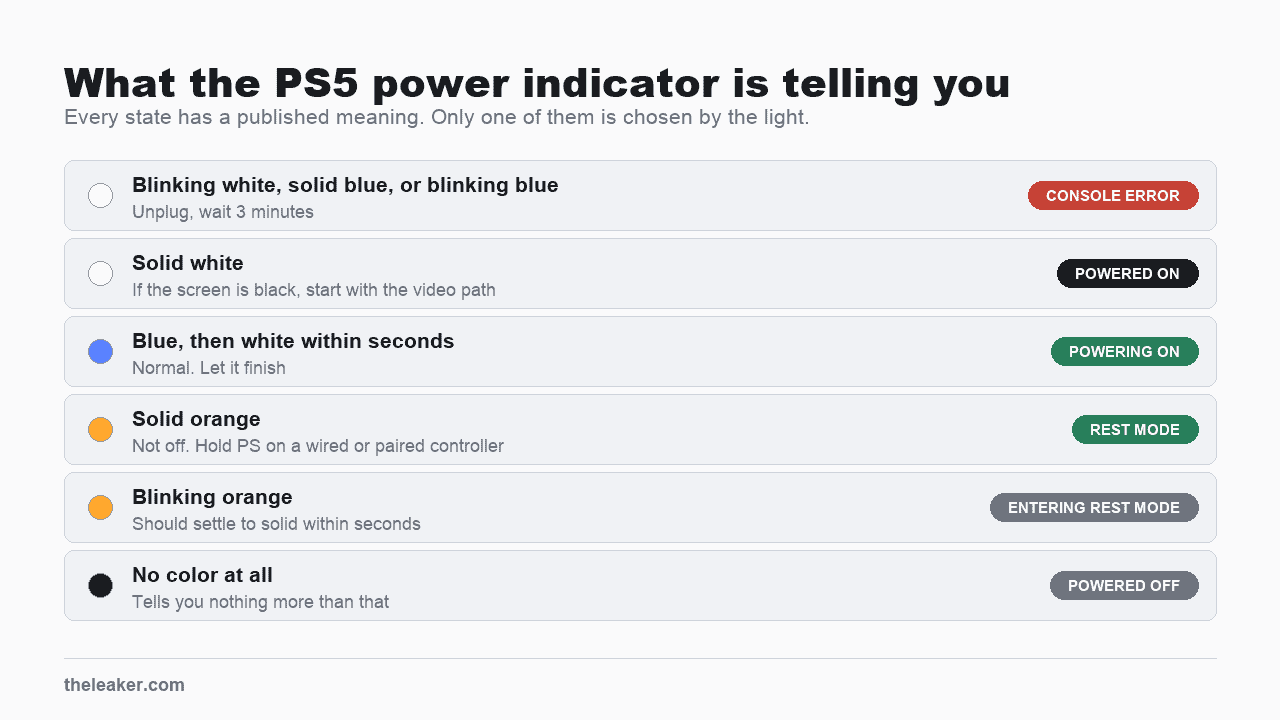
Every state has a meaning published on the power indicator guide. Four of them matter when a console will not start.
- Solid orange. Rest mode, so the console is not off at all. Hold the PS button on a controller that is connected by cable or already paired. Blinking orange is published as entering rest mode, and it should go solid after a few seconds. Do not pull the cable on it. The safety guide says that disconnecting while “the power indicator is lit or blinking, data may be lost or corrupted, or the console may be damaged”. Give it a minute to settle, and if it never does, treat it as the error case and follow that row.
- No color at all. Powered off, and nothing more than that. Branch 1.
- Blinking white that keeps blinking, or blue that never turns white. Console error. Branch 2.
- Solid white, black screen. Branch 3.
Blue trips people up because it reads as activity. It is only correct as a brief step on the way to white, and the guide treats an indicator that “remains blue and doesn’t transition to solid white” as an error state. Some people call that one the blue light of death. It sits in the same category as a white light that will not stop blinking, and takes the same fix, though nothing published says the underlying fault is identical.
Branch 1: no light at all
The published meaning of a dark indicator is that the console is off. That is all it establishes, so it cannot tell you whether power is reaching the console or whether the console is receiving power and refusing to start. Work that out yourself, cheapest first.
- Prove the outlet. Plug a lamp or a phone charger into it. An outlet that looks fine can be dead, and this takes ten seconds.
- Move to a different outlet, ideally in another room, straight into the wall with no surge protector or extension lead in between.
- Swap the mains cable. People skip this because they assume the cord is proprietary. It is not. The PS5 takes a standard IEC C7, the flat two-pin figure-8 fitting also used by a PS3 Slim, most PS4 models and an Xbox Series X or S. Check the shape at the appliance end before trusting a device name, since inlets vary between revisions of the same console. Borrow from another console if you can, for the reason in the next paragraph.
Press the power button on the console itself after each of those, and listen for a beep. Use the button on the console, since a flat or unpaired pad will make a perfectly healthy machine look dead.
What will not do it is a three-pin cord, whether that is the C13 off a desktop PC or the C15 off a kettle. Neither will physically enter a figure-8 socket. Plenty of monitors and printers do use C7, so go by the shape of the plug and never by what it came off.
There is a conflict in the documentation here that nobody resolves for you. Sony’s own troubleshooting says to “try using a different USB, HDMI, or power cable” and to test after each change “to check which cable has the issue”, while the safety guide says “Do not use a power cord other than the included AC power cord”. A C7 from another console is the closest you can get to both instructions, though it is not literally the included cord and I am not going to pretend that resolves it. If the swap brings the console back, you have found your fault, and the fix is a replacement cord of your own.
Still dark on an outlet you have proved live, with a second C7 cord tried, means an internal fault.
One thing this branch is never about is HDMI. The connector does carry a 5 volt line, but it runs from the console out to the display and carries a tiny fraction of what a console draws, so HDMI is not how a console ends up with a dark indicator. That is my reading of the wiring, and I have seen no vendor page put it that way. It does not mean a faulty display can never cause trouble, only that it cannot starve the console of power.
Branch 2: blinking white, or blue that stays
This is the one state where the light itself prescribes the fix. The indicator guide describes the console as frozen and gives the procedure outright: unplug the console, wait 3 minutes, plug it back in, turn it on.
Three minutes, not thirty seconds. None of the six sources listed at the end of this article gives a thirty-second figure for any PS5 symptom, and the twenty-minute wait people also repeat here belongs to two other faults entirely. One is the blank-screen case in branch 3. The other is a console that will not start in Safe Mode, where the instruction is to check the cables first and then “leave the console for 20 minutes”.
If the console still answers a button press, shut it down properly first. Hold the power button for three seconds, until the indicator blinks and goes out. A short press does something different, so hold it down and count. Pull the cable only once the light is off.
When the error keeps returning, the guide names reinstalling the system software through Safe Mode as the next step. That option erases everything, and it sits at the very bottom of a menu whose top six do not, so use the symptom map in the Safe Mode section and treat the reinstall as the last thing you try.
Branch 3: solid white, nothing on screen
A solid white light is the powered-on state, so the console believes it is running. That points at the video path, though an HDMI port or an internal fault can produce the same blank screen and the light alone will not separate them.
The picture and sound page opens this case as a console and screen that “are turned on but there is no image”. Its order is worth keeping, because it runs cheapest first.
- Reseat the HDMI cable at both ends, using the one that came in the box.
- Try a different cable, then a different HDMI port on the screen.
- Confirm the screen is switched to that input. This catches more people than it should.
- Connect the PS5 straight to the screen, removing any sound bar, receiver or capture device in between.
- Turn the screen and the console fully off, unplug both power cables, wait 20 minutes, then reconnect.
- Check the screen has current firmware, which is a menu item on most modern televisions and a download from the maker on the rest.
That 20 minute wait covers the screen as well as the console, which is the detail that disappears when the number gets repeated on its own.
Still nothing? Do not book a repair yet. Safe Mode carries Change Video Output, described as a choice between Change Resolution and Change HDCP Mode and as helpful “when troubleshooting issues with blank screens”. Entering Safe Mode needs only the beeps, so you can get there blind. Selecting an option is a different matter, because you have to read the menu. If the Safe Mode menu appears, work through the resolution and HDCP settings. If even that stays black, you have learned something useful, since the screen is showing nothing at the most basic output the console has, and that is a repair.
Safe Mode, and which options are safe
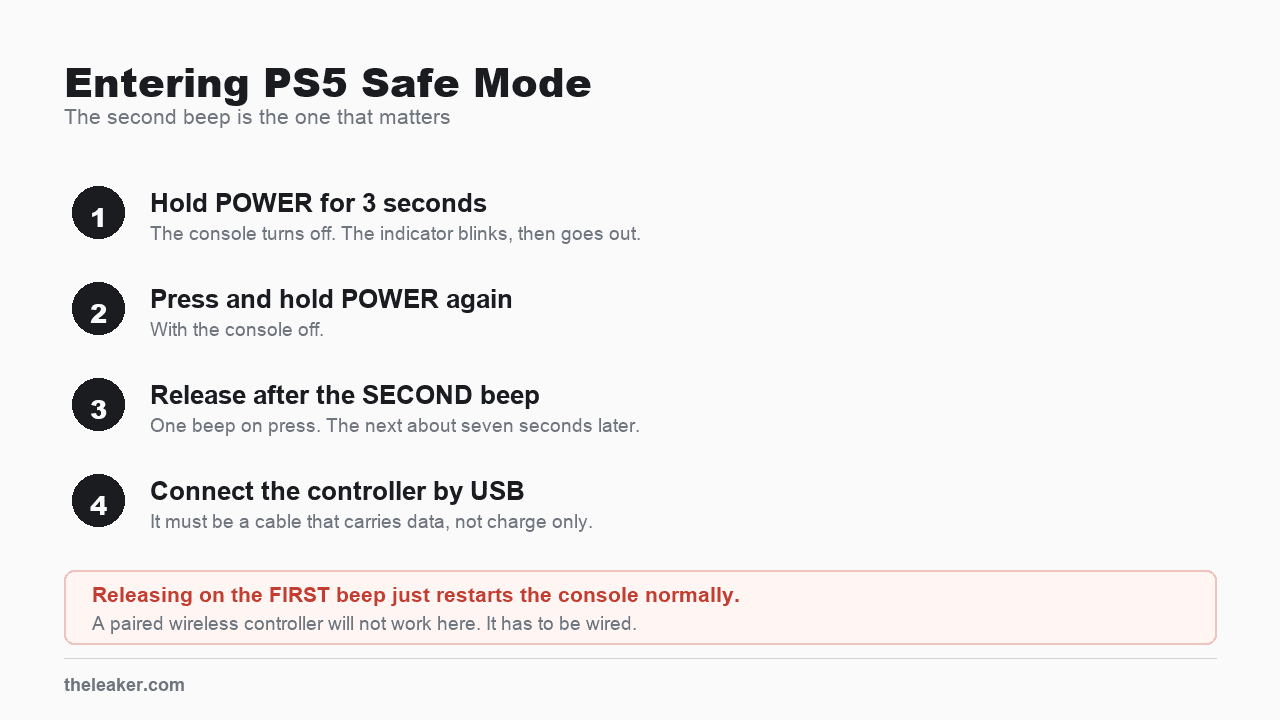
Branches 2 and 3 both end here, and most guides tell you to try Safe Mode without saying how, which is no help when the screen is black. The published sequence is to hold the power button for three seconds to turn the console off, press and hold it again once it is off, release after the second beep, then connect the controller with a USB cable and press the PS button. The first beep sounds when you press. The second comes about seven seconds later.
Two things sink people at this step, and neither is spelled out on the support page. The controller has to be wired, since the instruction is to connect it with a cable and a paired wireless pad will not answer. The cable also has to carry data, and some USB-C cables sold for charging have no data lines, so the console never sees the controller and the PS button appears to do nothing. If you have a cable you know syncs a phone to a computer, use that one.
The menu has eight entries. The published descriptions promise non-erasure for only three of them: Repair Console Storage, Restore Default Settings, and by implication the two Resets which say the opposite. The right-hand column quotes that wording where it exists. A bare “Safe” is my own reading of an option with no obvious reason to touch your library, and Sony prints no guarantee either way, so back up first if you have anything you cannot lose.
| Option | What it is for | Data |
|---|---|---|
| Restart PS5 | Ends Safe Mode and boots normally | Safe |
| Change Video Output | Resolution and HDCP, for blank screens | Safe |
| Repair Console Storage | Named for a console that “does not start up properly”, which is most readers here | “does not erase data” |
| Update System Software | Direct download or USB drive | Safe |
| Restore Default Settings | Factory settings. Sounds worse than it is | “won’t delete content on console storage such as games, apps, screenshots, video clips, and saved data” |
| Clear Cache and Rebuild Database | Performance problems and missing icons | Clears a cache. My reading is that a library is untouched by it |
| Reset PS5 | Factory state | 🔴 “Deletes all user data” |
| Reset PS5 (Reinstall System Software) | Last resort | 🔴 “Deletes all user data and removes PS5 system software” |
That page describes what each option does without giving a running order, so the mapping below is mine, built from those descriptions. Do not simply work down the list, because it ends at the two options that erase everything and its first entry just exits Safe Mode again.
- Console will not start up properly, which is the wording Sony attaches to this option: Repair Console Storage.
- Black screen: Change Video Output.
- Died during an update: Update System Software.
- Boots but behaves badly, or icons linger after deleting a game: Clear Cache and Rebuild Database.
- Nothing above fits and you want to clear settings without losing your library: Restore Default Settings. It resets configuration rather than fixing a boot fault, so it is a long shot here.
Stop as soon as the console boots, and do not continue past those five out of curiosity.
The advice to back up before the last two is sound and frequently impossible, because a console that cannot reach the home screen usually cannot make a fresh backup. What you have is whatever cloud or USB backup already existed.
A console that died partway through a system update is not a dead end. Safe Mode carries a manual update path for one that “has lost connection to the internet during a system software update”, loading the file from a USB drive. The drive has to be formatted FAT32 or exFAT with a folder named PS5 containing a folder named UPDATE, and the file itself has to be named PS5UPDATE.PUP, or the console will never find it. Sony’s walkthrough covers it, and the files live on a separate system software page. Take the right one. The update file leaves your data alone and the reinstallation file erases everything.
When to stop and get it repaired
Three outcomes end here whatever else you try.
- A console that powers off within seconds of turning on. The indicator guide sends this one straight to PlayStation Repairs with no home procedure offered.
- A dark indicator on a proven outlet with a second C7 cord.
- Nothing on screen after every step in branch 3, whether the Safe Mode menu appeared and Change Video Output made no difference, or the Safe Mode menu never appeared at all.
Do not open it. The safety guide says “To avoid electrical shock, do not open the enclosure. Refer servicing to qualified personnel only”, and that holds whatever your warranty status is. None of the pages listed below points at a component you could usefully reseat anyway.
Check warranty status before paying anyone, third-party shops included, because the same job prices very differently inside and outside cover. Start at Sony’s repair site and get the figure in writing before agreeing to any work.
Own an Xbox too? Its published wait is 10 seconds rather than either figure above, and it resets an internal power supply where the PS5 figure clears a frozen state. See Xbox Series X won’t turn on.
Own a Switch as well? That diagnosis runs completely differently, because Nintendo states that “Nintendo Switch systems do not have a power light”. With no indicator to read, the whole diagnosis hangs on whether a battery icon appears on a blank screen, which is a different starting point entirely. See Nintendo Switch won’t turn on.
Sources
All Sony pages read on August 9, 2026.
- Power indicator lights on PS5 and PS4 consoles, for the state meanings, the frozen-console wording and the 3 minute unplug.
- How to use Safe Mode on PS5 and PS4 consoles, for the entry sequence, the eight PS5 menu options, and the data wording published for four of them.
- How to troubleshoot picture and sound issues, for branch 3 and the 20 minute console-and-screen cycle.
- Can’t start Safe Mode on your PS5 console?, for the cable-isolation wording.
- Update PS5 system software using Safe Mode, for the USB drive requirements.
- PlayStation 5 Safety Guide (PDF, Americas edition, CFI-20XX). Safety guides are per model and region, so check the one for yours.

A tech Journalist and Photographer, Dhawal Sharma is a technology enthusiast who loves to research the latest innovations and technology. He has contributed to the Honor Community for a very long period and has crucial expertise in writing tech news and reviewing smartphones and laptops. Analyzing and bringing the facts about any piece of tech is what he loves the most. He is a great product photographer and is the Gizmopedia of TheLeaker. Find him on Facebook and Instagram, and you can also email him at [email protected].