
Has anything been spilled on it? Then do not connect power at all. Disconnect the adapter, and if it is still running, hold the power button until it goes off. Do not reconnect power, and do not rely on the outside looking dry, since liquid reaches the board where you cannot see it. A spill needs an inspection, not a wait: take it to Lenovo support or a repair shop before powering it again. Nothing below is written for a wet machine.
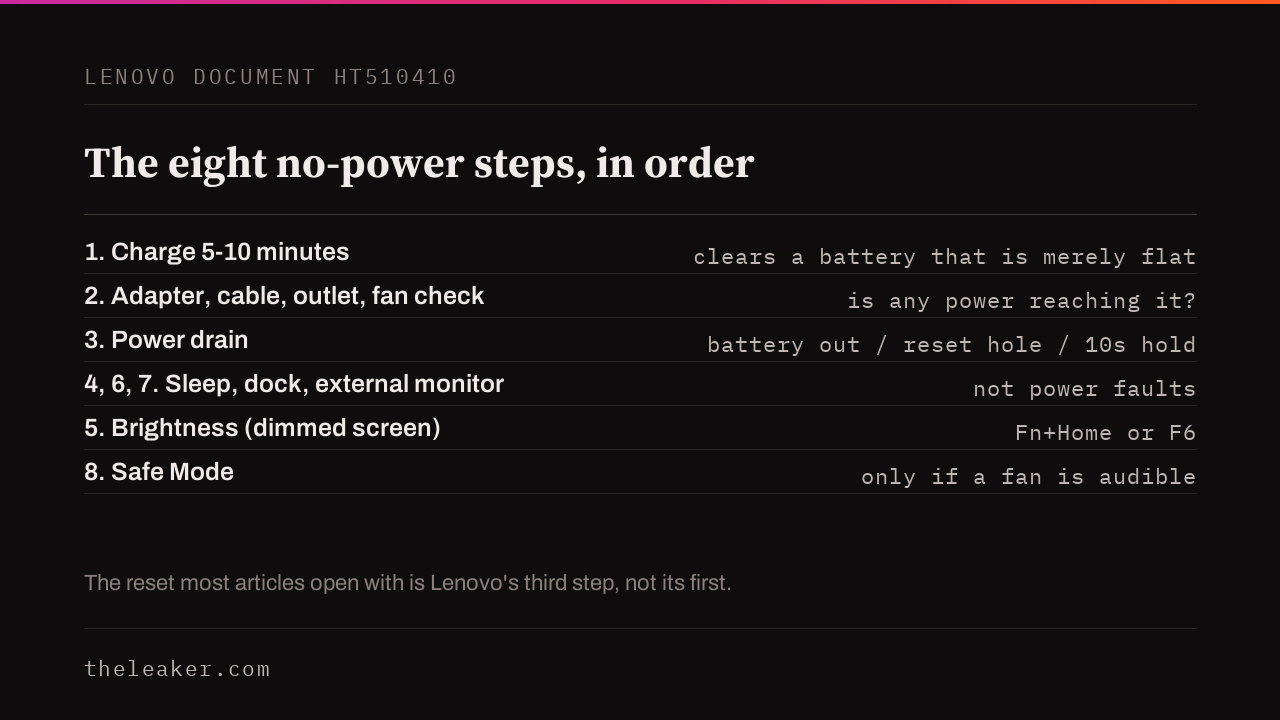
Otherwise, plug it into a wall socket, leave it charging for five to ten minutes, then listen for a fan. Those are Lenovo’s step 1 and the last check inside its step 2, and they exist to catch two cases often mistaken for a dead laptop: a battery too flat to start, and a machine already running behind a screen dimmed to nothing.
If it is still silent after that, Lenovo’s step 3 is a power drain, and on models that have it, that drain is an emergency-reset pinhole on the underside, in place of the ten second power-button hold that most pages open with. Confirm your own model has one, and where it is, from the User Guide bottom view Lenovo points you at before you push anything into a hole.
What follows summarizes Lenovo’s published no-power procedure, document HT510410, which covers ThinkPad and ideapad and was last revised on 28 July 2026. It is a summary, so open the document itself for the sub-steps I have compressed, particularly the cable and outlet checks, which run across steps 1 and 2, and the Task Manager branch in step 8. Where something is mine I say so.
First, is it actually a power problem?
Lenovo puts a triage question inside step 2 that decides which half of the document you need: “Does the system make any sound (for example, fan noise)?”
A fan you can hear means power is reaching the machine. Lenovo’s instruction for that case is to “check the light settings and increase the brightness level”, and the page keeps the hedge: “If the system makes a sound (such as a spinning fan), the issue may be display related.” Note the “may”. Fans can spin on a machine that is failing to start for other reasons, so take noise as a sign that some power is reaching the machine, and check the brightness because Lenovo says the problem may be display-related, without reading it as proof the laptop finished starting. A fair number of people who conclude their laptop is dead are looking at a screen turned down to nothing.
Lenovo flags a related trap in step 5: “Some ThinkPad LCDs will automatically dim when the AC Power is unplugged. This is to save battery power and is normal.” The same step lists Fn + Home and Fn + End or F6 and F5, then points at user guides for a T14s Gen 3, an X13 Gen 3, a T480s and an ideapad 3 as examples. It never says which model uses which pair, so check your own guide before assuming either.
Charge it for five to ten minutes before you judge anything
Lenovo’s step 1 is not a check, it is a waiting instruction with a stated reason. Plug the adapter straight into a wall socket and “allow it to charge for at least 5 to 10 minutes”, because “Some batteries are designed to operate when charged to a certain level (10% or more).”
That is the difference between a laptop that is broken and one that is merely flat past its own start threshold, and a few minutes on the charger is a cheap way to tell them apart.
Two conditions on that step, both Lenovo’s:
- Plug into the wall. Lenovo says not to charge “via power strips, surge protectors, or docking stations” while testing.
- Prove the socket. “Make sure the wall outlet you are using works normally with other devices.”
The adapter, and the light that tells you about it
Step 2 turns the charging light into a test, on the models that have one, which Lenovo is careful to condition. Plug the adapter in and watch it. Lenovo’s wording is that “If the charging light does not come on, try another Lenovo Approved AC adapter”, followed by “Do not use a power bar.” Most people do not own a spare, and if you cannot borrow one this is a reasonable place to stop and call support, since an untested adapter leaves the most likely cheap fault unruled-out.
Check the label on the adapter as well, since Lenovo asks you to “make sure the correct adapter for this model is used” and notes that the correct one “is needed to properly charge the battery”. A barrel plug or USB-C connector that fits is not evidence of the right wattage, a caution Lenovo does not spell out.
The reset most Lenovo owners do not know they have
This is step 3, and it is where Lenovo differs most from the other laptop makers whose procedures I have read.
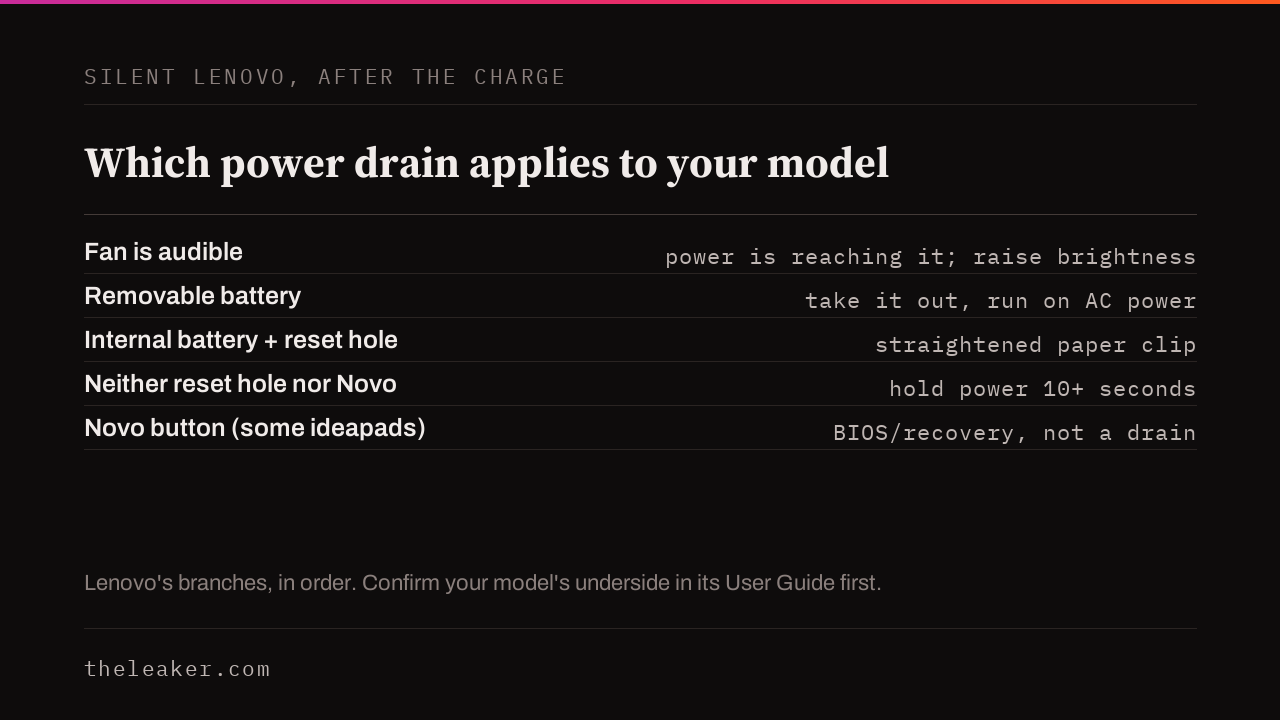
On a machine with a removable battery, Lenovo says to unplug the power, disconnect external devices, and take the battery out. It then says to reattach the power cables and power the computer on. It does not tell you to reinstall the battery first, so leave it out and start the machine on AC power as Lenovo directs, unless your model’s User Guide says otherwise.
On a machine with an internal battery, Lenovo points at a physical reset: “use the Emergency-reset hole (disconnect the system from power, use a straightened paper clip in the reset hole to reset the system, connect the system to power, and power on).”
The hole is on the underside of the chassis, and it is not the only hole down there, so do not go poking at random. Lenovo’s way of finding out whether yours has one, and where it is, is to look at “the page that shows the bottom view in Product Overview section in the User Guide”. It also notes that not every system has this reset, so the hole may not be there to find.
Some ideapads have a Novo button instead, a small recessed button that reaches the BIOS or recovery menu. Lenovo lists it inside the power-drain step but describes it as a way into the BIOS or recovery menu, which is a different thing from a drain. If pressing it gets you a menu, pick Normal Startup from there. If the machine reaches that menu but not Windows, the power path is fine and the fault is in the boot, which is a different repair from this one.
Only if your machine has neither does Lenovo reach for the familiar advice: “press and hold the power button for at least 10 seconds.” Reattach the power afterwards and try to start it.

The line in that step that changes what you do next
Lenovo attaches a diagnosis to a successful reset, and it repays a second reading: “If the reset works, then there may be an issue with the power button. Contact Support.”
So a pinhole reset that brings the laptop back is not the end of the story. Lenovo hedges that sentence with a “may”, so treat the power-button point as a possibility to raise rather than a verdict. Either way it is worth raising with support before you file it as fixed, because a machine that needed a paper clip to start may do it again.
The three that are not power faults at all
Steps 4, 6 and 7 cover cases that look identical from the chair and are not power problems.
- Asleep rather than off. Moving the mouse or pressing a key normally wakes a machine from sleep or hibernate, and Lenovo says to press the power button if that does not work. It also notes that if “ACPI mode on a system is configured to respond only to a specific key”, the screen stays black whether you move the mouse or press any other key, so look for the sleep key on your keyboard.
- Docked. Take the laptop off the dock and try it on its own, following the dock’s own removal instructions rather than pulling at it.
- External monitor. Attach one and see whether it shows a picture. Lenovo’s wording covers any machine that uses one or supports one, so this is worth doing even if you never normally plug a screen in. If an external display shows a picture, the machine is running and the fault is somewhere in the internal display path, which could be the panel, its cable, the backlight or the display configuration.
Step 8 belongs to the fan-audible branch. A laptop with no power cannot reach Safe Mode at all. If yours makes noise and this began right after a Windows update, Lenovo routes you there before any hardware fix, and if it behaves in Safe Mode after a recent third-party app install, to disabling that app under the Startup tab in Task Manager. Lenovo attaches a separate caution to Task Manager generally, which is that ending the wrong running process can lose unsaved data or disrupt a system service. Disabling a startup entry does neither, but the tab is one click away.
What this will not fix
- Liquid. Any amount, anywhere on it.
- A machine that starts and then dies within seconds. That is a different fault, covered in the brand-agnostic guide linked below.
- Visible damage to the adapter, the cable or the charging port.
- Anything behind the bottom cover. Laptop batteries are lithium cells and a swollen one is a fire risk, so stop using the machine and contact support.
When it is a repair
A Lenovo that stays silent through that charge on a proven socket, with a known-good approved adapter, after whichever power drain applies to it, battery out, pinhole or ten second hold, has run out of the steps Lenovo documents, and the next stop is model-specific diagnosis. Lenovo’s page ends at contacting support, and so does this one.
Ask what the assessment costs before you send anything. On a laptop the expensive outcomes are the board and the screen, and they are far apart in price, so a figure quoted before the machine is opened is a guess.
If you have a different brand, the resets are not interchangeable. Dell publishes a different hold with its own bounds, and the generic advice differs again. See laptop won’t turn on for the brand-agnostic version and the four fault types, and TV won’t turn on if the black screen turned out to be a display fault.
Sources
- Lenovo Support, Troubleshooting No Power Issues, document HT510410, applicable to ThinkPad and ideapad. Originally published 6 May 2020, last revised 28 July 2026. Lenovo renders those dates in the reader’s own timezone, so the page may show you a different day. Older copies of this document differ from the current one, so if the wording you find does not match what is quoted here, check the revision date on the page you are reading. Source for all eight steps, the emergency-reset hole, the fan-noise triage question, the 5 to 10 minute charge, the approved-adapter instruction, the power-button inference and the ThinkPad dimming note. Read 9 August 2026.

A tech Journalist and Photographer, Dhawal Sharma is a technology enthusiast who loves to research the latest innovations and technology. He has contributed to the Honor Community for a very long period and has crucial expertise in writing tech news and reviewing smartphones and laptops. Analyzing and bringing the facts about any piece of tech is what he loves the most. He is a great product photographer and is the Gizmopedia of TheLeaker. Find him on Facebook and Instagram, and you can also email him at [email protected].