

Do not assume you know what the standby light is telling you, because the convention is not shared. Samsung documents a lit red light as meaning the set is OFF, with a dark light meaning it is either on or unpowered. One Sony manual runs the other way, saying the indicator “Lights up in white when the TV is turned on” and “Does not light up when the TV is in standby mode”. Sony’s newer sets differ again and let the light be switched off entirely. Find your own model’s convention before you read anything into that light, because guessing it costs you the whole diagnosis.
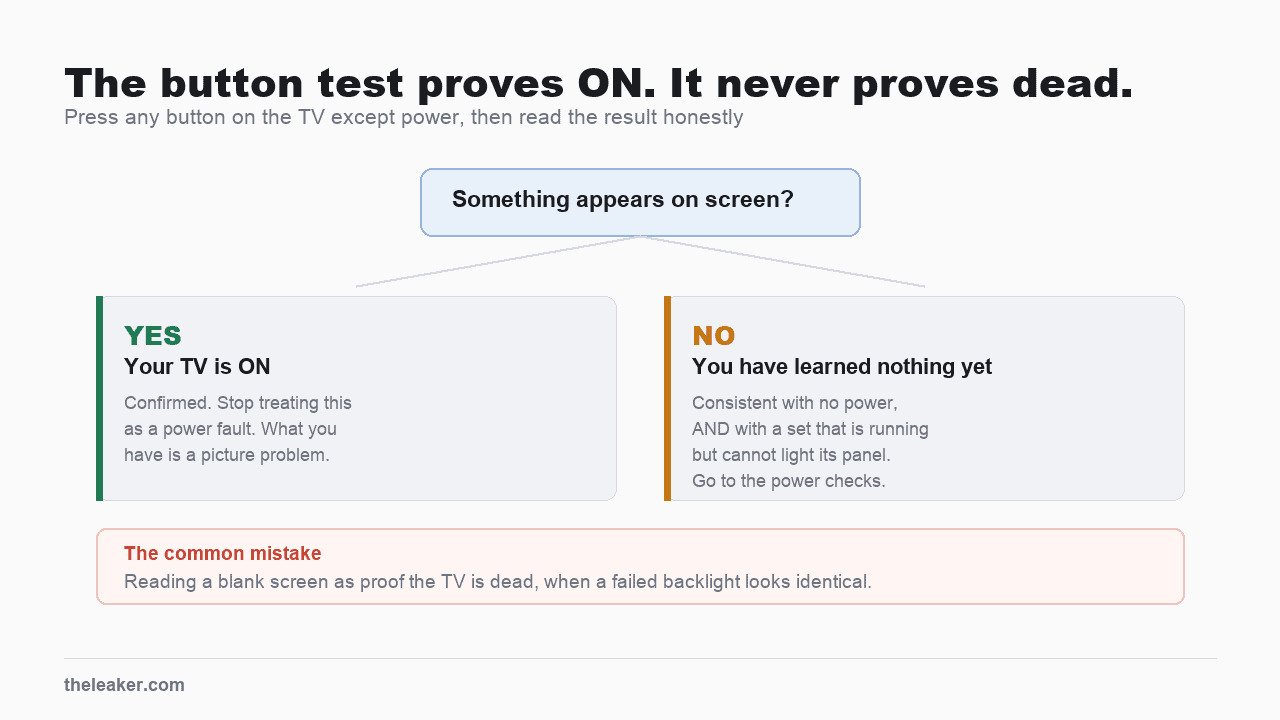
One test sidesteps the light entirely. Press any button on the TV itself except the power button. If a volume bar or a menu appears, the panel and its backlight are working and the fault is somewhere past them. Samsung documents this for its own sets, and it should behave the same on any television with more than one button, though that last part is my reading.
The branch structure and its steps below are Samsung’s published procedure, because Samsung is the only US TV maker whose full tree I could read. Do not carry the convention across brands. Sony documents the reverse, and some Roku sets let the standby LED be switched off entirely, which is my own observation. Button locations, light colors and blink codes vary as well, so treat the reasoning as general and every specific as Samsung’s.
What the light means on a Samsung
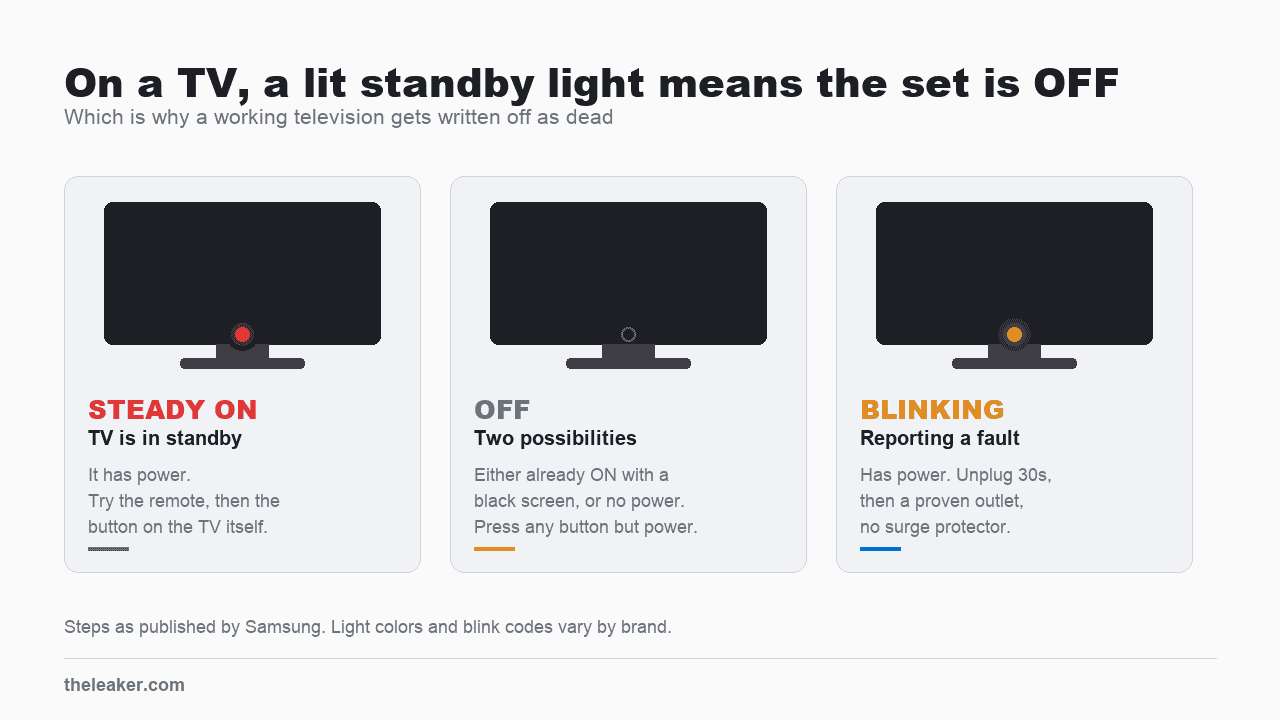
Samsung puts it like this. “In normal use, the red standby light is on when the TV is off (indicating the TV is on standby), and the red standby light is off when the TV is in use (or doesn’t have power).”
Read that twice. On a Samsung, light on means off. Light off means either on, or no power at all. Those last two states look identical from your sofa and they need completely different responses. Monitors differ again, and that page notes the standby light is blue on those.
Light steady on
Samsung calls this normal for a TV that is switched off and plugged in. The set has power. What is left is whether the command to wake it is arriving.
- Press power on the remote.
- Press the power button on the TV itself. Samsung says the location varies by model and points owners at the manual. In my experience it sits underneath or behind the lower right corner, sometimes as a single multi-function button, though the manual is the reliable answer. If the TV comes on this way, the fault is somewhere in the remote link. That is usually the remote itself, which is the cheap outcome, though a failed infrared receiver on the set gives the identical result.
- Watch the standby light as you press. If it goes out, the set did turn on and you are looking at a picture fault, not a power one, which is the same trap as the light-off branch below. If the light stays lit through both attempts, the stated reasoning is that a TV “receiving power (indicated by the red standby light being lit) but will not turn on with either the remote or the physical button” has a fault beyond what you can reach.
Do not skip the second step because you are confident about the remote. A remote failing is far cheaper than a TV failing, and this is the only step that separates them.
Light off
Two very different situations share this appearance, and one line resolves it: “When the red standby light is off, the TV either doesn’t have power, or it’s turned on and the screen is just black.”
The test is the one from the top of this page. Without using the remote, press any button on the TV except power. Volume up will do. The wording there is that “If anything appears on the screen, this confirms your TV is on.”
If something appears, stop treating this as a power problem, because the set is running. What you have instead is one of two things. If the picture is there but the remote does nothing, the fault is in the remote link, which is usually the remote itself and the cheap outcome. If the overlay appears but the picture behind it is missing or wrong, that is a picture or input fault and a different repair.
If nothing appears, that does not prove the set is dead. The test only works one way. Something on screen confirms the TV is on, but nothing on screen is equally consistent with a set that is running and cannot light its panel, which is a common and expensive failure. Treat a blank result as unresolved, never as a diagnosis.
Some sets have only a single multi-function button, in which case there is no button except power and this test cannot be run at all. If that is yours, go straight to the power checks.
The power checks, for a set that shows nothing
These are for the case where the standby light is dark and pressing a button produced nothing, and for a set whose light will not stop blinking.
- Prove the outlet. Plug a lamp or a phone charger into it. An outlet that looks fine can be dead.
- Take the TV off any surge protector or extension lead and plug it straight into the wall. This is the step owners of an expensive television least expect. Samsung’s stated reason is that protectors “may eventually wear out and stop providing the necessary voltage for your TV”, which I would not lean on, since a worn protector more often trips or fails open than quietly sags. The instruction stands on its own regardless. If the set behaves once bypassed, suspect the protector, but note that bypassing means unplugging and replugging, so you cannot separate a worn protector from a hung set cleared by the same act.
- Reseat the power cord at both ends, the wall and the socket on the back of the TV. My addition, not one of Samsung’s steps. On many sets the cord is detachable and works loose behind the stand.
- Then unplug for 30 seconds and reconnect. If the standby light now comes on steady, Samsung sends you back to the steady-on branch above instead of to service, since the set is taking power again. Whether that was the outlet or a hung controller cleared by the power cycle, you cannot tell from here.
Light blinking
A blinking light means the set has power. Whether it is reporting a fault depends on the set, since some blink white while starting up, while taking a remote command, or during a software update, so a light that blinks briefly and then settles is not the case here. What this section is about is a light that keeps blinking and never settles.
Film the blink pattern on your phone before you touch anything. A still photo is no use, since the code is in the count and a photograph catches one frame. Blink counts encode a fault code on a number of brands, and a technician who recognizes the pattern can skip a diagnostic step. Samsung’s page publishes no code table, so I cannot tell you what a given count means, and the suggestion is mine rather than theirs. It costs nothing to record, and a persistent fault will usually blink it again on the next power-up, though I would not rely on that.
Then run the sequence, which is short:
- Unplug the TV and leave it unplugged for 30 seconds.
- Plug it back into an outlet you have proved works, by testing it with something like a lamp.
- If the light comes back steady, the set is taking power again, so go back to the steady-on branch and work through that instead.
- Still blinking? Service.
What this article does not cover
- A TV that turns on and then shuts itself off again. Different fault.
- Picture problems on a set that is confirmed running by the button test above.
- Blink-code meanings, which vary per brand and are not in the source used here.
- Any repair requiring the back panel to come off. Mains voltage sits behind it and large capacitors can hold charge after unplugging.
If it still will not start
A set that shows nothing on any button, on an outlet you have proved live, with no surge protector in the path, has a fault that needs a technician. Every dead end on that page routes to a service request, so they do not expect an owner fix past this point.
Before you book, check whether the TV is still in warranty and whether you paid by a card or through a retailer that extends it, since panel and power-board faults are the expensive end of TV repair. Get the diagnostic fee quoted before agreeing to anything.
Consoles pick a side too. A PlayStation 5 follows the Sony direction, where lit means on, which matters if you were staring at a black screen and could not tell which box was at fault. A solid white light means it is on. White that keeps blinking is an error, though white that pulses and then goes out is just the console shutting down, and the published wait for the error state is 3 minutes against the 30 seconds here. See PS5 won’t turn on, and Xbox Series X won’t turn on for a console whose published wait is 10 seconds.
Sources
- Samsung, Samsung TV will not turn on, for the standby-light convention, all three branches, the button test, the 30 second unplug and the surge-protector instruction. Read August 9, 2026.
- Console comparison figures come from the vendor pages cited in the two linked articles.
Related: Hisense TV Won't Turn On: What the Standby Light Tells You, and What to Try Next

I am the chief editor of TheLeaker. I also maintain the backend stuff of the site. I’m a tech enthusiast and loves to do Python coding in my free time. I have worked at many giant publications like XDA Developers and NXTtech before starting TheLeaker.
You can get in touch with me at Garv[at]theleaker.com.