
A factory reset is the nuclear option, and people reach for it far too early: usually to fix a problem a reboot would have solved. But knowing how to factory reset an Android phone the right way matters: doing it in the wrong order is how you lose your two-factor codes, your WhatsApp history, or access to the phone entirely.
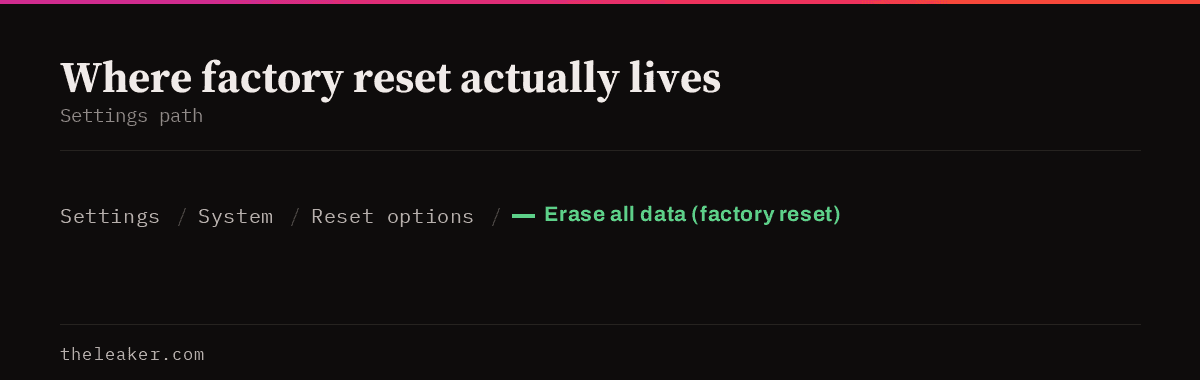
The quick answer: Before you reset anything, do four things in this order: back up your photos and files, export or transfer your two-factor authentication codes, back up WhatsApp separately (it does not ride along with your Google backup), and remove your Google account from the phone if you’re selling or giving it away. Then reset from Settings → System → Reset options → Erase all data (factory reset). The path varies slightly by brand, and Settings search for “reset” finds it on any phone. A factory reset wipes internal storage but not an SD card, and on modern Android the storage is encrypted, so a normal reset is genuinely enough before selling. The step that traps people is Factory Reset Protection: reset without signing out first and the next owner may be locked out.
Let’s go through what a reset actually does, what to save first, and how to do it without a disaster.
First: are you sure you need one?
A factory reset is not maintenance. It’s not something you do quarterly to “clean” the phone, and it won’t permanently fix a phone that’s slow because of aging hardware or a heavy skin. Most of the time, one of these does the job instead:
- Restart the phone. Sounds trivial. Fixes an enormous share of weirdness: stuck notifications, dead Wi-Fi, apps that won’t launch.
- Clear one app’s cache or data. If a single app is misbehaving, reset that app, not the phone. Settings → Apps → the app → Storage.
- Boot into safe mode. If the problem disappears in safe mode, a third-party app is causing it. Uninstall recent apps one at a time instead of wiping everything.
- Free up storage. A phone at 98% full behaves like a broken phone. Clearing space often fixes the exact symptoms people reset over. There’s a lot you can recover without deleting anything you care about, which we walk through in our guide to freeing up Android storage without deleting photos or apps.
Reset when you’re selling, giving away, or trading in the phone; when you’re handing it to someone else in the household; when malware or a rogue admin app won’t go away; or when the software is corrupted and nothing else works.
What a factory reset actually erases
It wipes the user partition of internal storage: apps, app data, accounts, settings, downloads, and everything in your internal photo and file folders. It also clears screen locks and, on most phones, resets network settings.
What it does not touch:
- A microSD card. The card is separate. If there’s one in the phone, remove it or erase it separately.
- Anything already synced to the cloud. Your Google Photos library, Drive files, and Gmail live on Google’s servers, not the phone. Resetting doesn’t delete them.
- The Android version. A reset does not roll you back to the software the phone shipped with. You stay on whatever version is installed.
- Hardware faults. A cracked charging port or a swollen battery is still there afterwards.
The pre-reset checklist, in order
1. Back up your photos and videos
Open Google Photos, go into settings, and confirm backup is on and finished: not “backing up,” finished. If you have a lot to upload, do it on Wi-Fi and plug the phone in. If you’d rather keep local copies, connect the phone to a computer by cable, set the USB mode to file transfer, and copy your DCIM and Pictures folders across.
Whichever route you pick, verify. Open the backup from another device or from the computer and confirm the files are actually there and open properly. “I assumed it backed up” is the single most common way people lose photos.
2. Deal with two-factor authentication first
This is the step that bites hardest, because the damage shows up days later. If you use an authenticator app for your bank, email, or work accounts, those codes are generated on the device. Wipe the phone and, unless your authenticator syncs to an account or you export first, those codes are gone, and getting back into a locked account can take days.
Before resetting: open your authenticator and either enable its cloud sync (most major ones offer it now), or use its export/transfer function to move codes to another device. Also check that your recovery codes for critical accounts are saved somewhere off the phone. Do this before anything else, because it’s the only step with no recovery path.
3. Back up WhatsApp separately
WhatsApp does not fully ride along with a general Android backup. Open WhatsApp → Settings → Chats → Chat backup and run a manual backup, and make sure it’s linked to the Google account you’ll sign into afterwards. If you want media included, turn that on. It’s much larger, but restoring without it means text-only history.
Other messaging apps have their own quirks too. Signal uses its own backup with a passphrase you must write down; Telegram keeps chats on its servers so it needs nothing. Check whichever ones matter to you.
4. Turn on Android’s own backup
Settings → Google → Backup (or Settings → System → Backup, depending on the brand). This saves your app list, most app data, call history, contacts, SMS, device settings, and Wi-Fi passwords. Tap “Back up now” and let it finish. When you set the phone up again, this is what makes it feel like your phone instead of a blank one.
Note the limitation honestly: not every app supports it. Some games and some banking apps don’t restore their data at all. Anything critical, back up inside the app itself.
5. Note down what’s not stored anywhere
Wi-Fi passwords for places you rarely visit, offline notes, sticker packs, custom ringtones, and downloaded music that isn’t from a streaming service. Two minutes now saves an annoying week later.
6. Remove your Google account: if you’re selling
This is the Factory Reset Protection step. Android ties the device to the Google account that was last signed in. If you reset while still signed in, the phone will demand that account’s credentials on first setup, which locks out whoever gets the phone next, and looks exactly like a stolen device.
Go to Settings → Accounts (or Passwords & accounts) and remove every Google account before you reset. On Samsung, also remove your Samsung account. On Xiaomi, remove your Mi account. On phones from other brands, remove any manufacturer account too. If the phone is carrier-locked or has a work profile, remove those as well.
If you’re keeping the phone and just want a clean start, leave the account signed in. You’ll breeze through setup.
7. Remove the SIM and SD card
Obvious, easy to forget, and there’s no undo once the phone is in a box heading somewhere else.
How to do the reset
The standard route is Settings → System → Reset options → Erase all data (factory reset). On Samsung it’s Settings → General management → Reset → Factory data reset. On Xiaomi it’s usually under Settings → About phone → Factory reset. If your phone puts it somewhere else, open Settings, use the search bar, and type “reset”: every current skin has search and it goes straight there.
The phone will show you the accounts that will be removed and ask for your PIN or password. Confirm, and it reboots into the wipe. Give it a few minutes; on some phones it takes ten or more, and the first boot afterwards is slow. Don’t panic and don’t pull the power.
Plug the phone in first, or make sure it’s above 50% charge. A phone that dies mid-wipe can end up in a state that needs recovery-mode intervention.
If you can’t get into Settings
If the phone won’t boot or is stuck, you can reset from recovery mode: typically by powering off, then holding a button combination (usually power plus volume up) until a recovery menu appears, then choosing “Wipe data/factory reset”. The exact combination varies by manufacturer, so look up the one for your specific model rather than guessing.
Be aware: a recovery-mode reset does not remove Factory Reset Protection. If you didn’t sign out first, the phone will still ask for the old Google account on setup. There’s no legitimate way around that other than signing in with the correct account, which is the entire point of the feature.
Is a factory reset enough before selling?
Yes, on any reasonably modern Android phone. Storage is encrypted by default, and the reset destroys the keys, so the leftover data is unreadable noise. You don’t need to “fill the phone with junk files and reset again”. That advice comes from the era of unencrypted phones and does nothing useful now.
What you should do beyond the reset: sign out of every account first, remove your device from your Google account’s device list afterwards, deregister it from any manufacturer account and from services like your carrier’s app, and if the phone was on an eSIM, remove that profile too.
After the reset
On first boot you’ll be walked through setup and offered your Google backup. Restoring from it brings back apps, settings, and most app data, but it re-downloads every app, so do it on Wi-Fi. Some people take the chance to start clean instead and only reinstall what they actually use. That’s a perfectly good option, and honestly the phone feels better for it.
If you’re moving to a different handset rather than reusing this one, the restore process is a bit different and there are several things the automatic transfer misses: worth reading our guide on transferring everything to a new Android phone before you start.
Once you’re back in, re-enable your authenticator codes, restore WhatsApp when prompted during its first launch (it only offers this once: skip it and you’ll have to reinstall), and check that your photo backup reconnected.
Frequently asked questions
Does a factory reset remove viruses and malware?
Almost always, yes. A reset wipes the user partition, which is where essentially all Android malware lives. The rare exceptions are pre-installed malware baked into the system image on very cheap unbranded devices, which survives because it isn’t in the erased partition. If a reset didn’t fix it, that’s the likely cause, and it means the device itself isn’t trustworthy.
Will a factory reset make my old phone fast again?
Temporarily, and less than you hope. It clears accumulated app clutter and background processes, so the phone will feel snappier for a while. But it can’t undo an aged battery, a slower storage chip, or the fact that current apps are heavier than the ones the phone shipped with. If the phone was slow because it was full, clearing storage gets you the same benefit without the wipe.
Do I lose my phone number or my WhatsApp account?
No. Your number lives on the SIM or eSIM, not in the phone’s storage. Your WhatsApp account is tied to your number, so you sign back in with it. What you can lose is your chat history, which is why the separate WhatsApp backup matters.
How long does a factory reset take?
The wipe itself is usually a few minutes, up to fifteen on phones with a lot of storage. The slow part is afterwards: first boot takes a while, and restoring apps from backup can take an hour or more depending on how many you have and how fast your connection is. Plan for the whole thing to eat an afternoon if you’re doing a full restore.
Related: How to Actually Back Up Your Android Phone (Most People Do It Wrong)
Related: Is Your Android Infected? How to Check and Clean It Properly

Hola everyone! I’m Sajid and I’m a typical freelance Graphic Designer with a keen interest in technology and science stuff. I actually like to write about the recent happenings around the world of technology as a part of The Leaker.