
Getting a new phone should be exciting, not stressful. But somewhere between “unboxing” and “feels like home,” there’s that nagging worry: will my photos make it across? What about my WhatsApp chats? My authenticator codes? Here’s the complete guide to transferring your data to a new phone, done in the right order: including the three things almost everyone forgets until it’s too late.
The short version: to transfer everything to a new Android phone, first prepare the old one (back up WhatsApp, sync photos, and note your SIM and eSIM situation), then use the cable or Wi-Fi transfer built into the new phone’s setup wizard. It moves apps, photos, messages, and settings in one go. After that, restore WhatsApp from its backup, move your authenticator and banking apps manually (they never transfer automatically), and keep the old phone for a week before wiping it. Budget 1-2 hours total, most of it waiting.
Before you touch the new phone: prepare the old one
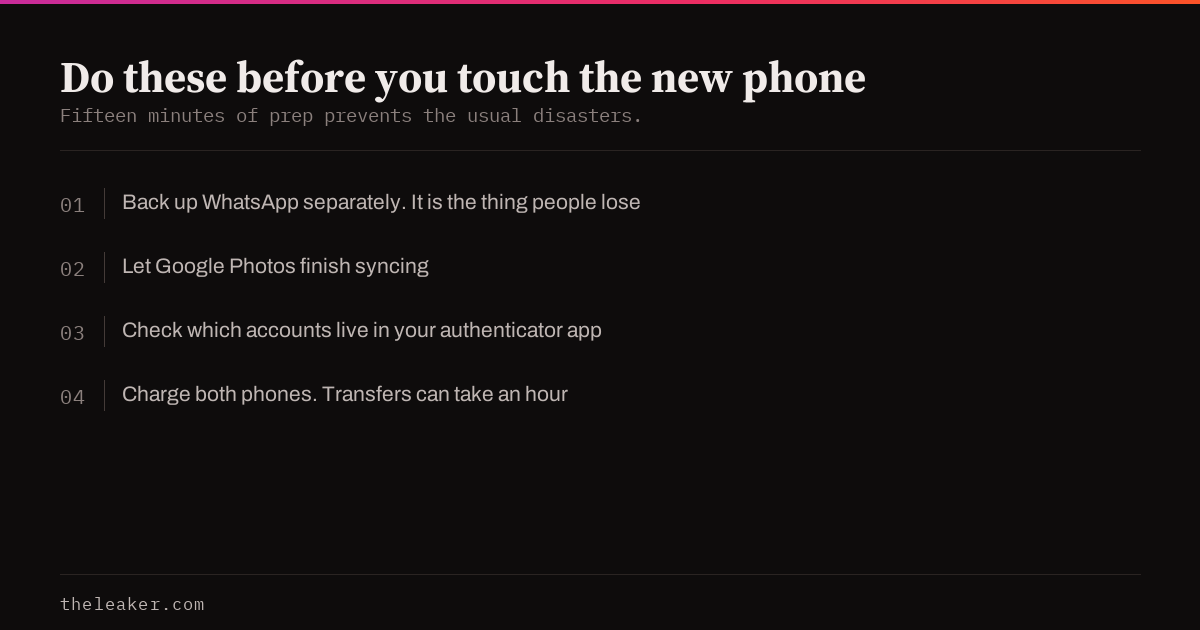
Fifteen minutes of prep prevents every common transfer disaster.
- Back up WhatsApp. WhatsApp → Settings → Chats → Chat backup → Back up now. This is separate from everything else and it’s the transfer people most often lose. Make sure the backup finishes before moving on.
- Let Google Photos finish syncing. Open Google Photos and check your profile icon says “Backup complete.” If you don’t use Photos backup, your pictures will still transfer over the cable, but cloud backup means they’re safe even if the transfer hiccups.
- Sync contacts and calendar. Settings → Accounts → your Google account → make sure Contacts and Calendar sync are on. If your contacts live on the SIM or only on the phone, export them: Contacts app → Fix & manage → Export to file, then save that file somewhere safe.
- Update the old phone’s apps. Transfers between very old and very new app versions occasionally misbehave; a quick Play Store update pass smooths this.
- Know your two-factor situation. Open your authenticator app and check which accounts live in it. You’ll re-add these on the new phone: more on this below, because it’s the step that locks people out of their own accounts.
- Charge both phones. Transfers can take an hour. A phone dying mid-transfer is a mess you don’t want.
The main transfer: use the setup wizard, not an app
When you power on the new phone, it will ask “Copy apps & data” during setup. Say yes. This built-in transfer (Google’s, or Samsung Smart Switch on Galaxy phones) is faster and more complete than any third-party transfer app.
Cable is best. Connect the two phones with a USB-C cable. Cable transfer is quicker and more reliable than wireless, and it moves the most: apps, app data, photos, videos, SMS messages, call history, contacts, wallpapers, and most settings.
No cable? Use Wi-Fi. The wizard falls back to a direct wireless transfer. Same result, just slower: leave both phones plugged in and next to each other.
Switching brands? It still works. Samsung Smart Switch, Google’s Pixel transfer, and the equivalents from OnePlus, Xiaomi, and Motorola all accept any Android phone as the source. You’ll lose brand-specific settings (a Samsung theme won’t apply to a Pixel), but your actual data comes across fine.
One tip: don’t skip the transfer planning to “do it later.” Some transfer paths, especially SMS history and app data, only work properly during initial setup. If you rushed past it, it’s genuinely worth factory-resetting the new phone and starting setup again. Ten minutes now beats missing data forever.
After the transfer: the manual list
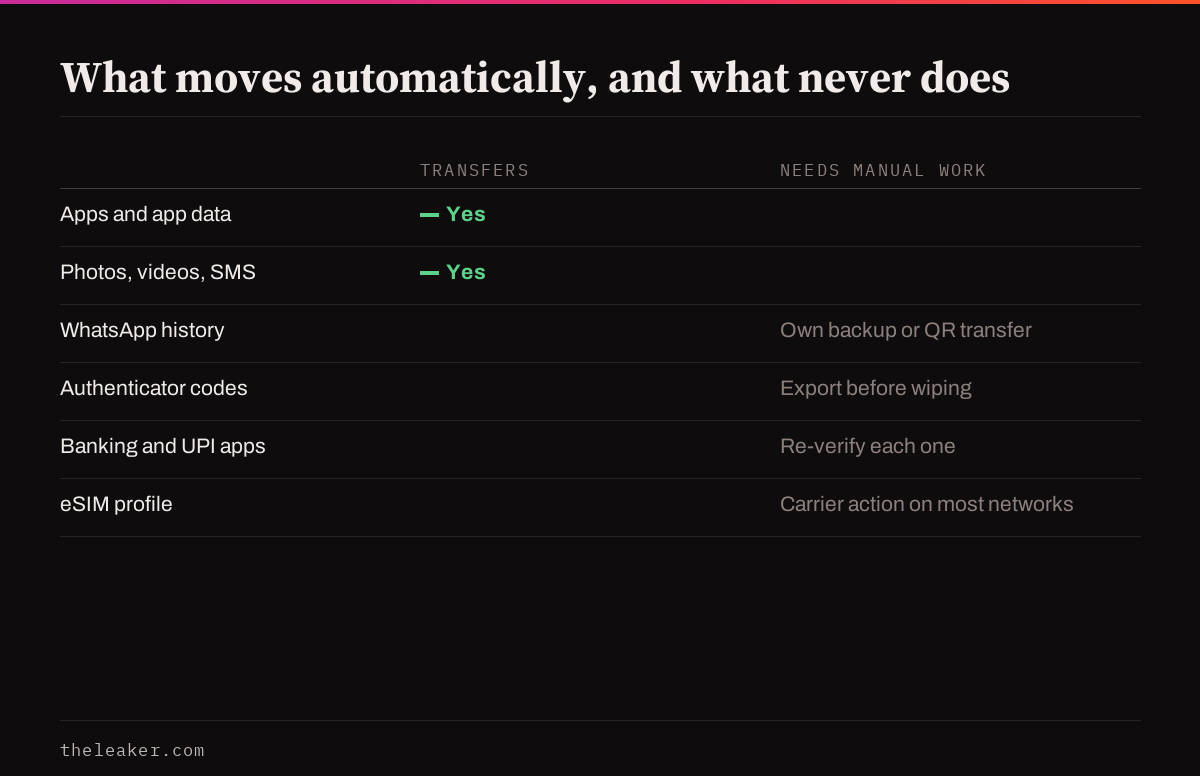
The wizard gets you 90% there. These are the things it can’t do:
Install WhatsApp on the new phone, verify your number, and it will offer to restore from the backup you made earlier. Accept it during setup, if you skip the restore and set up fresh, getting the history back later means reinstalling. On recent versions, WhatsApp can also transfer directly phone-to-phone via QR code (Settings → Chats → Transfer chats), which skips the cloud entirely.
Authenticator apps: do this before wiping the old phone
Google Authenticator syncs codes to your Google account on current versions, so they may already be waiting on the new phone. Verify this: open the app and count your accounts. For other authenticators, use their export/transfer feature (Google Authenticator: Settings → Transfer accounts → QR code). Test at least one login before wiping the old phone. This is the single most common “I’m locked out of everything” mistake.
Banking, payment, and eSIM
- Banking and UPI apps tie themselves to your device and SIM for security. Expect to re-verify each one with an SMS code or re-registration. Five minutes per app, annoying but unavoidable.
- Google Wallet / tap-to-pay cards need re-adding on the new device.
- eSIM doesn’t move automatically on most carriers. Some phones can transfer it during setup; otherwise you’ll need your carrier’s app or a quick support chat to move the eSIM to the new device. Physical SIM? Just move the card.
Little things people miss
- Downloaded music and offline maps: re-download in Spotify/YouTube Music and Google Maps.
- Smartwatch and earbuds: unpair from the old phone, pair with the new one. Watches usually need their companion app set up again.
- Do Not Disturb schedules, alarms, and app notification tweaks: some transfer, some don’t. Give Settings a five-minute once-over.
- Files in Downloads: cable transfers usually bring these; wireless ones sometimes don’t. Check before wiping.
Exactly what transfers: and what never does
Knowing this list in advance is the difference between a calm evening and a panicked one.
Comes across automatically (cable/wizard transfer): apps and most app data, photos and videos, SMS and RCS threads, call history, contacts, calendars, Wi-Fi passwords, wallpapers, home screen layout (same-brand transfers), device settings like display and sound preferences, and files in your Downloads and Documents folders.
Needs its own backup/restore: WhatsApp (its own backup), authenticator codes (their own transfer flow), smartwatch pairings, and game progress for games that use their own login: link the game to Google Play Games, Facebook, or the publisher’s account before the switch, because local-only saves die with the old phone.
Never transfers, by design: banking/UPI registrations (security re-verification every time), Google Wallet cards, eSIM profiles on most carriers, DRM-protected downloads (your Netflix and Prime Video offline content must be re-downloaded. The licences are device-bound), and Bluetooth pairings for every accessory you own.
Samsung users: Smart Switch has two extra superpowers
If either phone is a Galaxy, Smart Switch gives you options the standard wizard doesn’t. First, backup to external storage: Smart Switch can dump a full backup onto a microSD card or USB drive, which is gold when the old phone’s screen is dying and you want the data preserved before it goes dark. Second, backup via PC: the desktop version of Smart Switch on Windows or Mac makes a complete local backup you can restore later at leisure. A proper safety net for a phased move. Smart Switch also famously handles cross-brand and iPhone sources well, and moves things Google’s wizard sometimes misses on Galaxy-to-Galaxy moves, like Secure Folder contents (which need their own explicit transfer step: don’t forget it if you use Secure Folder).
Turn on the safety net before you start
One more pre-flight step worth its own section: make sure the old phone has a current Google backup as a fallback, separate from the live cable transfer. Check Settings → Google → Backup (or Settings → System → Backup) and hit Back up now. This covers app list, SMS, call history, settings, and, with Google Photos backup on, your media. If anything goes sideways mid-transfer (cable pulled, battery dies, phone dropped in a moment of excitement), you can restore the new phone from this cloud backup during a fresh setup instead of starting from zero. Belt and braces: the cable transfer is faster and more complete, but the cloud backup is the copy that survives accidents.
Keep the old phone alive for one week
Don’t factory reset the old phone on day one. Keep it on Wi-Fi in a drawer for a week. Every time you hit a “wait, where’s my…” moment, the answer is still sitting there. After a week of everything working: banking verified, authenticator tested, WhatsApp history present: then wipe it: Settings → System → Reset → Erase all data. Sign out of your Google account first (Settings → Accounts) so the old phone doesn’t trip factory-reset protection for the next owner.
Frequently asked questions
How long does the whole transfer take?
With a cable: usually 20-60 minutes for the main transfer depending on how much data you have, plus another 30 minutes of app re-downloads happening in the background. Wireless roughly doubles the main transfer. The manual cleanup (WhatsApp, banking, watches) adds 20-30 minutes spread over the first day.
Will my apps’ logins carry over?
Many will, because app data transfers over cable, but apps that use extra security (banking, payment, some email apps) will ask you to sign in again. Have your password manager ready.
Can I transfer from a really old Android phone?
Yes. The cable method works from Android versions going back many years. If the old phone is too old for the wizard, the fallback is: Google account sync for contacts/calendar, Google Photos for pictures, and WhatsApp’s cloud backup for chats. That covers the essentials on any phone.
What about moving from iPhone to Android?
The setup wizard handles this too: connect with a cable or use the wireless option, and it brings photos, contacts, messages, and more. Turn off iMessage on the iPhone first (Settings → Messages) so your texts don’t keep landing on the old phone, and use WhatsApp’s built-in iPhone-to-Android transfer for chat history.

A tech Journalist and Photographer, Dhawal Sharma is a technology enthusiast who loves to research the latest innovations and technology. He has contributed to the Honor Community for a very long period and has crucial expertise in writing tech news and reviewing smartphones and laptops. Analyzing and bringing the facts about any piece of tech is what he loves the most. He is a great product photographer and is the Gizmopedia of TheLeaker. Find him on Facebook and Instagram, and you can also email him at [email protected].