
Most people think they have a backup. Their photos sync, so they assume everything else does too. Then a phone dies, and they find out that three years of WhatsApp, their authenticator codes, and half their app data were never saved anywhere.
The quick answer: Android’s built-in backup covers your apps list, most app data, call history, contacts, SMS, and device settings to your Google account, while Google Photos handles photos and videos separately, but only if both are switched on and actually completing. Go to Settings, search for backup, confirm it’s enabled, and check the “last backed up” timestamp. If it’s weeks old, something’s wrong. Then plug the three big gaps manually: WhatsApp needs its own in-app backup, two-factor authenticator apps usually need explicit export or cloud sync turned on, and files sitting in your Downloads folder are almost never included. Finally, keep at least one copy that isn’t in the same Google account, a laptop copy or a second cloud service, because losing account access loses everything at once.
What Android actually backs up (and what it quietly doesn’t)
The built-in system backup is better than its reputation. On a modern Android phone with backup enabled, your Google account holds a copy of your installed app list, app data for apps that permit it, device and display settings, Wi-Fi networks and passwords, call history, SMS messages, and your contacts and calendar.
Photos and videos are a separate system. Google Photos backs those up on its own schedule, with its own settings, counting against the same storage quota. Turning on system backup does not turn on photo backup, and vice versa. That’s the first thing people get wrong.
Now the gaps, which matter more:
- App data is opt-in for developers. An app can declare that its data shouldn’t be backed up, and plenty do: banking apps, some password tools, anything with security concerns. Restoring your phone reinstalls those apps empty.
- Files in Downloads and other folders generally aren’t part of system backup. That PDF of your lease, the invoice you saved, the video someone sent you: not backed up unless you put it somewhere that syncs.
- WhatsApp runs its own backup entirely. System backup doesn’t touch your chats.
- Authenticator apps that generate 2FA codes are frequently excluded, by design. Losing those without an export is genuinely painful.
- Anything on removable storage is your responsibility.
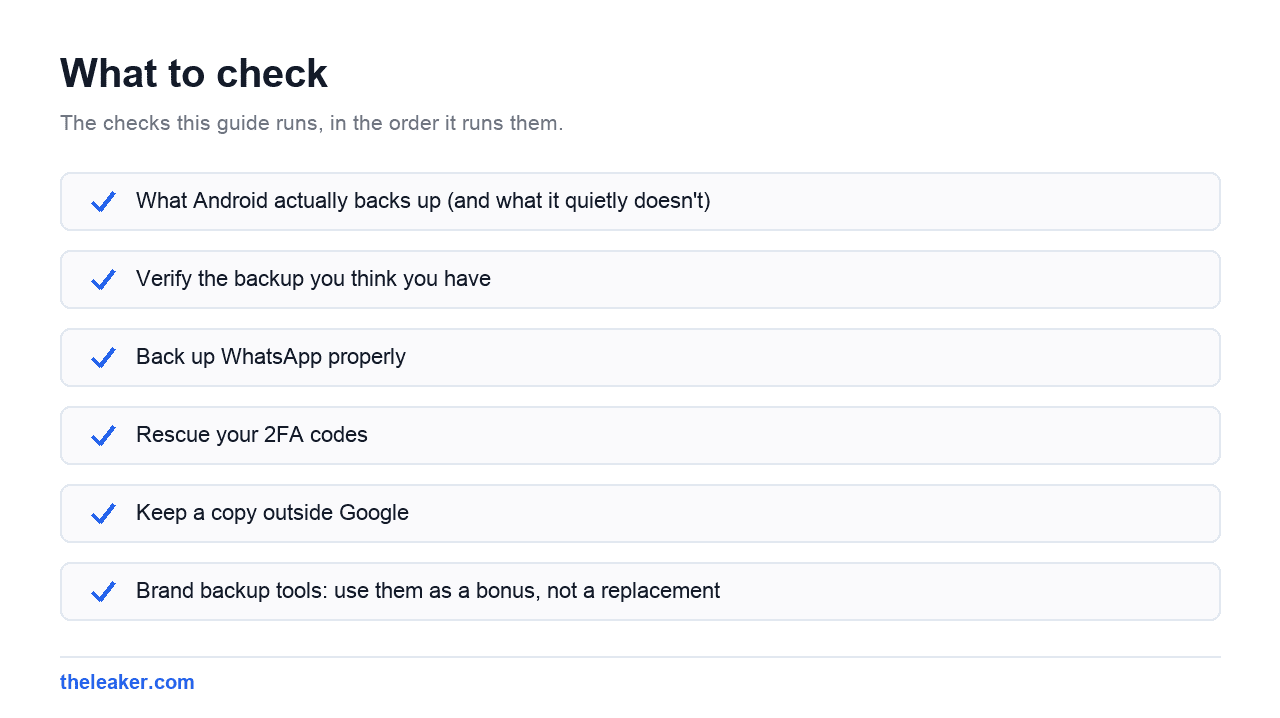
Step one: verify the backup you think you have
Don’t assume. Check.
Open Settings and search for “backup.” You’ll land in the Google backup screen. It shows a list of what’s included and, crucially, when each part last completed. Look at that timestamp.
Android backs up roughly once a day, but only when the phone is idle, charging, and on Wi-Fi. If you charge overnight on Wi-Fi, you’re fine. If you charge in the car from a power bank and use mobile data all day, your last backup could be from a month ago. Tap the option to back up now and watch it complete once, so you know the pipeline works.
Then check Google Photos separately. In the app’s settings, confirm backup is on, and check which folders are included. By default it backs up the camera roll. Screenshots, downloaded images, WhatsApp media, and camera app folders from third-party apps often need to be added manually in the device-folders section. People lose entire categories of images this way.
Watch your storage quota
Backups fail silently when your Google account is full. If you’re at your limit, system backup stops, photo backup stops, and the only sign is a notification you probably swiped away. Check your storage usage. If it’s tight, either clear space or accept that you need a paid tier, and if space on the phone is the issue, our guide to freeing up Android storage without deleting anything covers that side of it.
Step two: back up WhatsApp properly
WhatsApp is the single biggest backup blind spot, particularly in India where it’s often someone’s entire communication history.
Open WhatsApp, go to Settings, then Chats, then Chat backup. Set a backup frequency, daily is right for most people, and decide whether to include videos. Videos balloon the backup size enormously, so if space is a concern, exclude them and rely on Photos for the media.
Two details that catch people out. First, turn on end-to-end encrypted backup if you want the backup itself protected, but understand that if you lose the password or key, nobody can recover it, not even WhatsApp. Write it down somewhere real. Second, WhatsApp backups have historically lived in Google Drive and, depending on your account and region, may or may not count against your storage quota. Don’t count on the free ride continuing forever; if your Drive fills up, that backup can stop.
Test it by checking the “last backup” time in that same screen. If it says days or weeks ago, run one manually and see whether it completes.
Step three: rescue your 2FA codes
This is the failure that turns a lost phone into a locked-out life. Your authenticator app generates the second factor for your email, your bank, your work account. If it lives only on the dead phone with no backup, you’re into account recovery for every service at once.
Most modern authenticator apps now offer cloud sync or an export function. Find it and turn it on. If yours doesn’t, switch to one that does, or at minimum, save the recovery codes that every service offers when you first enable 2FA. Print them, or store them in a password manager that syncs independently.
Do this today. It takes ten minutes and it’s the highest-value thing on this page.
Step four: keep a copy outside Google
Here’s the uncomfortable part. If every backup you own lives in one Google account, then that account is your single point of failure. Account compromise, lockout, or suspension takes out your phone backup, your photos, your WhatsApp, and your email simultaneously.
You don’t need anything elaborate. Once a quarter, plug the phone into a computer, set the USB connection to file transfer, and copy the DCIM, Pictures, Documents, and Download folders somewhere. That’s it. An external drive or a laptop folder is fine. It’s the copy that saves you when the cloud copy is unreachable.
If you’d rather stay in the cloud, a second service works too: any mainstream cloud storage provider with a decent free tier, pointed at your photos folder. Different account, different company, genuine redundancy.
Brand backup tools: use them as a bonus, not a replacement
Samsung One UI: Samsung Cloud backs up settings, home screen layout, and some app data to your Samsung account, in parallel with Google’s backup. Samsung’s Smart Switch also does a full local backup to a computer, which is the most complete Android backup most people can easily make. It captures more than the cloud route does. Worth running before any major change.
Pixel: Straight Google backup, no second system. What you see in settings is what you get. The upside is no confusion about which backup has what.
Xiaomi HyperOS: Mi Cloud offers its own backup, plus a local backup option that writes to internal storage. Careful with that last one. A backup stored on the phone you’re trying to protect isn’t a backup. Copy it off the device.
OnePlus: Includes a local backup and switch utility alongside Google’s. Same caveat about local backups needing to leave the phone.
Treat all of these as supplements. Google’s backup is the one that restores automatically onto any Android phone, including one from a different brand. The manufacturer tools are excellent within their own ecosystem and useless outside it.
What NOT to do
Don’t rely on “my photos sync” as your whole backup strategy. Photos syncing tells you nothing about your messages, app data, documents, or 2FA.
Don’t store your only backup on the phone itself. Local backup files in internal storage die with the device. Every time.
Don’t assume a backup works because it was configured. Configured and completing are different things. Check timestamps.
Don’t ignore the storage-full notification. That’s the moment backups stop, and the failure is silent afterwards.
Don’t factory reset before verifying the restore path. If you’re wiping a phone to sell it or troubleshoot, confirm your backup actually exists and is recent first. “I’ll just restore it” is the last thought many people had before losing everything.
Don’t use sketchy “one-click backup” tools from unknown developers. Handing full storage and contact access to an unvetted app to solve a problem the operating system already solves is a bad trade. Stick to Google, your phone manufacturer, or well-known cloud providers.
A backup routine that takes five minutes a month
- Monthly: Open Settings, check the backup timestamp. Open Google Photos, confirm it’s caught up. Open WhatsApp chat backup, check the date.
- Monthly: Glance at your Google storage. Under 80% used is comfortable.
- Quarterly: Plug into a computer and copy your photos and documents folders across.
- Once, then forget: Enable authenticator cloud sync or save your recovery codes.
- Before any phone change or reset: Run every backup manually and confirm each one completes.
When the new phone does arrive, restoring is its own small project. Our guide on moving everything to a new Android phone walks through what comes across automatically and what you’ll have to set up by hand.
Frequently asked questions
Does Google backup include my photos?
No: photos are handled by Google Photos, a separate system with its own on/off switch and its own folder selection. Both draw from the same account storage quota, which is why people assume they’re one thing. Check each independently, and in Photos specifically check which device folders are included, since screenshots and app-received images often aren’t by default.
How do I back up an Android phone to a PC?
Connect with a USB cable, then pull down the notification shade on the phone and change the USB mode from charging to file transfer. The phone appears as a drive on your computer. Copy the DCIM, Pictures, Download, and Documents folders. That covers your media and files, though not app data or messages: for those you still need the cloud backup, or a manufacturer tool like Samsung’s Smart Switch, which does a fuller local backup.
Why does my Android backup keep failing?
Usually storage. A full Google account stops backups without much warning. After that, the common causes are the phone never meeting the conditions (it backs up when idle, charging, and on Wi-Fi) or a battery optimisation setting restricting the backup service. Charge overnight on Wi-Fi for a night and check the timestamp again.
Will my app data restore onto a different phone brand?
Your app list, settings, contacts, messages and Google-backed app data restore onto any Android phone regardless of brand. Manufacturer-specific backups don’t. A Samsung Cloud backup won’t restore onto a Pixel. If you’re likely to switch brands, make sure the Google backup is the one you’re relying on.
The bottom line
A backup you’ve never verified isn’t a backup, it’s a hope. Spend ten minutes today: check the timestamp, confirm Photos covers the folders you care about, back up WhatsApp, and rescue your 2FA codes. Then make one copy that isn’t in your Google account. Do that and losing a phone becomes an expense rather than a catastrophe.
Related: Gmail Is Full? How to Clear Google Storage Without Losing Emails · The Truth About Recovering Deleted Photos on Android

I am the chief editor of TheLeaker. I also maintain the backend stuff of the site. I’m a tech enthusiast and loves to do Python coding in my free time. I have worked at many giant publications like XDA Developers and NXTtech before starting TheLeaker.
You can get in touch with me at Garv[at]theleaker.com.