
You switched to gesture navigation, hated it for two days, and switched back. Or you’re still on three-button navigation and everyone keeps telling you you’re missing out. It’s gesture navigation vs three-button navigation, and both camps are half right, because both are usually using their chosen system badly.
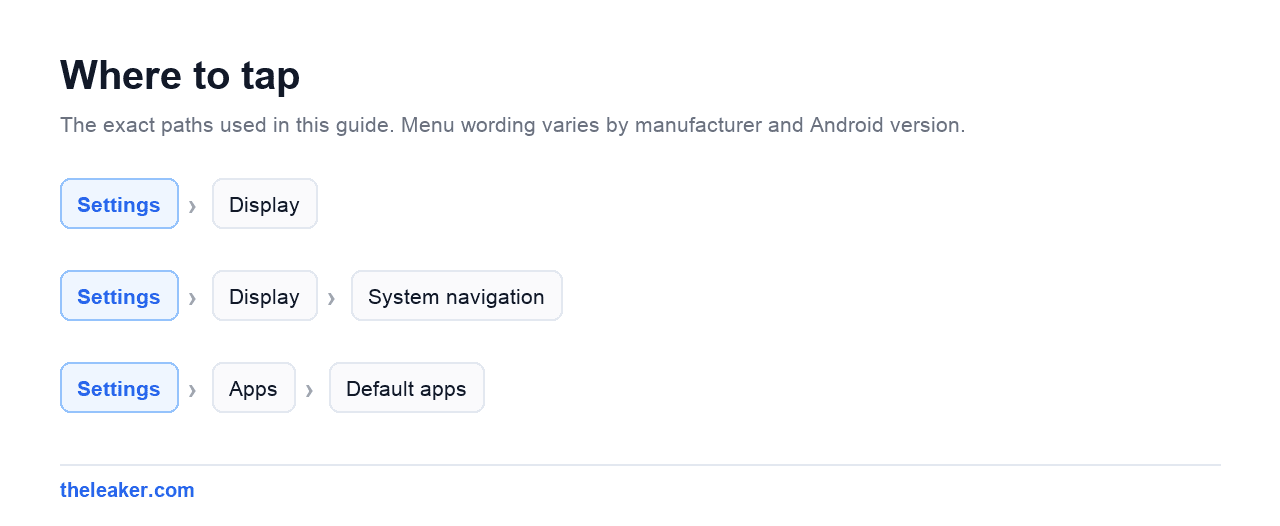
The quick answer: Gesture navigation gives you more screen and faster one-handed movement, but it costs you a few days of muscle memory and it fights with apps that have their own side-swipe menus. Three-button navigation is instant to learn, never ambiguous, and better if you use a case with a thick bottom lip or have limited thumb reach. The trade is a permanent strip of screen. Both live under Settings → Display → Navigation bar (or Settings → Display → System navigation, depending on the brand). The real win isn’t picking the “right” one, it’s learning the four or five moves most people never discover: the app switcher flick, the quick-switch swipe, the back-sensitivity slider, and the assistant corner pull. Learn those and either system feels fast.
Here’s how each one actually works, where each one breaks, and how to get good at whichever you pick.
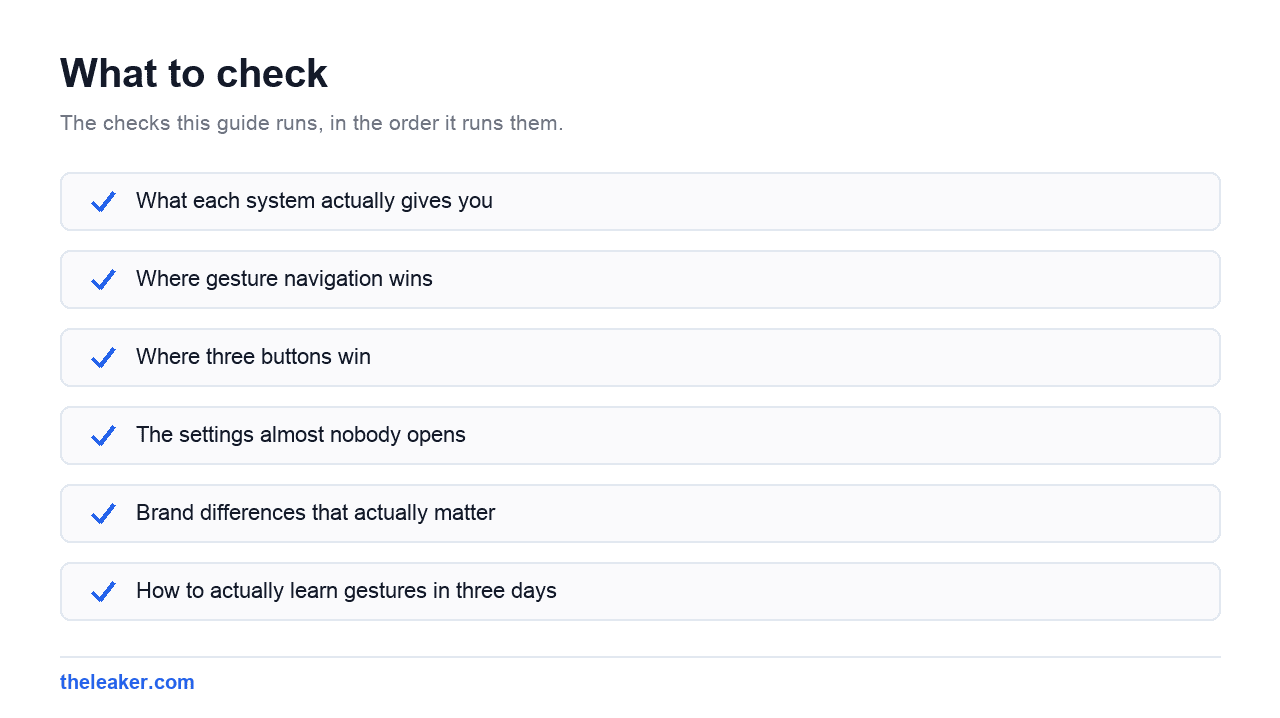
What each system actually gives you
| Navigation | Best for | Watch out for |
|---|---|---|
| Gesture navigation | Large screens, slim cases, one-handed use | Fights apps with their own side-swipe drawers |
| Three-button navigation | Rugged cases, gloves, accessibility needs | A permanent strip of screen at the bottom |
Three-button navigation is the original Android layout: back, home, recents. Every tap does exactly one thing. There’s no gesture to misread, no accidental triggers, and no learning curve. The cost is a horizontal strip at the bottom of the display that’s always there: usually somewhere around 5% of the screen. On a small phone that matters more than you’d think.
Gesture navigation replaces the buttons with a thin pill or line. Swipe up to go home, swipe up and hold to open recents, swipe in from either left or right edge to go back. You get that strip of screen back, and once the gestures are in your fingers they’re genuinely faster than aiming at a button. You’re swiping from anywhere along the edge instead of hitting a specific target.
There’s also a third option some brands still ship: a two-button or “pill” navigation from an earlier Android era, and on Xiaomi and a few others, a full-screen gesture mode with slightly different rules. If you see extra options in that menu, they’re variations on the same two ideas.
Where gesture navigation wins
Quick-switch is the killer feature. Swipe left or right along the bottom edge (on the gesture pill itself) and you flip between your recent apps instantly, like alt-tab. No opening the recents screen, no picking a card. If you’re copying between two apps, this alone is worth the switch. Most people who try gestures for a week and go back never learned this one.
Reaching is easier one-handed. The back gesture works from anywhere along the left or right edge, at any height. On a tall phone, that means you don’t have to shuffle your grip down to the bottom corner to hit a back button.
You get the screen back. In a video, a game, or a long article, that strip adds up. On phones with a chin, it’s the difference between the content ending at the bezel and ending an inch above it.
It’s ambidextrous. Back works from both edges by default, so left-handers aren’t stuck reaching across.
Where three buttons win
Nothing is ambiguous. A tap is a tap. If you use your phone in gloves, in a car mount, half-asleep, or while walking, buttons don’t misfire. Gestures occasionally do.
Cases with thick lips. Rugged cases and some wallet cases raise a rim around the screen edge. That rim is exactly where the back gesture starts, and it makes edge swipes fussy. Buttons don’t care.
Apps with side drawers. This is the biggest real complaint. Plenty of apps open a menu when you swipe in from the left edge. With gestures on, that swipe is also “back,” so the two fight. Android’s fix is a two-stage swipe (you pull slightly and hold, then the drawer opens instead) but it’s finicky and not everyone’s fingers cooperate.
Accessibility. If you have limited dexterity, tremor, or you use a stylus, discrete targets beat continuous gestures every time. Three buttons is not a lesser choice here. It’s the better one.
The settings almost nobody opens
Whichever mode you’re on, there are adjustments buried one level deeper. Look for a gear icon or “More options” next to the navigation mode you’ve picked.
Back sensitivity
Stock Android and most skins let you set how far in from the edge the back gesture registers, often with separate sliders for the left and right edge. If back keeps firing when you meant to scroll a carousel, turn the sensitivity down. If back keeps missing, turn it up. If one specific app is the problem, turn down only that edge: many people set the left edge low (because that’s where app drawers live) and the right edge high.
Button order
On three-button mode, some skins, Samsung’s One UI in particular, let you swap the order so back sits on the right instead of the left. If you came from an older phone or from a different brand, this is why the layout feels backwards. Change it and the muscle memory returns in an hour.
Hide the gesture hint
Several skins let you hide the pill entirely for a truly edge-to-edge look. The gestures still work. It’s cosmetic, but it’s the cleanest the phone will ever look.
Assistant corner pull
In gesture mode, swiping diagonally in from a bottom corner launches the assistant. If you keep triggering it by accident, there’s usually a toggle to disable it. If you never knew it existed, try it. It’s faster than saying the wake word in public.
Brand differences that actually matter
Samsung (One UI) gives you the most control. You get a choice between the standard swipe-from-edges gestures and Samsung’s older “swipe from bottom” style, where you swipe up from three separate zones at the bottom of the screen for back, home, and recents. That second style is a good middle ground: no screen strip, but the targets are still positional and predictable. Samsung also lets you reorder buttons and toggle gesture hints independently.
Pixel runs the reference implementation: cleanest gestures, best quick-switch feel, per-edge back sensitivity sliders. If gestures ever feel right anywhere, it’s here.
Xiaomi (HyperOS) has its own full-screen gesture mode with an option to change how the recents animation behaves and a “hide fullscreen indicator” toggle. Xiaomi is also the brand where third-party launchers most often break gestures, if your gestures went weird right after installing a new launcher, that’s the cause, and there’s usually a fix in the launcher’s own settings.
OnePlus (OxygenOS) keeps things close to stock, with an extra option to disable the back gesture on the left edge only. That’s the single most useful toggle for anyone who lives in apps with hamburger drawers.
The exact menu names shift between versions, so if you don’t see something under Display, check Settings and search for “navigation”: every skin has search now, and it’s faster than hunting.
How to actually learn gestures in three days
Most gesture failures are quitting on day two, when the old habits are still firing and the new ones haven’t formed. If you want to give it a fair shot, do this:
- Day one: only learn home and back. Swipe up from the bottom for home. Swipe in from the right edge for back. Ignore everything else. Use the right edge, not the left. It avoids app drawers entirely while you’re learning.
- Day two: add quick-switch. Swipe sideways along the bottom edge to flip between your last two apps. Force yourself to use it ten times. This is the moment gestures start feeling faster than buttons, and it’s the reason to stay.
- Day three: add recents. Swipe up and pause: don’t lift immediately. The hold is the whole trick. If cards aren’t appearing, you’re flicking too fast.
If after three days it still feels wrong, switch back. There’s no prize for suffering. Three-button navigation is not the outdated choice. It’s the deterministic one, and plenty of people who’ve tried both prefer it on purpose.
Common problems and what causes them
Gestures stopped working after installing a launcher. Third-party launchers have to be granted a specific role for gesture navigation to work properly. Check the launcher’s own settings for a navigation or gesture section, and make sure it’s set as the default home app in Settings → Apps → Default apps.
Back fires when you’re scrolling a horizontal list. Classic sensitivity problem. Turn the back sensitivity down for that edge, or pull in slightly higher up the screen where the carousel isn’t.
The keyboard covers the gesture area. Normal. While the keyboard is up, the swipe-up-from-bottom gesture is usually reserved for dismissing the keyboard. Dismiss it first, then go home.
Everything feels laggy in gesture mode. Gestures are animation-heavy, so on an older or heavily loaded phone they can feel worse than buttons. Before blaming the gestures, check whether animation scale settings and background load are dragging things down. We cover several of those adjustments in our guide to hidden Android settings that make your phone feel faster.
The navigation bar changed after a phone transfer. Navigation preference doesn’t always carry across brands during setup. If your new phone feels wrong on day one, this is usually why. It’s worth checking alongside the other settings people forget when they move everything to a new Android phone.
So which should you pick?
Pick gestures if you have a large screen, use a slim case, and want the extra display area and quick-switch. Pick three buttons if you use a rugged case, rely on apps with side drawers, want zero ambiguity, or have any dexterity concerns. And on Samsung, seriously consider the swipe-from-bottom middle option. It’s the most underrated navigation mode on Android.
Whichever you land on, spend two minutes in the sensitivity and button-order settings. That’s where the actual comfort is, and it’s the part nearly everyone skips.
Frequently asked questions
Does gesture navigation use more battery than three buttons?
Not in any way you’d notice. Gestures involve more animation, which does a little more GPU work, but the difference is far too small to show up in a day’s battery. If your battery dropped right after switching, something else changed at the same time. A system update, a restored app set, or new background sync.
Why does swiping back open a menu instead in some apps?
Because that app uses a side drawer that opens on an edge swipe, and it’s competing with the back gesture. Android’s intended solution is to pull in slowly and hold so the drawer opens instead of going back. If that’s too fiddly, lower the back sensitivity on that edge, or use the other edge for back in that app.
Can I use gestures with a third-party launcher?
Yes, but it depends on the launcher and the skin. The launcher has to properly support the system’s gesture handoff, and you have to set it as your default home app. If recents animations look broken or gestures dead-zone, check the launcher’s settings first. That’s almost always where the fix lives.
Is three-button navigation being removed from Android?
There’s no sign of that. Every major skin still ships it, and it remains important for accessibility. Gesture navigation is the default on new phones, which is different from being the only option. The setting to switch back is still right there under Display.
Related: How to Use Split Screen and Multitasking on Android Like a Pro

Yash Jain writes about Android and Apple for The Leaker, focusing on how to guides, download resources, and top and best roundups. His articles walk readers through setup steps and app choices, compare options across categories, and follow news updates across both mobile platforms as they develop.