
Most people use their phone one app at a time, switching back and forth, losing their place, copying a number by memory because they can’t see both screens at once. Android has had proper multitasking for years (split screen, floating windows, app pairs you can launch with one tap) and almost nobody turns it on. It’s the single biggest gap between how phones can work and how most people actually use them.
The quick answer: to split the screen on Android, open the Recent Apps view, tap the icon at the top of the app you want, and choose Split screen (or “Open in split screen view”). Then pick the second app from the list that appears. Drag the divider bar in the middle to change the ratio. To close, drag that divider all the way to the top or bottom. Samsung goes further than anyone: it adds pop-up floating windows, a persistent edge panel for launching pairs, and saved App Pairs you can pin to your home screen so a specific two-app layout opens with one tap. Pixel, Xiaomi and OnePlus all support the basic split, and on large screens and foldables Android also offers a taskbar for drag-and-drop multitasking. The main limitation you’ll hit is that some apps refuse to resize. That’s the app’s choice, not a setting you can change.
The basic split, on any Android phone
The method is essentially the same everywhere, with small differences in wording.
- Open the first app you want.
- Open Recent Apps: swipe up from the bottom and hold if you use gestures, or tap the square/three-line button if you use the three-button navigation bar.
- Tap the app icon at the top of the card. Not the card itself. The small icon. This opens a menu most people never discover.
- Choose Split screen or Open in split screen view.
- The app moves to the top half. Pick your second app from the recents list or the home screen.
Once you’re in split view, the divider between the two apps is draggable. Pull it up or down to give one app more room. Drag it fully to one edge to exit and leave that app full screen.
In landscape the split becomes side-by-side instead of stacked, which is much better for anything text-heavy.
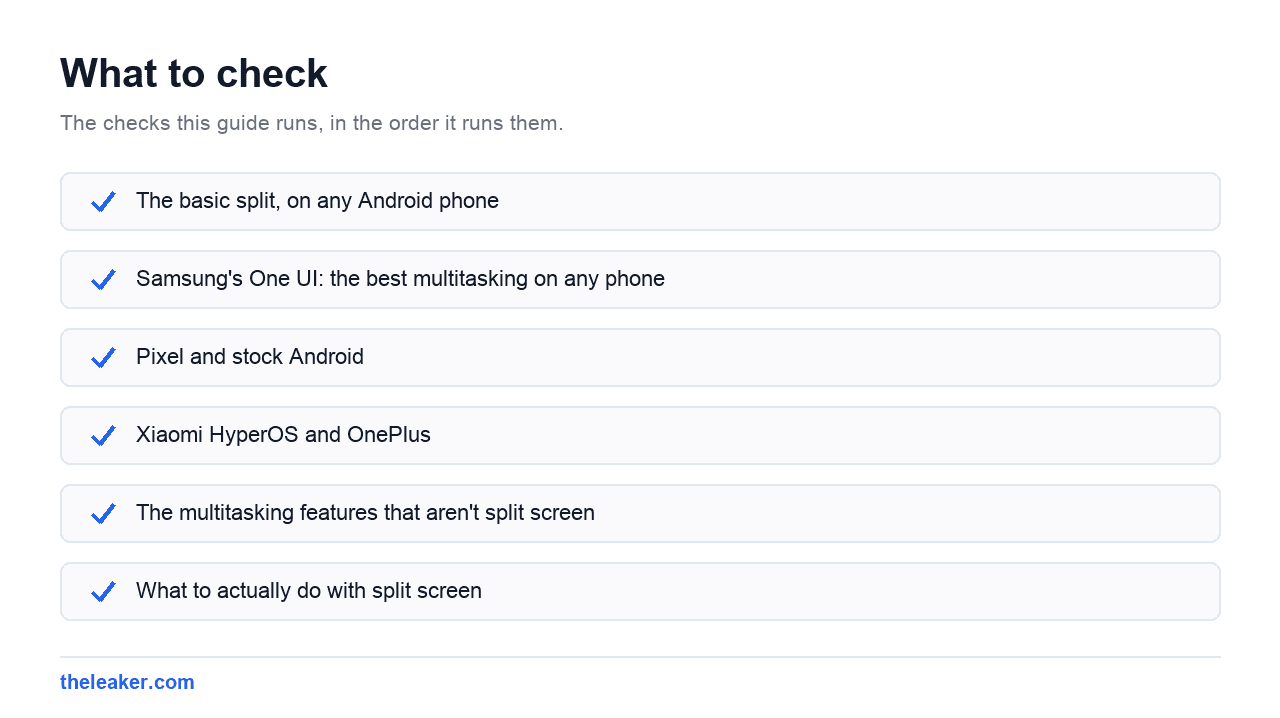
Samsung’s One UI: the best multitasking on any phone
Samsung has invested more here than anyone else, and if you have a Galaxy you have features Pixel simply doesn’t offer.
App Pairs
This is the killer feature. Set up a split screen you use often: say a messaging app on top and a notes app below. Then tap the three dots on the divider bar and choose the option to save it as an App Pair. It becomes an icon you can put on your home screen or in the Edge panel, and tapping it launches both apps in that exact layout instantly.
If you find yourself repeatedly setting up the same two apps, this saves you the whole dance every time.
The Edge panel
Swipe in from the small translucent handle on the side of your screen. That’s the Edge panel, and it holds your favourite apps and App Pairs. From here you can drag an app directly onto either half of the screen, which is faster than going through recents.
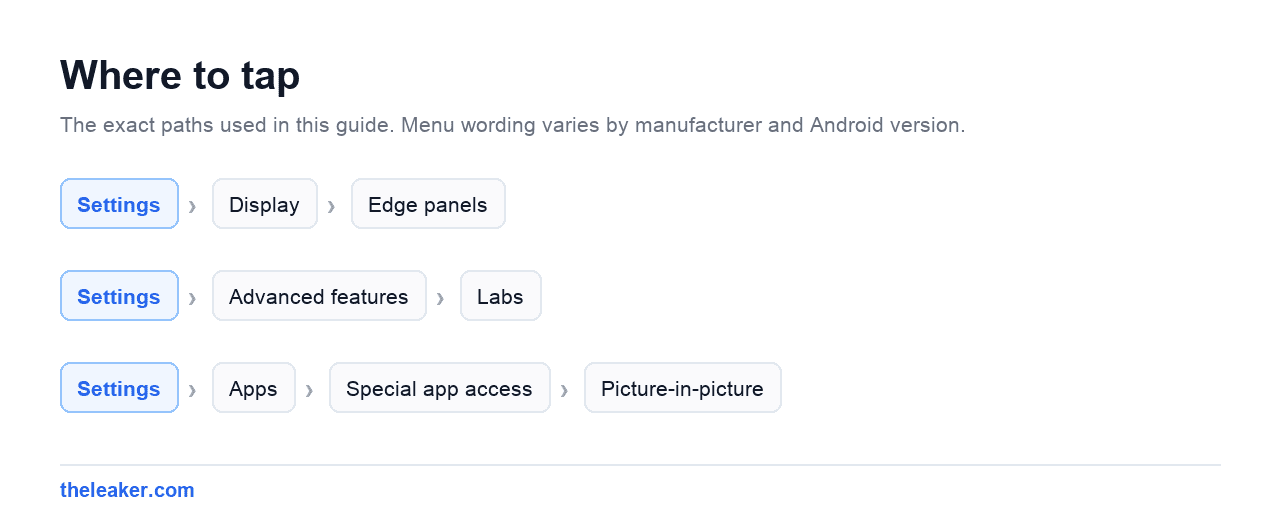
Enable and configure it under Settings → Display → Edge panels. You can move the handle’s position and change how sensitive it is: worth doing, because the default position tends to conflict with in-app side gestures.
Pop-up view (floating windows)
Instead of splitting the screen, you can float an app in a small resizable window on top of whatever’s underneath. Tap the app icon in recents and choose Open in pop-up view. Or, from the Edge panel, drag an app to the centre of the screen rather than to a half.
Pop-up windows can be resized by dragging a corner, moved by dragging the top bar, minimised to a floating bubble, and made semi-transparent. That last one is genuinely useful. You can leave a video playing over your work at low opacity and still read what’s underneath.
The multi window shortcut
Under Settings → Advanced features → Labs (or Multi window, depending on version) Samsung hides some of the best options. Look for a swipe gesture that splits the screen directly, and a setting that forces apps to support split screen even when they say they don’t. That second one is the fix for apps that refuse to resize.
Pixel and stock Android
Google’s implementation is cleaner and simpler. Same recents-icon method to split. Once you’re in split screen, Pixel remembers the pair: swiping to recents shows both apps as a single combined card, so you can switch away and come back to the layout intact.
Recent Android versions have also added a keyboard-style shortcut and drag-to-split behaviour on larger screens, plus a taskbar at the bottom of tablets and foldables that lets you drag an app straight into a half of the screen.
Stock Android doesn’t have saved app pairs the way Samsung does, and it has no floating pop-up window mode for phones. If those matter to you, Samsung is ahead.
Xiaomi HyperOS and OnePlus
Xiaomi supports split screen through the same recents menu. HyperOS also has a floating window mode: swipe up and hold from the bottom edge while an app is open, or use the recents card menu, to shrink an app into a movable window. Xiaomi’s floating windows can be shrunk further into a small side bubble that expands when tapped.
Xiaomi also has a sidebar similar to Samsung’s Edge panel. Find it in the special features or shortcuts section of Settings.
OnePlus supports split screen and, on OxygenOS, a floating window option in recents. The gestures track close to stock Android with a few additions.
Across all brands, if you can’t find the option, check whether your phone has a “one-handed mode” or “simple mode” enabled. Those can disable multi-window features.
The multitasking features that aren’t split screen
Split screen gets all the attention, but three other things do more for daily use.
Quick switch
Swipe right along the very bottom edge of the screen to jump to the previous app. Swipe left to come back. No recents menu, no picking from cards. This is the fastest way to bounce between two apps and it takes about a day to become automatic.
With three-button navigation, double-tapping the recents button does the same thing.
Picture-in-picture
Video and navigation apps can shrink into a small floating window when you leave them. Just press home while a supported video is playing. It keeps playing in the corner while you use other apps, and you can drag it around or fling it off-screen to dismiss.
Control which apps can do this under Settings → Apps → Special app access → Picture-in-picture.
Bubbles
Messaging apps can float as chat heads that stay on top of everything. Tap to expand, tap away to collapse. Enable per-app in notification settings. If you spend all day answering messages between other tasks, this beats split screen for that specific job.
What to actually do with split screen
Some pairings that earn the screen space:
- Video call and notes: take notes during a meeting without leaving the call.
- Browser and messaging: research something and paste links into a chat without switching.
- Maps and messaging: coordinate a meetup while watching your route.
- Two browser windows: compare two products or two flight options side by side. Most browsers support opening in split with themselves.
- Spreadsheet and calculator. The classic.
- File manager and email: drag files directly into a message on devices that support cross-app drag and drop.
Drag and drop between split apps works better than people expect. Long-press an image, a link, or selected text in one half and drag it into the other. Support varies by app, but it works in Google’s apps and most Samsung ones.
Why some apps won’t split
You’ll hit apps that grey out the split option or show “app doesn’t support split screen.” That’s a declaration in the app itself, usually because the developer designed a fixed layout: most commonly games, camera apps, and some banking apps.
Samsung’s Labs setting mentioned above can force many of these to work anyway, with the caveat that layouts sometimes break. Other brands may have a similar “force resizable activities” option, and it also exists in Developer options on some builds as “force activities to be resizable.” Turn it on and expect a small number of apps to look odd or crash. It’s reversible.
What NOT to do
Don’t run split screen constantly. Two apps rendering at once uses more CPU, more RAM and more battery than one, and on a mid-range phone it can make both apps feel sluggish. Use it for a task, then exit. If your phone already feels slow, our list of hidden Android settings that speed up your phone is a better first step than multitasking harder.
Don’t split screen on a small display for reading. Two half-height apps on a compact phone means tiny text and constant scrolling. Rotate to landscape for side-by-side instead, or accept that some tasks want the full screen.
Don’t expect drag and drop everywhere. Many apps don’t implement it. When it doesn’t work, copy and paste still does.
Don’t force resizable activities and then blame the app when it breaks. That developer option exists for testing. If a banking app renders wrong after you enable it, turn it back off before assuming the app is broken.
Don’t ignore landscape. Split screen in portrait is the default and it’s the worse orientation for almost everything except two chat apps. Turn the phone sideways and the same feature becomes far more usable.
Frequently asked questions
Why is split screen greyed out or missing on my phone?
Three common reasons. The app has declared it doesn’t support split screen. You have a simplified or easy mode turned on, which strips multi-window features. Or you’re looking in the wrong place. The option lives in the menu that appears when you tap the app’s icon at the top of its recents card, not on the card itself.
How do I get out of split screen?
Drag the divider bar all the way to the top or the bottom of the screen. Whichever app you drag it away from closes, and the other goes full screen. On some devices you can also just press home and then reopen an app normally.
Does split screen drain more battery?
Yes, though not dramatically. Two apps rendering simultaneously means more GPU and CPU work and often more network activity. Expect a modest hit rather than a cliff. Video playing in one half while you work in the other is the heaviest case.
Can I save a split screen layout to reuse later?
On Samsung, yes. That’s the App Pairs feature, and you can pin the pair to your home screen or Edge panel. Stock Android and most other brands don’t offer saved pairs, though Pixel does keep your active split as a single recents card so you can switch away and return to it.
The short version
Tap the app icon at the top of its card in Recent Apps and choose Split screen. That one menu is where all of this lives, and it’s the reason most people never find it. Drag the divider to resize, drag it to an edge to exit. Turn the phone landscape for anything text-heavy. On Samsung, save the layouts you use daily as App Pairs and put them on your home screen. And learn the bottom-edge swipe to switch apps; it does more for your day than split screen ever will.
Related: Gesture Navigation vs Three Buttons: How to Master Either One

A tech Journalist and Photographer, Dhawal Sharma is a technology enthusiast who loves to research the latest innovations and technology. He has contributed to the Honor Community for a very long period and has crucial expertise in writing tech news and reviewing smartphones and laptops. Analyzing and bringing the facts about any piece of tech is what he loves the most. He is a great product photographer and is the Gizmopedia of TheLeaker. Find him on Facebook and Instagram, and you can also email him at [email protected].