

Your laptop pulls 300 Mbps on the same Wi-Fi where your phone crawls. Pages hang, videos buffer at 480p, and the signal bars look perfectly fine the whole time. That gap between “connected” and “actually fast” is the most frustrating part, and it’s almost never the phone being old.
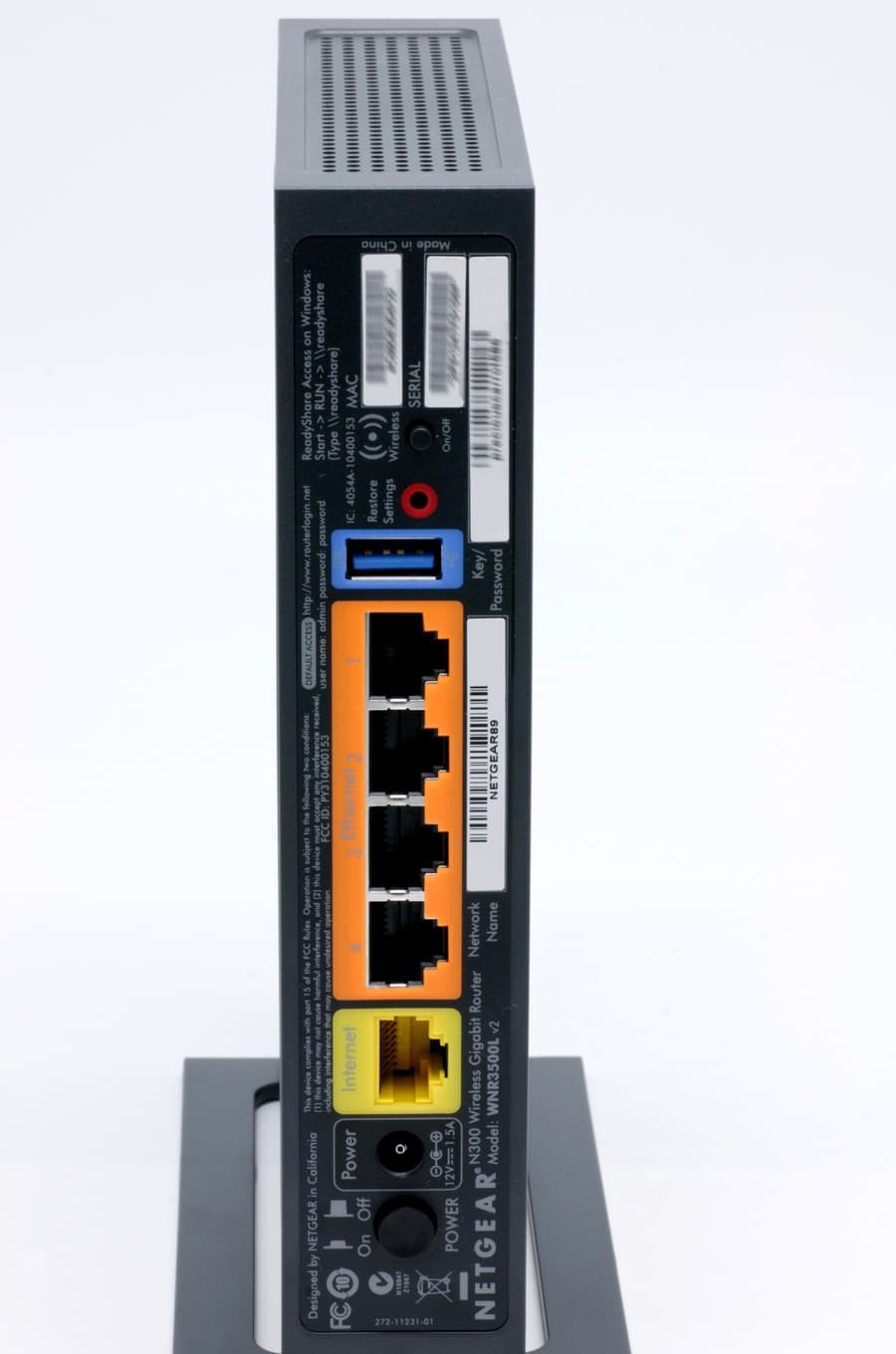
The quick answer: slow Wi-Fi on Android usually comes down to five things. You’re stuck on the crowded 2.4 GHz band instead of 5 GHz, your phone is clinging to a distant router or a weak mesh node, a VPN or private DNS is throttling every request, a background app is eating the pipe, or the router itself needs a reboot. Start by running a speed test right next to the router. If it’s fast there and slow elsewhere, it’s a coverage problem. If it’s slow everywhere including next to the router, it’s your connection or a setting on the phone. Forgetting the network and reconnecting fixes a surprising number of cases because it clears a bad DHCP lease and forces a fresh band choice. Resetting network settings is the nuclear option that works when nothing else does.
First, prove where the problem actually is
Don’t start changing settings blind. Two minutes of testing tells you which half of the article you need.
Stand within arm’s reach of your router and run a speed test on your phone. Then run one on a laptop or another phone in the same spot. Now walk to the room where Wi-Fi feels slow and repeat the phone test.
- Fast next to the router, slow in the other room: coverage problem. Jump to the band and placement sections.
- Slow everywhere, other devices fine. It’s your phone. Work through the settings fixes.
- Slow on every device. It’s the router or your internet plan, not Android.
- Fast speed test, slow browsing. That’s DNS or a VPN, not bandwidth.
That last one catches people constantly. If your speed test says 200 Mbps but websites take four seconds to start loading, bandwidth isn’t your issue. Latency and name resolution are.
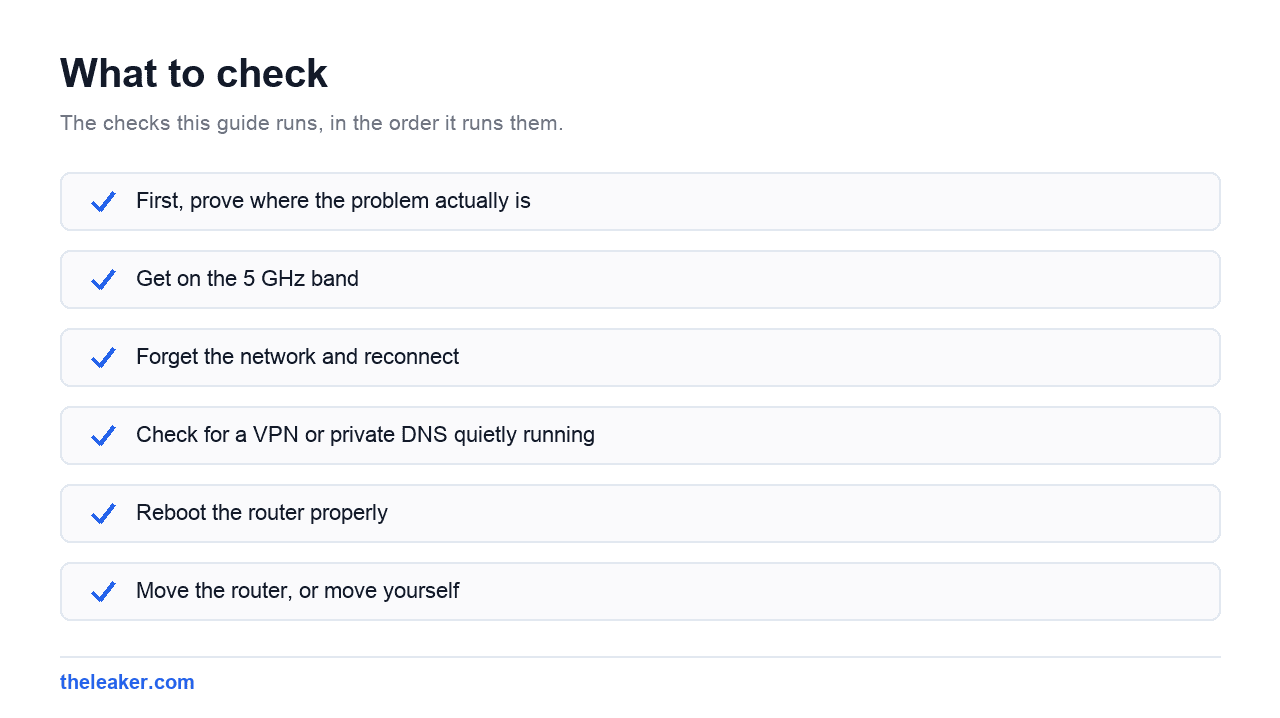
Fix 1: Get on the 5 GHz band
This is the single biggest fix and most people never touch it. Home routers broadcast on two bands. 2.4 GHz travels far and punches through walls, but it’s slow and shares airspace with microwaves, Bluetooth, baby monitors, and every neighbour’s router. 5 GHz is dramatically faster but has shorter range.
Many routers give both bands the same network name and let devices pick. Phones are conservative. They’ll hang onto a weak-but-stable 2.4 GHz connection rather than switch to a strong 5 GHz one. That’s how you end up with full bars and 15 Mbps.
The fix: log into your router and split the bands into two separate network names, something like HomeWiFi and HomeWiFi-5G. Then connect your phone to the 5 GHz one manually. If your phone supports 6 GHz (Wi-Fi 6E or Wi-Fi 7 hardware) and your router broadcasts it, that band is even cleaner because almost nothing else is on it yet.
Expect roughly 3-10x the throughput on 5 GHz versus 2.4 GHz in the same room. The tradeoff is real though: 5 GHz weakens fast through brick and concrete. Two thick walls away, 2.4 GHz may genuinely be the better connection.
Fix 2: Forget the network and reconnect
Boring, and it works more often than it has any right to. Your phone caches a lot about each saved network: the DHCP lease, the band it last used, the specific access point it associated with, DNS servers handed out at connect time. Any of that can go stale.
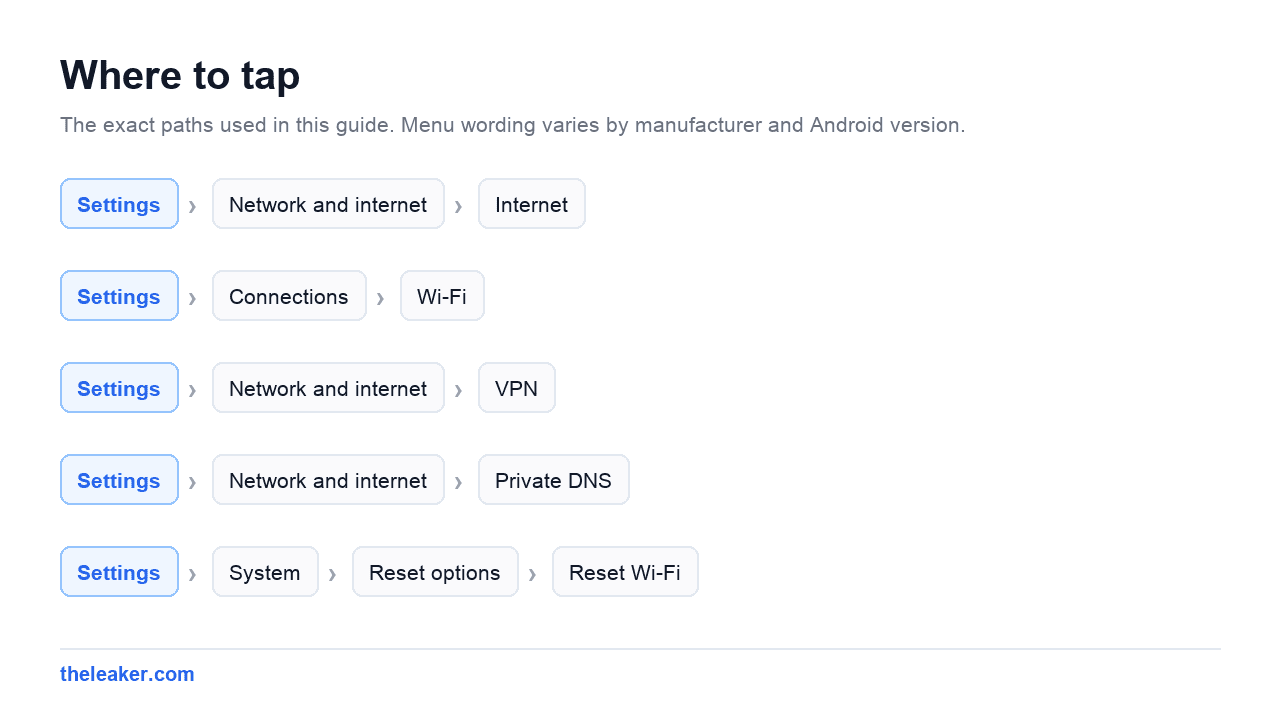
Long-press your network in Settings → Network and internet → Internet (Wi-Fi on Samsung), choose Forget, then reconnect with the password. On Samsung’s One UI it’s Settings → Connections → Wi-Fi, tap the gear next to the network, then Forget. Xiaomi HyperOS and OnePlus put it in similar places under Wi-Fi settings.
This forces a fresh handshake, a new IP lease, and a fresh choice of band and access point. If you’ve moved house, changed routers, or added a mesh system since you first connected, this alone can fix everything.
Fix 3: Check for a VPN or private DNS quietly running
A VPN routes all your traffic through another server, often in another country. Even a good one costs you speed, and a free or overloaded one can cut your throughput by 80% or more. Check the status bar for a key icon, and check Settings → Network and internet → VPN.
Private DNS is the sneakier one. Android has a system-wide setting under Settings → Network and internet → Private DNS. If someone set it to a specific hostname that’s now slow or unreachable, every single lookup stalls before your browser even starts fetching. Set it to Automatic and retest. If you want a custom DNS for a reason, use a fast, well-known provider rather than an obscure one.
Also check for any “data saver,” “ad blocker,” or “privacy” app that runs as a local VPN. Only one app can hold the VPN slot at a time, and these frequently become the bottleneck.
Fix 4: Reboot the router properly
Not the app-based “restart” button. Pull the power, wait a full 30 seconds, plug it back in. The wait matters. It lets capacitors drain and the radio chipset fully reset rather than warm-restart into the same bad state.
Routers accumulate problems over months of uptime: NAT tables fill up, the 5 GHz radio picks a channel that a neighbour later moved onto, memory leaks in cheap firmware. If your Wi-Fi has been degrading gradually over weeks, this is very likely your fix.
While you’re in the router admin panel, check for a firmware update. ISP-supplied routers ship with bad firmware and the updates often fix real throughput bugs.
Fix 5: Move the router, or move yourself
Router placement is physics, not preference. Wi-Fi radiates outward in a rough sphere, so a router in the corner of your house wastes half its coverage on the garden.
- Get it off the floor and out of cabinets: put it high and in the open.
- Keep it away from microwaves, cordless phone bases, and large metal objects like fridges and filing cabinets.
- Don’t put it behind a TV. TVs are large grounded metal sheets.
- Central placement beats a fast router in a bad spot, every time.
Water absorbs 2.4 GHz remarkably well, which is why signal drops through a bathroom, a fish tank, or a wall with pipes in it.
Fix 6: Reset network settings
When the phone is slow on every network and you’ve ruled out VPN and DNS, reset network settings. This wipes all saved Wi-Fi passwords, Bluetooth pairings, and mobile data preferences, then rebuilds the network stack from scratch. It does not touch your photos, apps, or files.
Look under Settings → System → Reset options → Reset Wi-Fi, mobile and Bluetooth on Pixel. Samsung puts it under Settings → General management → Reset → Reset network settings. Xiaomi and OnePlus have equivalents in their reset menus, sometimes worded slightly differently.
Write down your Wi-Fi passwords first. You’ll be re-entering all of them.
Fix 7: Find the app eating your bandwidth
One app syncing a large backup or auto-downloading updates can saturate a modest connection completely. Go to Settings → Network and internet → Data usage → Wi-Fi data usage and look at what’s actually consuming.
Common culprits: cloud photo backup doing an initial upload, a game downloading a multi-gigabyte patch, a video app pre-caching, and system updates downloading in the background. None of these announce themselves.
If you find one, either let it finish or restrict its background data. On Samsung, the Device care section also lets you see which apps have used network in the background recently. And if that backup is stalling because your phone is out of room, our guide on freeing up storage without deleting anything clears the jam.
Fix 8: Turn off Wi-Fi scanning and adaptive connectivity
Android keeps scanning for nearby networks even while connected, for location accuracy. Each scan briefly interrupts the connection. On a marginal signal, constant scanning turns into stuttering.
Find Settings → Location → Location services → Wi-Fi scanning and turn it off. Your location accuracy indoors drops slightly. Your Wi-Fi stability improves.
Pixels also have Adaptive Connectivity, which can drop you to a slower radio state to save battery. If you’re chasing maximum speed, try turning it off and retesting.
Fix 9: Check the router channel
In a flat or dense neighbourhood, twenty routers may be crowded onto the same channel. On 2.4 GHz, only channels 1, 6 and 11 don’t overlap: everything else bleeds into its neighbours.
Most modern routers have an “auto” channel setting that picks once at boot and never re-evaluates. Reboot the router to force a new choice, or log in and manually set 2.4 GHz to whichever of 1, 6 or 11 is least crowded. On 5 GHz you have far more channels and congestion is rarely the issue.
Fix 10: Update the phone and clear the Wi-Fi cache
Wi-Fi driver and firmware fixes ship inside regular system updates. If you’ve been putting off updates for months, install them: connectivity regressions do happen and do get fixed.
Also try safe mode for a diagnostic. Boot into safe mode (hold the power button, then long-press “Power off” and confirm) and run a speed test. Safe mode disables all downloaded apps. If Wi-Fi is suddenly fast, one of your installed apps is the problem, and you can uninstall recent ones until you find it.
Fix 11: Turn off battery saver and check thermals
Aggressive battery saving throttles background network activity and can reduce radio performance. If you’ve had battery saver pinned on permanently, that’s a cost you’re paying constantly.
Heat matters too. A phone that’s thermally throttling reduces radio and CPU performance, which shows up as slow-feeling internet. If your phone is warm to the touch during heavy use, cooling it down properly is worth doing before you blame the router.
Fix 12: Check your actual plan speed
The unglamorous possibility: you’re getting exactly what you pay for. Plug a laptop into the router with an ethernet cable and run a speed test. That number is your real ceiling. No Android setting beats it.
Also check whether your ISP is throttling after a data cap, whether someone at home is streaming 4K on three devices, and whether your router is old enough to be the bottleneck itself. A Wi-Fi 4 router physically cannot deliver gigabit speeds no matter what plan you buy.
What NOT to do
Don’t install a “Wi-Fi booster” or “signal amplifier” app. No app can increase your phone’s transmit power or antenna gain. That’s fixed in hardware. These apps do nothing but show animations and serve ads. Some just toggle Wi-Fi off and on, which you can do yourself.
Don’t use RAM cleaners or “network optimizers.” Android manages memory fine. Force-closing apps repeatedly makes things slower, not faster, because everything has to cold-start again.
Don’t set a static IP unless you know why you’re doing it. A wrong subnet or gateway breaks your connection in confusing ways that look like “slow Wi-Fi.”
Don’t assume more bars means more speed. Signal strength and throughput are different things. You can have five bars on a congested 2.4 GHz channel and get worse speed than three bars on clean 5 GHz.
Frequently asked questions
Why is my Wi-Fi slow on my phone but fast on my laptop?
Usually because the laptop is on 5 GHz and the phone is on 2.4 GHz. Laptops have larger antennas and more aggressive band steering. The phone is also physically smaller, so its antenna is weaker and more easily blocked: by your own hand, in fact. Split your router’s bands into separate network names and connect the phone to the 5 GHz one.
Why did my Wi-Fi get slow right after a system update?
Updates can change Wi-Fi driver behaviour, reset band preferences, or re-enable settings like adaptive connectivity. Forget and rejoin the network first. That clears stale state carried across the update. If it persists, reset network settings. Occasionally a genuine regression ships and gets fixed in the next patch.
Does turning Wi-Fi off and on actually help?
Sometimes, and it’s free to try. It forces the phone to re-scan and re-associate, which can move you to a better access point in a mesh setup or a better band. It won’t fix congestion, distance, or a slow plan. If you’re toggling Wi-Fi several times a day, that’s a symptom worth fixing properly.
Is a mesh system worth it, or should I just buy a better router?
If your problem is one dead room, a mesh node or access point there solves it. If your whole house is slow including next to the router, a better single router helps more. Mesh systems that connect to the main unit over Wi-Fi rather than ethernet lose roughly half their throughput on the backhaul, so run a cable to the nodes if you possibly can.
The short version
Test next to the router first. That one measurement tells you whether you’re chasing a coverage problem or a phone problem. Then get on 5 GHz, forget and rejoin the network, kill any VPN or private DNS, and reboot the router properly. Those four cover the large majority of slow Android Wi-Fi. Everything else is refinement.
Related: Wi-Fi Keeps Disconnecting on Android? Here's How to Fix It

I am the chief editor of TheLeaker. I also maintain the backend stuff of the site. I’m a tech enthusiast and loves to do Python coding in my free time. I have worked at many giant publications like XDA Developers and NXTtech before starting TheLeaker.
You can get in touch with me at Garv[at]theleaker.com.