
When your Wi-Fi keeps disconnecting on Android, it’s worse than no Wi-Fi at all. Your video stalls, your download restarts, and the phone quietly burns through mobile data while it flips back and forth. The frustrating part is that the cause is rarely where people look first. It’s usually a battery setting, a network-switching feature, or a router doing something reasonable in an unhelpful way.
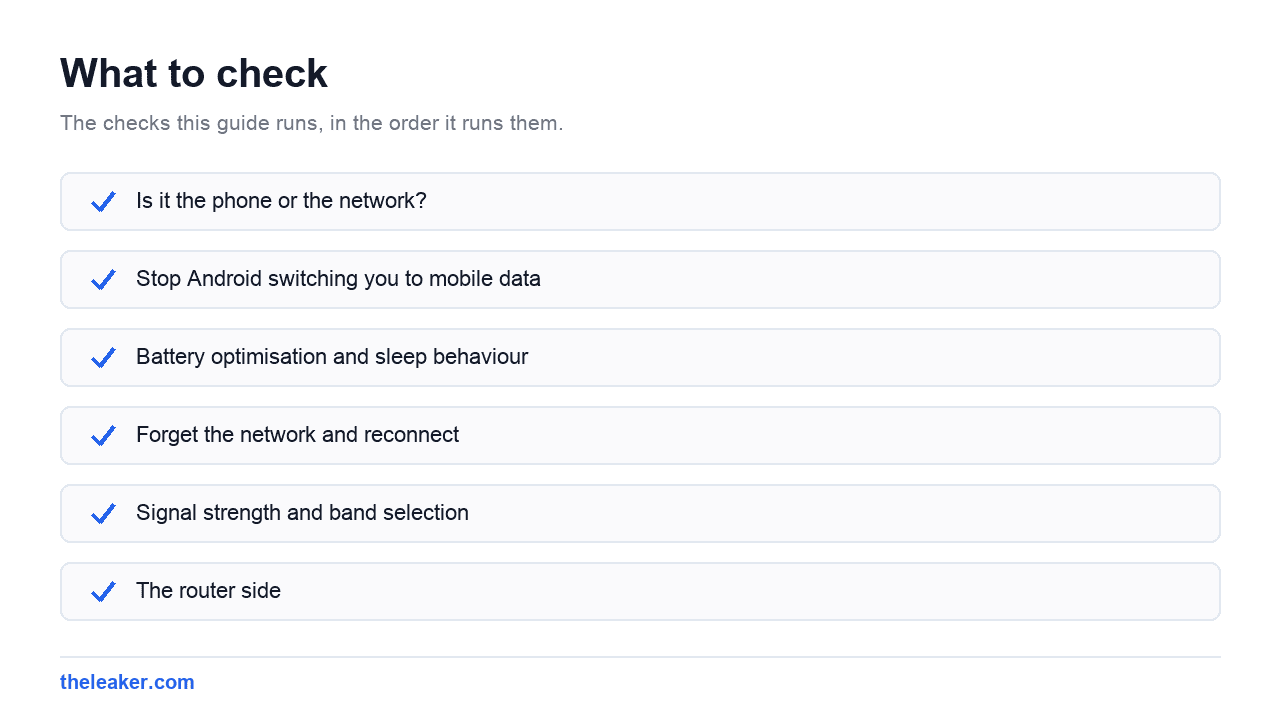
The quick answer: start by working out whether it’s the phone or the network. If other devices on the same Wi-Fi are stable, the phone is at fault. On the phone, check three things in order: turn off any “switch to mobile data automatically” or adaptive connectivity feature, disable battery optimisation for anything managing your connection and stop Wi-Fi turning off during sleep, then forget the network and reconnect fresh. If that doesn’t hold, the usual culprits are a weak signal, a crowded 2.4GHz channel, or a router pushing your phone between bands. Restart the router, move closer, and try connecting to the 5GHz band by name. Only after all that should you reset network settings, which wipes every saved Wi-Fi password on the device.
First: is it the phone or the network?
Two minutes of testing here saves an hour of pointless fiddling.
- Other devices drop too? It’s the router or the internet line, not your phone. Skip to the router section.
- Only this phone drops? It’s the phone, or how the phone and router are negotiating.
- Only drops in one room? Signal strength. Coverage problem, not a settings problem.
- Only drops on one network? Something specific to that router: likely band steering, a channel conflict, or client limits.
- Drops on every network including mobile hotspots? Points at the phone’s Wi-Fi radio or a system-level setting.
Note the pattern before you change anything. “It disconnects every 30 seconds” and “it disconnects when the screen turns off” are entirely different problems with entirely different fixes.
Fix 1: Stop Android switching you to mobile data
This is the biggest single cause of phantom Wi-Fi drops, and most people don’t know the feature exists.
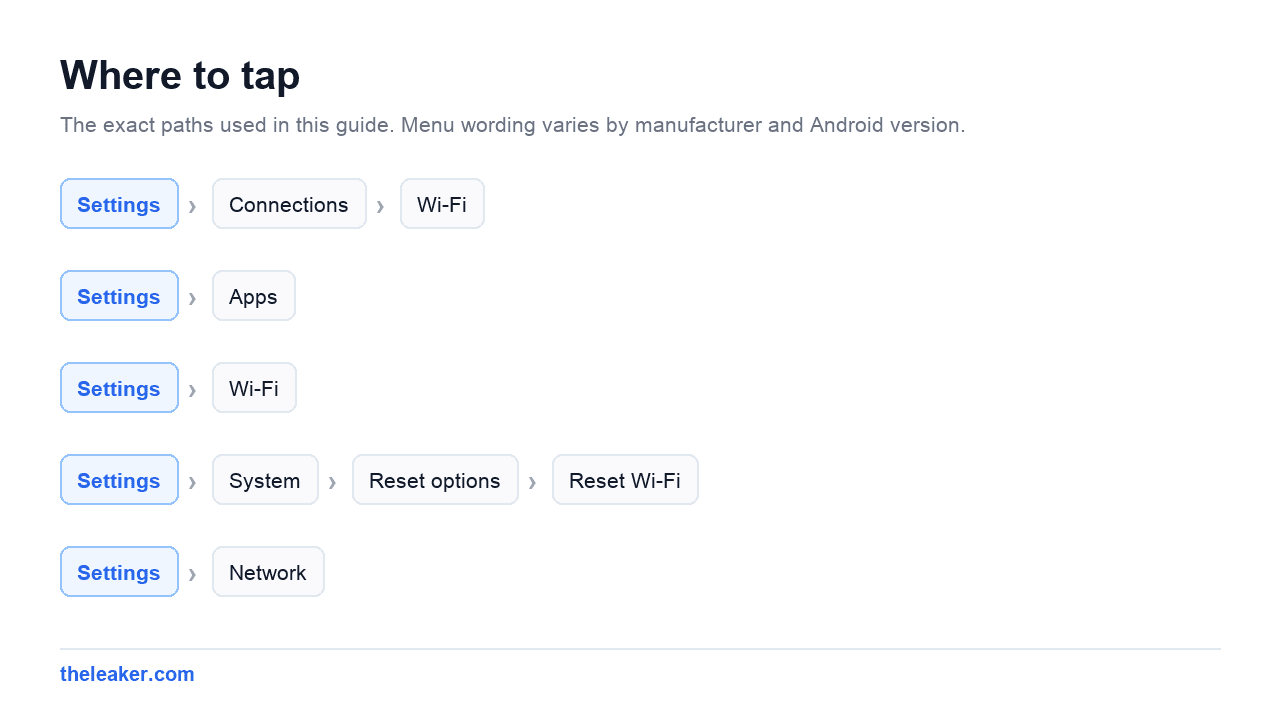
Android has a set of features designed to keep you connected: if it decides your Wi-Fi is poor, it silently moves you to mobile data. Depending on your phone this is called Adaptive connectivity, Switch to mobile data, Auto switch to mobile network, or Wi-Fi+. On Samsung it’s often under Settings → Connections → Wi-Fi → the three-dot menu → Intelligent Wi-Fi. On Xiaomi’s HyperOS it may appear under Wi-Fi assistant or Dual-band Wi-Fi acceleration.
The problem is the threshold. A Wi-Fi connection that’s perfectly usable can look “weak” to Android’s heuristics, especially at the edge of coverage, and you get bounced to mobile data mid-stream. To you it looks like Wi-Fi disconnected. Then signal improves, it hops back, and you get the reconnect.
Turn these off and see if the drops stop. If they do, that was your answer, and you’ve probably also been quietly eating mobile data for months.
While you’re there, look for Wi-Fi scanning or “keep scanning available” under location settings. It doesn’t usually cause disconnections but it does drain battery.
Fix 2: Battery optimisation and sleep behaviour
If your Wi-Fi drops specifically when the screen goes off (messages arrive late, downloads pause, but everything’s fine the moment you unlock), this is your section.
Aggressive power saving shuts down or throttles the Wi-Fi radio during sleep. Samsung, Xiaomi, OnePlus and Oppo are all notably more aggressive here than stock Android.
What to check:
- Battery saver. If it’s on, or set to turn on automatically at a percentage, it restricts background network use. Turn it off while testing.
- Adaptive Battery / Battery optimisation. Under Settings → Apps → the app in question → Battery, set anything that needs a live connection to Unrestricted.
- Sleeping apps and Deep sleeping apps. Samsung’s device care puts unused apps into a sleeping list where they lose network access entirely. Check the list and pull out anything you actually use.
- Xiaomi’s battery saver per app. HyperOS defaults many apps to restricted background activity. Set important ones to No restrictions.
- Keep Wi-Fi on during sleep. Older Android versions had this explicitly; some skins still do. Set it to Always.
Several of these live in menus people never open. If you want a broader sweep of settings worth changing on a fresh phone, our roundup of hidden Android settings that speed up your phone covers the same territory from the performance side.
Fix 3: Forget the network and reconnect
Saved Wi-Fi profiles carry more than a password. They store security settings, IP configuration, proxy details and DHCP behaviour. A profile can go stale, particularly after a router change, a firmware update, or a system update on the phone.
Go to Settings → Wi-Fi, tap the network, choose Forget, then reconnect and type the password fresh.
Do it in this order for best results: forget the network on the phone, restart the router, restart the phone, then reconnect. It sounds like superstition but it clears both ends of a stale association.
While reconnecting, check the network’s advanced settings on the phone. Two things matter:
- IP settings should be DHCP unless you deliberately set a static IP. A static IP that clashes with another device causes exactly this kind of intermittent dropping.
- Privacy / MAC address. Android uses a randomised MAC per network by default. That’s good for privacy but it can conflict with routers using MAC filtering or address reservations. If your router has any MAC-based rules, switch this network to “Use device MAC”.
Fix 4: Signal strength and band selection
If the drops correlate with where you’re standing, no amount of settings will help. You have a coverage problem.
Two bands, two trade-offs:
- 2.4GHz travels further and through walls better, but is slower and heavily congested. Microwaves, cordless phones, baby monitors, Bluetooth and every neighbour’s router share it.
- 5GHz is much faster and far less crowded, but range is shorter and walls hurt it badly.
Many routers broadcast both under one name and decide which to give you. That’s band steering. When it works, you never notice it. When it doesn’t, your phone gets bounced between bands, and each handoff looks like a disconnection.
The test: log into your router and split the bands into two separate network names, something like “Home” and “Home-5G”. Connect the phone to one explicitly. If the drops vanish, band steering was the problem. Many people leave the bands split permanently for exactly this reason.
If you’re sticking with 2.4GHz, channel choice matters. Only channels 1, 6 and 11 don’t overlap. If your router is on channel 3 or 9, it’s interfering with neighbours on both sides. Set it manually to 1, 6 or 11: whichever is least used around you.
Fix 5: The router side
If other devices drop too, work here.
Restart it properly. Unplug from the wall, wait thirty seconds, plug back in. Wait two to three minutes for full sync. Don’t just press a reset button: on most routers that’s a factory reset.
Check for firmware updates. Router firmware is neglected far more than phone software, and Wi-Fi stability bugs are common. Log into the admin page and look.
Count your devices. Older and ISP-supplied routers can struggle past a certain number of connected clients. A house with two phones is different from one with two phones, three laptops, a TV, a console, four smart bulbs and a doorbell. If you’re at the limit, devices get dropped to make room.
Look at placement. Routers do badly inside cabinets, behind TVs, on the floor, or next to large metal objects and fish tanks. Higher, central and in the open beats tucked away every time.
Check for interference. If drops happen at predictable times (when someone uses the microwave, when the heating comes on), you’ve found a 2.4GHz interference source. Move to 5GHz.
Consider the WPA setting. Some older phones handle WPA3 or mixed WPA2/WPA3 mode badly. If your router is set to WPA3-only or a transition mode and one specific device keeps dropping, try WPA2 to test. Don’t leave security off entirely, and don’t drop to WEP under any circumstances.
Fix 6: Network settings reset
This is the nuclear option for phone-side problems, and it works surprisingly often when nothing else does.
Settings → System → Reset options → Reset Wi-Fi, mobile & Bluetooth (wording varies; on Samsung it’s under General management → Reset).
What it does: wipes all saved Wi-Fi networks and passwords, unpairs all Bluetooth devices, and resets mobile network preferences and APN settings to default. What it doesn’t do: touch your apps, photos, messages or accounts.
Before you run it, make sure you know your Wi-Fi passwords: home, work, and anywhere else you connect. You’ll be retyping all of them. Modern Android lets you view a saved password by tapping a network and choosing Share, which shows a QR code and the password underneath. Worth doing before you reset.
Less common causes worth knowing
A VPN. VPN apps sit between you and the network. A flaky VPN looks exactly like flaky Wi-Fi. Disconnect it and test.
A private DNS setting. If you’ve set a private DNS hostname under Settings → Network → Private DNS and that server becomes unreachable, everything breaks in a way that resembles a disconnection. Set it to Automatic to test.
A case or a grip. Rare, but on some phones covering a specific corner attenuates the antenna. If drops correlate with holding the phone a certain way, try without the case.
A recent system update. Wi-Fi regressions after updates do happen. Check for a newer patch, and search your phone model plus the Android version to see if others are reporting it.
A recently installed app. Boot into safe mode (hold power, then long-press Power off until Safe mode is offered). If Wi-Fi is stable there, an installed app is interfering. Network-monitoring, ad-blocking and automation apps are the usual suspects.
Storage pressure. A phone with almost no free space misbehaves broadly, including network stack instability. Our guide on freeing up Android storage without deleting anything takes about ten minutes.
A sensible order to work through
- Confirm whether other devices drop too.
- Turn off adaptive connectivity / auto-switch to mobile data.
- Turn off battery saver, and unrestrict battery for key apps.
- Restart the router (unplug thirty seconds) and the phone.
- Forget the network, reconnect, check IP is DHCP.
- Split the router’s bands and connect to one explicitly.
- Change the 2.4GHz channel to 1, 6 or 11.
- Update router firmware.
- Test in safe mode.
- Reset network settings on the phone.
Stop as soon as it’s stable, and give each change a proper trial. An hour of normal use, not thirty seconds.
Frequently asked questions
Why does my Wi-Fi disconnect only when the screen is off?
That’s power management, not a network fault. Android and manufacturer skins reduce or suspend Wi-Fi activity during sleep to save battery. Turn off battery saver, set important apps to unrestricted battery use, and on Samsung check that nothing you rely on has been dropped into the sleeping apps list. If your phone has an explicit “keep Wi-Fi on during sleep” option, set it to Always.
Should I use 2.4GHz or 5GHz?
Use 5GHz when you’re within reasonable range of the router and there’s not much in the way. It’s faster and far less congested. Use 2.4GHz when you’re further away or through several walls, since it penetrates better. If your router broadcasts both under one name and you’re getting drops, splitting them into two names and picking one manually often fixes the problem outright.
Does resetting network settings delete my data?
No. It only clears saved Wi-Fi networks and passwords, Bluetooth pairings, and mobile network preferences. Apps, photos, messages, accounts and settings are untouched. The inconvenience is real though. You’ll retype every Wi-Fi password and re-pair every Bluetooth device, so note them down first.
Why does my phone say “connected, no internet”?
The phone reached the router fine but couldn’t reach the wider internet. That points at the router or the line rather than your phone. Check whether other devices have internet; if none do, restart the router and check for an outage. If only your phone shows it, a private DNS setting or a VPN is the most likely cause: set Private DNS to Automatic and disconnect any VPN, then retest.
Related: Android Stuck on Obtaining IP Address? 7 Fixes That Work

A tech Journalist and Photographer, Dhawal Sharma is a technology enthusiast who loves to research the latest innovations and technology. He has contributed to the Honor Community for a very long period and has crucial expertise in writing tech news and reviewing smartphones and laptops. Analyzing and bringing the facts about any piece of tech is what he loves the most. He is a great product photographer and is the Gizmopedia of TheLeaker. Find him on Facebook and Instagram, and you can also email him at [email protected].