

“Just clear the cache” is the most repeated piece of Android advice on the internet. It’s also the most misunderstood. Clearing cache is a real, useful tool, but it isn’t a speed boost, it isn’t maintenance you need to do weekly, and in some cases it makes your phone slower for a while.
The quick answer: Cache is temporary data an app saves so it doesn’t have to download or rebuild the same thing twice: thumbnails, map tiles, fonts, chat images. Clearing it deletes those files and frees storage. It does not delete your accounts, messages, photos, or settings. That’s “Clear data,” a completely different button. Clearing cache genuinely helps with three things: reclaiming storage space, fixing an app that’s misbehaving or showing stale content, and resolving weird glitches after an app update. It does not speed up your phone, fix battery drain, or need doing on a schedule. In fact, right after you clear it, apps run slightly slower until they rebuild what you just deleted. Use it as a targeted fix, not a routine.
Here’s what’s actually happening under the hood, and how to tell when clearing cache is the right move.
What cache actually is
Every app you use downloads or generates data it will probably need again. Instagram saves the images in your feed. Google Maps saves the map tiles for your city. Spotify saves album art. Your browser saves fonts, scripts and images from sites you visit.
Storing those files locally is much faster than fetching them over the network every single time, and cheaper on your data plan. That local stash is the cache.
The key thing: cache is disposable by design. Every app that writes cache is built on the assumption that Android might delete it at any moment. That’s why clearing it is safe. The app just rebuilds what it needs.
It’s also why cache grows. An app that you use daily for a year will accumulate hundreds of megabytes of thumbnails and fragments. That’s not a bug. That’s the system working as intended.
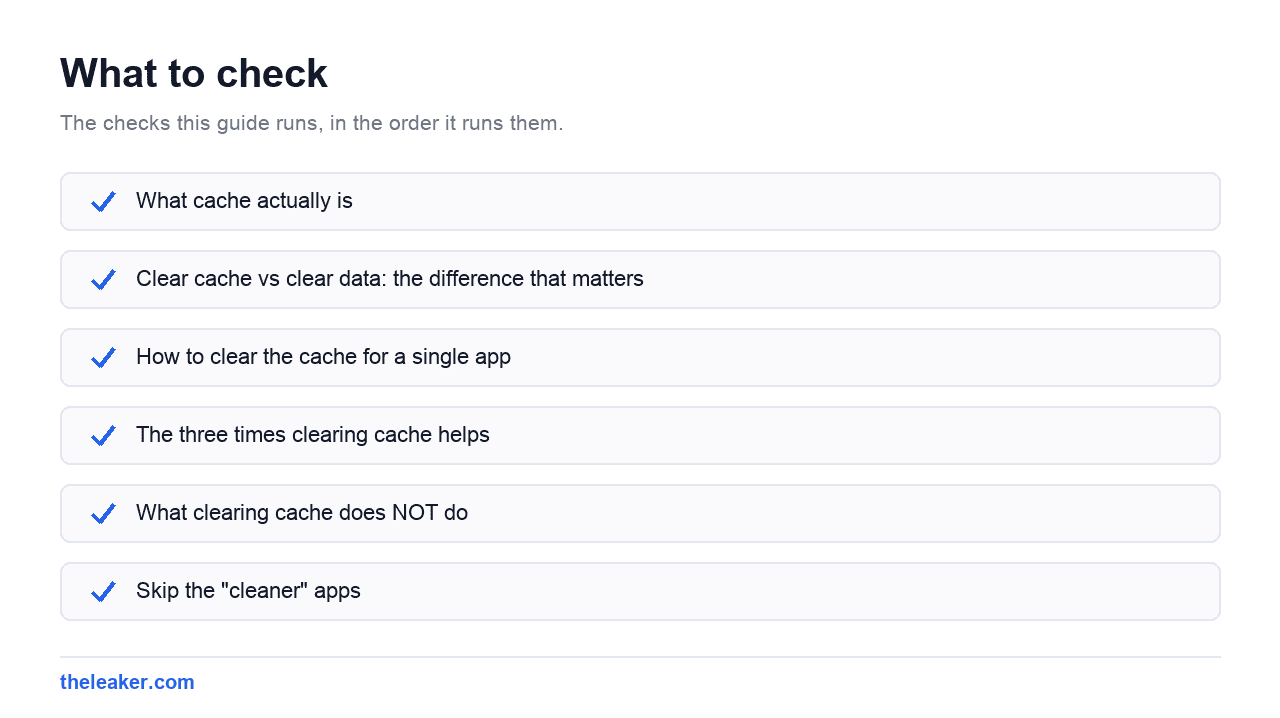
Clear cache vs clear data: the difference that matters
This trips up almost everyone, and it’s the one thing worth getting right before you tap anything.
Clear cache deletes temporary files only. You stay logged in. Your messages, settings, downloads and preferences all survive. The app just has to re-download some images.
Clear data (sometimes labelled “Clear storage”) resets the app to the state it was in the moment you installed it. You get logged out. Local settings are gone. Anything the app stored on your phone and didn’t back up to a server is gone with it.
For most apps, “clear data” is survivable because everything lives in the cloud. You just sign back in. But for apps that store things locally, it’s destructive. Offline maps, downloaded music and podcasts, unsynced notes, and locally-stored chat histories can all disappear. WhatsApp is the classic cautionary tale: if your chats aren’t backed up, clearing data can take them with it.
The rule: clear cache freely. Only clear data when you’ve decided you want to start that app from scratch, and only after you’ve checked what it stores locally.
How to clear the cache for a single app
This is the version you’ll use 95% of the time: targeted at the one app that’s actually misbehaving.
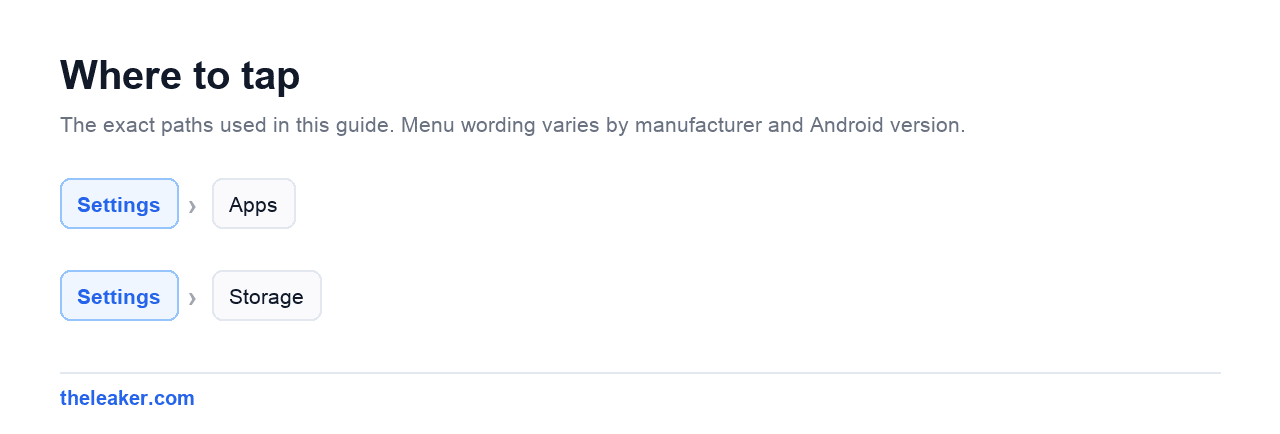
- Long-press the app’s icon and tap App info (or go to Settings → Apps and pick the app).
- Tap Storage (on some phones it’s Storage & cache).
- Tap Clear cache.
That’s it. No confirmation dialog, no restart needed. If the app is currently open, close and reopen it.
The layout shifts slightly by brand. On Samsung’s One UI the storage screen shows cache size prominently with the two buttons at the bottom. Pixels put “Clear cache” and “Clear storage” side by side on the storage page. Xiaomi’s HyperOS and OnePlus put them in similar places, sometimes under a “Storage usage” heading. The wording is nearly always some version of “cache” and “data/storage”, if you see both, the cache one is the safe one.
The three times clearing cache helps
1. You need storage space back, right now
This is the strongest case. Cache is real storage. Browsers, social apps, streaming apps and map apps routinely hold hundreds of megabytes each, and on a 64GB phone that adds up fast.
Go to Settings → Storage, sort apps by size, and clear the cache on the biggest offenders. You’ll often recover several gigabytes in a couple of minutes without deleting a single photo or app.
The honest caveat: it comes back. Clearing cache buys you space temporarily, not permanently. If you’re constantly out of storage, cache clearing is a bandage. You need a real fix. We’ve covered the durable approaches in our guide to freeing up storage on Android without deleting anything.
2. An app is showing stale or broken content
Images not loading. A page that keeps showing yesterday’s version. A profile picture that changed weeks ago but still shows the old one. A layout that renders wrong.
These are classic corrupted-or-stale-cache symptoms. The app is reading a saved file that no longer matches reality. Delete the file, the app fetches a fresh one, problem gone. This is the fix that feels like magic when it works.
3. An app broke right after an update
New app version, old cached files, and the two don’t agree. Crashes on launch, blank screens, buttons that do nothing. Clearing cache is the first thing to try. It costs you nothing and resolves a surprising share of post-update weirdness.
If cache doesn’t fix it, then clear data (after checking what you’d lose), and if that fails, uninstall and reinstall.
What clearing cache does NOT do
This is the part that gets skipped, and it’s the reason people clear cache constantly and wonder why nothing improves.
It doesn’t speed up your phone. Cache isn’t RAM. It doesn’t sit in memory competing with running apps. It’s files on storage, doing nothing until an app asks for them. Deleting them frees no processing power. If anything, you’ve just guaranteed the next few app launches will be slower, because the app has to re-download and rebuild everything you deleted.
If your phone feels sluggish, the causes are elsewhere: animation scales, background apps, a nearly-full storage partition, or thermal throttling. Our rundown of hidden Android settings that make your phone feel faster covers the changes that actually move the needle.
It doesn’t fix battery drain. Cache files consume zero battery. An app draining your battery is doing it through background activity, location polling or network requests: none of which cache clearing touches.
It doesn’t need doing on a schedule. There’s no weekly maintenance ritual here. Android already manages cache automatically: when storage runs low, the system starts evicting cache files on its own, oldest and least-used first. Clearing it manually every Sunday just means your apps spend Monday re-downloading what they had on Saturday.
It doesn’t make you more private. Clearing an app’s cache doesn’t log you out, doesn’t clear your history on the company’s servers, and doesn’t stop tracking. Browser history and cookies are separate. You clear those inside the browser’s own privacy settings.
Skip the “cleaner” apps
Every app store has cleaner apps promising to boost your phone by clearing junk. Here’s the problem: they do exactly what the three-tap process above does, except they need permission to see all your files, they run constantly in the background, and they’re usually stuffed with ads.
You’re installing a permanently-running app to occasionally delete files you could delete yourself in ten seconds. That’s a net loss for both performance and privacy. Android’s built-in Settings → Storage screen does the job with no side effects.
The same goes for “RAM boosters” and “memory optimizers.” Android is designed to keep RAM full: unused RAM is wasted RAM. Force-closing apps to free memory just makes them reload from scratch next time, burning battery and time for a number on a screen that means nothing.
What about the “cache partition”?
Older Android guides tell you to boot into recovery mode and “wipe cache partition.” That was a real troubleshooting step years ago, when Android kept a separate system-level cache partition used during updates.
Modern Android largely doesn’t work that way anymore. The storage layout changed, and on many current devices there’s no cache partition to wipe. If your phone still offers it in recovery mode, it’s harmless, but it’s not the fix for app-level problems. Treat any guide that leads with “wipe cache partition” as out of date.
A sensible approach
Don’t clear cache on a schedule. Clear it when you have a reason:
- Storage warning? Clear cache on your biggest apps. Immediate space, no data lost.
- One app acting weird? Clear that app’s cache. Just that one.
- App broken after an update? Cache first, then data, then reinstall.
- Phone feels slow? Cache isn’t your problem. Look elsewhere.
Cache is a useful tool for a narrow set of problems. It’s just been oversold as a cure-all for a decade. Knowing which category your problem falls into saves you from clearing it pointlessly, and from clearing data when you meant cache.
Frequently asked questions
Does clearing cache delete photos or messages?
No. Cache holds temporary files like thumbnails and downloaded images, not your actual content. Your camera roll, chat history and account are untouched. The button that can affect that content is “Clear data” or “Clear storage”: different button, different consequences. Check which one you’re tapping.
Will clearing cache log me out of my apps?
No. Login tokens are stored in app data, not cache, so you stay signed in. Clearing data does log you out. If you clear cache and find yourself logged out anyway, that app stored its session unusually. It’s rare, and signing back in restores everything.
How often should I clear my Android cache?
Never, as a routine. Only when you have a specific reason: you need storage space, or an app is glitching. Android automatically evicts cache when storage gets tight, so scheduled clearing achieves nothing except forcing your apps to re-download files they already had.
Why does the cache fill up again so quickly?
Because that’s the point. The moment you reopen an app, it starts saving thumbnails, images and other reusable data again. A heavily-used app can rebuild hundreds of megabytes within days. That’s not a malfunction. It’s the cache doing its job of making the app faster.
Related: How to Factory Reset an Android Phone Safely (Read This First)

Hello, folks, my name is Akshay, and from the beginning, I like to play with the latest phones, gaming consoles, PCs, Laptops’s and whatnot. When I get spare time, I like to do Photography, and you will always find me playing with Photoshop, Lightroom, Premiere Pro, etc. In Love with Gadgets, my gear Motorola Moto G5 Plus. You can contact him on akshaydua[@]theleaker.com.