
Chrome is probably the app you open most on your phone, and probably the one you’ve customised least. It ships with sensible defaults, you accept them, and years go by. Meanwhile there’s a settings menu full of switches that quietly fix the things that annoy you daily.
The quick answer: Most of Chrome’s best Android features live in two places. Tap the three-dot menu for per-page tools like Desktop site, Translate, Find in page, Add to Home screen, and the download-for-offline button. Go to Settings for the account-level stuff: search engine, passwords and autofill, privacy controls, site permissions, and text scaling. The changes worth making first are turning on text scaling so pages are actually readable, enabling “Preload pages” if you have data to spare or disabling it if you don’t, locking down site permissions so random pages can’t ask for your location, and learning the tab group gesture so your tab count stops hitting three digits. None of this needs an add-on, a different browser, or root access. It’s all sitting in the menu you’ve been ignoring.
Start with the three-dot menu, because that’s where the daily wins are
Open any page and tap the three dots. Depending on your Chrome version the layout shifts a little, but the useful items are consistent.
Desktop site. The single most useful toggle in the browser. Some sites serve a mobile version that’s been stripped down to nothing, hiding features you need. Flip Desktop site and you get the full layout. It’s the fix for booking sites that won’t show a seat map, forums that hide half the thread, and web apps that insist you install their app instead. Chrome remembers this per site, so you set it once for that stubborn site and it sticks.
Translate. Chrome usually offers this automatically on foreign-language pages, but the prompt is easy to dismiss by accident. The menu item forces it. Handy when you’re reading a review, a spec sheet, or a support forum in another language.
Find in page. Ctrl+F for your phone. Underused because people forget it exists on mobile. On a 4,000-word page it turns a scroll-hunt into two seconds.
Add to Home screen. This one’s genuinely better than most people expect. It creates an icon that launches the site in its own window, without the address bar eating your screen. For sites that are effectively apps, this beats installing the actual app: no background processes, no notifications you didn’t ask for, no storage bloat. If you’re trying to free up storage without deleting anything, replacing two or three rarely-used apps with home screen shortcuts is a quiet win.
The download arrow. Saves the whole page for offline reading. It goes into your Downloads list inside Chrome, and it works on a plane or in a dead zone. Better than screenshotting an article.
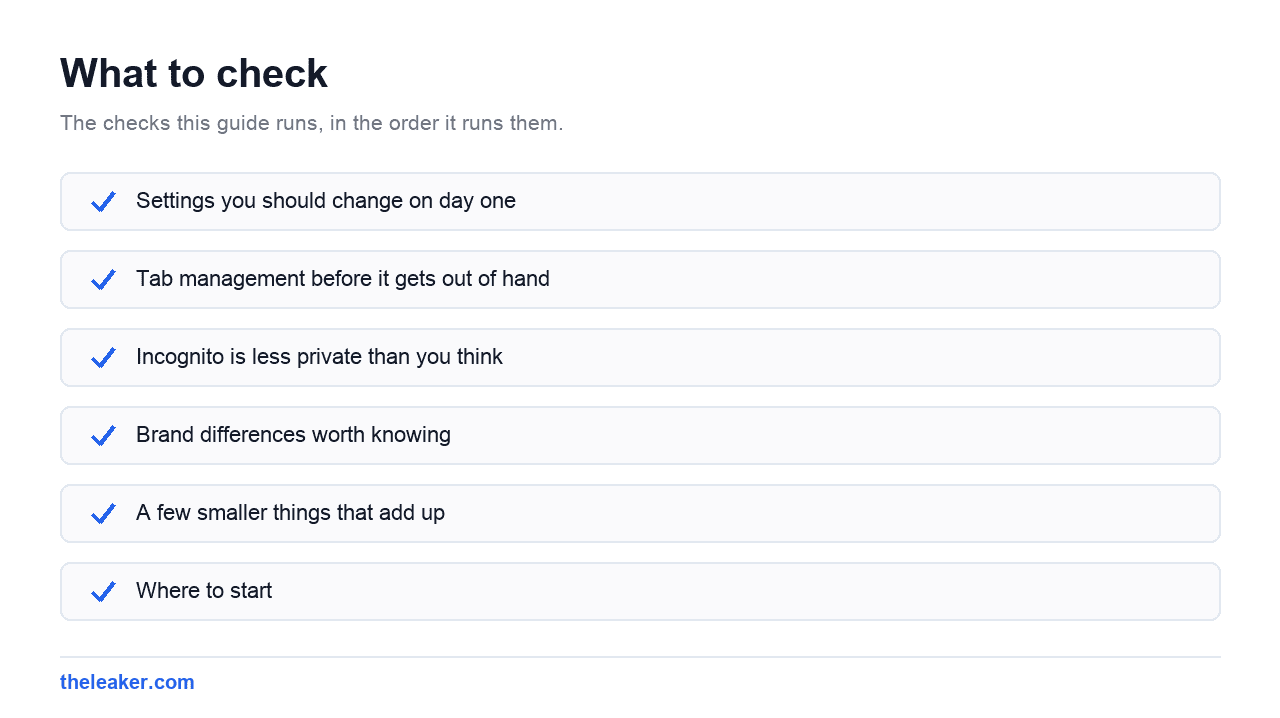
Settings you should change on day one
Now tap the three dots and go to Settings. Here’s what actually matters.
Accessibility: text scaling
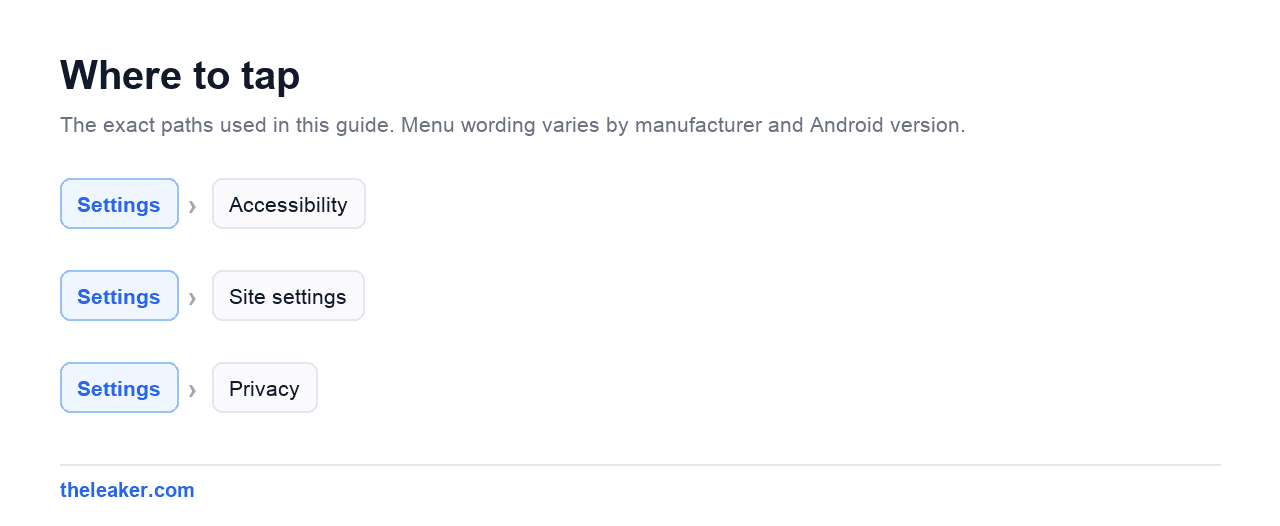
Under Settings > Accessibility there’s a text scaling slider. It’s separate from your system-wide font size, and it only affects web pages. If you find yourself pinch-zooming on every article, nudge this up to 110 or 120 percent and the problem disappears permanently.
There’s also a “Force enable zoom” option in the same menu. Some sites deliberately block pinch-zoom. This overrides them. It’s one of those settings that feels minor until the day you need it.
Site settings: cut off the permission requests
Go to Settings > Site settings. This is where you decide what web pages are allowed to ask for.
Set Location to ask each time rather than allowing broadly. Set Notifications to blocked unless you genuinely want browser notifications, which almost nobody does. Those “Allow notifications?” popups that appear the second a page loads are a plague, and blocking them at the source means you never see the prompt again.
Check Camera and Microphone while you’re there. Any site with a lingering permission you don’t recognise should lose it.
Search engine and the address bar
Settings > Search engine lets you swap the default. If you’ve been meaning to try something other than Google, this is a two-tap change and it’s easily reversed.
Separately, some Chrome builds let you move the address bar to the bottom of the screen. If you have a large phone and you’re constantly stretching your thumb, look for this option in Settings. On the versions that have it, it’s a real ergonomic improvement.
Privacy and security
Settings > Privacy and security holds the switches most people never touch.
Safe Browsing should be on. Enhanced protection sends more data to Google in exchange for faster warnings about dodgy sites. Standard protection is the middle ground. Pick based on how you feel about that trade.
Preload pages makes browsing feel faster by fetching pages before you tap them. It also burns data. On unlimited Wi-Fi it’s worth having on. On a tight mobile plan, turn it off.
Always use secure connections forces HTTPS where available and warns you when a site tries to load over plain HTTP. Turn it on. The occasional warning on an old site is a small price.
Clear browsing data is here too. Worth knowing: clearing cached images and files frees up space without logging you out of anything. Clearing cookies logs you out of everything. They’re separate checkboxes for a reason.
Passwords and autofill
Chrome’s password manager is fine, and if you’re already using it, make sure it’s actually syncing. Under passwords there’s usually a checkup tool that flags reused or compromised credentials. Run it once. It takes seconds and it’s genuinely useful.
Autofill for addresses and payment methods lives nearby. If you share your phone with anyone, consider whether you want card details autofilling. Chrome asks for authentication before filling card numbers on most setups, but check rather than assume.
Tab management before it gets out of hand
Chrome on Android has no hard tab limit, which is how people end up with the counter showing a smiley face instead of a number.
Three things help. First, tab groups: long-press a tab in the tab switcher and drag it onto another to group them. Name the group. Now your six shopping tabs are one item instead of six. Second, swipe the address bar sideways to jump between tabs without opening the switcher at all. It’s a gesture most people never discover and it’s much faster than the two-tap route. Third, in Settings look for the auto-close option that clears tabs you haven’t touched in a set period. Set it and stop thinking about it.
Also worth knowing: in the tab switcher there’s usually a “Close all” with an undo prompt. If your tab situation is beyond saving, nuke it. Anything genuinely important should have been bookmarked.
Incognito is less private than you think
Incognito stops Chrome saving your history, cookies, and form data on the device. That’s the whole promise. It does not hide your browsing from your network, your employer, your ISP, or the sites you visit. It’s not a VPN and it doesn’t make you anonymous.
Where it’s genuinely useful: signing into a second account without logging out of your first, checking how a page looks to a logged-out visitor, and searching for something you’d rather not have shaping your recommendations for the next month.
One practical addition: on most Android builds you can lock Incognito tabs behind your fingerprint, so they don’t open when someone else picks up your phone. Look for the option in Chrome’s privacy settings.
Brand differences worth knowing
On Samsung phones, Samsung Internet ships alongside Chrome and it’s a decent browser with its own extension support and content blockers. If you keep both, Android will occasionally ask which one should open a link. You can settle that permanently in your default apps settings.
On Pixel phones Chrome is the only browser preinstalled, and it’s usually running a newer version than on other devices, so you may see features here first.
On Xiaomi HyperOS devices there’s often a Mi Browser preinstalled that likes to grab links. If Chrome keeps losing default status, check both your Android default apps setting and whether the other browser has re-prompted you.
A few smaller things that add up
Chrome’s Downloads section (three dots, Downloads) keeps every file you’ve saved through the browser. It’s a common source of forgotten gigabytes.
The Recent tabs item shows tabs open on your other signed-in devices. Start reading on a laptop, finish on the phone.
Data Saver as a standalone Chrome feature has been retired on modern versions. If you’re chasing data savings, the Android system-level data saver plus turning off Preload pages does more than any browser toggle now.
And if Chrome specifically feels sluggish rather than your whole phone feeling sluggish, clear its cache from Android settings before anything drastic. If everything feels slow, there are broader hidden Android settings that speed up your phone worth working through first.
Frequently asked questions
Why does Chrome keep asking to send me notifications?
Because individual sites are requesting permission and Chrome’s default is to ask. Go to Settings > Site settings > Notifications and block them globally. The prompts stop entirely, and you can still whitelist a specific site later if you want one.
Does clearing Chrome’s cache log me out of my accounts?
No. Clearing cached images and files only removes stored page assets. Clearing cookies and site data is the one that logs you out. In the Clear browsing data screen they’re separate checkboxes, so uncheck cookies if you just want the space back.
How do I stop Chrome from opening links in a tiny in-app window?
That’s usually not Chrome, it’s the other app using an in-app browser. Check that app’s own settings for an “open links externally” or “use default browser” option. Some apps have it, some don’t.
Is it worth using a different browser instead?
Depends what you want. Chrome is fast and syncs well with a Google account. Other browsers offer built-in content blocking or extension support that Chrome on Android doesn’t have. There’s no wrong answer, and switching your default takes about ten seconds if you change your mind.
Where to start
If you only do three things: raise the text scaling so pages are readable, block notification requests at the site settings level, and start using tab groups before your tab count becomes a running joke. Those three take under two minutes combined and you’ll notice all of them the same day.
Related: Drowning in Notifications? How to Take Back Control on Android

Yash Jain writes about Android and Apple for The Leaker, focusing on how to guides, download resources, and top and best roundups. His articles walk readers through setup steps and app choices, compare options across categories, and follow news updates across both mobile platforms as they develop.