
Your phone buzzed eleven times while you read that sentence. Or it felt like it. Somewhere along the way every app decided it had something urgent to tell you, and now you check a phone that has nothing worth checking. Android notifications don’t have to work like this, and taming them takes about fifteen minutes.
The quick answer: Go to Settings > Notifications > App notifications and sort by most recent or most frequent. The list will show you exactly which apps are responsible, and it’s usually four or five of them causing most of the noise. Turn those off entirely rather than tweaking them. Then use notification categories to keep the one type you want from an app while killing the rest, and set the rest of your apps to silent so they collect quietly without buzzing. One myth to drop first: turning off notifications and killing background apps does not meaningfully improve battery life on modern Android. The system already handles that. What you’re actually reclaiming is your attention, and that’s a much better reason to do it.
The battery myth, because it’s why people do this wrong
There’s a persistent belief that notifications drain your battery, and that swiping apps out of the recents view saves power. Both were somewhat true a decade ago. Neither is meaningfully true now.
Modern Android puts apps into deep restriction when you’re not using them. Doze mode batches background work into windows instead of letting apps wake the phone whenever they like. App standby buckets progressively limit apps you rarely open. Push notifications arrive through a single shared system channel rather than each app maintaining its own connection, which is the entire architectural point of that design.
The cost of receiving a notification is: a tiny bit of network activity you were paying for anyway, and the screen lighting up. The screen is by far the larger of those two, and it’s the same screen you light up yourself dozens of times a day.
Swiping apps out of recents is worse than useless. It doesn’t just fail to save battery, it can cost you some, because a fully closed app has to cold-start from scratch next time instead of resuming from memory. Android is designed to use free RAM, not to keep it empty.
So don’t do this for your battery. Do it because a phone that interrupts you forty times a day is training you to pick it up for no reason. That’s the real damage, and it’s worth fixing on its own terms.
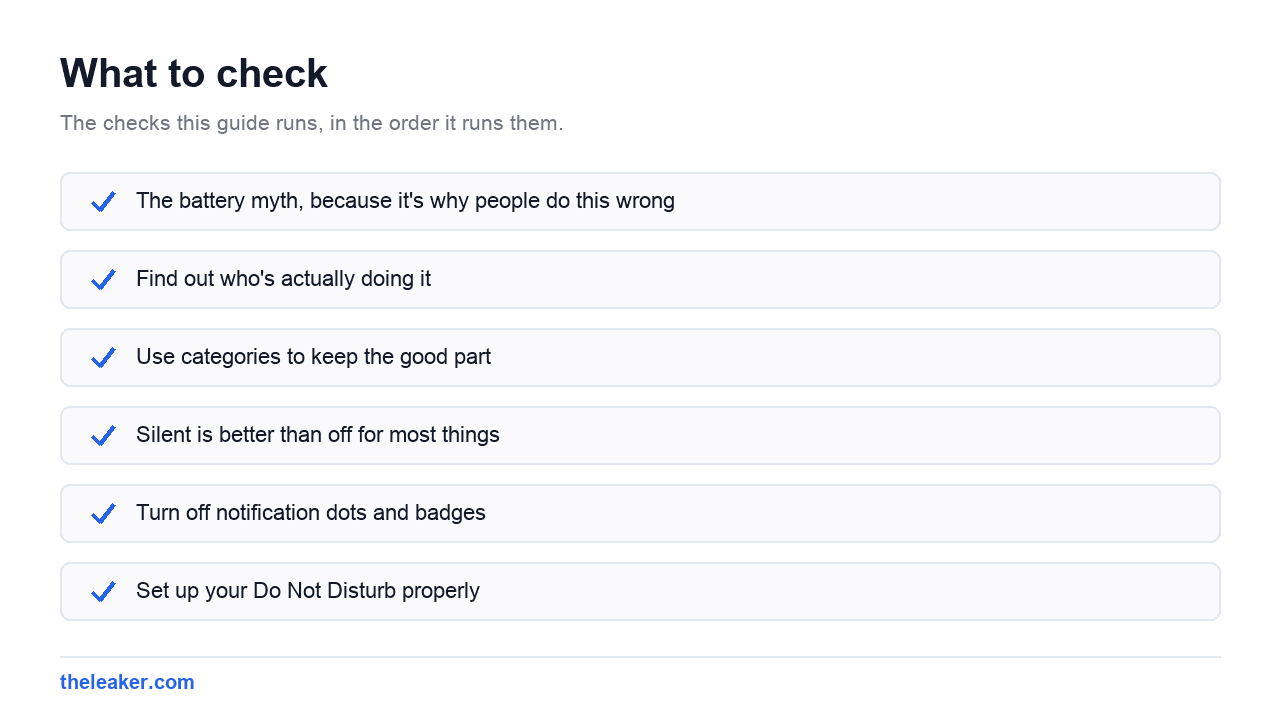
Step one: find out who’s actually doing it
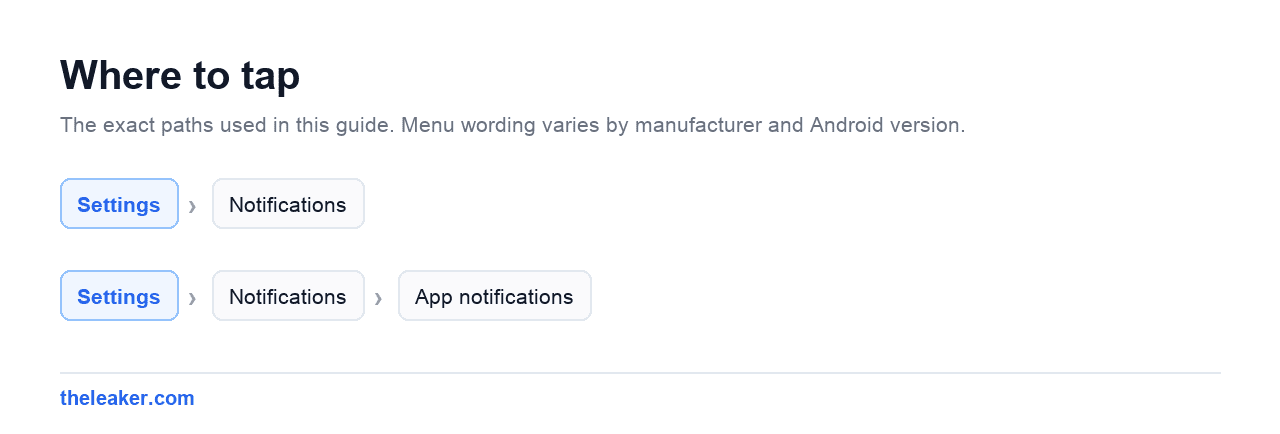
Go to Settings > Notifications. On most phones there’s an App notifications or App settings screen with a sort option at the top. Change it from alphabetical to Most recent or Most frequent.
This screen is the whole game. You’ll almost certainly find that a handful of apps account for the overwhelming majority of what you receive, and that at least two of them are apps you’d never have guessed. Shopping apps, games you played once, a food delivery app running a promotion, a news app with breaking-news alerts set too broadly.
On Samsung One UI the path is Settings > Notifications > App notifications. On Pixel it’s Settings > Notifications > App notifications with the sort control at the top. On Xiaomi HyperOS look under Settings > Notifications & Control Center > App notifications.
Go through the top ten. For each one ask a single question: has a notification from this app ever made me do something I’m glad I did? If no, turn it off completely. Not “important only”. Off.
This is where people hesitate and it’s where the results come from. Be ruthless. You can turn any of them back on in five seconds if you miss something, and you almost certainly won’t.
Step two: use categories to keep the good part
Some apps send you one thing you want and nine things you don’t. Your bank sends transaction alerts (useful) and marketing offers (not). Your delivery app sends order updates (useful) and discount codes (not).
This is what notification categories, sometimes called channels, are for. Tap into any app’s notification settings and you’ll see a list of categories the developer has defined. Turn off the ones you don’t want and keep the rest.
Well-built apps have granular categories. Badly-built apps have one lump called “General”, in which case your only real choice is on or off. If an app dumps its marketing into the same channel as its useful alerts, that tells you something about the app.
Worth noting: an app cannot re-enable a category you’ve turned off. Once it’s off, it’s off, even through updates.
Step three: silent is better than off for most things
For apps you want to hear from but not immediately, there’s a middle setting. Look for Silent, or Minimise, or on some phones a “no sound or vibration” toggle within the app’s notification settings.
Silent notifications still appear in your shade. They just don’t buzz, don’t make a sound, and often don’t appear on your lock screen. You see them when you choose to look, which is exactly the right behaviour for most apps.
Group chats are the obvious candidate. So are email, social apps, and anything where the volume is high but the urgency is low. My rough rule: if a message arriving twenty minutes late would cause no problem at all, it should be silent.
Reserve sound and vibration for a genuinely small list. Calls, texts from actual humans, calendar alerts, and maybe one or two things specific to your life. That’s it. When only important things make noise, you start responding to noise again instead of tuning it out.
Step four: turn off notification dots and badges
The little coloured dots on app icons are a second, quieter notification system, and they’re surprisingly effective at pulling you into apps.
Under Settings > Notifications there’s usually a toggle for Notification dot on app icon or App icon badges. Samsung lets you choose between a dot and a number. Turning them off entirely is the cleanest option.
Try it for a week. The urge to clear a badge is a real thing and removing the badges removes the urge.
Step five: set up your Do Not Disturb properly
Do Not Disturb is the tool for time-based control, and it’s worth ten minutes of setup because it then works forever.
Under Settings > Notifications > Do Not Disturb (or Sound & vibration on some phones), set up:
- A sleep schedule. DND on automatically at night, off in the morning. The single highest-value automation on the phone.
- Exceptions for people who matter. DND lets you allow calls from starred contacts, or from anyone who calls twice within a short window. That second option is the safety valve: a genuine emergency will call back, a robocall won’t.
- Alarms always allowed. Check this. It’s the default, but check it.
If you want the full treatment on this, we’ve covered the settings buried in Android that most people never find, and DND scheduling is one of the ones worth the trip.
Step six: handle the persistent ones
Some notifications refuse to go away. A few categories and what to do about them.
Ongoing notifications from apps doing background work. File sync, fitness tracking, VPNs, music apps. Android requires these to show a notification when an app is running a foreground service. It’s a transparency feature, not a bug. Many can be minimised rather than removed, and on recent Android versions you can often demote them to the silent section.
System notifications you can’t dismiss. “Screen recording”, “location in use”, and similar. These are deliberate and you shouldn’t want to remove them.
Browser notifications. Websites can request permission to send notifications through your browser. If you’ve been tapping “Allow” absentmindedly, go into your browser’s site settings and block notifications globally. This one surprises people because the notifications look like they’re coming from the browser rather than a website you visited once.
Notifications from an app you deleted. Usually a cached one. Restart the phone.
What about notification history and summaries?
Android has a notification history feature that keeps recently dismissed notifications for a short window. It’s usually off by default under Settings > Notifications > Notification history. Turn it on. It removes the anxiety of accidentally swiping something away, which in turn makes you more willing to clear things quickly.
Some phones and Android versions also offer summarised or bundled notifications, where less important alerts are grouped and delivered periodically rather than immediately. Availability varies a lot by device and version, so check your notification settings to see what your phone offers rather than assuming.
The maintenance habit
New apps arrive with notifications enabled. That’s the default and it’ll keep happening.
The habit that keeps this from rebuilding: when an app sends you a notification you didn’t want, don’t just swipe it. Long-press it. Android gives you the option to turn off that category or silence the app right there, without opening Settings. Two seconds, permanent fix.
Do that consistently for a month and your notification load stays low without you ever running another audit.
Frequently asked questions
Does turning off notifications save battery?
Not meaningfully. Modern Android already restricts background activity through Doze and standby buckets, and push notifications come through a shared system channel. The real benefit is fewer interruptions, not longer battery life.
Should I close apps in the recents view to save power?
No. Android manages memory deliberately, and force-closing apps means they have to cold-start next time, which uses more power, not less. Leave them alone unless an app is actually misbehaving.
Will I miss something important if I turn notifications off?
Only if you turn off the wrong things. Keep calls, messages from people, and calendar alerts making noise. Set everything else to silent so it still arrives, just quietly. You’ll see it when you open your phone.
Why do notifications keep coming back after I turn them off?
Usually because you turned off one category and the app is sending through a different one. Open the app’s notification settings and check every category listed rather than just the obvious one. If it’s a website notification, block it in your browser’s site settings instead.
The one thing to do today
Open Settings > Notifications > App notifications, sort by most recent, and turn off the top five completely. Not silent, off. Then live with it for a week. Almost nobody who does this turns any of them back on, and that tells you everything about how much value those interruptions were actually delivering.

I am the chief editor of TheLeaker. I also maintain the backend stuff of the site. I’m a tech enthusiast and loves to do Python coding in my free time. I have worked at many giant publications like XDA Developers and NXTtech before starting TheLeaker.
You can get in touch with me at Garv[at]theleaker.com.