

The moment your phone leaves your hand is the worst possible time to learn how Find My Device works. You need your Google password, you need a second device, and you need to remember which settings you turned on months ago.
Twenty minutes of setup now turns a stolen phone from a disaster into an inconvenience. Here’s the whole checklist.
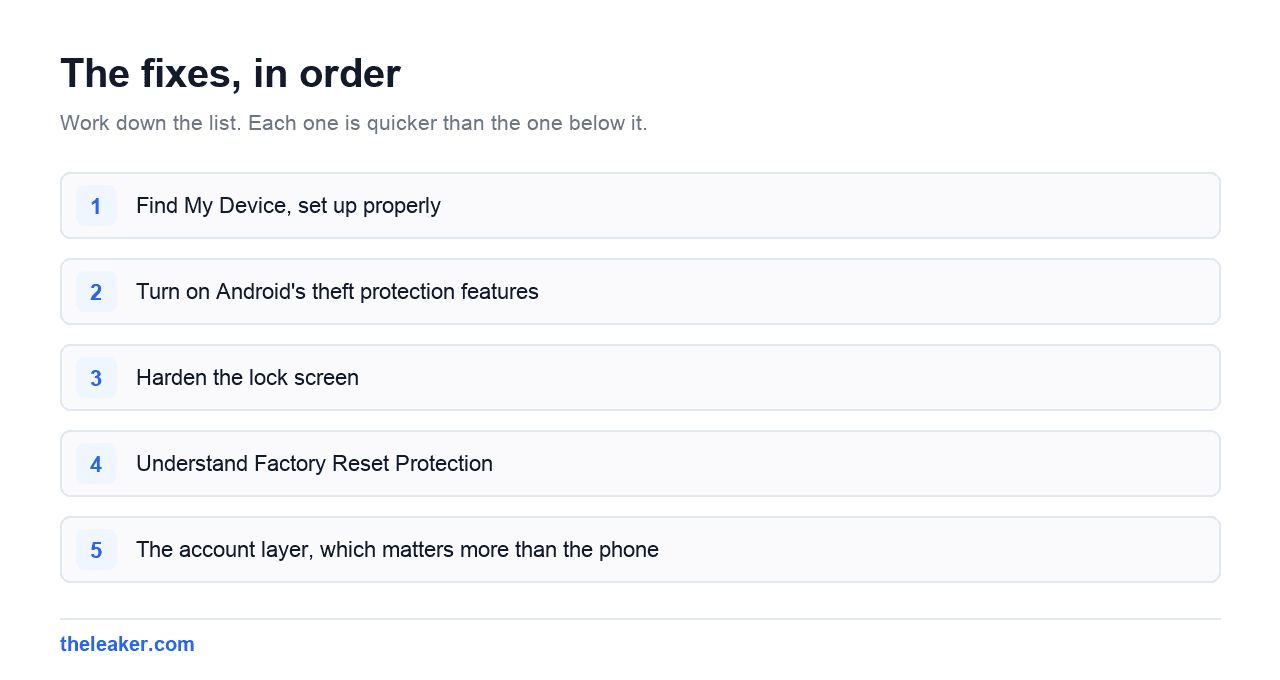
The quick answer: Set up five things. One, confirm Find My Device is on at Settings → Security & privacy → Device finders, and that it’s set to work even offline. Two, enable Android’s theft protection features (Theft Detection Lock, Offline Device Lock, and Remote Lock) under Settings → Security & privacy → Theft protection on Android 15 and newer. Three, harden your lock screen so a thief can’t reach your data or your Quick Settings: turn off the notification content preview and lock the notification shade. Four, make sure Factory Reset Protection is active by having a Google account signed in and a screen lock set. It makes a wiped phone useless to a reseller. Five, write down your IMEI and turn on two-factor authentication on your Google account. Then practise using google.com/android/find once, while you still have the phone.
Now the detail, including the bits people get wrong.
1. Find My Device, set up properly
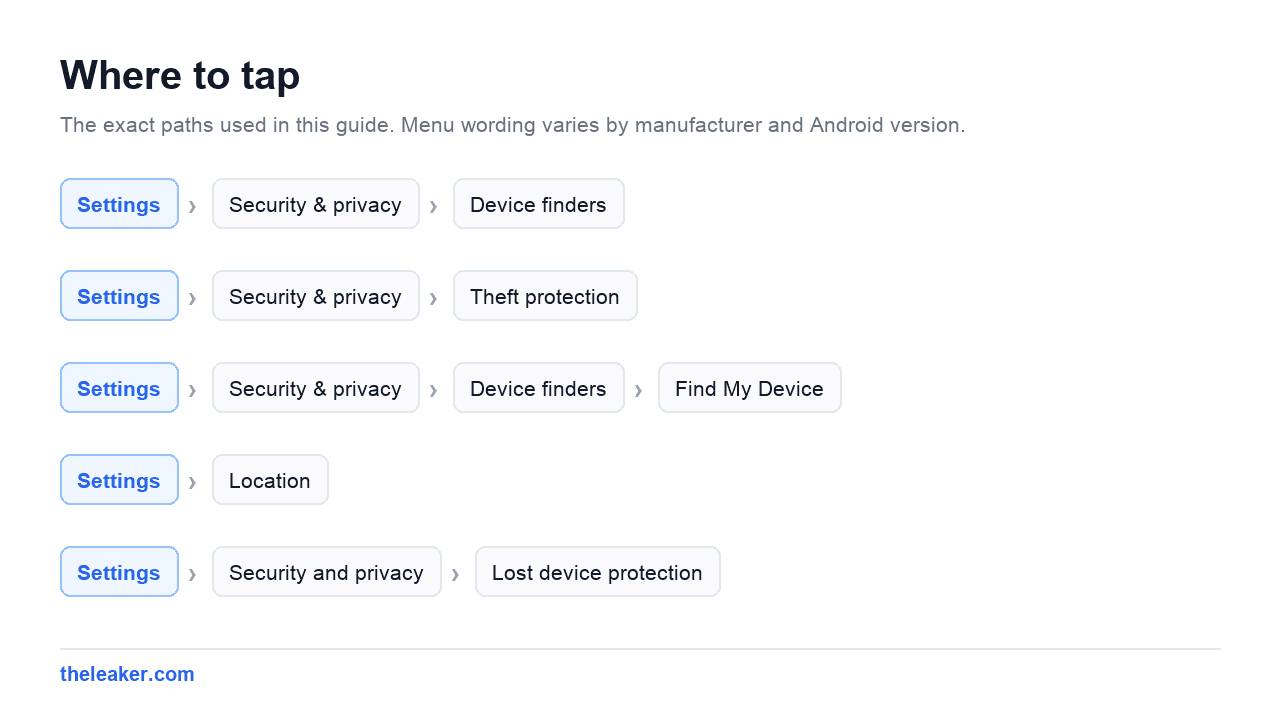
It’s on by default on most phones, but “on” isn’t the same as “useful”. Go to Settings → Security & privacy → Device finders → Find My Device (Samsung puts Google’s version in the same place, alongside its own Samsung Find).
Check three things:
- Use Find My Device is toggled on.
- The network option is set to allow finding with network in all areas, not just high-traffic areas. This is what lets nearby Android devices anonymously relay your phone’s location even when it’s offline or powered down on supported hardware.
- Location is enabled at Settings → Location. Find My Device can still ring and lock a phone with location off, but it can’t show you where it is.
Then actually test it. Open google.com/android/find on another device or ask any Google Assistant-enabled device to find your phone. Confirm it appears, confirm Play Sound works. Doing this once means you won’t be reading documentation while panicking.
Samsung owners: use both
Samsung Find is separate from Google’s Find My Device and it does things Google’s doesn’t. Sign in to your Samsung account, then in Settings → Security and privacy → Lost device protection, turn on Allow this phone to be found, Send last location (transmits location automatically when the battery is nearly dead), and Offline finding. Samsung’s remote tools can also back up your data before you wipe, and extend battery life on the lost device. Run both services. They use different networks, so two chances at a location fix.
Xiaomi owners
HyperOS has Find Device under your Mi account settings, in addition to Google’s. Same principle: enable both.
2. Turn on Android’s theft protection features
This is the newer stuff, and it’s the reason this article exists. Android 15 introduced a set of anti-theft features that respond to the way phones are actually stolen now: snatched from your hand, unlocked, while you’re using them.
Find them at Settings → Security & privacy → Device unlock → Theft protection (the exact path varies slightly by brand; search Settings for “theft” if it’s not there).
Theft Detection Lock
Uses the phone’s motion sensors and connectivity signals to recognise the specific motion pattern of a phone being snatched and carried away at speed. When it triggers, the screen locks instantly. The thief gets a locked phone instead of your open banking app.
It’s not perfect. It can miss, and it can occasionally fire when you’re not expecting it. Turn it on anyway. The failure mode is you unlock your phone again.
Offline Device Lock
Thieves know to switch the phone to airplane mode or pull the SIM to stop it being tracked. Offline Device Lock notices when a phone that was recently unlocked goes offline for an extended period and locks it automatically.
Remote Lock
The most practically useful one. Normally, locking a lost phone through Find My Device means signing into your Google account, which is hard when your phone was your second factor. Remote Lock lets you lock the screen at android.com/lock using just your phone number and a security challenge. No password, no second device you own. You can do it from a stranger’s phone, right there on the street.
Lock first, then worry about the rest. Locking is instant and reversible; wiping is not.
3. Harden the lock screen
A locked phone still leaks a surprising amount, and Android’s defaults are tuned for convenience.
Hide notification content. Settings → Notifications → Notifications on lock screen → choose “Show sensitive content only when unlocked” or hide notifications entirely. Otherwise every two-factor code and message preview is readable on the lock screen by anyone holding the phone.
Lock the Quick Settings shade. On recent Android and One UI you can require authentication before Quick Settings can be pulled down on a locked phone. Without it, a thief can toggle airplane mode in one swipe and cut you off from remote tracking. On Pixel it’s under Settings → Display & touch → Lock screen; on Samsung, Settings → Lock screen and AOD.
Use a PIN of six digits or more, not four, and not a pattern. Patterns are readable from smudges and from across a room. If you must use a pattern, turn off “Make pattern visible”.
Turn on enhanced PIN privacy if your phone offers it. It disables the animation that flashes each digit as you tap it, which is what shoulder-surfers read.
Set the lock timeout short. Settings → Security & privacy → Device unlock → Screen lock settings → Lock after screen timeout. Five seconds, not five minutes.
Review Smart Lock / Extend Unlock. Trusted places and trusted devices keep your phone unlocked in situations you defined. “Trusted place: home” means a phone stolen from your driveway is unlocked. Decide deliberately whether you want that.
Turn off lock screen access to the wallet and camera if you’d rather not have those reachable. Both are configurable in lock screen settings.
4. Understand Factory Reset Protection
FRP is what makes a stolen Android worth less on the resale market. If someone wipes your phone without first removing your Google account, the phone demands the credentials of the previously signed-in Google account on setup. It’s a brick until then.
You don’t switch FRP on. It’s active automatically as long as two things are true: a Google account is signed in, and a screen lock (PIN, pattern, or password) is set. Recent Android versions strengthened this so a wipe performed by an unauthorised person leaves the device unable to be set up at all.
Two practical consequences:
- Never sell or give away a phone without removing your Google account first: Settings → Passwords & accounts → your account → Remove account, and then factory resetting. Do it in that order or you’ll hand someone a locked device.
- Keep your Google account recoverable. FRP protects you against a thief and against you, equally. Make sure you know your password and have working recovery options.
5. The account layer, which matters more than the phone
The phone is replaceable. The Google account attached to it is not.
Turn on two-factor authentication on your Google account, and make sure at least one method doesn’t live on the phone. A hardware key, a backup code printed out, or a second device. If SMS to your stolen phone is your only second factor, a thief with your SIM has a route in.
Set a SIM PIN. Settings → Security & privacy → More security settings → SIM card lock. It stops someone moving your SIM to another phone and receiving your verification codes. The default PIN is set by your carrier: change it. eSIM users get this protection more or less by default, since the profile can’t be physically removed.
Record your IMEI now. Dial *#06# and write it down somewhere that isn’t the phone. Police reports and carrier blacklisting both need it.
Check what’s in your Google Wallet and know that you can suspend cards remotely from your Google account. Also worth knowing: your bank’s app almost certainly has a card-freeze button, and freezing takes seconds.
What to do in the first ten minutes after a theft
- Borrow any phone. Go to
android.com/lockand Remote Lock using your phone number. - Then sign into
google.com/android/findto see the location and ring the device. - Call your carrier. Suspend the line and have the IMEI blacklisted.
- Freeze payment cards through your bank apps.
- Change your Google password from another device, which signs the thief out of Google services on that phone.
- File a police report with the IMEI. Insurance and carrier blacklisting usually require one.
- Only erase the device once you’ve stopped hoping to recover it. Erasing ends your ability to track it.
Do not go to the location yourself. Give it to the police.
The backup question
Theft protection is only half the job. The other half is making the loss survivable. Confirm Settings → Google → Backup shows a recent backup, that Google Photos is actually syncing at full quality, and that your authenticator app has cloud backup or exported codes.
If you’ve never checked, do it now. It’s the same groundwork covered in our guide on how to transfer everything to a new Android phone, and the difference between a bad week and a bad month is whether that backup existed before you needed it.
Frequently asked questions
Can I find my Android phone by IMEI number?
Not yourself. Consumer tools don’t locate by IMEI. That’s a carrier and law enforcement capability, done through network records. What your IMEI does get you is blacklisting: report it to your carrier and the device can be barred from networks in your country, which makes it far less valuable to resell. Any website or app promising IMEI tracking for the public is not doing what it claims. Use Find My Device for location; use the IMEI for the police report and the carrier.
Does Find My Device work if the phone is turned off or offline?
Sometimes. With Find My Device network enabled, nearby Android devices can anonymously report your phone’s location even when it has no data connection, and on supported hardware that can continue for a period after the phone is powered off or the battery dies. It depends on your phone model and on other Android devices being physically near it, so treat it as a good chance rather than a guarantee. Samsung’s Offline finding and Send last location work the same way.
What is Theft Detection Lock and which phones have it?
It’s an Android feature that watches for the motion signature of a phone being snatched and moved away quickly, then locks the screen immediately. It arrived with Android 15 and rolled out to many Android 10 and newer devices through Google Play services, so check Settings for a “Theft protection” section rather than assuming your phone is too old. It works alongside Offline Device Lock and Remote Lock in the same menu.
Will a thief be able to use my phone after a factory reset?
Not if you had a Google account signed in and a screen lock set. Factory Reset Protection forces the setup process to ask for the credentials of the last signed-in Google account, and recent Android versions block setup entirely after an unauthorised wipe. That’s exactly why keeping a screen lock on matters more than most people think: without one, FRP has nothing to anchor to.
Related: How to Find a Lost Android Phone (Even If It's Switched Off) · Samsung Secure Folder: What It Is and How to Use It Properly

Shivam has been working as a Tech journalist since 2014. He has worked at many Tech news blogs and Amazon India after that he joined TheLeaker in 2017 as a staff writer and now he’s an editor on the portal. When he is not working, you can find him playing games and listening to pop music. You can find him on Facebook and Twitter and can also contact him via email at [email protected]