

The Play Store is full of ad blockers that want VPN permission, battery exemptions, and a subscription. You don’t need any of them. Android has had a system-wide ad blocker built into Settings since Android 9. It’s just called something that sounds like a networking chore.
It’s called Private DNS, it takes about forty seconds to set up, and it blocks ads inside apps, not just in the browser.
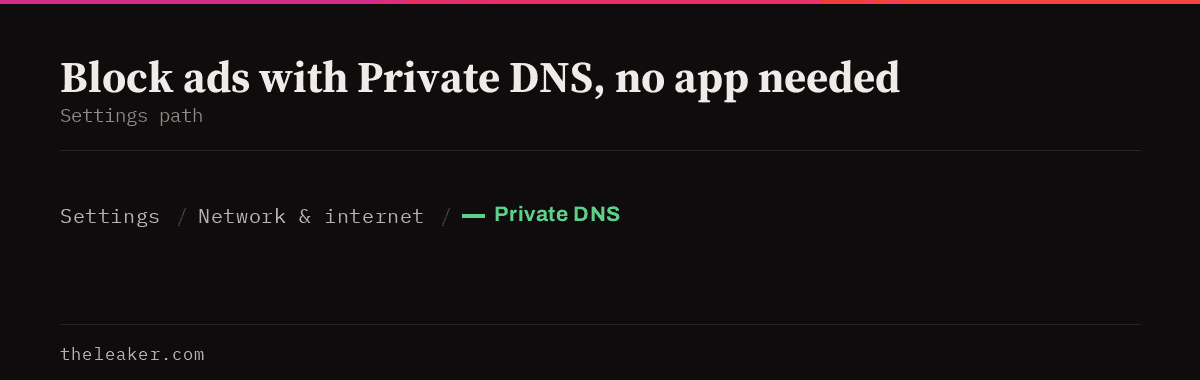
The quick answer: Go to Settings → Network & internet → Private DNS (Samsung: Settings → Connections → More connection settings → Private DNS; Xiaomi: Settings → Connection & sharing → Private DNS). Choose “Private DNS provider hostname” and enter the hostname of a DNS service that filters ad and tracker domains: free options include AdGuard DNS (dns.adguard-dns.com), ControlD’s ad-blocking endpoint, and Mullvad’s public DNS. Save, and it applies system-wide, on Wi-Fi and mobile data, with no app installed and no measurable battery cost. Pair it with your browser’s own blocking (Chrome’s Ads and Pop-ups settings, or a browser with a built-in blocker) and you’ll kill the large majority of ads you see. It won’t block YouTube ads (those come from the same domain as the video) and it can’t block ads baked into an app’s own server response.
Here’s how to set it all up, what it will and won’t stop, and how to fix it when a site breaks.
How Private DNS blocking actually works
Every time your phone loads anything (a page, an app screen, an ad slot), it first asks a DNS server to turn a domain name into an IP address. “Where is example.com?” DNS answers with an address, and then the connection happens.
Ads and trackers load from their own domains. So if the DNS server you’re asking simply refuses to answer for those domains, the ad never loads. The app or page asks where the ad server is, gets nothing back, and moves on.
Private DNS is Android’s setting for choosing which DNS server to use, over an encrypted connection (DNS over TLS). Point it at a filtering provider and you’ve got network-level ad blocking for every app on the phone.
Two bonus effects worth knowing about. First, it’s encrypted, so your network operator can’t read your DNS lookups. A genuine privacy upgrade over the default. Second, blocked requests fail instantly instead of downloading an ad, so pages often load faster and use less data.
Setting it up, step by step
- Open Settings and search for “Private DNS” if you can’t find the menu. On a Pixel it’s Network & internet → Private DNS. Samsung buries it under Connections → More connection settings. Xiaomi’s HyperOS puts it under Connection & sharing.
- You’ll see three options: Off, Automatic, and “Private DNS provider hostname”. Pick the third.
- Type the hostname of your chosen provider. Not a URL, not an IP address: just the hostname, like
dns.adguard-dns.com. - Tap Save. If the hostname is wrong or unreachable, Android will say “Couldn’t connect” and refuse to save, which is a useful built-in check.
That’s the whole setup. Load a news site with a reputation for aggressive advertising and you’ll see the difference immediately.
Picking a provider
A few well-known free filtering resolvers, all vendor-agnostic public services:
- AdGuard DNS:
dns.adguard-dns.comfor ads and trackers. They also publish a family-filtering hostname that adds adult content blocking. - Mullvad DNS. A public resolver with ad-blocking and extended-blocking variants, run by a company with a strong no-logging reputation.
- ControlD: free endpoints with different filter levels, including a malware-only option if you want protection without ad blocking.
- NextDNS: free tier, and the one to pick if you want a dashboard where you choose your own blocklists and see what got blocked. Your hostname is personalised to your account.
Check each provider’s current documentation for the exact hostname before you type it. These do occasionally change, and a stale hostname just fails to connect.
One honest trade-off: you’re choosing who sees your DNS queries. That’s a real decision, the same category as picking a VPN provider. The upside is that DNS lookups are far less revealing than full traffic, and every option above is more privacy-respecting than the default resolver most carriers hand you.
What Private DNS won’t block
Set expectations properly and you won’t be disappointed.
YouTube ads. They’re served from the same infrastructure as the video itself. Block that domain and you block YouTube. No DNS blocker solves this.
First-party ads. If an app’s own server sends you the app content and the ad in one response, DNS can’t separate them. Instagram, Facebook, and TikTok in-feed ads fall here.
Sponsored content and native ads inside articles. Those are just text and images from the site’s own domain.
Ads already cached. Clear the app’s cache if something persists after you set it up.
What it does block, and blocks well: banner and interstitial ads in the vast majority of free games and utility apps, the entire third-party tracking layer, most web display ads, and a big chunk of pop-ups and redirects.
Browser-level blocking, the other half of the job
DNS handles domains. Your browser can handle the elements DNS can’t see.
Chrome’s built-in controls
Chrome on Android won’t take extensions, but it has real settings people never open. Tap the three dots → Settings → Site settings:
- Pop-ups and redirects: make sure it’s off (blocked). This kills the “you’ve won a prize” redirect chains.
- Ads: set to blocked. Chrome blocks ads on sites that repeatedly show intrusive formats.
- Intrusive ads / Notifications: set Notifications to “Don’t allow sites to send notifications”. Browser notification spam is one of the most annoying ad formats going and this switch ends it permanently.
Also turn on Settings → Privacy and security → and review the tracking protection options Chrome offers on your version. And use Reading mode (three dots → Reading mode) on article pages. It strips the page down to text and images, which removes almost every ad in the process.
Browsers with blocking built in
If you want proper element-level blocking, the simplest move is to use a browser that ships with it. Firefox for Android supports desktop-class extensions including full content blockers. Brave, Vivaldi, and Samsung Internet all have blocking built in: Samsung Internet uses a “content blocker” add-on model you enable from its settings, which is worth knowing if you’re on a Galaxy and don’t want another browser.
Combine a filtering DNS with one of these and web ads are essentially handled.
Blocking on Android TV and other devices
This comes up a lot in searches, so: Android TV also has a Private DNS setting, usually under Settings → Network & Internet → Private DNS, though it’s missing on some manufacturer builds. Where it exists it works exactly the same way. Where it doesn’t, the alternative is setting the filtering DNS on your router so every device on the network inherits it, which is also the best move if you want this on a phone that’s been locked down by a carrier.
When something breaks
Occasionally a filtering resolver blocks a domain a site actually needs. A login flow, a payment provider, an image CDN. Symptoms are a page that half-loads, a login button that does nothing, or an app that says it has no connection while everything else works.
Diagnose it in ten seconds: set Private DNS to Automatic, retry. If it works, DNS was the cause.
Fixes, in order of preference:
- Switch to a less aggressive endpoint from the same provider (most offer a “standard” and a “strict” tier).
- If you’re on a provider with a dashboard, allowlist the specific domain.
- Switch providers. Blocklists differ a lot between them.
One thing to note: Private DNS applies to Wi-Fi and mobile data, but it does not apply when a VPN app is active. The VPN takes over DNS entirely. If you run a VPN, configure blocking inside the VPN app instead.
Also, don’t put a Private DNS hostname in and then wonder why your work Wi-Fi’s internal sites stopped resolving. Corporate networks often rely on their own DNS for internal hostnames. Set it to Automatic on those networks.
A few extra free wins
While you’re cleaning things up:
- Delete your advertising ID. Settings → Security & privacy → Privacy → Ads → Delete advertising ID. Ads still appear, but they stop being personalised and the tracking profile stops accumulating.
- Turn off notification permission for apps that spam you. Settings → Notifications → App notifications. Ad notifications from a free app are an ad channel you granted access to.
- Uninstall the worst offenders. If a free flashlight or cleaner app shows a full-screen ad on unlock, deleting it is faster than fighting it, and those apps are usually doing other things you wouldn’t like. If you’re setting up a fresh device, our guide on how to transfer everything to a new Android phone is a good moment to just not bring them across.
Frequently asked questions
Does Private DNS ad blocking use extra battery?
No. It’s a setting, not an app. There’s no background service, no persistent VPN tunnel, no wake locks. If anything it saves a little power and data, since your phone stops downloading ad payloads. This is the main reason to prefer it over app-based blockers, which typically hold a local VPN connection open all day to filter traffic.
Is Private DNS the same as a VPN?
No. Private DNS only encrypts and redirects your domain lookups. The actual traffic still goes out over your normal connection from your normal IP address. A VPN routes everything through another server and changes your apparent location. Private DNS is better for blocking; a VPN is for changing where your traffic appears to come from. They don’t stack: turn on a VPN and it overrides your Private DNS setting.
Why is Private DNS greyed out or missing on my phone?
Three usual causes. A VPN or a security app with a local VPN profile is active: disconnect it and the setting returns. The phone is managed by a work profile or MDM policy that locks DNS configuration. Or you’re on an older Android version, since the setting arrived in Android 9. Some heavily customised manufacturer builds also move it; search Settings for “DNS” before assuming it’s absent.
Can this block ads inside apps and games?
Yes, for most of them. Free games overwhelmingly serve ads from third-party ad networks with their own domains, and those get blocked cleanly: banners disappear and interstitials often fail to appear at all. What you’ll still see are ads served from the app’s own servers, and rewarded video that the app requires you to watch to continue. Some apps also detect a failed ad load and show a “check your connection” message instead, which is its own kind of annoying.
Related: Running Out of Data Every Month? Settings That Cut Mobile Data Use

I am the chief editor of TheLeaker. I also maintain the backend stuff of the site. I’m a tech enthusiast and loves to do Python coding in my free time. I have worked at many giant publications like XDA Developers and NXTtech before starting TheLeaker.
You can get in touch with me at Garv[at]theleaker.com.