
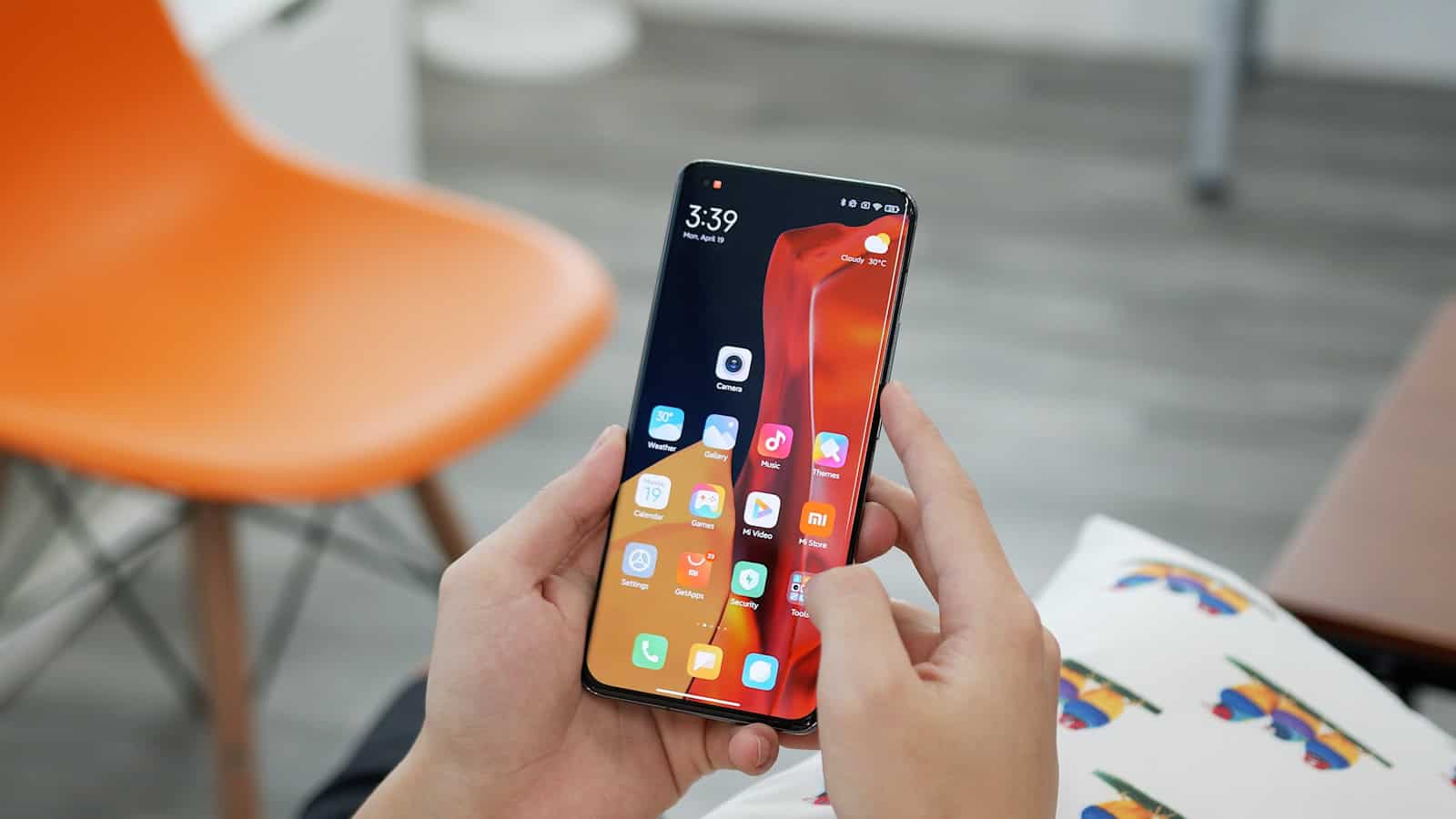
Xiaomi phones are excellent hardware running HyperOS, and it ships with some genuinely irritating defaults. The good news: almost all of it is fixable in about fifteen minutes once you know which Xiaomi HyperOS settings to change. The bad news is nobody tells you, so most people just live with the ads and the notifications.
The quick answer: The first things to change on a new Xiaomi phone are the ad and personalisation toggles buried in Settings → Passwords and security → Authorization and revocation and in the individual system apps, which is where the promotional content comes from. Then fix battery management, because HyperOS aggressively kills background apps by default and that’s why your messages arrive late. After that: turn off the Security app’s scanning nags, set app auto-start permissions for anything time-critical, switch the notification style if you dislike the split shade, and go through the default apps list. None of this requires root or a computer. Doing all of it takes about fifteen minutes and turns a phone that feels cluttered into one that feels premium, which, given the hardware you paid for, is what it should have felt like out of the box.
1. Kill the ads and recommendations first
This is the single biggest complaint about Xiaomi software and it’s entirely solvable. The promotional content comes from two sources: a system-wide personalised ad service, and individual preinstalled apps that show “recommendations.”
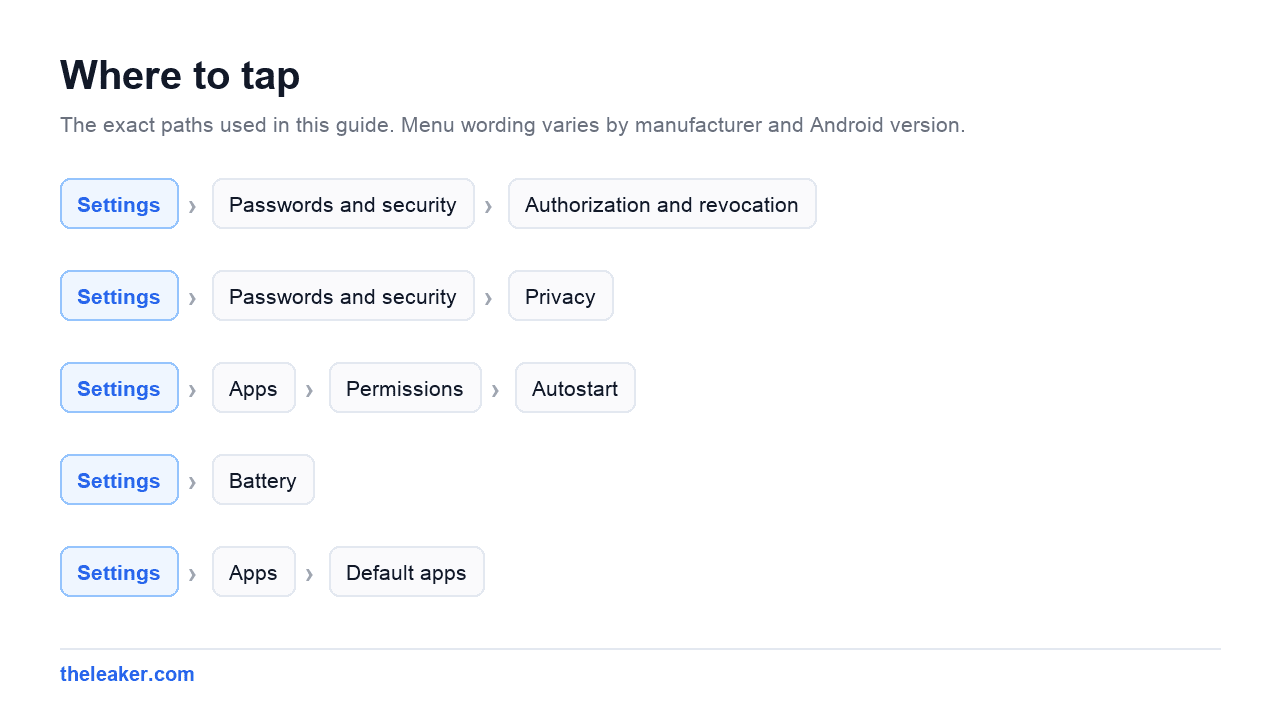
The system-wide switch. Go to Settings → Passwords and security → Privacy and look for an entry related to ad services or personalised recommendations. Different HyperOS builds and regions label this differently. You may find it under Authorization and revocation, or under a Privacy protection section. Turn off personalised ad recommendations wherever it appears.
Also in the same area, look for MSA (short for MIUI System Ads) in the authorization list and revoke it. This is the component that serves system-level ads. Revoking it is safe, the phone works fine, though on some builds a dialog will try to talk you out of it with a countdown timer. Wait it out and confirm.
The per-app switches. These are the ones people miss. Several stock apps have their own recommendation toggle buried in their own settings, and turning off the system one doesn’t disable them. Check inside:
- The Security or Cleaner app: settings menu, look for “receive recommendations.”
- The file manager and downloads app.
- The music and video apps, if you keep them.
- The themes app.
- The app store itself.
In each, open the app’s own settings and hunt for a “recommendations” or “promoted content” toggle. It’s usually one switch. Doing all of them takes five minutes and removes essentially all of the promotional noise.
If you don’t use those apps at all, the simpler answer is to uninstall or disable them. Many Xiaomi system apps can be removed entirely from the app info screen, which is more than most manufacturers allow.
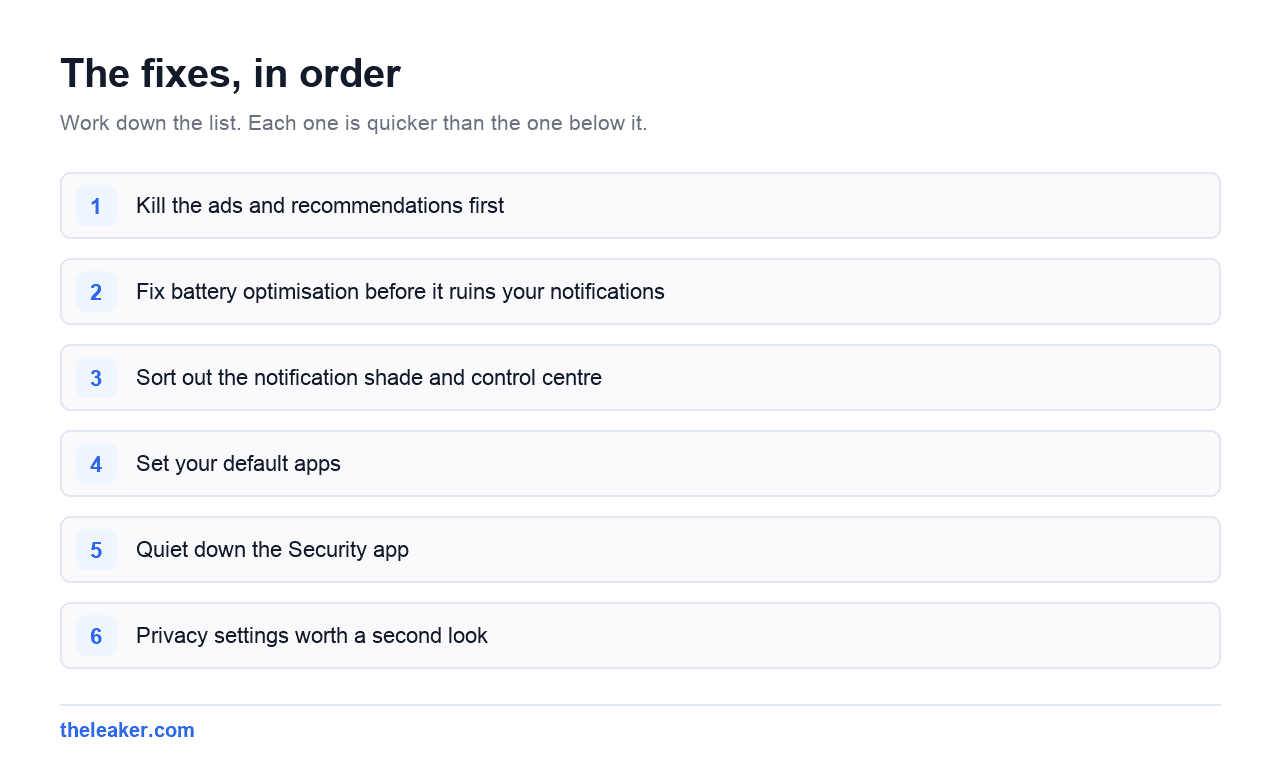
2. Fix battery optimisation before it ruins your notifications
Xiaomi’s software is famously aggressive about killing background processes. It’s done in the name of battery life and it genuinely does help battery life. It also means your messaging app doesn’t notify you until you open it, your alarm doesn’t fire, and your fitness tracker loses hours of data.
There are two separate settings to change, and you need both.
Per-app battery saver. Long-press an app icon, open App info, find Battery saver or Battery restrictions, and set it to No restrictions. Do this for every app where a delayed notification would actually matter: messaging, email, calendar, alarms, banking authentication, health tracking, anything work-related.
Autostart. This is the Xiaomi-specific one. In the Security app or under Settings → Apps → Permissions → Autostart, you’ll find a list of apps allowed to launch themselves in the background. Most apps are off by default. Turn it on for the same list of apps you just un-restricted. Without autostart, an app that gets killed never comes back until you tap it.
There’s also a memory extension or RAM expansion feature in developer-adjacent settings on many models, which borrows storage to act as extra RAM. Opinions vary. On phones with 8GB or more it makes almost no difference and slightly wears the storage. On 4-6GB models it can genuinely reduce app reloading. Judge by your own device.
Finally, check Settings → Battery for a performance mode selector. The balanced default is right for most people, but if the phone feels sluggish, switching to the performance option is a legitimate fix: at a real cost to battery and heat. If your phone is already running warm, that trade-off gets worse fast, and there are better ways to deal with a hot phone than throttling everything.
3. Sort out the notification shade and control centre
HyperOS defaults to a split control centre: swipe down on the left side for notifications, swipe down on the right for quick toggles. Some people love it. Plenty of people find it maddening, especially coming from a phone where one swipe showed everything.
Go to Settings → Notifications and Control centre and look for the control centre style option. You can switch back to the classic combined shade where notifications and toggles share one panel. Try both for a day before deciding.
While you’re in that menu, two more things worth adjusting:
Notification badges and floating notifications. Xiaomi shows a lot of these by default. You can configure per-app whether notifications appear as floating banners, whether they show on the lock screen, and whether they show a badge. Cutting this down for social and shopping apps makes a real difference to how much the phone demands from you.
App notification permissions. Go through the full app list once and turn off notifications entirely for anything that has no business interrupting you: games, shopping apps, most preinstalled system apps. It’s tedious once and worth it forever.
4. Set your default apps
Xiaomi preinstalls its own browser, gallery, music player, file manager, and more. Some are fine. Some are the source of the recommendations you just turned off.
Go to Settings → Apps → Default apps (the exact path varies by build) and set your browser, phone, messages, and gallery to what you actually want to use. Then go a step further: for the stock apps you’ve replaced, open their app info and either disable or uninstall them. A disabled app doesn’t run, doesn’t update, and doesn’t nag.
The stock apps worth keeping, in most people’s experience: the file manager is decent, the camera app is the only one that gets full hardware access, and the Security app, despite the nagging, houses the autostart and permissions settings you need. The browser, music app, video app, and themes app are the usual candidates for removal.
5. Quiet down the Security app
Xiaomi’s Security app runs scans, shows big animated cleanup buttons, and periodically tells you your phone needs optimising. Almost none of this does anything useful. Android manages its own memory; “boosting” RAM by force-closing apps just makes them reload slower next time.
Open the Security app, go into its settings, and turn off:
- Recommendations and promoted content.
- Scan reminders and periodic notifications.
- Any “auto-clean” or scheduled optimisation you didn’t ask for.
Leave the app installed, it’s where autostart management and app lock live, but stop it from talking to you.
Related: HyperOS includes a genuinely useful storage breakdown that shows what’s actually eating space. That one’s worth checking occasionally, though the deeper cleanup tactics in our guide to reclaiming Android storage without deleting anything will get you further than any one-tap cleaner will.
6. Privacy settings worth a second look
A few things to check while you’re in the settings app anyway.
Permission review. Go through Settings → Privacy → Permission manager and look at which apps have location, microphone, camera, and contacts access. Set location to “while using the app” for everything that doesn’t genuinely need background location. Most apps that ask for it don’t.
Usage and diagnostics. Xiaomi collects diagnostic data by default. There’s a toggle for it in the privacy section, and turning it off has no functional downside for you.
App lock. The Security app includes a password lock for individual apps. It’s convenient, though understand what it is. A prompt in front of an app, not encryption of that app’s data. Useful for casual privacy, not for protecting anything genuinely sensitive.
Second space. Xiaomi offers a separate user profile with its own apps, accounts, and lock. It’s a heavier-duty version of app lock and genuinely isolates data. Worth knowing about if you need real separation between work and personal use.
7. Display and gesture tweaks
A short list of things that make daily use better.
Refresh rate. Under Settings → Display, check whether the phone is running at its maximum refresh rate. Some models ship in a lower or auto mode. If smoothness matters more than battery to you, set it to the highest option.
Dark mode scheduling. HyperOS dark mode can force non-compliant apps into dark themes, and it can run on a sunrise-to-sunset schedule. Both are under Display.
Gesture navigation. If you’re on three-button navigation, try full-screen gestures: HyperOS’s implementation is good, and there’s a toggle to hide the gesture bar entirely for a cleaner look.
Text and icon size. Two separate sliders under Display. Shrinking icon size fits noticeably more into every list.
Sidebar. There’s a floating window sidebar you can pull in from the screen edge for quick multitasking. Some people use it constantly; others find it triggers accidentally. Worth trying, easy to disable.
For a broader look at settings that make any Android phone feel faster, we’ve covered the ones that actually matter in detail.
Frequently asked questions
Will removing Xiaomi system apps break my phone?
Uninstalling the apps Xiaomi lets you uninstall is safe by design, if the option is offered in app info, removing it won’t destabilise the system. The apps that genuinely matter can’t be removed at all. If you’re nervous, disable instead of uninstall; a disabled app stops running and can be re-enabled from the same screen. Avoid third-party debloating scripts that remove packages Xiaomi doesn’t expose, since those can cause real problems.
Why are my notifications still delayed after changing battery settings?
Usually because only one of the two required settings got changed. You need both “no restrictions” in the app’s battery saver setting and autostart permission enabled in the Security app. Miss either one and the app still gets killed. Also check that battery saver mode isn’t on globally, and that the app isn’t in any scheduled sleep or hibernation list.
Does turning off ads void anything or affect updates?
No. The ad and recommendation toggles are ordinary settings. Revoking the MSA authorization is a supported option that Xiaomi exposes deliberately, even if the confirmation dialog is discouraging. System updates, warranty, and every phone function continue to work normally.
Are the settings the same on Poco and Redmi phones?
Broadly yes: Poco and Redmi both run the same HyperOS software with the same settings structure, so everything here applies. Menu paths shift slightly between versions and regions, and a handful of features are limited by hardware. If a path in this guide doesn’t match your phone, use the search bar at the top of Settings and type the feature name; it’ll find it regardless of where it moved.
The bottom line
Xiaomi hardware punches far above its price. The software gets in its own way with defaults that prioritise Xiaomi’s revenue and battery benchmarks over your experience. Spend fifteen minutes on the list above (ads off, battery restrictions off for what matters, notifications tamed, defaults set) and you end up with a phone that feels like it cost twice what you paid.

Akshay Mhatre is a Tech Journalist who likes to keep up with the latest from the tech world. He has worked at many popular news portals like BGR and TechRadar before joining TheLeaker as a News writer and journalist. A writer by day and a VFX artist by night. In his free time, he also likes to make motion graphics and concept art. You can find him on Instagram @akshayrazr_95 and contact him on akshaymhatre[@]theleaker.com.