
A Wi-Fi extender that “isn’t working” almost always comes down to one of three things. It is placed too far from the router, it lost the connection after your network changed, or it needs to be set up again from its own web page. The single most common mistake is location. An extender has to sit where the router’s signal is still strong, roughly halfway between the router and the weak spot, well before the dead zone itself. If it shows connected but nothing has internet, it is usually sitting too far out, rebroadcasting a signal that was already too weak to use. Reboot the router and the extender first, then fix the placement, then reconnect it through its setup page if your router or password changed.
If you searched this, you have probably already unplugged it, plugged it back in, and watched the lights do nothing useful. The reason “restart it” rarely helps is that most extender problems are not the extender at all. They are where it sits, or a network change it never got told about. Here is how to find which one you have.
Find your case first
Match the symptom, then jump to that section. These run from the fastest checks to the ones that mean the extender is the wrong tool for your house.
| What you are seeing | Most likely cause |
|---|---|
| The extender says connected, but devices on it have no internet | It is too far out, or the router itself lost internet |
| Signal is still weak even standing right next to it | Placement, in the dead zone instead of before it |
| Setup won’t finish, or the setup page won’t load | You need to reach it on its own network first |
| It was fine, then dropped after a new router, password, or plan | It needs to be reconnected with the new details |
| No lights, or lights that never settle | Power, or a reset is needed |
First, reboot both, router first
Unplug the router and modem, wait about 30 seconds, and plug them back in. Let them fully come back, then power-cycle the extender. Do the router first, because the extender looks to it for a connection and needs it up and stable before it can latch on. This clears the common glitch where the extender’s own network still appears but passes no traffic, and it costs you two minutes.
The fix almost nobody gets right: where it sits
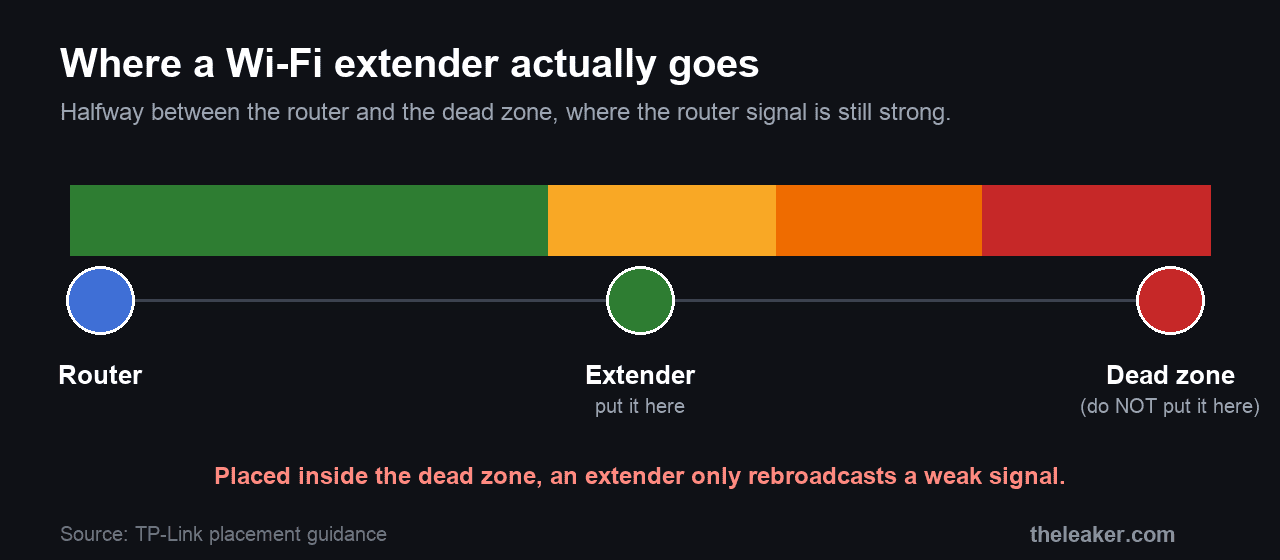
This is the cause behind most “connected but no internet” and “still no signal” complaints, and it is the one the box never explains. An extender does not create signal. It catches the router’s Wi-Fi and rebroadcasts it, so it can only ever pass along what it receives. Put it in the dead zone, where the Wi-Fi is already bad, and all it does is rebroadcast a bad signal.
The rule is to place it halfway between the router and the weak area, somewhere the router’s signal is still strong. TP-Link’s own placement guidance puts that at roughly 25 to 40 feet from the router for models with external antennas, or 20 to 35 feet for internal-antenna ones, as long as the router’s signal is still strong at that spot. A quick test: stand where you want to put the extender and check your phone. If it shows only one bar there, that spot is already too far out. You want two or three.
Most plug-in extenders have a signal or link light on the front that tells you the same thing. A steady light usually means a good link back to the router, and a red, amber, or blinking one means the connection is weak. The exact colors differ by brand, so check your model’s guide, but the principle holds. If that light is not happy, move the extender one outlet closer to the router and watch it improve.
Connected, but nothing has internet
This is the most reported extender problem, and it has a short list of causes.
- It is in the dead zone. Covered above, and it is the first thing to rule out. Move it closer to the router and test again.
- The router itself has no internet. Check a device connected straight to the router. If that has no internet either, the extender is innocent and the problem is your router or your provider.
- It saved an old password. If you changed your Wi-Fi password or got a new router, the extender is still trying the old details. It needs reconnecting, below.
- An address clash. Occasionally the extender and another device end up fighting over the same network address. A full reboot of the router and the extender clears it.
Reconnect it through its setup page
When an extender needs setting up again, you talk to it directly rather than through your normal Wi-Fi. The steps are the same across brands even though the address differs.
- On a phone or laptop, connect to the extender’s own network. Fresh out of a reset it broadcasts a default name, often the brand plus “_EXT” or similar.
- Open a browser and go to the setup address. It is mywifiext.net on Netgear and tplinkrepeater.net on TP-Link, or use the maker’s app (Nighthawk, Tether). Netgear’s default login is admin and password until you change it.
- Pick your home network from the list, enter its current password, and let the extender join.
- Reconnect your devices to the extended network and test.
If the setup page will not load at all, it is nearly always because you are still on your normal Wi-Fi instead of the extender’s own network. Switch networks and try again. Moving the extender right next to the router during setup, then relocating it once it is joined, also avoids a lot of failed first-time setups.
After a new router or password
An extender stores the details of the network it was told to join. Change the router, the network name, or the password, and it keeps reaching for something that no longer exists, so it drops offline even though it powers on normally. There is no way around reconfiguring it with the new details through the setup page above. Netgear says the same in its own support notes about replacing a router or gateway.
Check for interference
Radio noise is a smaller cause, but a real one. TP-Link lists metal objects, fish tanks, microwaves, and Bluetooth devices as things that sit between the router and the extender and weaken the link. If the extender is tucked behind a TV, next to a microwave, or on the far side of a metal filing cabinet, an outlet in the open on the same wall often helps more than any setting.
Update the firmware, then reset as a last resort
If the extender connects but behaves badly, an outdated firmware version is worth ruling out. You update it from the same setup page or the maker’s app. TP-Link and Netgear both ship fixes for connection bugs this way.
A factory reset is the final step, after everything else. Press the recessed Reset button with a paperclip and hold it until the lights blink, about a second on many TP-Link units and several seconds on most Netgear ones. That wipes every setting, so you will set the extender up again from scratch afterward. Reset a working-but-misplaced extender and you have simply erased it without touching the real problem.
What an extender will not fix
Some things are not the extender’s job, and no amount of troubleshooting changes that.
- Range is not speed.
- It cannot beat your internet plan. An extender spreads your existing connection further. It does not add speed you are not paying for.
- A single-band extender roughly halves throughput. A basic model uses one radio to talk to both the router and your devices, so it takes turns, and the extended Wi-Fi is slower than the router’s by design. This is normal behavior.
- A dead internet line stays dead. If your provider is down, the extender has nothing to extend.
When to stop and use something better
If you are covering a large home, thick brick or concrete walls, or several dead zones, a single extender is often the wrong tool. A mesh Wi-Fi system, or a spare router wired back to the main one as an access point, gives one seamless network instead of a slower second one you have to switch to by hand. The same weak-signal problems that plague a whole house are usually a placement or coverage issue rather than a device fault, which is why our guides to fixing slow Wi-Fi and Wi-Fi that keeps dropping are worth a read alongside this one.
Frequently asked questions
Why is my Wi-Fi slower on the extender than on the router?
Because a basic single-band extender uses the same radio to receive from the router and to serve your devices, which halves the effective speed. It is a known tradeoff of cheaper extenders by design. A dual-band or mesh device avoids most of it by keeping the link to the router on a separate band.
Should the extender use the same network name as my router or a different one?
A separate name (like “MyWiFi_EXT”) makes it obvious which network you are on and lets you pick the stronger one by hand, which is easier to troubleshoot. The same name lets devices roam between them automatically, but phones cling to whichever they joined first and often stay on the weaker one. If you want true seamless roaming, that is a job for mesh, not an extender.
How far from the router should a Wi-Fi extender be?
Close enough that the router’s signal is still strong where the extender sits, which TP-Link puts at roughly 20 to 40 feet indoors depending on the antennas. The test that always works is your phone. If it shows two or three bars at that spot, the extender will too. One bar means move it closer.
Does a factory reset fix an extender that keeps dropping?
Only if the cause is corrupted settings. If the real problem is placement or a weak link to the router, a reset just erases the setup and leaves you to redo it while the drops continue. Try repositioning and reconnecting before you reset.
The short version
Reboot the router and the extender, then move the extender to where the router’s signal is still strong, halfway to the dead zone rather than inside it. If it dropped after a network change, reconnect it through mywifiext.net or tplinkrepeater.net with the new password. And if one extender cannot cover the house, that points to mesh rather than a broken extender.
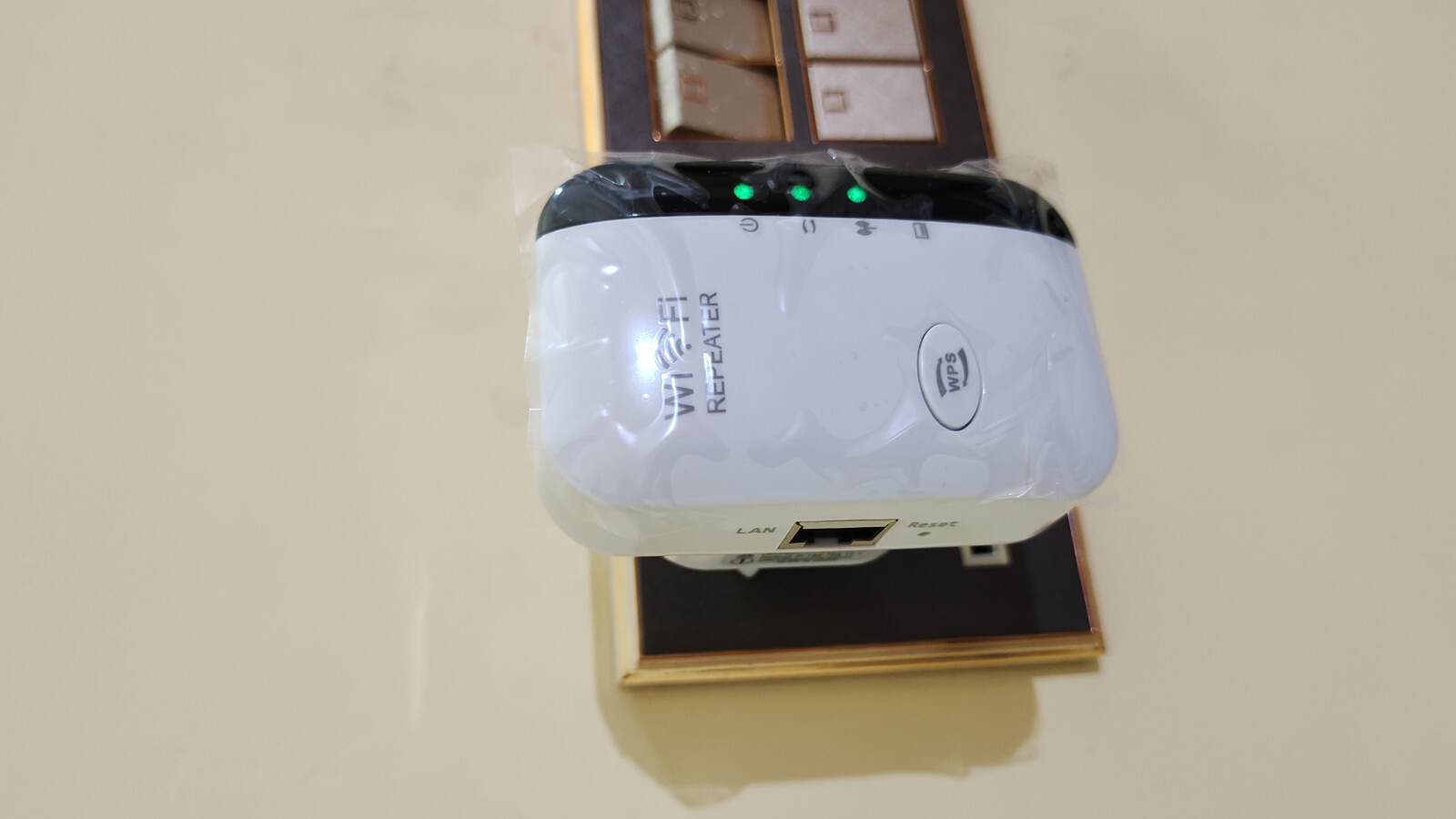
Featured image: Wi-Fi range extender by Kskhh, via Wikimedia Commons, licensed CC BY-SA 4.0.

I am the chief editor of TheLeaker. I also maintain the backend stuff of the site. I’m a tech enthusiast and loves to do Python coding in my free time. I have worked at many giant publications like XDA Developers and NXTtech before starting TheLeaker.
You can get in touch with me at Garv[at]theleaker.com.