
Most Firestick remote problems are one of three things: dead batteries, a lost pairing, or a remote that has truly failed. Start with fresh AAA alkaline batteries, then re-pair by pressing and holding the Home button for 10 seconds with the Fire TV switched on. If nothing happens at all, install the free Fire TV app on your phone, which works as a full replacement remote and can even re-pair the physical one. And if your remote has a status light, it has a hidden troubleshooting mode that flashes a color telling you exactly what is wrong, which is the fastest way to stop guessing.
The reason “just reset it” so often fails is that a Firestick remote can stop working for several different reasons, and each one has its own fix. Resetting a remote whose batteries are fine, or whose real problem is pairing, wastes ten minutes and changes nothing. So the first job is to figure out which fault you actually have.
Do this first: put a working remote in your pocket
Before any troubleshooting, install the Amazon Fire TV app on your phone (iPhone or Android) and sign in with the same Amazon account. It turns your phone into a full remote over Wi-Fi, so you can keep using the Fire TV while you sort out the physical one, and you can use it to navigate menus and even re-pair the real remote. Your phone and the Fire TV need to be on the same Wi-Fi network for it to connect. This one step takes the panic out of a dead remote, because you are no longer locked out of your own TV.
Find your case first
Match what you are seeing, then jump to that section.
| What the remote is doing | Most likely cause |
|---|---|
| No light at all when you press a button | Dead batteries, or a dead remote |
| The light works, but the Fire TV ignores it | Lost pairing |
| A status light blinking a color | Decode it in troubleshooting mode |
| Navigation works, but volume or power buttons do not | TV control setup, not a broken remote |
| Still dead after brand new batteries | Pairing or a failed remote, not the batteries |
| Stopped after a power cut | The Fire TV needs to finish rebooting |
No light at all: start with the batteries
If pressing a button produces no light and no response, the batteries are the first suspect and the cheapest. These remotes want fresh AAA alkaline batteries. Cheap carbon-zinc “heavy duty” cells and partly-used ones often lack the punch a Bluetooth remote needs, even when a battery tester says they are fine. Put in a fresh pair, seated the right way around, and try again. Do not mix an old battery with a new one.
If a known-good set of batteries still gives you nothing, no light and no response after re-pairing and resetting below, the remote itself has likely failed. That is where the phone app earns its place, and where a replacement remote becomes the answer.
The light works but the Fire TV ignores it: re-pair
A remote that lights up but does nothing has usually lost its Bluetooth pairing to the Fire TV. Fire TV remotes talk to the device over Bluetooth for navigation, so they do not need line of sight, but they do need to be paired. To re-pair, make sure the Fire TV is powered on and you are within about 10 feet, then press and hold the Home button for 10 seconds. Release it and give it a few seconds to connect.
If that alone does not do it, restart the Fire TV. With a working remote or the phone app, go to Settings, My Fire TV, Restart. With no remote at all, pull the Fire TV’s power cable out, wait 60 seconds, and plug it back in. A restart clears a surprising number of remote faults on its own.
Decode the blinking light
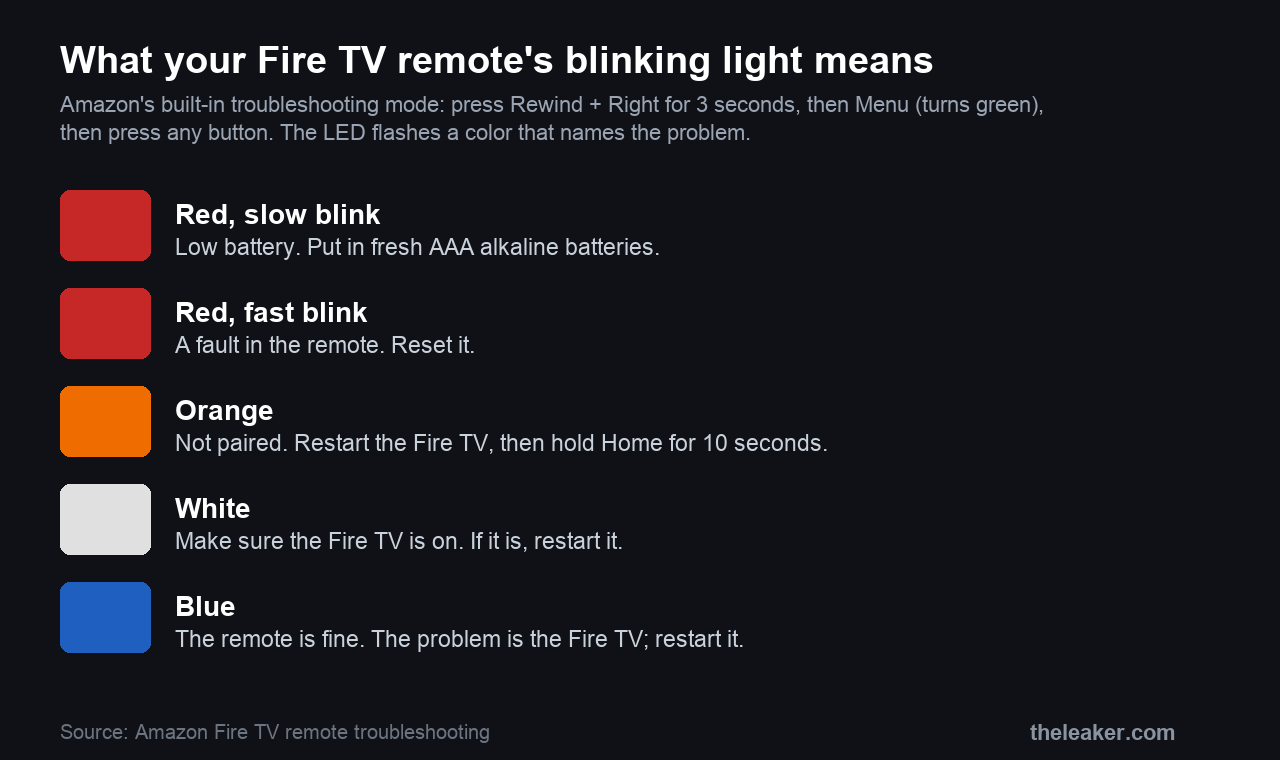
This is the fix almost nobody knows about, and it is built into the remote. Newer Fire TV remotes have a hidden troubleshooting mode that uses the status light to tell you what is wrong. To check whether yours has it, press the Alexa Voice button. If the light at the top flashes, the mode is available.
To use it, press the Rewind and Right buttons together for three seconds, then press Menu. The light turns green to show you are in the mode. Now press any button, and the light flashes a color, as in the chart above. Orange means the remote is not paired, so restart the Fire TV and hold Home for 10 seconds. A slow red blink is a low battery. A fast red blink means the remote has a fault and needs resetting. White says to check the Fire TV is actually on. Blue means the remote is fine and the Fire TV is the problem. To leave the mode, press Play/Pause and Up together for three seconds, then Menu, and take the batteries out and back in.
Navigation works but volume or power does not
If you can move around the menus but the volume, power, or mute buttons do nothing, the remote is not broken. Those buttons control your TV or soundbar rather than the Fire TV, and they work through infrared or HDMI-CEC, which is set up separately. Head to Settings, Equipment Control (sometimes under Display and Sounds) and run Manage Equipment to teach the remote your TV again. If only the TV buttons fail, this is the fix, not a battery change or a reset.
Still dead after new batteries
This is one of the most common searches, and the takeaway is short. If a brand new set of alkaline batteries changes nothing, the batteries were never the problem. Move straight to re-pairing (hold Home for 10 seconds), and if that fails, to the reset below. A remote that is dead on new batteries and will not pair or reset is a remote that has failed.
It stopped after a power cut
After an outage, the Fire TV has to fully reboot before the remote can reconnect, and that takes a couple of minutes. Give it time to reach the home screen, then hold Home for 10 seconds to re-pair. If your Fire TV is plugged into a TV’s USB port for power, it also restarts every time you turn the TV off, which can leave the remote briefly unresponsive on the next power-up. A dedicated wall outlet avoids that.
Reset the remote
A reset is the step to try when the light works but nothing above has helped, or when troubleshooting mode flashed a fast red. Amazon’s reset for most Fire TV remotes runs like this.
- Unplug the Fire TV from power and from the HDMI port, then wait 60 seconds.
- Press and hold Left, Menu, and Back together for 12 seconds.
- Release, and wait five seconds.
- Take the batteries out of the remote.
- Plug the Fire TV back in and wait for the on-screen “remote not detected” message.
- Put the batteries back in.
- Press Home. The light blinks blue when it pairs. If it does not, hold Home for 10 seconds.
The button combination differs on a couple of models. The Basic Edition remote and the very first Alexa Voice Remote use their own sequences, both on Amazon’s reset page linked above, so check which remote you have if the steps above do nothing.
Won’t pair, or a new replacement remote won’t connect
- Get close. Pair from within a few feet of the Fire TV.
- Restart the Fire TV first, then hold Home for 10 seconds.
- A Fire TV pairs up to seven remotes. If you have cycled through several, remove old ones you no longer use from Settings, Controllers and Bluetooth Devices, using the phone app.
- Use the Fire TV app to add the new remote from the on-screen menu.
- Confirm the remote is compatible. A very old first-generation remote will not pair with the newest Fire TV hardware.
When it is the remote, and what to do
Some remotes are simply dead, from a drop, a spilled drink, or age, and no reset brings them back. Two honest options remain. The phone app is a free, full-featured stand-in that many people end up preferring. An official replacement remote is the other, and buying the official one costs around $30, far less than a new Fire TV. If you go third-party, check it lists your exact Fire TV model, because the cheap ones often skip the Alexa or TV-control buttons.
Frequently asked questions
Can I use my phone as a Firestick remote?
Yes. The free Amazon Fire TV app turns your phone into a full remote, including a keyboard for typing and the Alexa voice button, as long as the phone and the Fire TV share a Wi-Fi network. It is the fastest way back into your TV when the physical remote is dead, and it can re-pair that remote too.
Do I need the old remote to set up a new Fire TV or a new remote?
No. You can complete setup and pair a new remote entirely from the phone app. That is handy to know before you buy a replacement remote in a hurry, because you may not need one at all.
Why does my Firestick remote work, then stop, then work again?
Intermittent behavior usually points to weak batteries under load or Bluetooth interference from other 2.4GHz devices nearby. Fit fresh alkaline cells first. If it persists, move the Fire TV out from behind the TV on an HDMI extender, since a metal-backed TV between the remote and the device weakens the signal.
Can I use rechargeable batteries in a Fire TV remote?
You can, but rechargeables put out slightly lower voltage than alkalines, which can cause the exact dropouts you are trying to fix. Alkaline cells are the safer choice here. If you use rechargeables and see trouble, swap to a fresh alkaline pair as a test.
The short version
Fresh AAA alkaline batteries, then hold Home for 10 seconds to re-pair, then restart the Fire TV. If the remote has a light, let troubleshooting mode name the fault by color instead of guessing. Grab the phone app so a dead remote never locks you out, and if the volume buttons are the only thing failing, that is a TV-control setting rather than a broken remote. Once you have run pairing and a reset with good batteries and still have nothing, the remote has died, and the app or a $30 replacement is the way back. While you are set up, our guide to casting from your phone to a Fire TV is a handy companion.
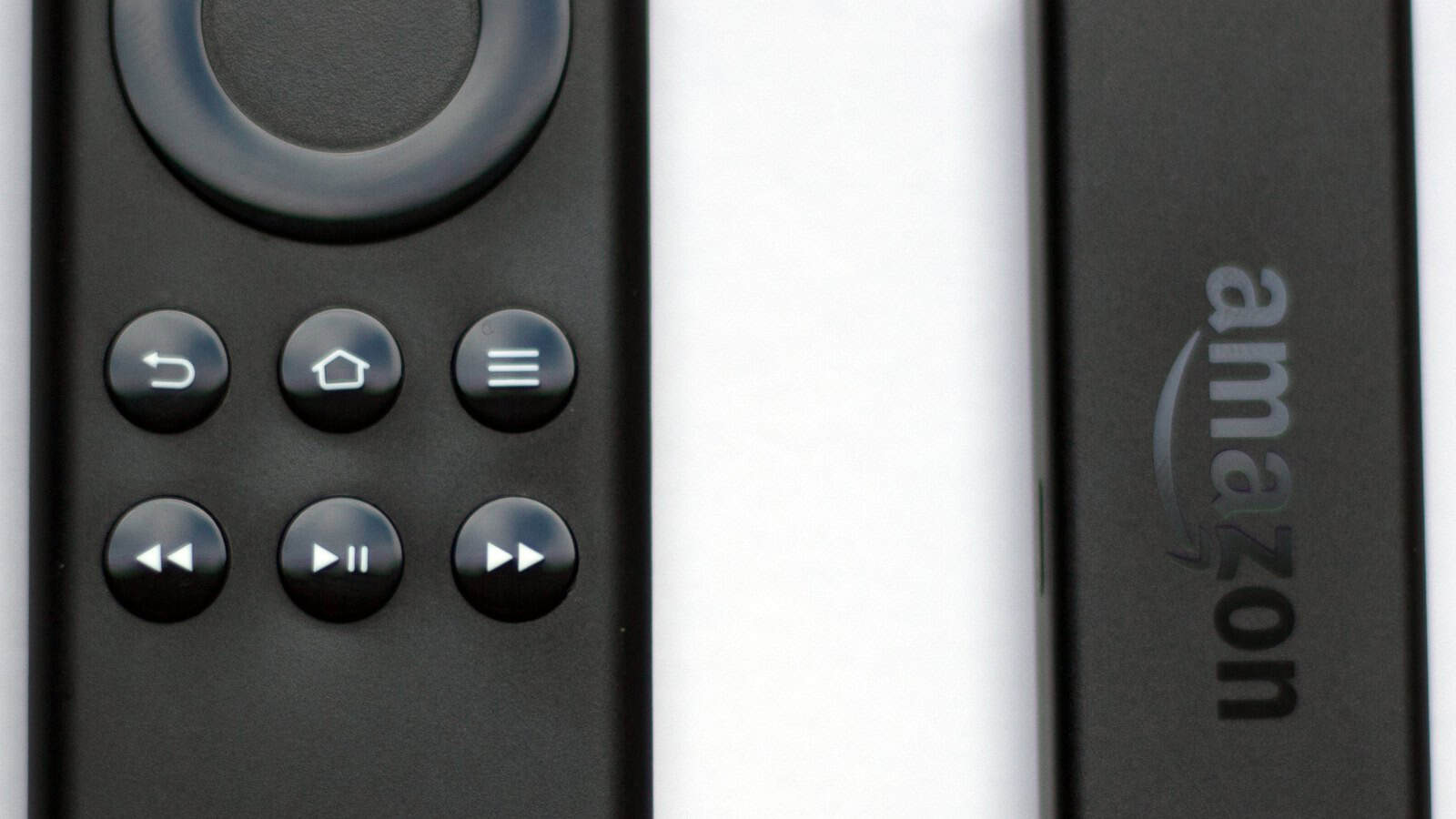
Featured image: Amazon Fire TV Stick and remote by Br-278, via Wikimedia Commons, licensed CC BY 4.0.

A tech Journalist and Photographer, Dhawal Sharma is a technology enthusiast who loves to research the latest innovations and technology. He has contributed to the Honor Community for a very long period and has crucial expertise in writing tech news and reviewing smartphones and laptops. Analyzing and bringing the facts about any piece of tech is what he loves the most. He is a great product photographer and is the Gizmopedia of TheLeaker. Find him on Facebook and Instagram, and you can also email him at [email protected].