
You set an app timer, hit the limit, tapped “Settings” and switched it off in about four seconds. So Focus mode on Android must be just as easy to dodge, right? Not quite. You just used the wrong tool for the job.
The quick answer: Focus mode and app timers do different things and fail in different ways. App timers are a daily budget: you get X minutes, then the icon goes grey until midnight. Focus mode is a time window: selected apps are paused entirely until the session ends or you break it. Timers suit apps you want less of. Focus mode suits blocks of time you want protected. Both can be bypassed in seconds, and that’s deliberate. They’re speed bumps, not locks. The trick is to schedule them so they start without you, pair them with notification pausing so the app can’t call you back, and keep the list short. Three well-chosen apps beat fifteen you’ll ignore.
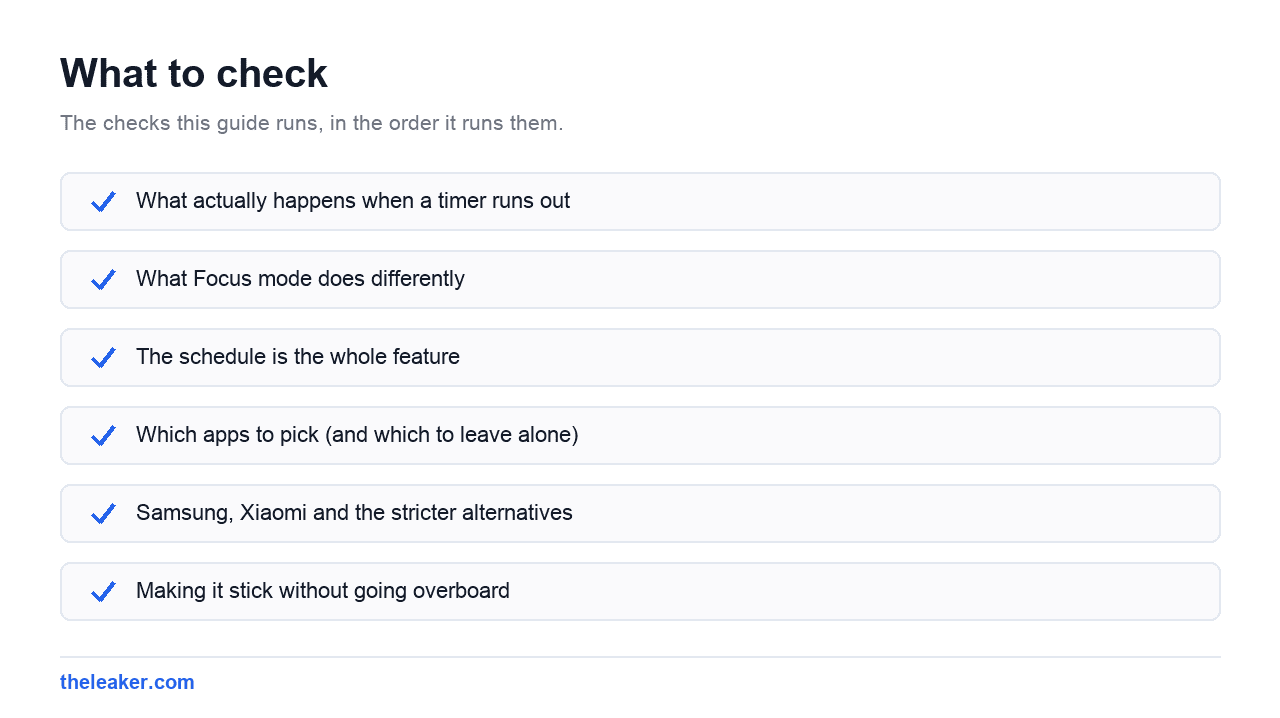
What actually happens when a timer runs out
An app timer in Digital Wellbeing is a daily allowance measured in foreground screen time. The clock only runs while the app is on screen and the display is on. Background activity, notifications and audio playing with the screen off generally don’t count against it.
When you hit the limit, the app icon turns grey and stops responding to taps. Open it and you get a “You’ve reached your limit” screen. The app isn’t uninstalled, force-stopped permanently or blocked from the system. It’s just gated by the launcher and the Digital Wellbeing service. That’s why the grey icon sometimes still shows a notification badge.
Timers reset at midnight local time. Not 24 hours after you set them: at midnight. That matters more than people expect. If you burn your one-hour allowance by 9am, you’re waiting all day. If you’re a night owl, midnight hands you a fresh hour at exactly the moment you should be asleep.
The bypass is straightforward: open Digital Wellbeing and either delete the timer or extend it. On most builds you can also tap through from the block screen. Some versions offer a short “one more minute” style extension. Don’t treat that as a flaw. A hard lock you can’t undo becomes a problem the first time you need that app for something real.
What Focus mode does differently
Focus mode pauses a set of apps for a session rather than a budget. While it’s on, those apps are hidden or greyed, and, this is the part that does the heavy lifting, their notifications are held back rather than delivered.
That notification behaviour is the mechanical difference that makes Focus mode more effective than timers for deep work. A timer stops you opening an app. It doesn’t stop the app tapping you on the shoulder every eleven minutes. Focus mode does both, and when the session ends, the held notifications arrive together, so you don’t miss anything permanently.
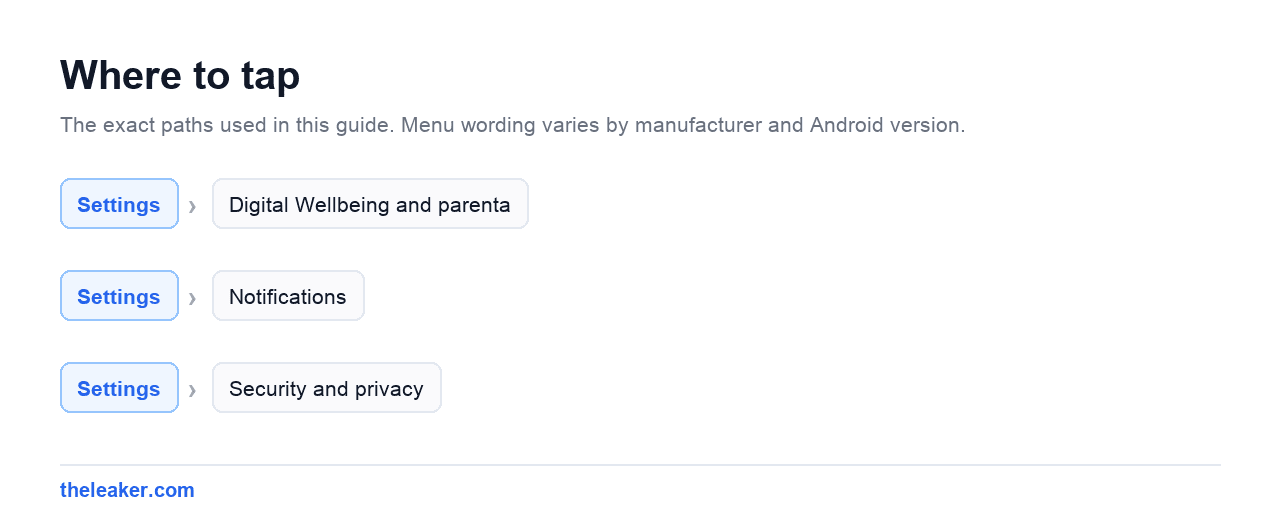
You’ll find it in Settings → Digital Wellbeing and parental controls → Focus mode. Pick your distracting apps, then either start a session manually or set a schedule. On recent Pixel software, Google has been folding Do Not Disturb, Bedtime and Focus into a single Modes screen, so the exact path shifts between versions. The feature and its behaviour are the same.
There’s a “Take a break” option that suspends Focus mode for a few minutes and then resumes it automatically. Use it. The reason people abandon these tools is that breaking them once means turning them off entirely, and then you never turn them back on. A five-minute break that self-repairs keeps the system alive.
The schedule is the whole feature
Here’s the bit almost everyone skips. If you have to remember to start Focus mode, you’ll only start it on the days you were already going to concentrate. It does nothing on the days you actually needed it.
Set a schedule instead. Pick the two or three windows that genuinely repeat in your week (9:30 to 12:30 on weekdays, or 7pm to 9pm every evening) and let it turn itself on. Once it’s automatic, you’re no longer negotiating with yourself each morning. You’re just noticing that the app is grey and moving on.
Pair it with a matching Do Not Disturb schedule if you want calls filtered too. Focus mode handles the apps you chose; Do Not Disturb handles who can ring you. They’re separate systems and they stack.
One practical warning: check what’s in your Focus list before a schedule fires for the first time. Pausing a messaging app during work hours sounds fine until the school calls you on it.
Which apps to pick (and which to leave alone)
The instinct is to add everything. Resist it. A Focus list with twelve apps means twelve moments a day where you hit a wall for something legitimate, and after about three days you’ll switch the whole thing off.
Open your Digital Wellbeing dashboard and sort by time. Look at the top five. Usually one or two of them are the actual problem and the rest are ordinary phone use. Put the actual problem in Focus mode. Leave the rest.
Timers work better on a different category: apps you want to keep but ration. A news app, a shopping app, a game. Something where thirty minutes is fine and three hours isn’t. Set the limit slightly below your current average, not at some aspirational number. Cutting 90 minutes to 60 holds. Cutting 90 to 15 gets deleted by Thursday.
Browsers deserve a mention. Putting a timer on Chrome is a blunt instrument. It takes out your banking, your maps and your work along with the doomscrolling. If the problem is one site rather than the phone, handle it at the site level with browser settings or a content blocker rather than nuking the whole browser.
Samsung, Xiaomi and the stricter alternatives
Samsung One UI. Samsung ships its own Digital Wellbeing with focus modes, but the more capable tool is Modes and Routines. A Mode can hide selected apps, change which notifications get through, switch your home screen layout and adjust the wallpaper: all triggered by a condition rather than a tap. Connect to office Wi-Fi and work mode starts. Plug in the charger after 10pm and everything social goes quiet. If you want the tools to run themselves, this is the best implementation on Android.
Xiaomi HyperOS. There’s a Focus mode under Digital Wellbeing that’s noticeably stricter than the Pixel version: closer to a genuine lockout for the duration you set. Good if you know you’ll wriggle out of a soft block. Note that Xiaomi’s aggressive background app management is separate from this and can affect notification delivery in ways that look like Focus mode misbehaving. If you’re chasing odd behaviour there, our guide to hidden Android settings worth changing covers the battery-optimisation side of it.
OnePlus and Oppo. Zen Mode is the extreme end. Start a session and you get calls, emergency dialling and the camera, nothing else, and you cannot cancel it. Rebooting doesn’t help. It’s either exactly the commitment device you needed or a mistake you’ll make once.
Making it stick without going overboard
A few things that separate a setup you keep from one you abandon in a fortnight.
- Start with one app and one window. Get a week out of it before adding anything.
- Kill the notifications for those apps permanently, not just during focus sessions. Focus mode holds them; turning them off removes them.
- Move the app off your home screen too. Belt and braces. The grey icon still sits there reminding you it exists.
- Set the schedule to start slightly before you need it. If work starts at nine, start the session at 8:45, before the first scroll.
- Review monthly, not daily. Checking the dashboard every morning turns a tool into another feed.
And be honest about which problem you have. If you pick up the phone 120 times a day, timers won’t touch it. That’s a notification and home screen problem. If you pick it up 40 times but lose an hour each time, that’s exactly what timers and Focus mode are for.
When these tools aren’t the right answer
Digital Wellbeing is built for adults managing their own behaviour. If you’re setting limits for someone else (a child’s phone, usually) use Family Link instead. It enforces from a separate account, so the person using the phone can’t simply switch it off, and it survives a reset in ways an on-device timer doesn’t.
If your issue is that the phone is unusable rather than too tempting (sluggish, constantly full, notifications arriving hours late) no amount of focus scheduling fixes that. Start with storage. A phone sitting at 98% full behaves badly in ways that feel like distraction but aren’t; our walkthrough on how to free up storage without deleting anything is the faster fix there.
And if you’ve genuinely tried and nothing holds, the answer might just be a second device or a dumber phone for evenings. That’s a legitimate outcome, not a failure of settings.
Do app timers stop notifications from that app?
Generally no. A timer blocks you opening the app; notifications usually keep arriving. Focus mode is the feature that holds notifications back and delivers them when the session ends. If you want an app quiet all the time, turn its notifications off in Settings → Notifications → App notifications rather than relying on a timer.
Does Focus mode block calls and messages?
Only if you put the messaging or phone app in the paused list, and pausing the dialler is a bad idea. Focus mode acts on the apps you select. Filtering who can ring you is Do Not Disturb’s job. Run both together if you want a proper quiet block, and always allow starred contacts and repeat callers through.
Why did my app timer reset in the middle of the day?
Timers reset at local midnight, so a mid-day reset usually means something changed the device time: travelling across time zones, or a manual clock change. Removing and re-adding a timer also clears the day’s count. If the counter looks wrong in general, check that Digital Wellbeing has usage-access permission and hasn’t been battery-restricted.
Can someone else see how I’m using Focus mode?
Not from Digital Wellbeing alone. It’s local to your device and your account. The exception is a phone supervised through Family Link or an employer’s device management, where an administrator can see usage and set limits you can’t remove. If you’re not sure which applies, check Settings → Security and privacy for a device admin or work profile entry.
None of this makes you a different person. It just means the decision comes up ten times a day instead of a hundred, and that difference compounds. Set one schedule, pick one app, and leave it alone for a week before you touch anything else. Moving your worst app off the home screen while you’re at it costs nothing and does more than most of the settings above.

Akshay Mhatre is a Tech Journalist who likes to keep up with the latest from the tech world. He has worked at many popular news portals like BGR and TechRadar before joining TheLeaker as a News writer and journalist. A writer by day and a VFX artist by night. In his free time, he also likes to make motion graphics and concept art. You can find him on Instagram @akshayrazr_95 and contact him on akshaymhatre[@]theleaker.com.