
If your Fitbit stopped syncing in 2026, the first suspect is not Bluetooth, it is the account change most people missed: on May 19, 2026 the Fitbit app became the Google Health app, and a Fitbit-only account no longer works. If you never moved your Fitbit account to a Google account, syncing stops until you do. Once you are on the Google Health app signed in with a Google account, the usual fixes take over: open the app and pull down to sync manually, turn Bluetooth off for a few seconds and back on, and keep the tracker within a few feet of your phone. And before any of that, check whether Google Health is simply having an outage, because when its servers go down, nobody’s Fitbit syncs.
A Fitbit that will not sync used to be a Bluetooth story. Since 2026 it is usually an account story, and most of the advice still online was written before the change and sends you in the wrong direction. Here is what actually matters now, starting with the part the old guides skip.
The 2026 change that broke syncing for a lot of people
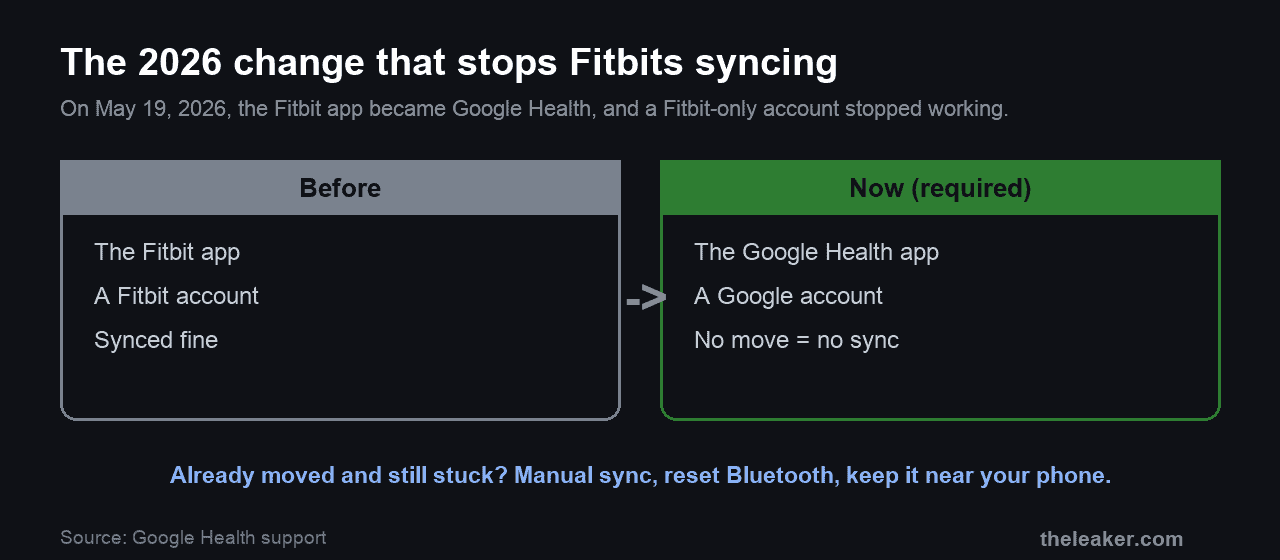
Google, which owns Fitbit, folded the Fitbit app into its Google Health app and retired standalone Fitbit accounts. Google’s own migration page is blunt about the deadline: “After May 19, 2026, you can no longer access Fitbit with your Fitbit account.” A Google account is now required to use the app and to sync a Fitbit at all.
So the first thing to check is not your Bluetooth. It is your account and your app.
- Are you on the Google Health app? If you are still opening an app called Fitbit, or an old version, update to or install Google Health from the Play Store or App Store.
- Did you move your account to Google? If you still sign in with a Fitbit email and password rather than a Google account, that is almost certainly why syncing stopped. Follow Google’s move-your-account steps, then sign in to Google Health with the Google account.
If you have done both and it still will not sync, the rest of this guide is for you.
The quick fixes that solve most cases
With the right app and account in place, work through these in order. They come from Google’s own sync troubleshooting page.
- Sync by hand. Open Google Health, tap Connections, and pull down to force a sync. This alone clears a stalled sync more often than anything else.
- Reset Bluetooth. Turn Bluetooth off, wait at least three seconds, and turn it back on. A stale Bluetooth connection is the classic cause, and toggling it re-establishes the link.
- Keep the tracker near your phone. Fitbit syncs over Bluetooth, so the device has to stay within a few feet of the phone during a sync. Walking away mid-sync breaks it.
- Charge the Fitbit. A device low on battery will drop its Bluetooth radio to save power, which reads as a failure to sync.
The permission most people miss on Android
This one traps a lot of Android users after the app change, because the new app asks for permissions the old one did not. Google Health needs both Location and Nearby devices permissions to find and talk to your Fitbit over Bluetooth. If either is off, the app simply cannot see the tracker.
Go to your phone’s Settings, Apps, Google Health, Permissions and make sure Location and Nearby devices are both allowed. On Android 12 and newer, the Nearby devices permission is separate from Location and is the one that catches people out.
Restart everything, then update everything
If the quick fixes have not done it, reset the pieces one at a time.
- Restart the Fitbit itself. The steps vary by model, so check your model’s restart instructions, and wait for the clock face to come back before testing.
- Restart your phone fully, not just lock and unlock it.
- Check for updates in three places: your phone’s system update, the Google Health app in the store, and the Fitbit’s own firmware inside the app. A version mismatch between the app and the device firmware is a real cause of sync failures.
Still stuck? Reinstall the app
As a last software step, uninstall the Google Health app and reinstall it from the store, then sign back in with your Google account. This clears a corrupted app state that no amount of toggling fixes. Your data lives in your Google account, not on the phone, so a reinstall does not lose anything. One caveat from Google: if the same account is signed in on another phone or tablet nearby, sign it out there first, because two devices fighting to sync the same tracker can stall both.
Is it you, or is it Google?
Before you spend an hour on your own setup, rule out a server problem. Google Health has had outages that stopped syncing for every Fitbit and Pixel Watch user at once, and no amount of local troubleshooting fixes those. If your tracker was syncing yesterday and suddenly will not today, and everything else on your phone works, check a status or outage tracker and give it a few hours before assuming the fault is yours.
My other apps stopped getting my Fitbit data
If Strava, MyFitnessPal, Peloton, or a workplace wellness program stopped receiving your steps and workouts, that is a side effect of the account move rather than a sync failure on the Fitbit itself. Those third-party connections were tied to the old Fitbit account, and the move to Google can break the link. Open each connected app and reconnect it to Google Health, and the data flow returns.
What will not fix it
- Old Fitbit-app advice. Steps that tell you to open the “Fitbit app” or manage a “Fitbit account” are out of date, and following them wastes time on an app that no longer exists in that form.
- A factory reset of the tracker, as a first move. It wipes the device setup and rarely touches the real cause, which is usually the account, a permission, or Bluetooth.
- Anything, during an outage. Wait it out.
When it is the device
If you are on the right app and account, permissions are on, Bluetooth is healthy, and there is no outage, but one specific tracker still refuses to sync while everything else works, the hardware may be failing. A Fitbit that will not hold a charge or that the app cannot detect at all, even next to the phone, is a warranty or replacement question rather than a settings one.
Frequently asked questions
Do I really have to move my Fitbit account to a Google account?
Yes. Google retired standalone Fitbit accounts, and after May 19, 2026 a Fitbit account can no longer sign in or sync. Moving to a Google account is not optional if you want the tracker to keep working, and it is the first thing to check when syncing stops.
Which app am I supposed to use now?
The Google Health app, which is what the Fitbit app became. If your phone still shows a separate Fitbit app, update it, and sign in with your Google account rather than an old Fitbit login.
Why does the app need Nearby devices permission?
Because that is the Android permission that lets an app connect to Bluetooth devices around it. Without it, Google Health cannot see or reach your Fitbit, so it never syncs. On Android 12 and later it is a separate toggle from Location, and it is a common thing to have switched off by accident.
Does my Fitbit need the internet to sync, or just Bluetooth?
Both, in effect. The tracker talks to your phone over Bluetooth, and the phone then sends that data to Google’s servers over the internet. If Bluetooth is fine but your phone has no connection, or Google’s servers are down, the sync still fails.
The short version
Since May 2026, a Fitbit that will not sync is usually an account problem, not a Bluetooth one. Make sure you are on the Google Health app, signed in with a Google account you have moved your Fitbit to. Then sync by hand, reset Bluetooth, keep the tracker near the phone, and confirm Location and Nearby devices permissions are on. Rule out a Google outage before blaming your own setup, and reconnect Strava or MyFitnessPal separately if those stopped. Because so much of this runs over Bluetooth, our guide to fixing Bluetooth pairing problems on Android is a useful companion when the connection itself is the weak link.
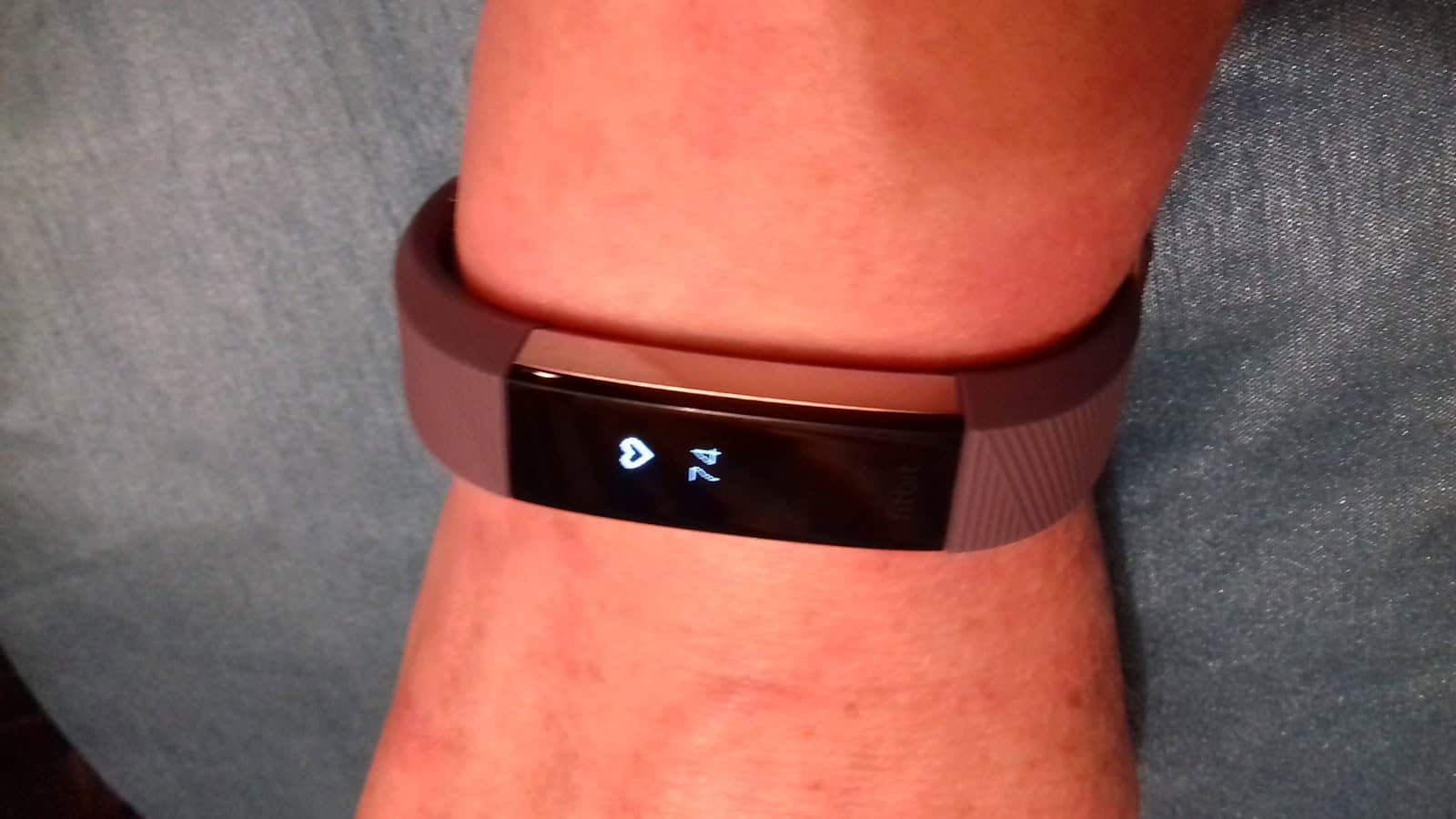
Featured image: Fitbit Alta HR by PamD, via Wikimedia Commons, licensed CC BY-SA 4.0.

I am the chief editor of TheLeaker. I also maintain the backend stuff of the site. I’m a tech enthusiast and loves to do Python coding in my free time. I have worked at many giant publications like XDA Developers and NXTtech before starting TheLeaker.
You can get in touch with me at Garv[at]theleaker.com.