
Most people try Do Not Disturb once, miss a call that mattered, and never turn it on again. That’s a shame, because the whole point of DND isn’t to block everything. It’s to block almost everything while leaving a few doors open. Set up properly, it’s the difference between a phone that interrupts you constantly and one that only speaks when it should.
The quick answer: Do Not Disturb silences notifications by default, but every Android version lets you punch holes in it. Open Settings, find Do Not Disturb (usually under Sound & vibration or Notifications), and set three things before you use it: allowed people, allowed apps, and repeat callers. Star your important contacts in the Contacts app first, then allow “starred contacts” for calls and messages. Turn on the repeat-callers exception so anyone who rings twice within about fifteen minutes gets through. That single toggle covers most genuine emergencies. Then add schedules so DND turns itself on at bedtime and during work blocks. Set up that way, you stop hearing group chats and promotional pings, but a family member calling twice at 2am still rings your phone.
What Do Not Disturb actually blocks
DND doesn’t stop notifications from arriving. Your phone still receives everything: messages land, apps sync, badges update. What DND suppresses is the alert: the sound, the vibration, and depending on your settings, the visual pop-up on screen. Everything is waiting in your notification shade when you look.
That distinction matters because people often expect DND to work like airplane mode. It doesn’t. Nothing is delayed and nothing is lost. You’re only changing whether your phone demands attention in the moment.
Alarms are the other common worry. On stock Android, alarms are allowed through DND by default, and on Samsung, Pixel, OnePlus and Xiaomi builds the same holds true. But there’s a toggle for it, and if someone has flipped it off you’ll oversleep. Before you trust DND overnight, open its settings and confirm alarms are on the allowed list. Test it once with an alarm five minutes out. That single test is worth more than any reassurance you’ll read online.
Where to find Do Not Disturb on your phone
The fastest route on every Android phone is the quick settings panel. Swipe down twice from the top of the screen, find the Do Not Disturb tile (a minus sign in a circle, or a crescent moon on some skins), and long-press it rather than tapping. Long-pressing opens the full settings page instead of just toggling it on.
If the tile isn’t there, tap the pencil or edit icon in quick settings and drag it in from the available tiles. It’s worth doing. You’ll use it far more often when it’s one swipe away.
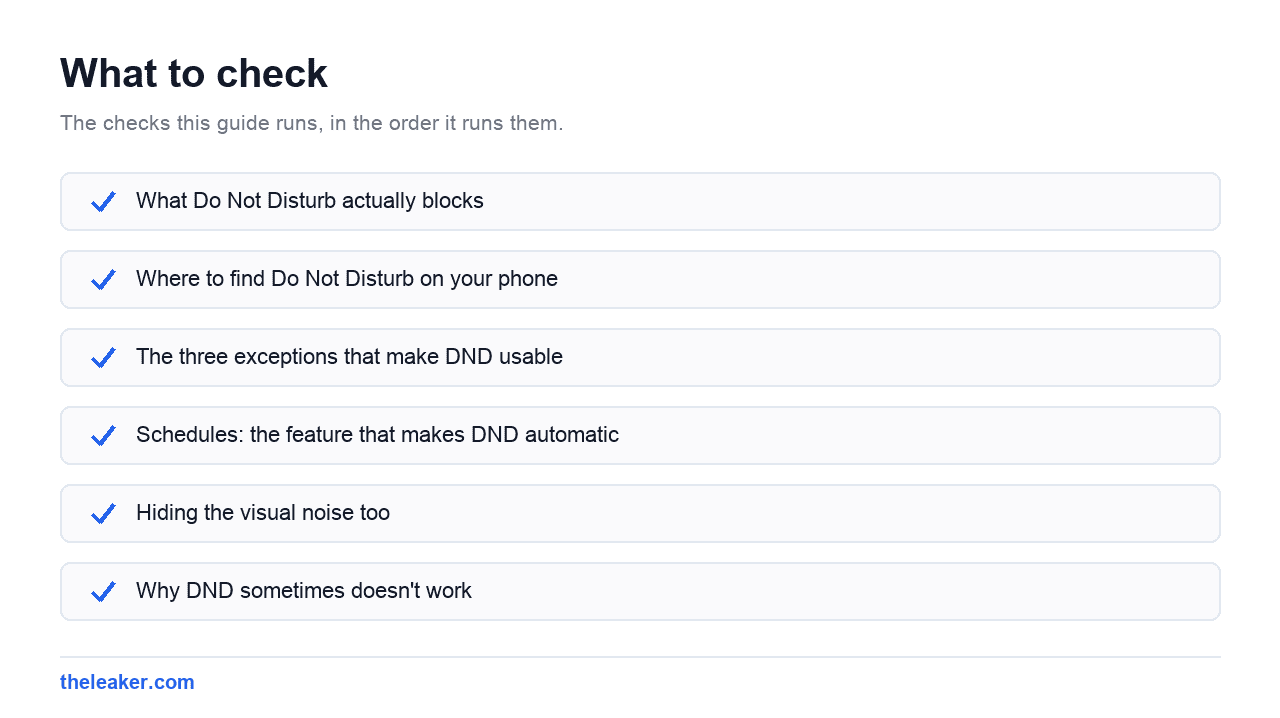
Through the Settings app, the path varies by brand:
- Pixel and stock Android: Settings → Notifications → Do Not Disturb
- Samsung One UI: Settings → Notifications → Do Not Disturb
- OnePlus and Oppo: Settings → Sound & vibration → Do Not Disturb
- Xiaomi HyperOS: Settings → Sound & vibration → Do Not Disturb
If none of those match, just search “do not disturb” in the Settings search bar. Every Android build has one, and search beats hunting through menus that manufacturers reshuffle with each update.
The three exceptions that make DND usable
This is the part people skip, and it’s why they abandon DND. Out of the box it’s often too blunt. Configure these three and it becomes genuinely useful.
1. Star your important people
Android’s exception system leans heavily on starred contacts. The built-in “favourites” marker in your Contacts app. Open Contacts, tap a person, and tap the star icon. Do that for your partner, kids, parents, and anyone whose call you’d never want to miss.
Then in DND settings, under People or Calls, choose to allow calls from starred contacts. Do the same for messages if you want texts from those people to break through too. You can usually choose “contacts” instead of “starred contacts,” but that’s a much wider net: anyone in your address book, including that plumber you saved in 2019.
Samsung, Xiaomi and OnePlus all handle this slightly differently in wording but the underlying idea is identical. Some skins let you pick individual contacts directly in DND settings rather than using stars, which is more precise if your favourites list is doing another job.
2. Turn on repeat callers
This is the single most valuable setting in Do Not Disturb, and it’s frequently off by default. With repeat callers enabled, if the same number calls twice inside a short window (typically fifteen minutes), the second call rings normally: even from a number that isn’t in your contacts.
Think about who calls twice in a row. It’s a hospital, a school, a family member using someone else’s phone, a colleague with a genuine emergency. It is almost never a spam caller or a delivery robocall, because those move on to the next number. This one toggle catches the emergencies without opening the floodgates.
3. Pick your allowed apps deliberately
Under App notifications or Apps in DND settings, you can nominate specific apps that are allowed to alert you. Be ruthless here. Good candidates: your messaging app if you’ve also restricted it to specific people, a home security or baby monitor app, an on-call or paging app if your job needs one.
Bad candidates: email, social apps, news, anything with a marketing team. If you allow email through DND you’ve essentially disabled DND, because email is the highest-volume, lowest-urgency channel most people have.
On Pixel and recent stock Android, there’s an extra layer worth knowing: conversation priority. You can mark individual chat threads as priority, and then allow “priority conversations” through DND. That’s more surgical than allowing an entire messaging app: one specific group chat or one person gets through, the rest stay quiet.
Schedules: the feature that makes DND automatic
DND you have to remember to turn on is DND you’ll forget. Schedules fix that.
In DND settings, look for Schedules, Rules, or Turn on automatically. Most phones ship with a sleep rule and an event rule already created but switched off. You can enable those or build your own.
Rules worth setting up:
- Sleeping. Nightly, from your usual bedtime to your usual wake time. This is the one everyone should have. Set it once and never think about notifications at 1am again.
- Calendar events. Many builds let DND activate automatically during events marked “busy” on your calendar. Meetings silence themselves.
- Focus blocks. A weekday rule covering a couple of deep-work hours. Even a two-hour daily window changes how a workday feels.
Each schedule can carry its own exception settings on stock Android, so bedtime DND can be stricter than meeting DND. Check whether your rule uses the default behaviour or custom behaviour; if it’s using defaults, changing your main exceptions changes the schedule too.
Samsung’s One UI adds Modes and Routines, which is DND with extra layers: a Sleep mode or Work mode can silence notifications and change your wallpaper, adjust screen settings, and toggle Wi-Fi behaviour. If you’re on a Galaxy, Modes is generally the better tool than raw DND. Xiaomi’s HyperOS has a similar Focus mode concept. Pixels have Modes too on recent releases, doing much the same job.
Hiding the visual noise too
Silencing sound is only half of it. If your screen still lights up with every banner, you’ll keep getting pulled in. Look for display options inside DND settings: usually called “Options for hidden notifications,” “Display settings,” or similar.
You’ll typically get three levels:
- No sound from notifications. They still appear on screen and in the shade.
- No visuals or sound. Nothing appears while DND is on; everything is in the shade when you look.
- Custom. Pick individually: no pop-ups, no status bar icons, no wake screen, no dot on the app icon.
For a bedtime rule, the strongest setting is right: no screen wake, no pop-ups. For a work-focus rule, silencing sound while letting notifications stack silently on screen is often enough.
One thing worth checking on any phone: whether DND is actually stopping the screen from waking. Some devices have a separate ambient-display or lift-to-wake behaviour that overrides it and lights the room at 3am regardless.
Why DND sometimes doesn’t work
If DND is on and you’re still getting interrupted, it’s almost always one of these:
An app has notification permission you forgot about. Check your allowed apps list. One rogue entry undoes everything.
Alarms and media are allowed by design. Timers, alarms, and media playback are separate categories. DND doesn’t silence a video you’re playing, and shouldn’t.
The volume is separate. DND and ringer volume are different systems. You can have DND on and still hear things it allows through at full volume. That’s intended.
Aggressive manufacturer overrides. Some skins have their own “important calls” or “urgent” logic layered above DND that can let things through. If your phone is behaving oddly in other ways too, our guide to hidden Android settings worth changing covers several of these manufacturer quirks.
Priority Mode or Zen-style third-party apps. If you’ve installed a focus app, it may be fighting with the system setting. Pick one and disable the other.
A setup that works for most people
If you want a starting point rather than a list of options, do this:
- Star five to eight people in Contacts. No more.
- In DND: allow calls from starred contacts, allow messages from starred contacts.
- Turn on repeat callers.
- Allow zero apps, or one if you need it.
- Confirm alarms are allowed. Test with a real alarm.
- Create a nightly schedule covering your sleep hours.
- Set hidden-notification behaviour to no visuals during that schedule.
Live with it for a week. The only adjustment most people need afterwards is adding or removing a starred contact.
Frequently asked questions
Will Do Not Disturb block my alarm?
No, not with default settings. Alarms are on the allowed list on every mainstream Android build. Even so, the setting can be turned off, and it’s worth confirming rather than assuming. Open DND settings, check that alarms are permitted, then set a test alarm a few minutes ahead with DND active. Timers are usually governed by the same setting.
Can someone tell that I have Do Not Disturb on?
Generally no. Unlike some messaging platforms that show a status indicator, Android’s system DND is invisible to the person calling or texting you. Their call rings normally on their end and goes to voicemail if you don’t answer. It looks exactly like you were away from your phone. Individual apps may show their own status separately, but that’s the app’s doing, not Android’s.
What’s the difference between Do Not Disturb and silent mode?
Silent mode is blunt: it mutes the ringer and notification sounds with no exceptions. Do Not Disturb is a rules engine. It silences by default but lets you define who and what gets through, and it can turn itself on and off on a schedule. Silent mode is for a two-minute meeting. DND is for anything you want to be automatic and selective.
Do messages still arrive while Do Not Disturb is on?
Yes. Everything arrives normally: DND only suppresses the alert, not the delivery. When you unlock your phone, all the messages and notifications that came in are sitting in your notification shade, in the order they arrived. Nothing is delayed, dropped, or hidden permanently.
Related: How to Stop Spam Calls on Android for Good · Your Google Assistant Routines Are Gone: Here's What Actually Still Works

Shivam has been working as a Tech journalist since 2014. He has worked at many Tech news blogs and Amazon India after that he joined TheLeaker in 2017 as a staff writer and now he’s an editor on the portal. When he is not working, you can find him playing games and listening to pop music. You can find him on Facebook and Twitter and can also contact him via email at [email protected]