
Your password is probably not as unique as you think it is. Billions of leaked credentials sit in searchable databases right now, and attackers do not guess passwords one at a time anymore. They just try the ones that already leaked. Two-factor authentication is the single change that makes those leaked passwords useless.
The quick answer: Open myaccount.google.com, go to Security, and turn on 2-Step Verification. Then add at least two methods that are not SMS: a passkey or Google prompt for daily sign-ins, plus an authenticator app as a fallback. Download your ten backup codes and store them somewhere offline. A password manager entry or a piece of paper in a drawer. Repeat the same setup on the other accounts that actually matter: your email, your bank, your password manager, and any account tied to money. SMS codes are better than nothing, but they can be stolen through SIM swaps, so treat SMS as a last resort rather than your main method. The whole process takes about fifteen minutes once, and then you almost never think about it again.
What two-factor authentication actually does
A password is one factor: something you know. Two-factor adds a second, different kind of proof: something you have (your phone, a hardware key) or something you are (a fingerprint or face scan).
The point is that the two factors fail in different ways. A password leaks in a database breach on some server on the other side of the world. Your phone does not. So even if your password is sitting in a leak from a shopping site you forgot you signed up for in 2017, the attacker hits a wall at the second step.
This matters more than people assume because of a habit almost everyone has: reusing passwords. Attackers take a leaked email and password pair from one site and try it on hundreds of others automatically. It is called credential stuffing, and it works constantly. Two-factor breaks it.
Not all second factors are equal
Here is the honest ranking, strongest to weakest.
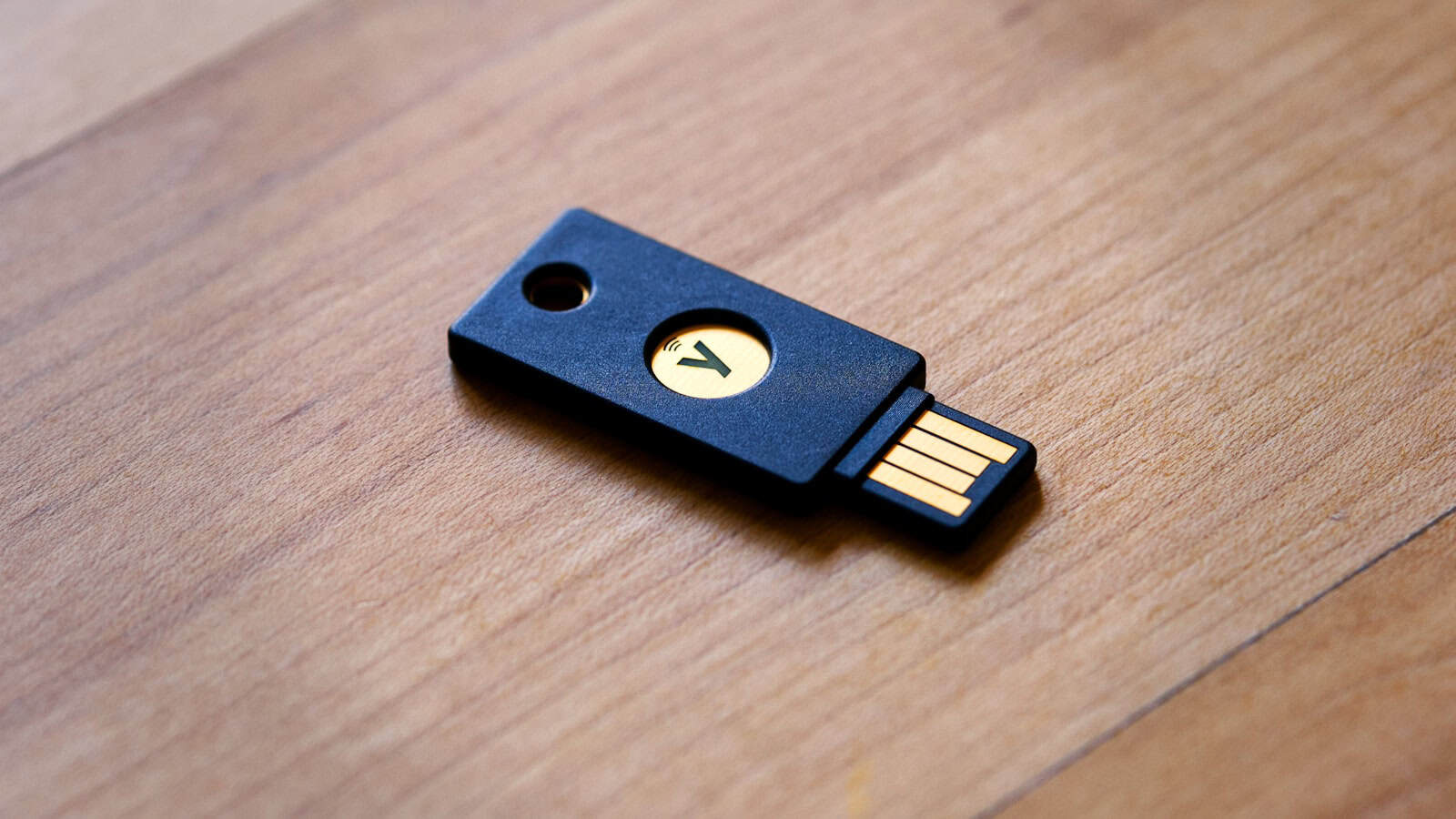
Hardware security keys. A physical USB or NFC key like a YubiKey or Google’s Titan key. These are the only method that genuinely cannot be phished, because the key checks the website’s actual domain before it responds. A fake login page gets nothing. The downside is cost and the fact that you need a spare in case you lose one.
Passkeys. Same underlying technology as security keys, but the key lives in your phone or password manager and unlocks with your fingerprint or face. Google, Apple, Microsoft, Amazon, PayPal and a growing list of others support them. Passkeys are phishing-resistant in the same way hardware keys are, and they sync across your devices, which removes most of the “what if I lose it” anxiety.
Authenticator apps. These generate a six-digit code that changes every thirty seconds. Google Authenticator, Aegis, Authy, and the built-in generators in Bitwarden and 1Password all do this. The code never travels over the phone network, so SIM swapping does not touch it. The weakness is that a convincing fake login page can ask you to type the code and use it within its thirty-second window.
Google prompt. The “Is this you?” notification that pops up on your signed-in Android phone. Google now shows a two-digit number on screen that you have to match, which stops the old trick of spamming someone with prompts until they tap Yes by accident.
SMS codes. Last place. They work, and they are far better than nothing, but they depend on your phone number staying yours. SIM swap attacks, where someone social-engineers your carrier into moving your number to their SIM, are not theoretical. They happen to ordinary people, not just crypto millionaires.
Setting it up on your Google account
Your Google account is the one to do first, because it is the recovery route for almost everything else you own. Whoever controls your Gmail can reset the password on most of your other accounts.
- Go to
myaccount.google.comin a browser, or open Settings on your Android phone and tap your name at the top, then Google Account. - Open the Security tab.
- Tap 2-Step Verification and follow the prompts. Google may already have this switched on, it has been enrolling accounts automatically for a while, in which case you are reviewing rather than enabling.
- Once it is on, scroll down that same page. You will see the extra options: Authenticator, Backup codes, Security keys, and your registered phones.
- Add an authenticator app. Google shows a QR code; scan it with whichever app you chose.
- Tap Backup codes and save the ten codes it gives you. Each one works once.
Passkeys live in a separate section of the same Security page, under Passkeys and security keys. On an Android phone that is already signed in, Google usually offers to create one with a single tap.
Which authenticator app to pick
Google Authenticator is the simplest and now syncs your codes to your Google account, which fixed its worst old problem: losing your phone used to mean losing every code on it.
Aegis Authenticator is open source, Android-only, and lets you export an encrypted backup file you control. If you like owning your own data, this is the one.
Bitwarden and 1Password can store your codes alongside your passwords. Convenient, and the autofill is genuinely nice. Purists point out that keeping both factors in one vault reduces the separation that makes two-factor work, which is a fair argument, though a well-protected vault with its own strong 2FA is still a big upgrade over nothing.
Whatever you pick, make sure it has a backup or export path. The number one reason people get locked out of their own accounts is a dead phone with the only copy of their codes on it.
Brand-specific bits worth knowing
Samsung. Your Samsung account is separate from your Google account and has its own two-step verification, tucked away under Settings, then Samsung account, then Security. Worth doing. That account controls Find My Mobile, Samsung Pay and your cloud backups.
Xiaomi. The Mi account gets its own verification settings and is tied to device unlocking and cloud backups. Same reasoning applies.
Pixel. The most seamless passkey experience, since Google Password Manager is built in and the fingerprint sensor handles the confirmation. If you want the easy path, this is it.
On any Android phone, having the second factor tied to a device you actually control means checking the rest of your device security too. Our guide to hidden Android settings worth changing covers a few related toggles most people never open.
The mistakes that lock people out
Two-factor has one real risk, and it is not attackers. It is you losing access to your own second factor.
Only having one method. If SMS is your only option and your phone is stolen, you are stuck. Always register at least two.
Never saving backup codes. They exist precisely for the worst day. Save them the moment you turn 2FA on, not later.
Forgetting to move codes when you switch phones. Authenticator codes do not always come across in a standard phone transfer. Migrate them deliberately before you wipe the old device. The same care you should take with everything else when you move to a new Android phone.
Leaving stale recovery info. An old phone number you gave up three years ago is a live door into your account if someone else now has that number. Check it.
What to protect beyond Google
Once Google is done, work down this list in order:
- Your password manager. It holds everything else
- Banking and payment apps, including PayPal and any wallet
- Any other email account, including old ones you barely use
- Social accounts, especially ones linked to a business or income
- Your phone carrier account. This is the one that stops SIM swaps, and almost nobody thinks of it
- Cloud storage like Dropbox or OneDrive
The carrier one deserves a second mention. Most carriers offer a port-out PIN or account lock that prevents your number being transferred without it. Ask for it. It is free and it closes off the attack that defeats SMS codes.
Frequently asked questions
Does two-factor authentication slow down every sign-in?
No. Most services let you mark a device as trusted, so you only see the second step on new devices or roughly every thirty days. In practice, on your daily phone and laptop, you will rarely notice it. Passkeys are actually faster than typing a password, since a fingerprint tap replaces the whole thing.
What happens if I lose my phone with the authenticator app on it?
This is what backup codes are for: each one substitutes for a code once. If you also have a second method registered, such as a passkey on another device or a security key, use that instead. Failing both, Google’s account recovery at g.co/recover can restore access, but it is deliberately slow and asks for details only the real owner would know. Set up backups and you never have to find out.
Is SMS two-factor better than no two-factor?
Yes, clearly. It stops credential stuffing and every automated attack that relies on a leaked password alone. The reason to move past SMS is targeted attacks, SIM swaps and interception, which need someone to specifically go after you. Turn on SMS today if that is all a service supports, and upgrade when a better option appears.
Do passkeys replace passwords entirely?
On some services, yes: Google lets you sign in with a passkey alone and skip the password. Most sites still keep the password as a fallback, which means your account is only as strong as the weakest way in. For now, treat passkeys as a very strong second factor, keep a long unique password behind it, and let the fallback shrink as more services drop it.

Hola everyone! I’m Sajid and I’m a typical freelance Graphic Designer with a keen interest in technology and science stuff. I actually like to write about the recent happenings around the world of technology as a part of The Leaker.