
Your Google account is the master key to your digital life. Email, photos, contacts, documents, backups, payment details, and the recovery route into dozens of other accounts that email you a reset link. Lose it and you don’t lose one service, you lose the ability to prove you’re you.
Most people have never run a proper Google Account security checkup. Not once. Twenty minutes, done properly, fixes that permanently.
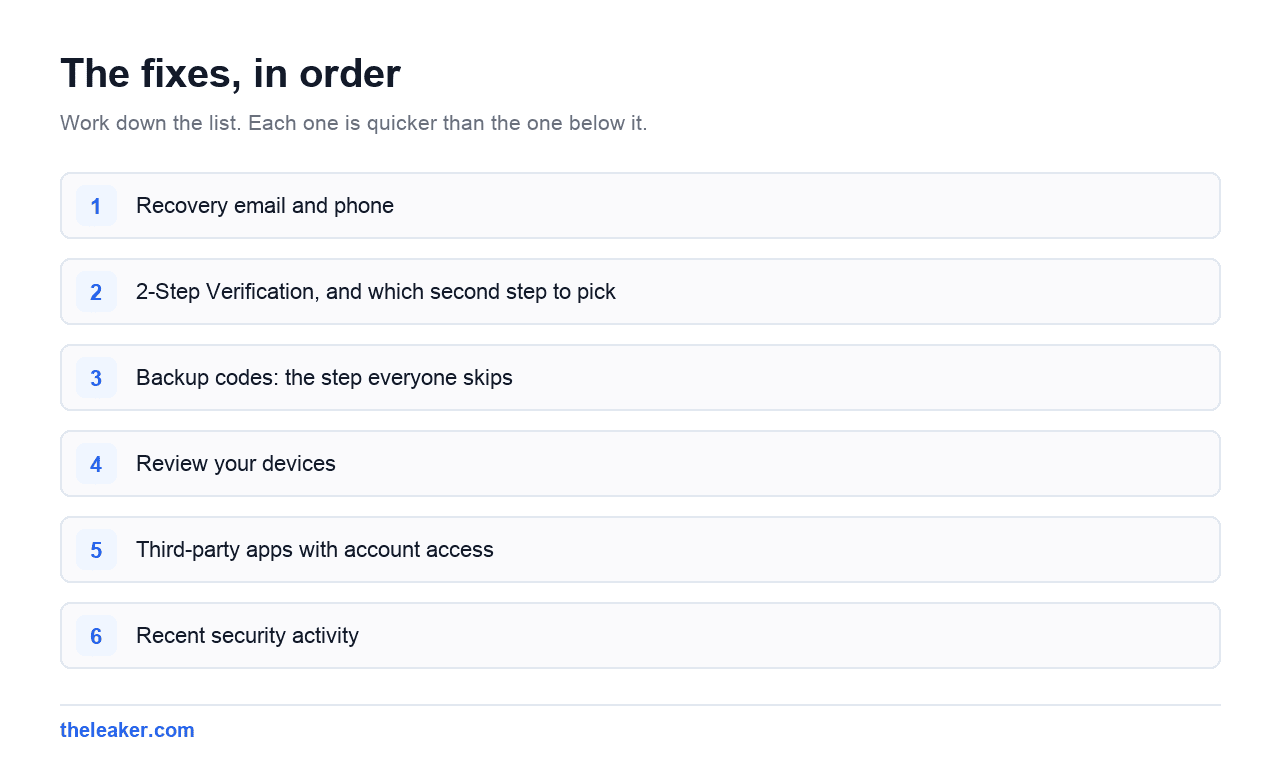
The quick answer: Go to your Google Account’s Security section and work through it in order. Confirm your recovery email and phone are current, because this is the single most important thing and the one most often out of date. Check Your devices and sign out anything you don’t recognise or no longer own. Review third-party apps with account access and revoke everything you don’t actively use. Turn on 2-Step Verification if it isn’t already, and prefer passkeys or an authenticator app over SMS codes. Check recent security activity for anything unexpected. Then set up your backup codes and store them somewhere physical. That’s the whole job, and it holds for years.
Start with the Security Checkup
Google has a built-in tool that walks you through the essentials. Open your Google Account from any browser or from the account icon in most Google apps, then go to the Security tab. At the top there’s a Security Checkup panel that shows a status and a list of areas to review.
It’s genuinely good, and a green tick there means the basics are covered. But it’s a summary. The interesting stuff is in the individual sections, and a couple of important settings live outside the checkup entirely. So use it as a map, not the whole territory.
1. Recovery email and phone (do this first)
If you only do one thing, do this one.
Recovery details are how Google confirms it’s you when something goes wrong: you’re locked out, you’re signing in from an unfamiliar country, or your password was changed. If your recovery phone is a number you stopped using three years ago and your recovery email is an address you can’t get into, you are one bad day away from losing the account entirely. Google’s account recovery process is deliberately strict, and there is no phone number you can call to argue your case.
In the Security section, find How you sign in to Google and check both Recovery phone and Recovery email. Update anything stale. Use an email address on a different provider, not another address on the same account, because the whole point is having a route in that doesn’t depend on the thing you’ve lost access to.
Worth noting: a recovery email is not the same as an alternate email, and neither is the same as the email addresses listed on your profile. Check the one specifically labelled recovery.
2. 2-Step Verification, and which second step to pick
A password alone is not enough anymore. Password reuse is universal, breaches are constant, and a leaked password from some forum you signed up to in 2014 is a real threat if you used the same one on Google.
2-Step Verification means that even with your password, an attacker still needs something you physically have. Turn it on in the same How you sign in to Google section.
Then choose your method carefully, because they are not equally strong:
- Passkeys are the strongest and easiest option. They tie sign-in to your device’s own screen lock, fingerprint or face unlock. There’s no code to type and nothing an attacker can phish out of you, because the credential never leaves your device. If your phone supports them, set one up.
- Google prompts push a “Is this you?” notification to a signed-in device. Very convenient, and much better than SMS. The risk is prompt fatigue, where people tap yes reflexively. Read the location and device shown before you approve anything.
- Authenticator apps generate rotating codes offline. Strong, works without signal, and immune to SIM-swap attacks. The catch is that if you lose the phone without a backup, you lose your codes, so pick an authenticator that syncs or export your setup.
- Security keys are physical hardware. The strongest option available and the right choice if you’re a high-value target such as a journalist, an activist, or someone managing money professionally. Overkill for most people.
- SMS codes are the weakest of the bunch. They’re vulnerable to SIM swapping, where someone convinces your carrier to move your number to their SIM. It’s still enormously better than no second factor at all, so if SMS is all you’ll realistically use, use it. Just don’t stop there if you can help it.
We’ve written more on the settings most Android owners never touch, and the security ones are consistently the least-visited part of the menu.
3. Backup codes: the step everyone skips
Under 2-Step Verification there’s an option for Backup codes. Google generates a set of one-time codes that work when your usual method isn’t available. Phone stolen, phone dead, abroad with no signal, authenticator wiped: backup codes get you in.
Generate them. Then, and this is the part people get wrong, store them somewhere that isn’t your phone. Print them and put them in a drawer, or write them down and put them with your passport. A screenshot in your photo library is useless if the problem is that you can’t reach your photo library.
Each code works once. Cross them off as you use them and regenerate the set when you’re running low.
4. Review your devices
In the Security section, open Your devices and then Manage all devices. You’ll get a list of everything currently signed in, plus recent sessions.
This list is usually longer and weirder than expected. Old phones you sold. A tablet that lives in a drawer. A work laptop from a job you left. A browser on a computer at a place you visited once. Every one of those is a live door into your account.
Tap anything you don’t recognise or no longer use and sign it out. If you genuinely don’t recognise a device, sign it out and change your password immediately afterwards, in that order.
One caveat: device names are often generic model identifiers rather than friendly names, so “SM-A536B” might well be your own old phone. Check the last-used location and time before panicking.
5. Third-party apps with account access
This is the section with the most forgotten clutter. Every time you clicked “Sign in with Google” on a website or app, you granted it some level of access to your account. Most of those were one-off signups you never returned to.
Find Your connections to third-party apps and services. Go through the list and ask two questions about each entry: do I still use this, and does the access level make sense?
Pay particular attention to anything with access to Gmail, Drive or Contacts. A service that can read your email is a service that can read your password reset links. Sign-in-only access is low risk. Full mailbox access is not.
Remove anything you don’t recognise or haven’t used in a year. Removing access doesn’t delete your account on that service, it just means it can no longer reach into your Google data, and you’ll be asked to sign in again next time.
6. Recent security activity
There’s a log of security-relevant events: new sign-ins, password changes, added recovery methods, granted app access. Scroll back a few months.
You’re looking for anything you didn’t do. A sign-in from a country you’ve never visited, a recovery phone you didn’t add, an app you didn’t authorise. If you find something, change your password right away, sign out all devices, and check that your recovery details haven’t been quietly swapped for an attacker’s.
Don’t be alarmed by unfamiliar locations on their own. Location is inferred from IP address, and mobile networks and VPNs routinely place you in a different city. Combine it with device and time before drawing conclusions.
7. The password itself
If your Google password is used anywhere else, change it now. That’s the whole rule. Reuse is the mechanism behind the overwhelming majority of account takeovers, because breached password lists get tried automatically across every major service.
A long passphrase beats a short complicated one. Four unrelated words are easier to remember and harder to crack than a mangled word with a number stuck on the end. Better still, let a password manager generate and store something random, and never think about it again.
Google also has a built-in Password Manager with a checkup that flags reused, weak and breached passwords across everything it’s saved. It’s inside the Security section and it takes about a minute to run. The results are typically sobering.
8. Two settings outside the checkup worth knowing
Advanced Protection Program. Google’s hardened mode for people at elevated risk. It requires security keys or passkeys, blocks most third-party app access, and makes account recovery much stricter. It’s excellent and it’s genuinely inconvenient. Consider it if you have a specific reason to think you’re targeted, not by default.
Inactive Account Manager. Buried in account settings rather than security, this decides what happens to your account if you stop using it for a set period. You can nominate someone to receive selected data, or have the account deleted. Unpleasant to think about, sensible to configure once, and it takes three minutes.
Myths worth binning
“2FA means I can’t get locked out, so I don’t need backup codes.” Backwards. 2FA increases your lockout risk, because now you need two things instead of one. Backup codes are the insurance premium on that.
“An unfamiliar location means I’ve been hacked.” Usually it means your carrier routed you through a different city, or you used a VPN. Look at the device and the timing too.
“Changing my password fixes everything.” It’s necessary but not sufficient. An attacker with account access may have added their own recovery email, an app password, or a forwarding rule in Gmail that keeps sending them your mail long after you’ve changed the password. Check recovery details and Gmail filters as well.
“My account isn’t worth attacking.” Account takeovers are overwhelmingly automated and indiscriminate. Nobody chose you. A script tried a leaked password against a million accounts and yours was on the list.
A twenty-minute run-through
Recovery email and phone, verified and current. 2-Step Verification on, with a passkey or authenticator rather than just SMS. Backup codes generated and stored offline. Devices reviewed, unknown ones signed out. Third-party app access pruned, especially anything touching Gmail. Security activity scanned for surprises. Password unique and long. Then diarise a repeat in twelve months.
While you’re in a tidying mood, it’s also worth confirming your data is actually backed up and that a lost phone wouldn’t take anything irreplaceable with it. Our guide to moving everything to a new Android phone covers what’s tied to your Google account and what isn’t, which is a useful thing to know before you find out the hard way.
FAQ
I’ve lost the phone with my authenticator app. What now?
Use a backup code if you have one. If not, try another registered method such as a Google prompt on a signed-in tablet or computer, or a recovery phone. Failing that you’ll go through Google’s account recovery, which asks questions about your account history and can take days with no guarantee. This is precisely why backup codes matter.
Is SMS 2-Step Verification worse than nothing?
No, it’s far better than nothing, and it stops the vast majority of automated attacks. Its weakness is SIM swapping, which is a targeted attack requiring someone to specifically go after your phone number. If you can move to a passkey or authenticator app, do. If SMS is what you’ll actually stick with, keep it.
How often should I do this checkup?
Once a year is plenty for most people, plus immediately after any of these: you lose or sell a device, you get a breach notification for a service you use, you notice something odd in your email, or you change your phone number. Recovery phone updates in particular should happen the same week you change numbers.
Does signing out a device delete anything on it?
No. Signing out removes the account’s access, so the device can no longer read your mail or sync your data, but it doesn’t wipe the device or delete files stored locally on it. If a device is stolen and you want it wiped, that’s a separate function in Google’s find-my-device tools, not the sign-out button in your account settings.

A tech Journalist and Photographer, Dhawal Sharma is a technology enthusiast who loves to research the latest innovations and technology. He has contributed to the Honor Community for a very long period and has crucial expertise in writing tech news and reviewing smartphones and laptops. Analyzing and bringing the facts about any piece of tech is what he loves the most. He is a great product photographer and is the Gizmopedia of TheLeaker. Find him on Facebook and Instagram, and you can also email him at [email protected].