

You got a sign-in alert from a country you have never visited. Or your password suddenly stopped working. Or friends are replying to emails you never sent. If your Google account was hacked, the order you do things in now matters more than the individual steps: do them out of order and you can lock yourself out while leaving the attacker in.
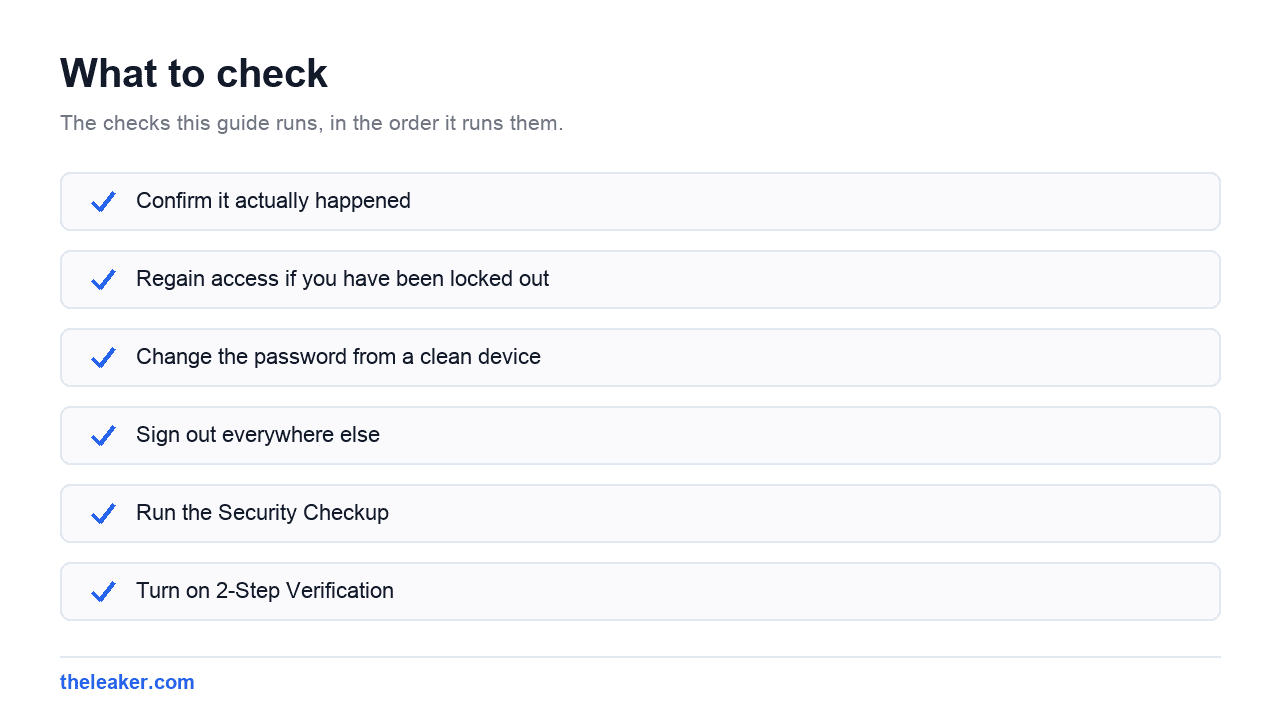
The quick answer: Work in this order. First, get back in: use g.co/recover if your password no longer works. Second, change your password from a device you trust. Third, sign out of every other session so the attacker’s active login dies. Fourth, run Google’s Security Checkup and turn on 2-Step Verification. Fifth, audit your recovery phone and email, because an attacker who changed those can just reset your password again. Sixth, revoke app passwords and third-party app access. Finally, open Gmail settings and check for forwarding addresses and filters the attacker added. This is the step almost everyone skips, and it is how they keep reading your mail after you have locked them out.
Step 1: Confirm it actually happened
Before the panic, check the evidence. Go to myaccount.google.com, open Security, and look at Recent security activity. Google logs new sign-ins, password changes, and new devices.
In Gmail on a desktop browser, scroll to the very bottom of the inbox. There is a small line reading “Last account activity”. Click Details and you get a table of recent sessions with IP addresses and access types.
Be a little skeptical of location data. Google’s location guesses come from IP addresses, and a VPN, a mobile carrier routing traffic through another city, or a work network can all produce alarming-looking entries that are genuinely you. Look for the combination. An unfamiliar location and a device type you do not own and a time you were asleep.
Also be wary of the alert itself. A very common scam is a fake “your account was compromised” email that links to a fake login page. Never act on a link in an email like that. Type myaccount.google.com into the address bar yourself.
Step 2: Regain access if you have been locked out
If your password no longer works, go to g.co/recover and start the recovery flow.
A few things make recovery go better:
- Use a device and browser you have signed in from before. Google weighs that heavily.
- Use the same network you normally use. Your home Wi-Fi, not a café.
- Answer every question, even approximately. A rough month and year for when you created the account beats skipping the question.
- If the first attempt fails, try again later from a familiar device rather than guessing wildly. Repeated bad attempts do not help.
If you still have access, skip ahead. You are in a much stronger position.
Step 3: Change the password from a clean device
Do this from a device you are confident is not compromised. If you suspect malware on your phone, use a different computer.
Go to Security, then Password. Pick something long and unique. A passphrase of four or five unrelated words beats a short scramble of symbols, and it is far easier to type on a phone keyboard.
Do not reuse a variation of the old password. If the attacker got in through a leaked password, “Password2024!” becoming “Password2025!” is not a fix.
Step 4: Sign out everywhere else
Changing the password does not always kill existing sessions instantly, and this is the gap attackers live in.
On the Security page, open Your devices and tap Manage all devices. Go through the list. Anything you do not recognise (and anything you recognise but no longer own, like a sold laptop) gets Sign out.
Sign yourself out of everything if you are unsure. Signing back in on your own devices takes a minute and removes all doubt.
Step 5: Run the Security Checkup
Google bundles the important checks at myaccount.google.com/security-checkup. Run it and work through every yellow or red item it flags. It will walk you past your devices, recent activity, sign-in methods and third-party access in one pass.
Treat it as a map rather than the whole job. It is good at surfacing problems and does not cover everything in this list: Gmail’s own settings in particular sit outside it.
Step 6: Turn on 2-Step Verification
If it was off, this is how they got in with just a password. Turn it on now.
From Security, tap 2-Step Verification and set it up. Add a passkey or authenticator app rather than relying on SMS alone, and save the ten backup codes it offers. If 2-Step Verification was already on, check the registered devices and phone numbers listed underneath it. An attacker who got in may have added their own.
Step 7: Audit your recovery information
This is the step that decides whether the attacker can simply come back tomorrow.
Under Security, check Recovery phone and Recovery email. If either one has been changed to something you do not recognise, fix it immediately. An attacker who owns your recovery email can reset your password whenever they want, no matter how strong the new one is.
While you are there, remove old numbers you no longer control. A phone number you gave up years ago has probably been reissued to a stranger by now.
Step 8: Revoke app passwords and connected apps
App passwords are sixteen-character codes that let older apps sign in while bypassing 2-Step Verification. If one exists that you did not create, it is a permanent back door. Find them under Security, in the 2-Step Verification section, and delete any you do not recognise. Honestly, delete all of them: legitimate apps can be reauthorised in a minute.
Then open Your connections to third-party apps and services on the Security page. This lists every app and website you granted account access to. Look at the permissions each one holds. Anything with access to Gmail, Drive or your contacts that you do not actively use should be removed. Old games, defunct productivity tools, one-off sign-ins from years ago: clear them out.
Step 9: Check Gmail for forwarding, filters and delegation
Here is the step people miss, and it is the most damaging one. An attacker who expects to be kicked out sets up persistence before they go.
Open Gmail in a desktop browser, click the gear icon, then See all settings.
Forwarding and POP/IMAP. Look for any forwarding address. A silent forward sends a copy of every email you receive to the attacker even after you have changed your password and 2FA. Remove anything you did not add. Also check whether POP or IMAP has been enabled.
Filters and Blocked Addresses. Attackers create filters that quietly delete or archive security alerts (messages from your bank, or Google’s own “new sign-in” notices) so you never see the warnings. Read every filter. Delete anything you did not create.
Accounts and Import. Check “Grant access to your account” for delegated users. Delegation gives another Google account the ability to read and send your mail. Also check the “Send mail as” list for addresses you did not add.
General. Check your signature and vacation responder. Both have been used to push scam links to everyone who emails you.
Step 10: Clean up the fallout
The account is secure. Now deal with what the attacker touched.
- Change passwords on accounts that use this email for recovery, starting with anything financial. If they had inbox access, they could have reset any of them.
- Check Google Drive sharing for files suddenly shared with unknown addresses.
- Review Google Pay for saved payment methods and any transactions you do not recognise.
- Check Google Photos shared albums.
- Warn your contacts if scam mail went out under your name.
- Look at your Android devices for apps you did not install, and check what has device admin or accessibility permissions.
On Samsung phones, remember your Samsung account is separate and holds Find My Mobile and cloud backups: secure that too. Same for a Xiaomi Mi account or a OnePlus account. Attackers who get one often try the same password on the others. If you are going to do a clean start on the device itself, our guide on moving everything to a new Android phone covers what actually needs to come across.
Frequently asked questions
How did they get in if I never gave anyone my password?
Almost always a password reused from a site that got breached. Attackers take leaked email and password pairs and try them everywhere automatically. The other common routes are phishing pages that look exactly like Google’s sign-in, and malware on a computer or a sideloaded app on a phone. You do not have to do anything obviously careless for any of these to work.
Do I need to factory reset my phone?
Usually not. If the breach was a password compromise, securing the account is enough. Reset if you have specific reason to think the device itself is infected: apps you never installed, settings changing on their own, an app holding accessibility or device admin permissions you did not grant. Uninstall the suspicious app first and see whether the behaviour stops.
Google says my account cannot be recovered. What now?
Try again from a device and network you have used with the account before, since Google weighs familiar signals heavily. Answer every question with your best estimate rather than skipping. If it genuinely fails, there is no phone line or human appeals process for free consumer accounts: build a new account and, this time, register two 2FA methods and save the backup codes. It is a hard answer, but an accurate one.
Should I delete the compromised account after recovering it?
No. A recovered and properly secured account is safer than a fresh one, because it keeps your history, your contacts and your recovery links to other services. Deleting it can strand you on every account that uses it for password resets. Secure it, audit it using the steps above, and keep it.

I am the chief editor of TheLeaker. I also maintain the backend stuff of the site. I’m a tech enthusiast and loves to do Python coding in my free time. I have worked at many giant publications like XDA Developers and NXTtech before starting TheLeaker.
You can get in touch with me at Garv[at]theleaker.com.