
Take off any screen protector, wipe the glass with a dry microfiber cloth, then restart the phone. Those three steps take a minute and clear the causes that cost nothing to rule out, which are grit on the glass, grit trapped under a protector, and a display glitch that a restart resets. Install any pending system update too, since a rendering bug can survive a restart without being a fault in the panel. If the mark survives all of that, check the glass itself for a crack, a deep scratch or damaged coating before you go further, since those are also outside the panel and none of what follows applies to them. If it is a crack, our guide to what a cracked screen actually costs to fix is the page you want instead. Which fault it is depends on your screen type and on what color you put behind it, and that second one trips up almost everybody.
No single background shows every fault
Most advice tells you to open a white screen and look. White is the right test for some of these faults and actively hides others, because anything that glows is invisible against a background that is already at full brightness.
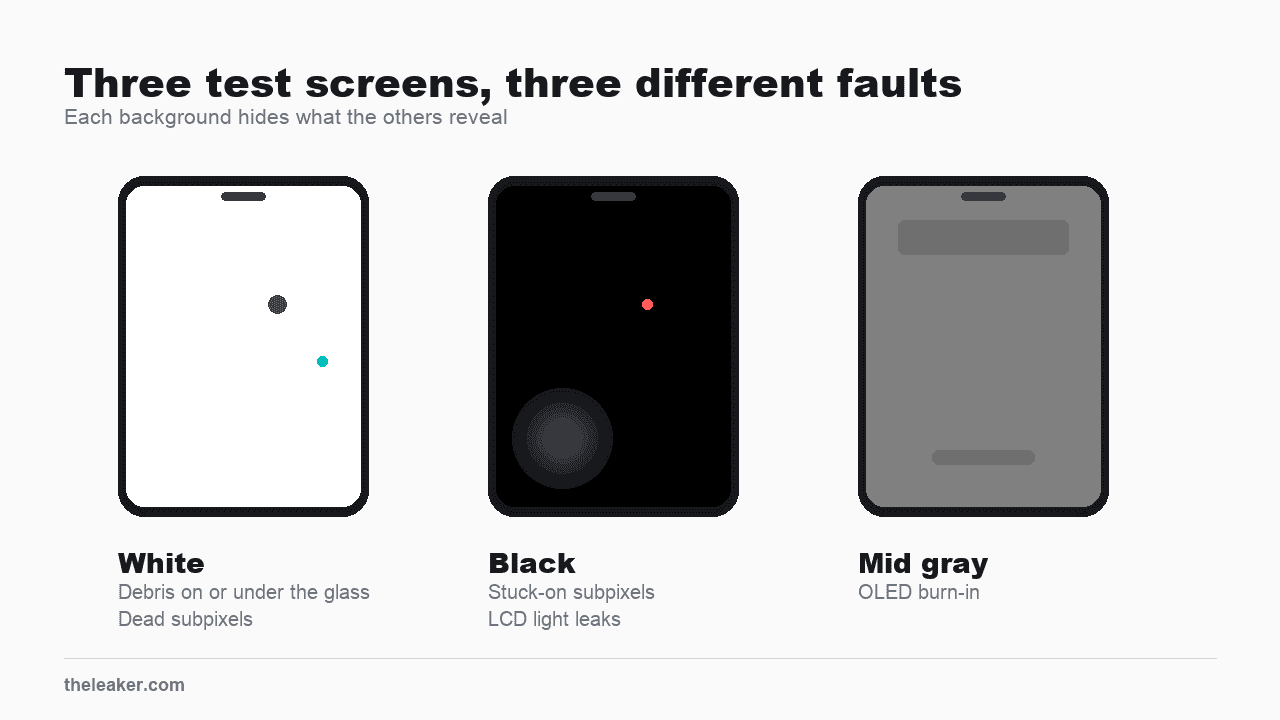
You need three full-screen colors: white, black and a mid gray about halfway between them. Search for “solid white image”, “solid black image” and “solid gray image”, save one of each to your gallery, then open them full screen and hide the interface, which is usually a single tap. The values only need to be close, but the field has to be flat, so discard anything with a gradient, a border or visible blockiness. A dead pixel test page in a browser gives you the same three colors, though not every phone browser will let you hide its own interface, which is why the saved images are the more reliable route. Turn brightness to maximum. It works the same way on iPhone and Android, which is the reason to prefer it. Some phones do have a built-in panel test, Samsung’s *#0*# dialer code among them, but a saved image works everywhere and gives you the mid gray those tests tend to skip.
| Background | What it reveals | Why |
|---|---|---|
| White | Foreign material, dead subpixels | Debris blocks light and reads dark, and a dead subpixel leaves the pixel short of one color |
| Black | Stuck-on subpixels, LCD pressure damage, backlight bleed | Anything emitting light has nothing to hide behind |
| Mid gray | OLED burn-in | A mid tone drives every pixel part-way, so uneven wear shows as a difference rather than being clipped at either end |
The black screen is the one that matters if you searched for a bright spot. On white every subpixel is already driven hard, so one stuck permanently on has almost nothing to distinguish it from its neighbors. It only appears once the screen around it goes dark. The same logic covers the two LCD light leaks below.
Burn-in is the one fault that shows up on more than the background listed for it. Mid gray reveals it best, but heavy burn-in is visible on white too, as a dimmer or slightly colored patch, which is how most people notice it without ever running a test.
Before you call ghosting burn-in, rule out image persistence. They look identical and they are not the same thing. Apple’s OLED display page treats both as expected behavior on OLED and separates them by how long they last: “Image persistence is temporary and disappears after a few minutes of normal use.” Burn-in is the extreme case, from the same high-contrast image held at high brightness for a long time. So use the phone normally for a while, then retest on gray. If the ghost has gone it was persistence, and that mark is nothing to worry about. Apple gives no cut-off at which a surviving ghost becomes burn-in, so treat a few minutes as the point where persistence usually clears and a mark still there hours later as the one to take seriously.
Find out whether your screen is LCD or OLED
The two panel types fail differently, so the same mark means different things on each.
OLED iPhones: X, XS, XS Max, 11 Pro and 11 Pro Max, then everything from the 12 onward, including the 16e, the 17e and the iPhone Air.
LCD iPhones: 8 and earlier, XR, 11, and all three generations of SE. The SE line sits outside the numbered series, so its 2022 model is LCD despite arriving after the 12.
Android: there is no shortcut here, because the same brand ships both. Search your exact model number plus “display type” on GSMArena or the manufacturer’s spec page, which lists it as AMOLED, OLED or IPS LCD. AMOLED and OLED behave as OLED above. Price and release year are not reliable guides.
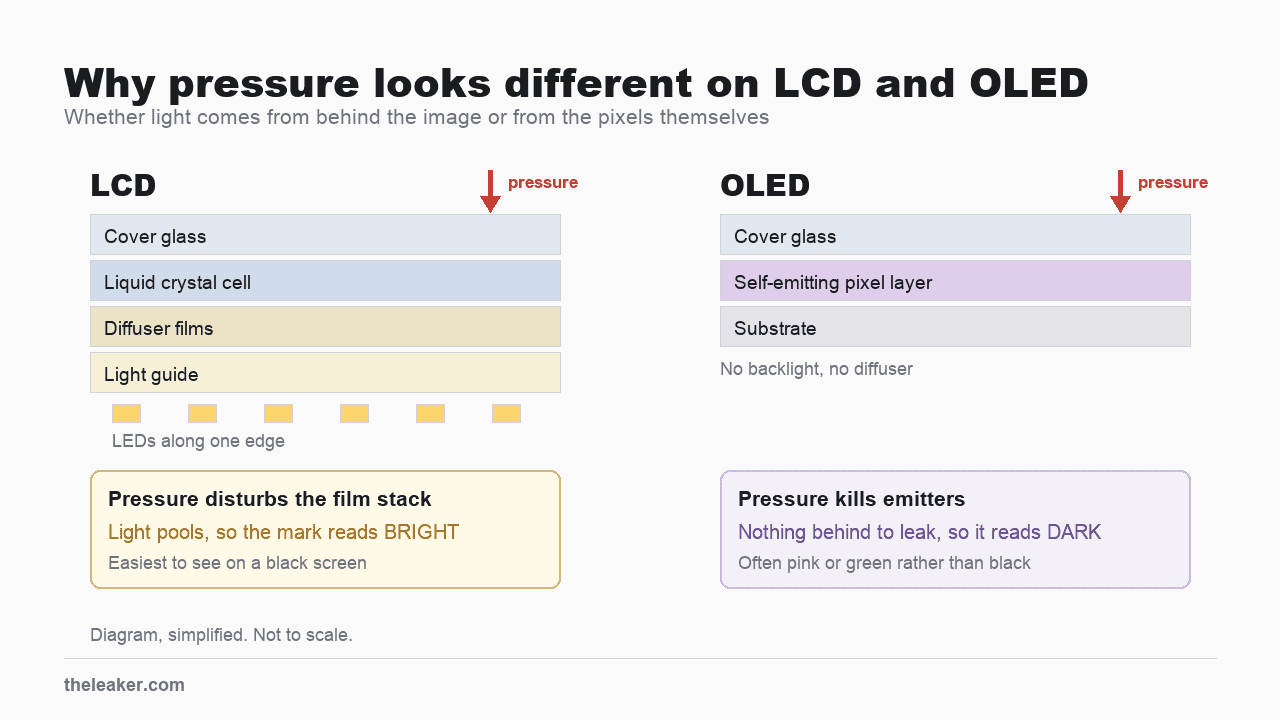
A phone LCD is lit from behind, most commonly by LEDs along one edge feeding a light guide and a stack of films that spread the light evenly. Disturb that stack and the light stops spreading evenly, which is one way a bright patch appears. Pressure can also damage the liquid crystal cell, the polarizers or the bonding, and those tend to read darker instead. An OLED has no backlight and no diffuser, so there is nothing behind the image to leak through, and pressure damage there more often shows as a dark, pink or green area. Neither outcome is guaranteed, since a hard enough knock can damage the cell, the bonding or the driver on either panel type and produce something else entirely.
Six faults, and the background that finds each
Apple’s support documentation names three: a dark pixel anomaly, a bright pixel anomaly and foreign material. That page is scoped to LCD panels and every iPhone Apple currently sells is OLED, which leaves a gap. Trapped debris behaves the same either way. The subpixel faults are named for the symptom you see, and on OLED the cause underneath can be the emitter itself as easily as the transistor driving it, so treat the names as descriptions of what you see and not as a claim that the two panel types fail identically. That reading of the scope limit is mine, and I have not found Apple stating it either way.
| What you see | Where | What it is | Where you stand |
|---|---|---|---|
| Irregular outline, darker than its surroundings | White | Foreign material | Free if it sits on the glass |
| A small colored dot, same place every time | White | Dark pixel anomaly, a subpixel stuck off | Assessed in store, against a threshold Apple does not publish |
| A small colored dot glowing against black | Black | Bright pixel anomaly, a subpixel stuck on | Assessed in store, against a threshold Apple does not publish |
| A bright patch with no clear edge, away from the borders | Black | LCD only. Usually pressure damage to the film stack, though contamination and uneven assembly look similar | Screen replacement |
| Glow along one or more edges or corners | Black | Backlight bleed. LCD only, and mild bleed is normal | Depends entirely on your manufacturer |
| Faint ghost of a keyboard, status bar or navigation pill | Gray | Burn-in only if it survives the persistence test described above. Otherwise image persistence | Replacement if it is burn-in. Nothing if it clears |
A stuck subpixel shows as a color, which surprises people expecting white. On an LCD, Apple describes each pixel as a red, a green and a blue subpixel with its own transistor, one of which “may not work perfectly” and leaves its subpixel stuck off or on. Lose the red one and white renders cyan. OLED pixel circuits are more complicated than that, with several transistors per pixel and subpixels that are neither equal in size nor always laid out in threes, so on either panel the color tells you a subpixel is stuck, without telling you how many parts failed underneath.
Backlight bleed sits apart from the rest because it is often not a fault at all. A faint glow at the very edge of an LCD is common on backlit panels and is widely treated as cosmetic. Apple’s anomaly page covers dark pixels, bright pixels and foreign material and says nothing about bleed at all, so do not assume any particular policy on it. Check your own manufacturer’s terms. A patch away from the edges is more likely to be damage, though position alone is only a hint. Judge bleed in a dark room, since ambient light hides all but the worst of it.
If cleaning the glass changed nothing and the debris is trapped inside the display, Apple says it “must be removed by an Apple Authorized Service Provider or Apple Retail Store”. That page gives no price and does not say whether the whole assembly gets replaced, so ask for the quote before you agree to the work.
Apple’s page does not give you a number
Everybody arrives wanting to know how many spots it takes to get a free screen. Apple’s page frames the test around having more than “an acceptable number” of anomalies, and does not define it on that page. What it does say is to bring the device in, and that “there may be a charge for the evaluation.”
That leaves you unable to predict the outcome before you go, and possibly billed to hear it. Establish your coverage status before booking anything.
What does not work
- Pixel-fixer apps and flashing color videos. None of the pages cited here documents these as a remedy, and I found no published evidence that they repair anything. Take the faults in turn. Debris, pressure damage and backlight bleed are not pixel faults, so there is nothing for an app to address. Burn-in involves uneven wear, which cycling does not undo. That leaves the two subpixel faults, stuck off and stuck on, which are the ones most people arrive here with. It is the case people have in mind when they try one, and it is the only place the idea is not obviously empty. On an LCD the liquid crystal is a material that reorients under drive, which is where the folk theory comes from, and scattered recoveries of stuck LCD subpixels get reported. On an OLED there is no liquid crystal at all, so that reasoning does not carry over to most phones sold today. I have not found anyone publishing evidence that it works. Some of these apps are paid, and the free ones still cost you a spell at full brightness.
- Pressing or massaging the spot. Nothing here is fixed by pressure, and if you do have LCD pressure damage this is the one action that can enlarge it. Since you cannot tell which fault you have until you have run the three backgrounds, wipe across the glass to test for debris and never push into it.
- Freezing or heating the phone. No source supports it as a fix, and taking a cold phone back to room temperature invites condensation inside a sealed body, which is a worse problem than the one you started with.
What this will not fix
- Cracked glass, even hairline.
- Several spots at once, or one that grows week to week. Both point at the panel.
- The phone has been wet. Stop charging it, power it off, and get it looked at before the mark has a chance to spread.
- Lines running from the spot to the edge of the screen. That points at the panel rather than the pixel, whether it is a cracked trace, a failed bond or the driver, and none of them is a home fix.
- A spot that appeared right after a third-party screen replacement. Take that back to whoever did the work.
What a repair costs
The panel faults above end at a replacement display assembly. A pixel is not a component sitting on a board, it is one cell in a matrix built as a single sheet, so there is nothing to unsolder and swap. Trapped debris is less predictable, since a bonded display can make removal impractical without replacing the unit anyway. Ask which job you are being quoted for.
The gap between covered and uncovered is the number to establish first. On an iPhone 17 Pro Max, Apple’s own estimates put screen damage at $379 out of warranty against $29 with an AppleCare plan. Choose your model on that page, since the figure moves a long way across the range, and note that Apple says fees may be subject to tax and that authorized providers set their own.
Both of those are accidental-damage prices. A manufacturing defect inside the warranty period costs nothing, so the cause matters more to your bill than the model does. Apple’s warranty covers “manufacturing issues for one year” and excludes accidental damage. Which side yours falls on is decided at the assessment, and there is nothing you can measure at home that settles it beforehand. Bear in mind the anomaly policy quoted earlier is written for LCD panels, while the OLED page covers persistence and burn-in without mentioning pixel anomalies at all, so for a current iPhone there is no published number to hold anyone to. What criteria Apple applies internally is not something I can tell you from the public pages. Check what is still active at Apple’s coverage checker before booking.
Android owners, the physics above is identical but none of these numbers are. Samsung, Google and OnePlus each run their own repair pricing and warranty terms, so look yours up on the manufacturer’s own support site and assume none of Apple’s figures travel.
FAQ
Does it get worse?
A single stuck subpixel often stays as it is, though nothing guarantees that, since the same symptom can come from a bond or a driver that is still degrading. Pressure damage can spread. Photograph it with a second phone or a camera, with something next to the screen for scale, and compare in two weeks.
Will a screen protector hide it?
No. A protector is transparent, so it hides nothing, and every fault here is in the glass or below it while the protector sits on top. A badly fitted protector is also an easy route for grit to get trapped underneath, which is why removing it comes first.
Can I keep using the phone?
Usually. The faults themselves are not dangerous, unlike glass you are running a finger across. Stop and get it looked at if the mark arrived with heat or water, or if the screen or back panel is lifting away from the frame anywhere, even slightly. A swelling battery is the reason to take that seriously, and it needs no heat and no water to happen. Failed adhesive or an earlier repair can lift a panel too, but you cannot tell which from the outside. Do not keep charging a phone that is coming apart at the seams.
Sources
- Apple, About LCD display pixel anomalies for Apple products released in 2010 and later, published March 9, 2024.
- Apple, About the Super Retina display and Super Retina XDR display on your iPhone, for image persistence and burn-in on OLED. Read August 9, 2026.
- Apple, Service and Repair for iPhone Screens, for warranty scope and repair pricing. Prices come from Apple’s model selector on that page and change by model. Read August 9, 2026.
- Apple, Check Coverage, for warranty and AppleCare status by serial number.
Related: Phone Speaker Sounds Muffled or Quiet? Try These Fixes

I am the chief editor of TheLeaker. I also maintain the backend stuff of the site. I’m a tech enthusiast and loves to do Python coding in my free time. I have worked at many giant publications like XDA Developers and NXTtech before starting TheLeaker.
You can get in touch with me at Garv[at]theleaker.com.