
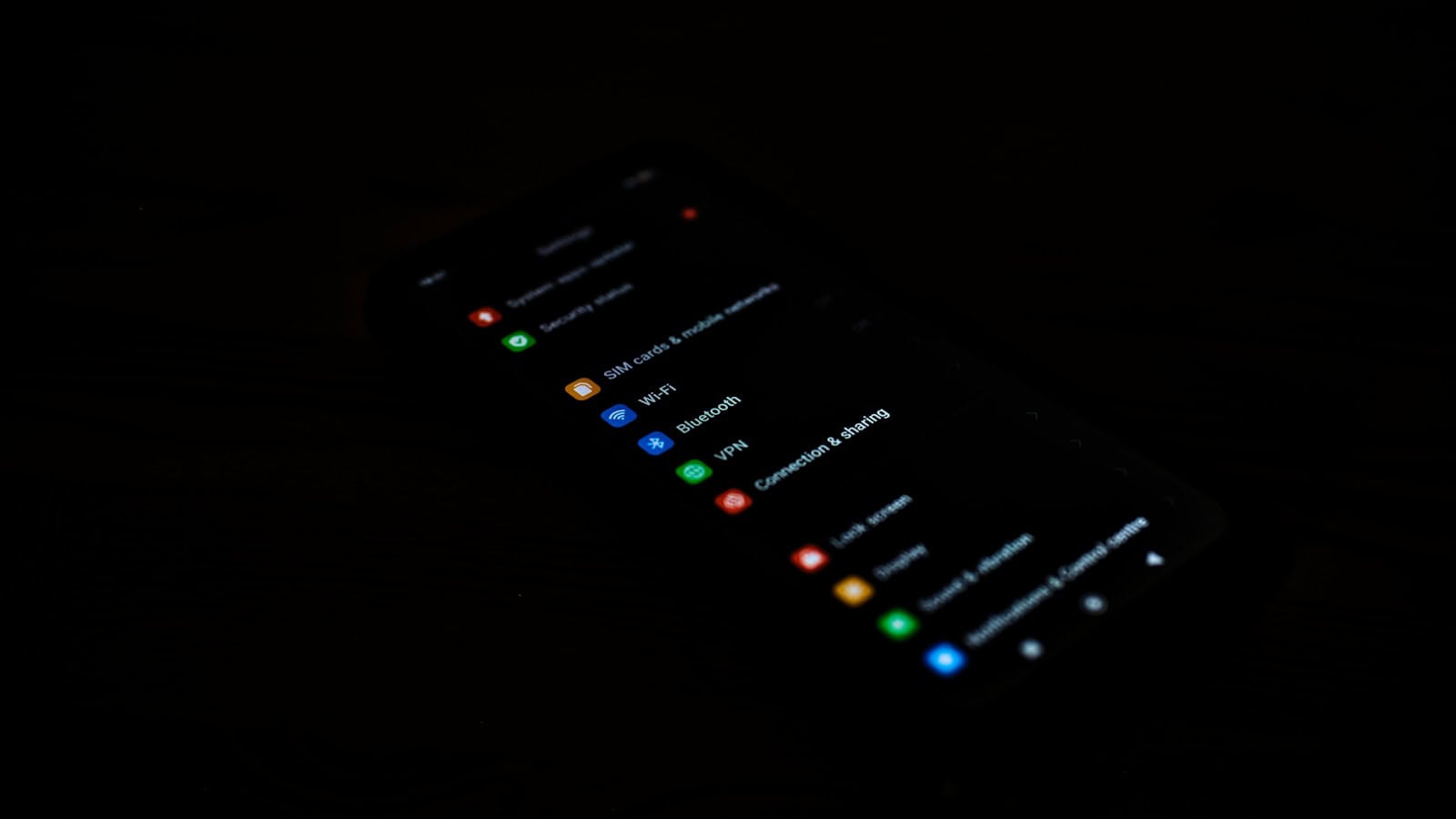
Turning on Android’s system dark mode takes two taps. Getting every app to respect it is a different job entirely, and it’s where most people give up. There’s a hidden developer option that forces dark styling onto apps that never built it. It works, it’s genuinely useful, and it comes with caveats nobody mentions.
The quick answer: switch on system dark mode first: swipe down twice and tap the Dark mode tile, or go to Settings → Display → Dark theme. That covers Android’s own interface and every app that supports it. For apps that stay stubbornly white, enable Developer options (Settings → About phone → tap Build number seven times), then in Developer options turn on Override force-dark. That makes Android invert light-coloured app interfaces automatically. It’s not perfect: some apps end up with grey-on-grey text, broken images, or odd colour shifts, and it’s a global switch rather than per-app. Chrome has its own separate flag for forcing dark web pages. Several big apps also have their own in-app theme setting that overrides the system, so check those individually before assuming anything is broken.

Step 1: Turn on system dark mode
Start with the official switch, because most apps follow it automatically.
Quick settings: swipe down twice from the top and look for a tile called Dark mode, Dark theme, or Night mode. Tap it. If it isn’t showing, tap the edit or pencil icon and drag it in.
Settings app:
- Pixel and stock Android: Settings → Display → Dark theme
- Samsung One UI: Settings → Display → Dark
- Xiaomi HyperOS: Settings → Display & brightness → Dark mode
- OnePlus and Oppo: Settings → Display & brightness → Dark mode
Since Android 10, dark mode is a proper system-level signal, not a filter. Android tells every app “the user wants dark,” and any app built in the last few years responds by switching to its own dark palette. That’s why supported apps look properly designed in dark mode rather than merely inverted.
Schedule it
Both stock Android and every major skin let you schedule dark mode: usually sunset to sunrise, or custom times. Look for it directly under the dark theme toggle. Sunset-to-sunrise is the sensible default if you only want dark mode at night.
Samsung goes further with adaptive options and a separate setting to reduce wallpaper brightness in dark mode. Xiaomi has an “Enhance dark mode for more apps” option in some builds, which is essentially its own take on forced dark, plus per-app toggles under dark mode settings. That per-app control is better than the stock developer option, if you’re on a Xiaomi phone, check there first.
Step 2: Check each app’s own theme setting
Before reaching for developer options, know that many apps ignore the system setting because they have their own. If an app looks white while everything else is dark, it’s usually set to “Light” internally rather than “System default.”
The pattern is almost always the same: open the app, go to Settings, look for Display, Appearance, or Theme, and choose System default. Most apps that offer a theme picker default to Light, not System, which is why they stay bright.
Places worth checking: your browser, your email client, your messaging apps, note-taking apps, music apps, and social apps. It takes ten minutes to go through the ones you use daily and it produces better results than forcing anything, because you get the app’s real dark design instead of a machine-generated approximation.
Step 3: Force dark on apps that don’t support it
Some apps (usually older ones, or simple utilities that haven’t been updated in years) have no dark theme at all. That’s where force-dark comes in.
Enabling Developer options
- Settings → About phone.
- Find Build number. On Samsung it’s under About phone → Software information.
- Tap it seven times. You’ll see a countdown, then a “You are now a developer” message. You may need to enter your PIN.
- Developer options now appears, usually under Settings → System, or Settings → Additional settings on Xiaomi.
Turning on force-dark
Open Developer options and scroll to the Hardware accelerated rendering section. Look for Override force-dark. Turn it on.
The change isn’t always immediate. Close and reopen an app to see the effect, and restarting the phone helps if nothing seems to happen.
What it actually does: Android analyses an app’s interface at render time and inverts light backgrounds to dark while trying to preserve images and already-dark elements. It’s an automated transformation, not a redesign, which is exactly why it’s tucked away in developer options rather than offered as a normal setting.
The caveats nobody mentions
Force-dark works well often enough to be worth using, but it fails in specific ways. Know them before you decide whether to keep it on.
It’s all or nothing. The stock developer option applies globally. You can’t pick which apps get it. Every app that lacked a dark theme now gets the automatic treatment, good result or bad. Xiaomi’s per-app dark mode list is the notable exception among major skins.
Contrast can break. The most common failure is text that was dark grey on white becoming light grey on dark grey: technically inverted, practically unreadable. Apps with subtle greys suffer most.
Images and logos get mangled. Android tries to leave photos alone, but graphics drawn as interface elements (icons, illustrations, charts, diagrams) may get inverted. A logo can come out as a negative of itself. Charts and maps often become confusing.
Brand colours shift. Buttons and highlights can come out in shades their designers never intended, sometimes with worse contrast than before.
Web content inside apps is unpredictable. Apps that display web pages inside themselves get inconsistent results: part of the screen dark, part still white.
There’s a small performance cost. The transformation happens at render time. On a modern phone you won’t notice; on an older or budget device you might see slightly less smooth scrolling in affected apps.
It can reset. Some phones clear developer options after a system update, so you may need to re-enable it. And developer options as a whole is a debugging menu: leave the rest of it alone unless you know what a setting does.
Practical advice: turn it on, live with it for a few days, and see whether the apps you actually use look better or worse. If two apps are ruined and eight are improved, keep it. If your banking app becomes unreadable, turn it off. That’s the trade.
Forcing dark mode on websites in Chrome
Web pages are separate from apps. Chrome’s system dark mode darkens the browser’s own interface (tabs, menus, the new tab page) but leaves websites looking however their authors designed them.
Chrome has its own setting for this. Open Chrome → three-dot menu → Settings → Theme, and if your version offers it, look for an option to darken website content or apply dark theme to sites. The wording and availability shift between Chrome versions, so if it’s not under Theme, check Accessibility in Chrome’s settings.
Chrome also exposes experimental flags at chrome://flags: searching there for “dark” has historically surfaced a force-dark option for web contents with several algorithm choices. Be aware that flags are unstable by design, get removed without notice between versions, and can cause odd browser behaviour. If you use them, change one at a time so you know what to revert.
The same expectations apply as with app force-dark: text-heavy pages come out well, image-heavy and design-heavy pages often don’t.
Keyboard, wallpaper, and the bits that stay bright
A few things sit outside dark mode and catch people out:
Your keyboard has its own theme. Gboard and Samsung Keyboard both have a theme picker in their own settings: usually with a “follow system” option that isn’t always on by default. A white keyboard flashing up in a dark room defeats the point.
Your wallpaper doesn’t change. A bright wallpaper undercuts everything else. Samsung has an option to dim the wallpaper in dark mode; on other phones, just pick a darker image.
Widgets follow their parent app, so a widget from an app without dark support stays bright on your home screen.
Notifications follow the system theme, but an app can specify its own colours for its notification, which can stand out oddly.
Google’s own apps mostly have individual theme settings under their own Settings → General → Theme. They usually follow the system, but check if one is misbehaving.
Does dark mode save battery?
Genuinely yes, but only on OLED screens and only meaningfully at low brightness with mostly-black content.
OLED panels light each pixel individually, so a black pixel draws essentially no power. Most flagship and mid-range Android phones use OLED. On those, dark mode does reduce screen power draw, and the screen is typically the single biggest consumer of battery.
The size of the saving is where expectations run ahead of reality. Google’s own research has shown meaningful savings at high brightness, but at the moderate brightness most people actually use, the difference is far smaller: noticeable over a full day, not transformative. And “dark grey interface” saves much less than “true black,” because grey pixels are still lit.
On an LCD screen, common on budget phones and older devices, dark mode saves essentially nothing. The backlight is on regardless of what’s displayed. It might still be easier on your eyes at night, but don’t expect battery gains.
If battery is your real goal, dark mode is a small contributor. Screen brightness, screen timeout, and background app activity all matter more, and there’s a wider list of adjustments in our guide to hidden Android settings that speed up your phone.
Is dark mode better for your eyes?
It depends on the room, and the popular claim is oversold.
In a dark room, a bright white screen is uncomfortable: dark mode clearly helps there. In a bright room, the opposite can be true: light text on a dark background is harder to read for many people, and readers who need reading glasses often find dark mode worse because the pupil dilates and blur increases.
The best approach is what dark mode scheduling already does: light during the day, dark at night. That’s why sunset-to-sunrise is the default schedule everywhere.
Dark mode also isn’t a blue light filter. Those are separate features (Night Light, Eye Comfort Shield, Reading mode) and they shift colour temperature rather than invert the interface. You can run both together.
Frequently asked questions
Is it safe to enable Developer options just for force-dark?
Yes. Enabling the menu doesn’t change anything by itself. It just makes debugging settings visible. The risk is in the other options inside, several of which can seriously affect stability or security if changed carelessly. Turn on Override force-dark, leave everything else alone, and back out. If you want to hide the menu later, there’s usually a toggle at the top of Developer options to switch it off.
Why do some apps stay white even with force-dark on?
Force-dark only applies to apps that haven’t declared their own theme handling. If an app explicitly tells Android it manages its own appearance, which many larger apps do, the system leaves it alone. In that case, look inside the app’s own settings for a theme option and set it to System default or Dark. Apps built on non-standard interface frameworks can also fall outside what force-dark can transform.
Can I force dark mode on just one app?
Not with the stock developer option, which is global. Xiaomi’s HyperOS does offer per-app dark mode control in its dark mode settings, and that’s the cleanest implementation among major skins. On other phones your options are the app’s own theme setting, or turning force-dark on globally and accepting the trade-off across everything.
Does dark mode affect screenshots or shared content?
Screenshots capture exactly what’s on screen, so they’ll show the dark interface, including any force-dark transformation. If you’re sharing a screenshot for someone else to read, be aware that force-dark results can look odd or hard to read out of context. Content you send (messages, documents, images) is unaffected; the recipient sees it in their own theme.
Related: How to Make Your Phone Easier to Read (Text Size, Contrast, and More)

I am the chief editor of TheLeaker. I also maintain the backend stuff of the site. I’m a tech enthusiast and loves to do Python coding in my free time. I have worked at many giant publications like XDA Developers and NXTtech before starting TheLeaker.
You can get in touch with me at Garv[at]theleaker.com.