

When a Roku stops working, the small light on the front of the device tells you what is wrong before you change a thing. No light means it is not getting power. A white light with no picture means the Roku is fine and the fault is your TV’s input. A solid red light means it is overheating, so unplug it and let it cool. A flashing red light means it is not getting enough power, which is the single most common Roku problem: it is being run off the TV’s USB port instead of the wall. Move it to a wall outlet with its own adapter and most of these faults disappear. If the box works but the remote does not, that is a separate fix.
Most “Roku not working” guides send you straight to a factory reset, which is the last thing you should try and rarely the answer. The Roku already tells you what is wrong through its status light and what is on the screen. Read those first, then go to the matching section below.
Read the status light first
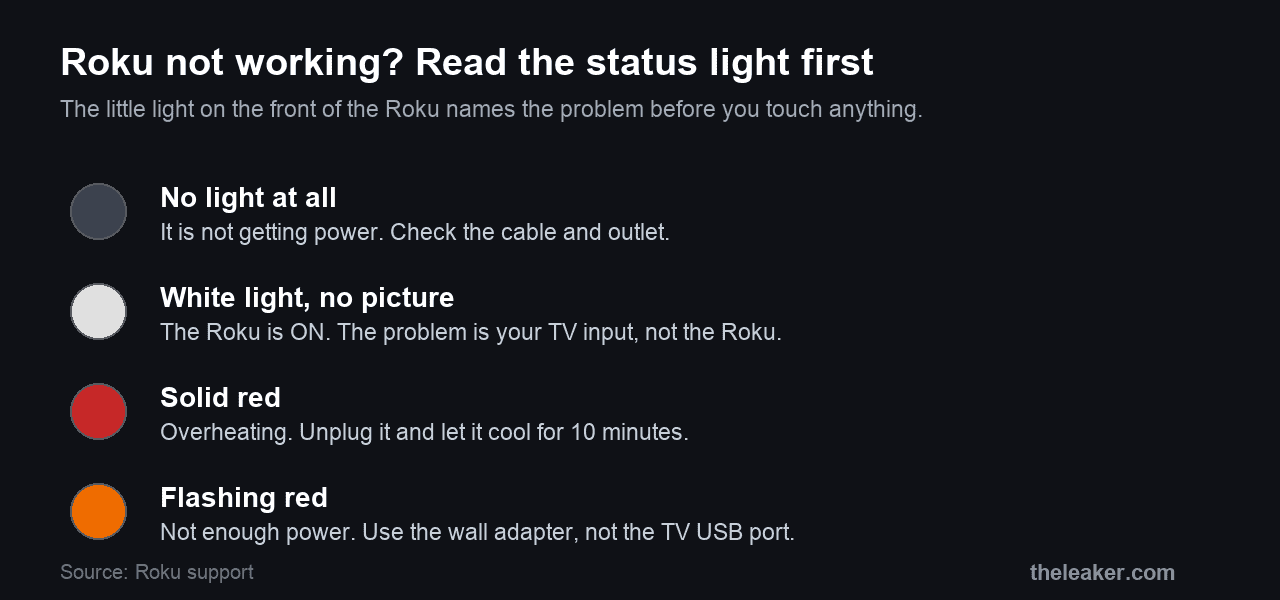
Look at the light on the front of the Roku and match it to the list. This comes straight from Roku’s own support page, and it saves you from fixing the wrong thing.
- No light at all: the Roku is not getting power. Go to the power section.
- White light on, but no picture: the Roku is running fine. The problem is on the TV side, almost always the input.
- Solid red light: the device is too hot. Unplug it and let it cool.
- Flashing red light: it is not getting enough power. This is the big one, covered below.
White light on, but no picture: it is your TV input
If the Roku’s light is on but the screen is blank or says “no signal,” the Roku is working and the TV is showing the wrong thing. Run through this in order.
- Press the Input or Source button on your TV remote and select the HDMI port the Roku is plugged into. This alone fixes a large share of “no picture” cases.
- Reseat the HDMI cable at both ends, the Roku and the TV, and make sure it clicks in fully.
- Try a different HDMI port on the TV, then set the input to match.
- Plug the Roku straight into the TV, not through a soundbar or an AV receiver. Routing it through other equipment is a common cause of a black screen, and it is the first thing Roku tells you to rule out.
If you see an HDCP error instead of a black screen, that is a copy-protection handshake failing over HDMI. Reseat the cable, try a different port, and avoid HDMI splitters, which frequently break it.
No light at all: the power problem
No light means no power reaching the device. Work from the outlet inward.
- Use the power adapter that came with the Roku, plugged into a wall outlet. Roku strongly recommends its own adapter over a substitute.
- Try a different wall outlet, and test that outlet with another device to be sure it is live.
- Avoid power strips and long extension leads. Plug straight into the wall for a steadier supply.
- If there is still no light on a known-good outlet with the right adapter, the adapter itself is likely faulty. A replacement is inexpensive from Roku’s accessories store.
Flashing red light: the underpowering problem almost everyone hits
This is the fault behind more Roku trouble than anything else, and it is easy to miss. A Roku streaming stick can be powered from the TV’s USB port, and that port often cannot supply enough current. When it falls short, the Roku crashes, restarts, freezes on the logo, or throws a “low power” warning, and the light flashes red. Roku spells this out on its low-power page.
- Move it to the wall. Use the Roku’s USB cable and its USB power adapter, plugged into a wall outlet rather than the TV’s USB port. Roku calls this the most reliable fix, and it is. As a bonus, the Roku stays powered when the TV is off, so it boots faster.
- Use the original USB cable. Cheap or long cables drop voltage and cannot carry enough current. If you swapped cables, swap back.
- Try a different TV USB port if you must use the TV, since some supply more power than others, and older USB 2.0 ports often cannot cope.
If you have lost the adapter, any USB power adapter rated 5V 1A (5 volts, 1 amp) or higher will do. One that supplies less will keep causing the same problem.
Solid red light: overheating
A solid, non-blinking red light means the Roku is too hot. Roku’s guidance is to unplug it and let it cool for at least 10 minutes before plugging it back in. Then stop it happening again.
- Move it out of a closed cabinet and away from other warm electronics.
- Do not stack it on top of a cable box, a games console, or the TV’s warm areas.
- On a streaming stick tucked behind the TV, ask Roku for a free HDMI extender, which moves the stick into open air.
Keeps restarting or stuck on the logo
A Roku that reboots in a loop or freezes on the purple screen is almost always one of the two problems above: not enough power, or heat. Rule those out first, because a reset will not fix a Roku that is starved of power. If power and temperature are both fine, force a clean restart from the menu at Settings, System, Power, System restart, or simply unplug it for 10 seconds.
Won’t connect to Wi-Fi or has no internet
If the Roku runs but cannot get online, start outside the Roku. Load any website on another device on the same Wi-Fi to confirm your internet is actually up, and check whether a wider outage is to blame before you change settings.
- Restart your router and modem, wait a couple of minutes, then restart the Roku.
- Re-enter your Wi-Fi password under Settings, Network, Set up connection, in case it changed.
- Move the Roku closer to the router, or add a mesh point, if the signal where it sits is weak.
- Check for a Roku outage.
What will not fix it
- A factory reset when the real problem is power or heat. It wipes your setup and changes nothing.
- A dead adapter or damaged device. If the trouble returns even on wall power with the right adapter, the hardware is failing and needs Roku support or a replacement.
- The remote. If the box is clearly running but you cannot control it, that is a remote problem, and our guide to a Roku remote not working is the one to read.
Frequently asked questions
Why does my Roku work better plugged into the wall than into the TV?
Because a TV’s USB port often cannot supply the steady current a Roku needs, especially older USB 2.0 ports. The wall adapter gives a stronger, more stable supply, which stops the crashes, restarts, and low-power warnings that underpowering causes. It also keeps the Roku on when the TV is off.
My Roku light is on but the TV shows no signal. Is the Roku broken?
No. A lit status light means the Roku is running. A “no signal” screen is the TV showing the wrong input, so switch the TV to the HDMI port the Roku is on, and reseat the cable. Only if the Roku is connected directly, on the right input, with a good cable and still shows nothing would you suspect the device.
Is Roku down right now, or is it just me?
Check whether other devices on your Wi-Fi can reach the internet, and whether a specific channel like Netflix is the only thing failing, which points to that service rather than the Roku. A Roku that cannot load anything while your other devices are online is a local problem, usually power or network.
How do I restart a Roku without a picture?
Unplug it from power, wait about 10 seconds, and plug it back in. That is the same as a menu restart and needs no remote or screen. If you do have a picture, the menu route is Settings, System, Power, System restart.
The short version
Read the light. No light is a power fault, white with no picture is a TV input fault, solid red is heat, and flashing red is the big one, an underpowered stick that belongs on a wall outlet rather than the TV’s USB port. Rule out power and heat before you ever reset, check the HDMI cable and input for a blank screen, and if the box is fine but unresponsive, the fault is the remote. While you are here, our guides to fixing a Roku remote and AirPlay on a Roku cover the two problems this page does not.
Featured image: Roku XDS player by Mattnad, via Wikimedia Commons, licensed CC BY-SA 3.0.

A tech Journalist and Photographer, Dhawal Sharma is a technology enthusiast who loves to research the latest innovations and technology. He has contributed to the Honor Community for a very long period and has crucial expertise in writing tech news and reviewing smartphones and laptops. Analyzing and bringing the facts about any piece of tech is what he loves the most. He is a great product photographer and is the Gizmopedia of TheLeaker. Find him on Facebook and Instagram, and you can also email him at [email protected].