

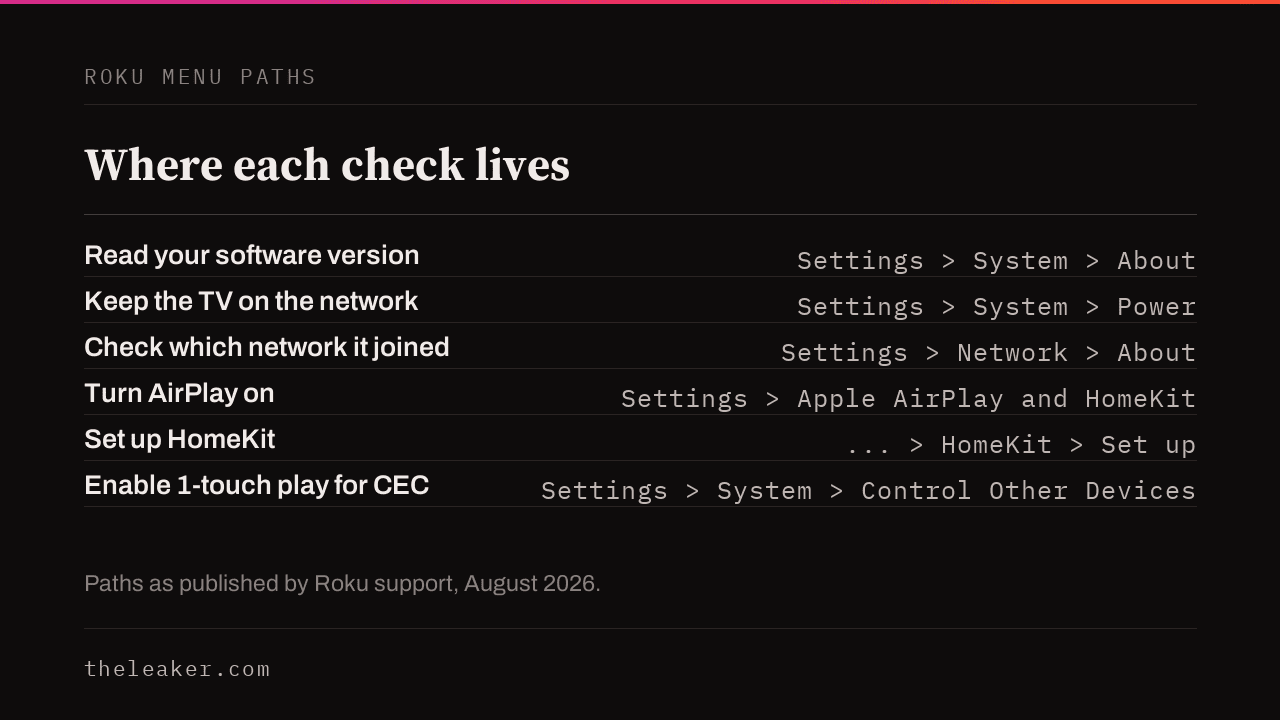
If your Roku is missing from the AirPlay list, check whether the TV is on the network right now at Settings > Network > About on the Roku itself. A Roku TV or Streambar can drop its Wi-Fi connection when you power it off, and Roku’s fix is a setting called Fast TV start at Settings > System > Power. Roku publishes that under setup rather than troubleshooting, so the readers most likely to need it never reach it.
Find your symptom first
The causes have almost nothing in common, so working through every fix in order wastes an evening. Each row below goes to a section that answers it. The third column says what the answer rests on, because two of these states have no vendor documentation behind them at all.
| What you see | Section | How good is the answer |
|---|---|---|
| The Roku never appears in the AirPlay list | Not on the network, then the version check | Roku documents all three checks |
| It appears, you select it, and nothing happens | When it appears but will not connect | Owner reports only |
| It works on a hotspot or over Ethernet, but not on home Wi-Fi | When only your own Wi-Fi fails | Owner reports, with a procedure |
| It connects, then drops mid-stream | When it drops after connecting | Apple documents audio drops only |
| AirPlay works but HomeKit control does not | HomeKit is a separate feature | Roku documents the limits |
Not on the network: the setting Roku files under setup
Roku states that a Roku TV system or Roku Streambar “may not stay connected to your wireless network when powered off”. Roku’s first instruction to anyone whose device does not appear is to confirm both devices are on the same wireless network, and a TV that has dropped off it cannot meet that condition. The fix is Fast TV start on a TV, or Fast start on a Streambar:
- Press Home, then Settings, then System, then Power
- Select Fast TV start or Fast start and check the box
Roku states the cost itself. The setting uses “significantly more power than normal standby” and overrides your default power settings. On a TV you use daily, take it. On a guest-room set, wake the TV with the remote before reaching for your phone and change nothing.
This sits under a heading about settings to check before using AirPlay. Roku’s troubleshooting section, further down the same page, does not mention it.
Roku’s own list for a device that never appears has three checks, and the other two take seconds. One is that both devices support AirPlay 2, which is the version table below. The other is that AirPlay is actually switched on at Settings > Apple AirPlay and HomeKit. Do the toggle check even when you are sure. This Roku page does not say what turns it off, only to confirm it reads On.
The version and model check
Roku gates AirPlay on software version, and its published tables set a different threshold per device. Read yours at Settings > System > About, which shows the model number on the same screen.

| Device | Minimum Roku OS |
|---|---|
| Roku Select and Plus Series TVs | Any version |
| Roku TV Axxxx, Cxxxx, CxxGB, 7xxxx | 9.4 |
| Streambar 9102, Streambar Pro 9101R2, Smart Soundbar 9101, onn. Roku Smart Soundbar 9100 | 9.4 |
| Streaming Stick+ 3810 and 3811, Streaming Stick 4K 3820, Streaming Stick 4K+ 3821 | 9.4 |
| Express 4K 3940, Express 4K+ 3941 | 9.4 |
| Premiere 3920 and 4620, Premiere+ 3921 and 4630 | 9.4 |
| Ultra 4600, 4640, 4660, 4661, 4670, 4800, 4802, 4850; Ultra LT 4662 and 4801 | 9.4 |
| Roku TV 5xxx and 6xxx, Express 3700, Express+ 3710, Roku 4 model 440 | 10.0 |
The Ultra line is enumerated rather than given as a range, so check your exact number against the list. If your model is absent, Roku’s current table does not list it as supported and no update has added it since the feature shipped. Treat that as the answer for now rather than something to wait out.
Roku’s page also sets the Apple-side floor. Sending video needs iOS 12.3 or later, or macOS Mojave 10.14.5 or later.
When it appears but will not connect
Neither Roku’s page nor Apple’s AirPlay troubleshooting page has a branch for this state, and Apple’s checklist ends at contacting Apple Support. That leaves this the thinnest-served symptom on the list. Two documented settings are worth checking, and a third suggestion is included with its provenance stated.
- Look at the TV first. Roku can be set to require a passcode before a device connects, at Settings > Apple AirPlay and HomeKit > Require Code. The prompt appears on the TV. If the set is on a different input you never see it, and the phone just spins.
- Clear the pairings. Require Code > Reset Paired Devices drops every device the Roku has previously accepted, so the next attempt starts clean. Treat this as untested for your symptom. It appears in the forum thread below as one suggestion among several, in a case where the Roku never appeared at all, and it is not recorded as having worked.
- Toggle AirPlay off and back on at Settings > Apple AirPlay and HomeKit.
Roku’s own troubleshooting section is three checks long: whether both devices support AirPlay 2, whether both are on the same wireless network, and whether AirPlay is switched on. If all three pass and it still will not connect, the network section below is the next place to look.
When only your own Wi-Fi fails
This is the most diagnosable version of the problem. If AirPlay works with the Roku on your iPhone’s hotspot, or over an Ethernet cable, but fails on your home Wi-Fi, both devices work and the network between them is the variable.
A Roku owner described exactly this after moving continents, in a thread on Roku’s community forum that ran from July to August 2021. Read it for the elimination rather than for a cure. A community regular concluded the fault sat on the router’s Wi-Fi side, said the pattern “suggests Client/AP isolation or other filtering”, asked for more router checks, and recommended the poster try Apple’s and their ISP’s forums. No resolution is recorded. Isolation is the hypothesis worth testing first, and it stays a hypothesis. Neither Roku’s AirPlay page nor Apple’s troubleshooting page names it at all. Here is what to check, cheapest first:
- Compare the two network names. Read the Roku’s at Settings > Network > About against the Wi-Fi name on your iPhone. Both vendors require the same network, and a router advertising “HomeWiFi” and “HomeWiFi_5G” is the common way two devices in one house end up on different ones. Matching names do not prove the network is passing traffic between them, so this rules a cause out rather than in.
- Client isolation. In your router’s admin page this is usually called AP isolation, client isolation, or guest mode. It stops devices talking to each other by design, and AirPlay needs them to. Turn it off for the network both devices use.
- Guest networks. Same thing under a friendlier name. Move the Roku onto the main network.
- Multicast filtering. The same thread works through IGMP snooping, multicast-to-unicast conversion, and anything blocking mDNS or Bonjour, usually under Services or Advanced. The thread treats these as things to rule out rather than as a diagnosis, and so should you. Nothing in Roku’s documentation names them.
- Reboot the Roku last.
If your router is supplied by your ISP and its admin page hides these settings, this is the point to call them rather than keep trying things on the TV.
When it drops after connecting
Split this by what dropped. If music stopped, Apple documents a cause that has nothing to do with your network. The Home app can be holding a HomePod, Apple TV or AirPlay speaker as the main audio source, so using Siri on that device stops playback everywhere. Apple’s fix is to start playback again from your device or Siri, or to stream from an iOS device or iTunes as the audio source instead.
If video dropped, read this before you spend an evening on it. Roku’s page has no branch for it and Apple’s audio branch does not apply, so there is no documented cause to work from. What is left is removing the wireless link entirely, and whether you can do that depends on your model.
- Roku Ultra models have a built-in Ethernet port, as do most Roku TVs. Plug it in. This removes the wireless link rather than diagnosing it, which for a drop that only happens mid-film is usually what you want.
- Some models take a USB Ethernet adapter instead. Roku says plainly that not all of its devices support one and publishes the list, which covers the Streaming Stick and Stick Plus, Express, Express 4K and 4K+, and the Streambar and Soundbar range. The adapter has to be 10/100, not gigabit.
- If your model is on neither list, there is no wired route. The remaining options are running the source device to the TV by HDMI, or raising it with Roku support. Changing Wi-Fi band is worth one attempt, though no vendor documents it as a fix for drops and many routers will not let you choose.
HomeKit is a separate feature with its own limits
AirPlay working does not establish that HomeKit is supported and set up on your device. They are different features with different requirements, and Roku publishes the boundaries, so check them before treating it as a fault.
Roku’s capability table has three rows, and they are not the same.
| Device | Power | Volume and mute | Input switching | Basic remote commands |
|---|---|---|---|---|
| Roku TV system | Yes | Yes | Yes | Yes |
| Roku Streambar or Soundbar | Yes | Yes | No | Yes |
| Roku players | Yes | No | No | Yes |
So a Soundbar that will not respond to a volume command is a fault worth chasing, while a player that will not is working as documented. Three conditions sit in Roku’s footnotes. Power control on a player, Streambar or Soundbar needs HDMI-CEC support on the TV itself, plus 1-touch play enabled at Settings > System > Control Other Devices. Input switching on a Roku TV works through the Home app and in scenes but not by asking Siri directly. Remote commands through Siri work only during an AirPlay session.
Setup is at Settings > Apple AirPlay and HomeKit > HomeKit > Set up, which puts an eight-digit code on the TV for you to scan with the iPhone camera.
What does not work
- Restarting the streaming device first. Apple’s checklist lists restarting the devices fourth of six, and Roku’s AirPlay troubleshooting section does not list a restart at all. The reflex fix, and the least targeted one.
- Updating everything and trying again. Worth ruling out once against the version table above, because that is the only update threshold Roku actually documents. Beyond that there is nothing to point at.
What this will not fix
- A device Roku does not list as AirPlay-capable. Check the table above against your exact model number.
- A network you do not administer. Hotel, campus and office Wi-Fi often isolates clients on purpose, and only whoever runs it can confirm that or change it, so ask them rather than assuming either way.
- HomeKit power control where the TV has no HDMI-CEC support.
Frequently asked questions
Does Apple publish anything specific to Roku?
Apple’s AirPlay troubleshooting page does not mention Roku. It refers generically to a smart TV or an AirPlay-compatible device and gives one checklist for every receiver, so the brand-specific behavior lives on Roku’s page rather than Apple’s.
Do both devices really need to be on the same Wi-Fi network?
For a Roku, treat it as yes. Apple’s consumer guidance says to check that devices are “on the same Wi-Fi network”. Apple’s separate deployment guide for IT administrators describes discovery that can work without a shared network, but the paths it documents are between Apple devices and Apple TV, and nothing establishes that third-party receivers implement them.
Is 2.4GHz or 5GHz better for AirPlay?
Neither by itself. Both vendors ask only that the two devices are on the same network. Bands matter when a router advertises 2.4GHz and 5GHz under separate names, because your phone and your TV can then end up on different networks without either of them looking wrong.
My Roku is not listed in the table. Is there anything else to try?
Not for AirPlay. The routes that do not depend on the Roku supporting the feature are an HDMI cable from a laptop, or a separate streaming box on the same set.
Casting from an Android phone instead? See our guide to casting media from your phone to Amazon Fire TV.
Trying to AirPlay to a Samsung TV instead of a Roku? The failure modes are different, and we cover them in AirPlay not working on Samsung TV.

A tech Journalist and Photographer, Dhawal Sharma is a technology enthusiast who loves to research the latest innovations and technology. He has contributed to the Honor Community for a very long period and has crucial expertise in writing tech news and reviewing smartphones and laptops. Analyzing and bringing the facts about any piece of tech is what he loves the most. He is a great product photographer and is the Gizmopedia of TheLeaker. Find him on Facebook and Instagram, and you can also email him at [email protected].