
Samsung ships more software than any other Android maker, and most of it stays buried. You bought the phone, you use the camera and the browser, and the other 80% of One UI just sits there. That’s a shame, because some of the best stuff on a Galaxy phone is two menus deep and nobody ever told you it existed.
The quick answer: Most of One UI’s hidden features live in three places. Settings → Advanced features holds the power tools: side key remapping, one-handed mode, motions and gestures, and a Labs section with experimental extras. Settings → Display hides screen resolution, refresh rate, and font scaling that most people never touch. And Good Lock, Samsung’s free companion app collection, unlocks a whole second layer of customisation Samsung won’t build into stock settings. On top of that, the notification panel, the keyboard, and the Gallery each have their own tucked-away tricks: smart pop-up view, clipboard history, and object erasing among them. None of this requires root, a computer, or a paid app. It’s all sitting in your phone right now, waiting for you to go looking.
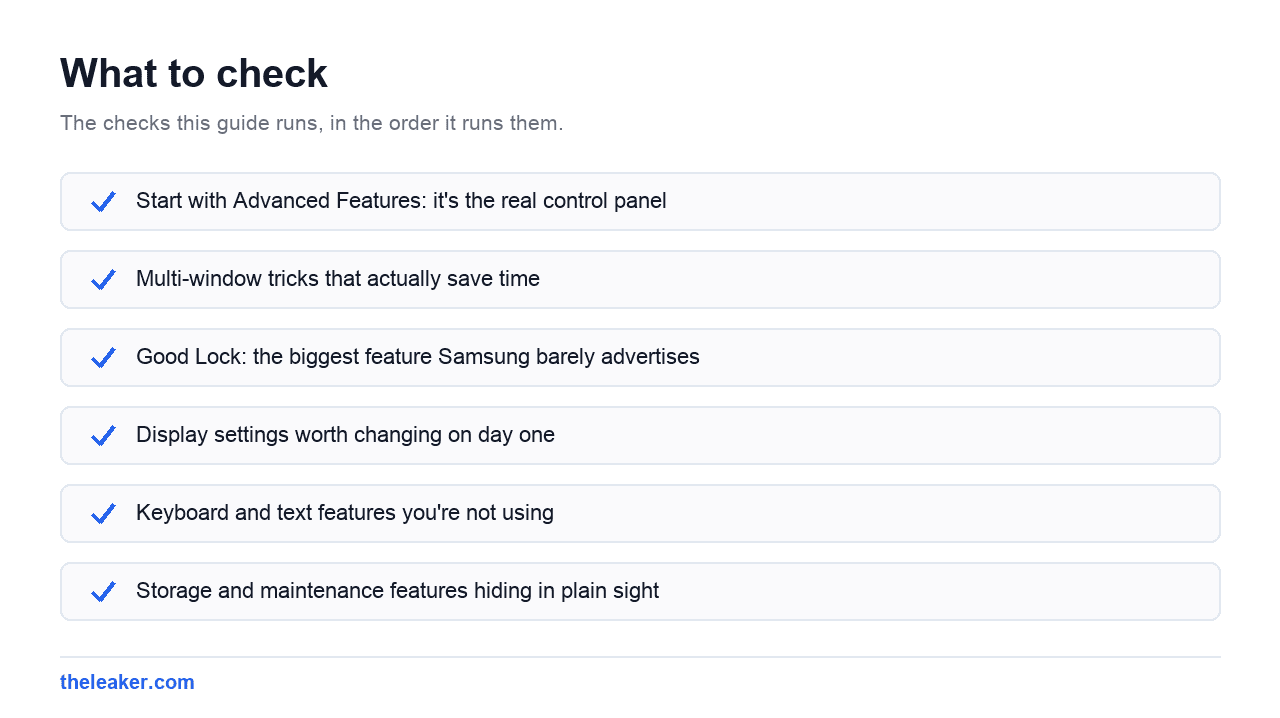
Start with Advanced Features: it’s the real control panel
If One UI has a secret menu, this is it. Open Settings → Advanced features and you’ll find a list most Galaxy owners have scrolled past exactly once, during setup, and never opened again.
Side key remapping is the first thing to fix. Out of the box, a long press on the side key usually summons a voice assistant. If you don’t use one, that’s a wasted button. Change it to power off instead and you get the old behaviour back: long press for the shutdown menu, no swiping through the notification shade. The double-press action is separately configurable too, and pointing it at the camera is genuinely useful. Two clicks from a locked screen and you’re shooting.
Motions and gestures is where the small stuff hides. Lift to wake, double tap to turn the screen on or off, palm swipe to capture a screenshot, and mute-by-covering-the-screen are all in here. The palm swipe screenshot is the one worth learning: swipe the edge of your hand across the display and it captures, no button combo needed. It feels silly for about a week and then you can’t live without it.
There’s also one-handed mode, which shrinks the whole interface toward the bottom corner. On a large-screen Galaxy this is the difference between a phone you can use walking down the street and one that needs both hands. You can trigger it with a swipe down on the home indicator or a double tap on the home button, depending on your navigation setting.
Don’t skip the Labs section
Recent One UI builds include a Labs entry inside Advanced features. It’s where Samsung parks experiments that aren’t finished enough to ship as normal settings. The contents change between versions, but you’ll typically find things like forcing apps into split screen even when the developer didn’t allow it, or swipe gestures for multi-window. These are marked experimental for a reason, occasionally one misbehaves, but nothing in there will hurt your phone, and toggling a feature back off undoes it instantly.
Multi-window tricks that actually save time
Samsung’s split screen is better than stock Android’s and almost nobody uses it properly.
The obvious version: open Recents, tap an app’s icon at the top of its card, choose split screen view. That works, but it’s slow. The faster route is to save an app pair. Once you have two apps running side by side, tap the handle in the middle of the divider and you’ll get an option to save the combination as a single icon on your home screen. One tap launches both, in the same layout, every time. Messaging plus a browser, notes plus a video, a spreadsheet plus a calculator: whatever your routine is, it becomes one press.
Pop-up view is the other half of this. Drag an app from Recents into a floating window and it behaves like a desktop window: resizable, movable, and it can be minimised into a little bubble that floats over everything else. Tap the bubble and the app expands again. It’s perfect for a calculator or a chat thread you need to glance at without leaving what you’re doing.
And there’s smart pop-up view, buried in Advanced features, which turns notifications from apps you choose into floating bubbles instead of full-screen switches. Set it for your messaging apps and replying stops interrupting whatever else you had open.
Good Lock: the biggest feature Samsung barely advertises
Good Lock isn’t hidden inside settings, it’s a separate free app from the Galaxy Store, but it might as well be secret, because Samsung does almost nothing to promote it. It’s a hub for a set of modules, each one rewriting a different part of the interface.
The general shape of it, which has stayed consistent across versions:
- Home screen customisation: grid sizes beyond the stock options, icon and label controls, folder styling.
- Lock screen and always-on display editing: clock placement, custom shortcut buttons, layout changes stock settings won’t allow.
- Notification panel and quick settings rework: column counts, tile shapes, background effects, and reordering that goes well past the default edit mode.
- Navigation and gesture remapping: custom swipe actions, sensitivity, and behaviour changes for the nav bar.
- Sound routing. A module that lets different apps play through different outputs at once, so you can have music on a speaker and a video on headphones.
- Multi-window enhancements: more aggressive split-screen and pop-up controls than the built-in ones.
Module names and availability shift between One UI versions and regions, so open the Galaxy Store and see what’s offered for your device rather than hunting for a specific one you read about. Everything is free, everything is official Samsung software, and each module can be uninstalled cleanly if you don’t like it.
The honest caveat: Good Lock modules occasionally break for a few days after a major One UI update, because they hook deep into the system UI. If you rely on one heavily, expect a short gap after each big upgrade.
Display settings worth changing on day one
Two settings here matter more than the rest.
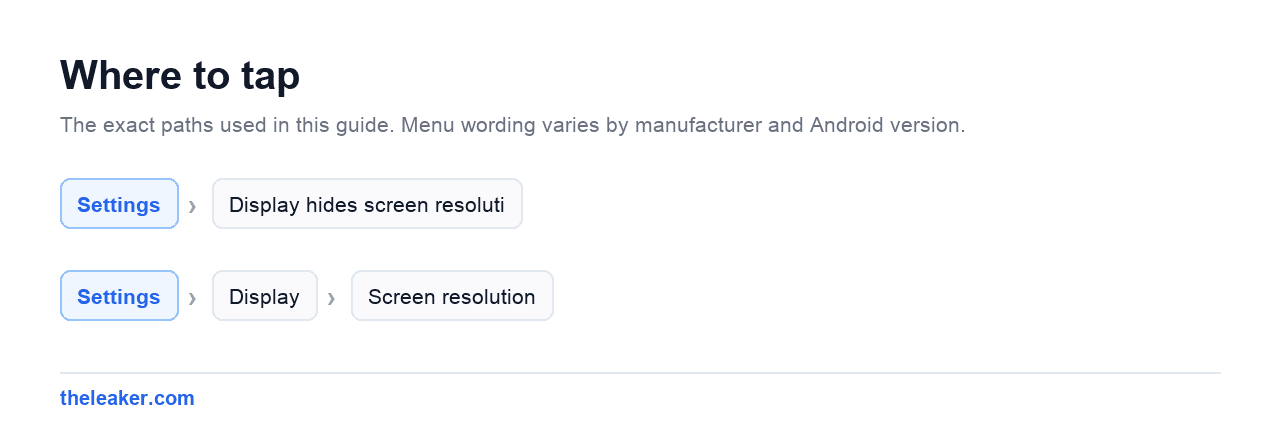
Screen resolution. High-end Galaxy phones often ship at a lower resolution than the panel supports, or occasionally the reverse. It’s in Settings → Display → Screen resolution on models that offer it. Dropping from the maximum to the middle option is one of the more effective battery changes you can make, and on a phone held at arm’s length the difference is genuinely hard to see. If your battery is disappearing faster than it should, this is a free win.
Motion smoothness controls refresh rate. Adaptive is the default on most modern Galaxies and it’s the right choice. The panel drops to a low refresh rate on static content and ramps up when you scroll. Forcing it to standard 60Hz saves a little more power at the cost of the smoothness you paid for.
Also under Display: Screen zoom and font size, which are separate controls. Font size changes text only. Screen zoom changes everything, including how much fits on screen. Shrinking screen zoom one notch fits noticeably more into every list and feed. Growing it makes the whole phone easier on tired eyes. Most people never discover the second slider exists.
If you’re chasing battery and performance more broadly, we’ve covered the hidden Android settings that actually speed up a phone in more depth. A lot of it applies to Galaxy devices too.
Keyboard and text features you’re not using
Samsung Keyboard has a clipboard that remembers more than one thing. Tap the three-dot menu on the keyboard toolbar, find Clipboard, and you get a scrollable history of recent copies. You can pin the ones you use constantly (an address, an email, a reference number) so they stay put instead of aging out.
The same toolbar usually holds a text extraction option that pulls text out of an image, a translate mode that converts as you type, and a split keyboard layout for typing with two thumbs on a large screen or a tablet. There’s also a one-handed keyboard mode that shifts the whole thing to the left or right edge.
Outside the keyboard, Samsung’s Gallery includes an object eraser in its edit tools on recent devices: select an unwanted person or object in a photo and it’s filled in from the surrounding image. Results vary wildly with how busy the background is, but on simple scenes it’s very good.
Storage and maintenance features hiding in plain sight
Settings → Battery and device care is the housekeeping menu. Inside it, Storage will break down what’s eating your space and offer to clear duplicates and junk files. Memory shows what’s actually sitting in RAM and lets you force-stop background apps individually rather than nuking everything.
Two settings in here deserve attention. Auto optimisation runs a cleanup on a schedule, which is mostly harmless. Sleeping apps and deep sleeping apps are the ones to be careful with: Samsung is aggressive about suspending background apps, and if a messaging or alarm app keeps failing to notify you, check whether One UI put it to sleep without asking. Pull anything time-critical out of those lists.
If space is the problem rather than speed, there’s a lot you can reclaim before deleting anything you care about. Our guide to freeing up Android storage without deleting anything walks through it.
Frequently asked questions
Do these features work on budget Galaxy A series phones?
Most of them, yes. One UI is broadly the same software across the range, so Advanced features, multi-window, Good Lock, and the device care tools are all there. The exceptions tend to be hardware-dependent: screen resolution options only appear on phones with high-resolution panels, high refresh rate settings only on phones with high refresh rate screens, and a few camera and AI editing features are limited to flagship models. Open the menu and see what’s listed, if it’s not there, your model doesn’t support it.
Is Good Lock safe to install?
It’s official Samsung software distributed through the Galaxy Store, so yes. It doesn’t need root and it doesn’t modify system files permanently: modules run as normal apps with elevated system UI permissions. The main risk is inconvenience rather than damage: a module can break temporarily after a major One UI update, and heavy customisation occasionally causes a system UI restart. Uninstalling the module reverts everything.
Why do some hidden features disappear after an update?
Samsung moves things between One UI versions more than most manufacturers. A setting that lived under Advanced features might get promoted into its own menu, folded into another feature, or quietly removed. Labs features in particular are experimental by design: some graduate into permanent settings, some get pulled. If something vanished, search for it by name in the settings search bar before assuming it’s gone.
Will turning these on hurt battery life?
Some will, mildly. Always-on display, high refresh rate, maximum screen resolution, and edge lighting all cost power. Most of the rest (gestures, multi-window, keyboard tricks, side key remapping) cost effectively nothing because they only run when you use them. If your battery drain got worse after a customisation session, look at display settings first; they account for the overwhelming majority of real-world power use. And if the phone is getting warm as well as draining, that’s a separate problem worth diagnosing properly.
The short version
Spend twenty minutes in Advanced features, install Good Lock, fix your side key, and save one app pair. That’s it: four changes, and your Galaxy will feel meaningfully different to use. Samsung built all of this and then hid it behind menus nobody opens. The features aren’t the secret. The location is.

A tech Journalist and Photographer, Dhawal Sharma is a technology enthusiast who loves to research the latest innovations and technology. He has contributed to the Honor Community for a very long period and has crucial expertise in writing tech news and reviewing smartphones and laptops. Analyzing and bringing the facts about any piece of tech is what he loves the most. He is a great product photographer and is the Gizmopedia of TheLeaker. Find him on Facebook and Instagram, and you can also email him at [email protected].