
Most people treat their phone’s storage like a drawer they never open. Stuff goes in, nothing comes out, and when it fills up the solution is to delete photos at random until the warning stops. That works about as well as it sounds.
Android has a real filesystem underneath, with folders you can browse, move, rename and organise like any computer. Once you understand the layout, you can manage files on Android instead of guessing: transferring files, cleaning up junk, and finding that PDF someone sent you in March all get easier.
The quick answer: Android’s storage is a normal folder tree. What you see when you open a file manager is internal shared storage, containing familiar folders like DCIM for camera photos, Download for anything you saved from a browser, Documents, Music, Pictures, and Android for app data. You can’t see the system partition and you don’t need to. To move files to a computer, plug in a USB cable and switch the notification from “Charging” to File transfer, which is the step most people miss. Wireless transfers work through Quick Share, cloud storage, or a local network app. Clear out Download monthly. SD cards and USB-OTG drives mount as separate volumes you can browse the same way.
What’s actually in your phone’s storage
Open any file manager and tap Internal storage. You’ll see a list of folders that looks chaotic but follows conventions that have been stable for over a decade.
- DCIM is where camera apps put photos and videos, usually inside a
Camerasubfolder. The name is an old digital-camera standard, which is why it looks like an acronym nobody explains. Screenshots often live here too, in their own subfolder, though some brands put them in Pictures instead. - Download is the dumping ground. Every PDF, APK, image and zip you ever saved from a browser or a chat app lands here and stays forever. This is almost always the single biggest pile of forgotten junk on a phone.
- Pictures holds images from apps rather than the camera. Screenshots, WhatsApp images on some setups, wallpapers, and saved images from social apps.
- Documents is where document apps save by default. Less used than you’d expect.
- Music, Movies, Podcasts, Ringtones, Alarms do exactly what they say. Media scanners look here, so a music file dropped into Music will show up in your player, while the same file in Download often won’t.
- Android contains
dataandobbfolders where apps store their own working files and large game assets. Modern Android heavily restricts access here for privacy reasons. Leave it alone. Deleting things inside it breaks apps, and it doesn’t reclaim as much space as you’d hope. - App-named folders appear at the top level too. Chat apps, camera apps and download managers all like to create their own. This is why your storage root looks messy.
What you won’t see is the system partition, where Android itself lives. That’s deliberate and it’s a good thing. If you’ve ever wondered why a phone advertised with 128GB shows around 110GB available, that’s the system taking its cut, plus the difference between how manufacturers and computers count a gigabyte.
Picking a file manager
Nearly every Android phone ships with one. Samsung has My Files. Xiaomi has File Manager. Pixels and stock-ish Android use Files by Google, which is also available to everyone. They all do the basics: browse, move, copy, rename, delete, search, and share.
Files by Google in particular has a strong cleanup feature set that goes well beyond basic browsing, and we’ve covered every feature in it worth using separately. This article is about the wider picture: the storage layout itself, moving files between devices, and the external volumes.
The one thing built-in managers vary on is whether they’ll browse network shares and connect to a PC over Wi-Fi. Samsung’s My Files and Xiaomi’s manager both include a remote or FTP option. Files by Google leans on Quick Share instead.
Phone to PC by cable: the step everyone misses
Plug your phone into a Windows PC and, by default, nothing useful happens. The phone charges. Windows might show it as a device with no contents. People conclude the cable is broken.
It isn’t. Android defaults the USB connection to charging only, for security. You have to change the mode:
- Plug the phone in.
- Pull down the notification shade. There’ll be a notification saying something like “Charging this device via USB.”
- Tap it. A menu appears with options: File transfer / Android Auto, USB tethering, MIDI, PTP or similar.
- Choose File transfer.
Now your phone appears in Windows Explorer as a device you can browse. Drag files in both directions.
Two things to know. First, this connection uses a protocol called MTP, which is not a normal disk mount. It’s slower, it sometimes shows stale folder contents until you refresh, and editing a file in place from the PC can be unreliable. Copy the file to your PC, edit it there, copy it back. Second, the cable matters. Charge-only cables exist and carry no data lines. If you’re getting a charge but no device appears even after selecting File transfer, try a different cable before anything else.
On a Mac, MTP isn’t supported natively, so you need a third-party transfer utility. Alternatively skip the cable entirely and use a wireless method, which honestly is easier on macOS.
If you want to go further than file access and actually control the phone from the desktop, that’s a separate setup involving Phone Link or scrcpy rather than plain file transfer.
Wireless transfers, ranked by how much hassle they are
Quick Share is the built-in option for Android-to-Android and, increasingly, Android-to-Windows. It uses Bluetooth to find the other device and Wi-Fi to move the data, so it’s fast for large files. Select files in your file manager, tap Share, pick Quick Share. Both devices need it visible, and the receiving side has to accept.
Cloud storage is the lazy, reliable route. Upload from the phone, download on the computer. Costs you storage quota and time, but it works between any two devices on earth and leaves a backup behind.
Local network sharing is the power-user option. Several file managers can act as an FTP or SMB server on your home Wi-Fi, giving you a network address you type into your computer’s file browser. No cables, no cloud, and full-speed transfers on a decent router. Samsung’s My Files and most third-party managers support this. It’s the best method for moving tens of gigabytes.
Emailing yourself works for one small file and falls apart for anything else because of attachment limits. It’s fine. We’ve all done it.
SD cards and USB-OTG drives
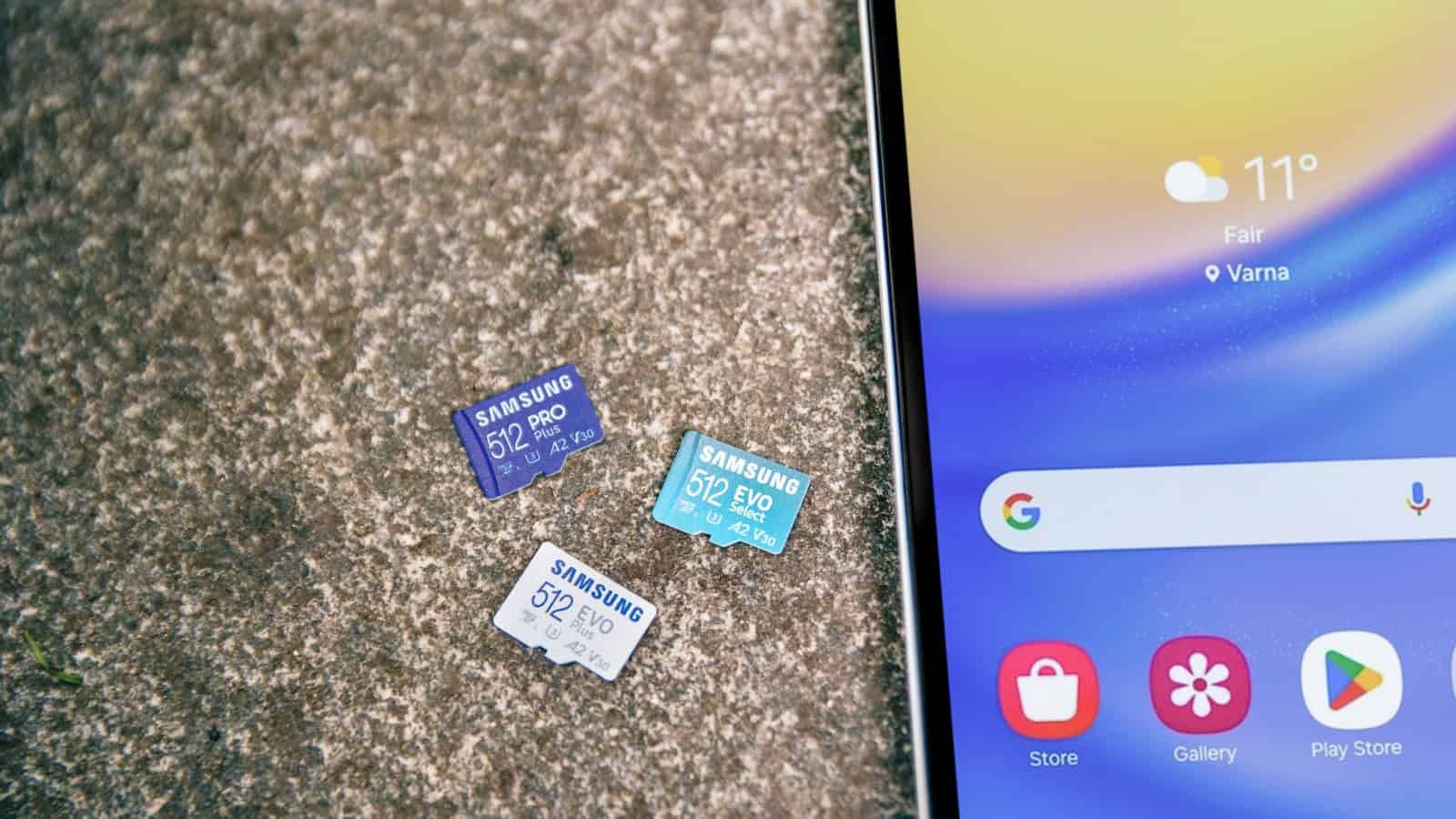
Fewer phones have SD slots now, but if yours does, the card mounts as a separate volume alongside internal storage. Your file manager will show it as its own entry.
There’s a decision Android may offer you when you insert a card: use it as portable storage or internal storage. Portable means the card works like a USB stick, readable in other devices, and you can pull it out safely. Adopted internal storage means Android encrypts and merges it into the phone’s own storage, which sounds great but makes the card unreadable anywhere else and ties it permanently to that phone. If the card fails or you swap phones, you lose whatever was on it. For almost everyone, portable is the right choice.
USB-OTG lets you plug a USB flash drive or even an SSD directly into your phone’s USB-C port, either with an adapter or a drive that has a USB-C connector. The drive appears in your file manager as another volume. This is genuinely useful for offloading a big pile of video, or for playing files without copying them across. Two gotchas: the drive should be formatted in a filesystem Android understands, with exFAT and FAT32 being the safe bets, and large drives draw power from your phone’s battery, so a spinning hard drive may need external power.
Always use the eject or unmount option in settings before pulling a card or drive out. Yanking it mid-write corrupts files, and this is not a theoretical risk.
Downloads hygiene: the ten-minute cleanup
Here’s a routine worth doing every month or two.
Open your file manager, go to the Download folder, and sort by size, largest first. You will find things you forgot existed: installers, videos someone sent you, duplicate PDFs of the same boarding pass, and a zip file you downloaded to check one thing inside. Delete aggressively. Nothing in Download is unique unless you put it there deliberately, because by definition it came from somewhere else.
Then sort by date, oldest first, and look at anything more than six months old. Same logic applies.
Next, check for duplicates. Photos in particular multiply when you save an image you were sent, then it also gets auto-saved by the chat app. Most file managers have a duplicate finder, and it usually surfaces a surprising amount.
Finally, look at the app-created folders in your storage root. Chat apps in particular hoard every image, video and voice note that’s ever passed through them, including from group chats you’ve muted. Those media folders are frequently the largest single thing on a phone. Deleting the files from storage doesn’t delete the messages, though it does mean the media won’t display in old chats.
If you want to reclaim space without deleting anything you care about, there’s a whole set of techniques covered in our guide to freeing up Android storage.
Organising, if you’re the type
You can create folders anywhere in internal storage and move files into them. A few habits that pay off:
- Make a Documents/Important folder for the handful of PDFs you actually need: insurance, tickets, warranties, ID scans. Keeping them in one place beats searching Downloads under pressure.
- Rename files when you save them. “scan_20260813_004.pdf” tells you nothing in six months.
- Use your file manager’s star or favourites feature for folders you open often, rather than navigating the tree each time.
- Search by file type rather than name when you can’t remember what something was called. Every decent file manager has category filters for documents, images, video and audio.
Myths worth clearing up
“Deleting cache files frees permanent space.” Cache comes back. It’s temporary data apps regenerate. Clearing it gives you a brief win and no lasting benefit, and in some cases makes apps slower for a while as they rebuild.
“You need a cleaner app.” You don’t. Your built-in file manager plus Android’s own storage settings do everything necessary. Many cleaner apps are heavy on ads and light on function, and some of the space they claim to free is cache that would clear itself.
“Moving apps to SD makes your phone faster.” It usually makes things slower, because SD cards are far slower than internal storage. Moving media to a card is sensible. Moving apps is a last resort.
“Deleting from the file manager also deletes from Google Photos.” It depends on sync. If a photo is backed up, removing the local copy doesn’t remove the cloud copy, but using the delete option inside the Photos app usually removes both. Know which one you’re using before you go on a deleting spree.
FAQ
Why can’t I open the Android/data folder anymore?
Google restricted access to it to stop apps snooping on each other’s private data. It’s a privacy change, not a bug, and it applies to file managers too. Some brands’ built-in managers retain partial access, but broadly you should treat that folder as off-limits. If you need to clear an app’s data, do it from that app’s entry in Settings instead.
My phone shows as “Charging” and won’t let me pick File transfer. What now?
Try a different cable first, since charge-only cables are extremely common. Then try a different USB port, preferably one directly on the computer rather than a hub. If the option still doesn’t appear, check Developer options for a “Default USB configuration” setting and set it to File transfer. On some phones the option is greyed out while the screen is locked, so unlock the phone and try again.
What’s the safest way to move photos off my phone permanently?
Copy them to a computer or external drive first, verify they opened correctly there, and only then delete from the phone. Two copies in two places is the minimum. Copying to a cloud service counts as one of them, but relying on cloud alone means an account problem becomes a data loss problem.
Can I use an external SSD with my Android phone?
Usually yes, over USB-OTG, provided the drive is formatted in exFAT and your phone’s port supports it. Portable SSDs are ideal because they draw modest power. Playing 4K video directly from one works fine on most modern phones. If the drive doesn’t mount, the format is the usual culprit, so reformat it as exFAT on a computer and try again.

Yash Jain writes about Android and Apple for The Leaker, focusing on how to guides, download resources, and top and best roundups. His articles walk readers through setup steps and app choices, compare options across categories, and follow news updates across both mobile platforms as they develop.