
If Android Auto has stopped working, the cause is almost always the cable or the USB port you plugged into. There is also a newer trap that catches a specific group. Some recent Pixels, with a security feature switched on, block USB data while the screen is locked, so the car charges the phone but Android Auto never appears. Work through the list below in order and most connections come back in a couple of minutes.
The short version. Wired Android Auto needs an Android 9 phone or newer, an active data plan, and a good data cable. When it will not connect, the order that solves it fastest is: swap to a short cable, confirm you are in the car’s data USB port, and (on a Pixel 6 or later) unlock the phone before plugging in, because Android’s security settings can block USB data while the screen is locked. After that come stale Bluetooth pairings, battery optimization shutting the app down, and out-of-date apps. Wireless Android Auto needs Android 11 or newer and a 5 GHz Wi-Fi phone. A separate, widely reported bug from the March 2026 Pixel update caused wireless drops every few minutes; there is a section on that below.
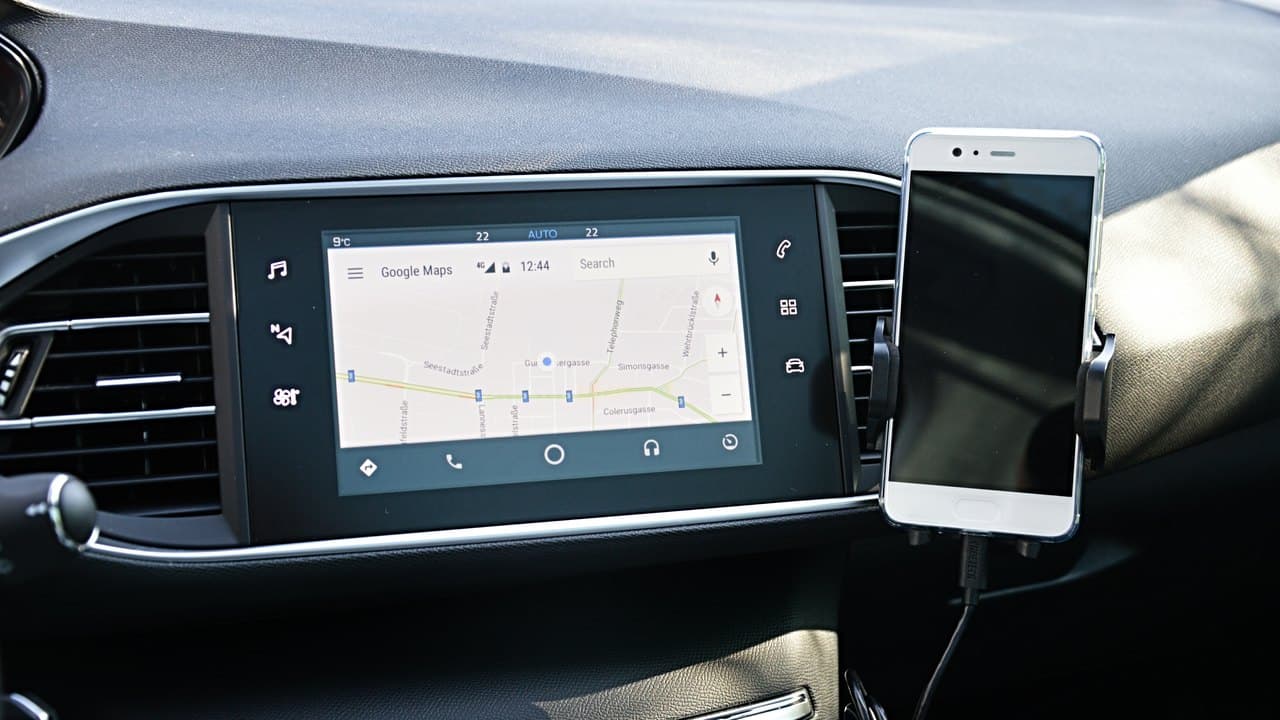
First, which problem do you actually have?
The fixes differ by symptom, so start by matching yours, then jump to the fix it names.
- Nothing happens when I plug in, but the phone charges. That is usually the cable, the port, or the security setting. Start at fix 1.
- It connects, then drops out while driving. Wired, that is a failing cable or port (fix 1); wireless, it is battery saver (fix 5) or the 2026 disconnection bug.
- It used to work and suddenly stopped: usually a stale pairing (fix 4) or an app that updated (fix 6).
- It will not go wireless even though wired works. Your car may be wired-only; see “Some cars don’t support what you’re trying to do” below.
Work through these fixes in order
They are sorted roughly by how often each one is the culprit, cheapest and fastest first. For most people the answer is in the first three.
1. Swap the cable. Start here, because a bad cable is the most common cause by a wide margin. Cheap and aging cables quietly go charge-only or lose their data lines while still delivering power, so the phone charges, the cable looks fine, and no data reaches the car. Google’s own advice is specific, recommending a cable under 3 feet (1 meter) long, no USB hubs or extensions, and ideally the cable that came with the phone. A connection that drops when you go over a bump usually means a worn cable or a loose port.
2. Check you are in the car’s data port. Many cars have several USB ports and only one moves data. It is usually the one marked with a phone or media icon; unmarked ports in the armrest or back seat are frequently charge-only. This works because Android Auto needs a data path, and a charge-only port gives it none.
3. Unlock the phone before you plug in. On a Pixel 6 or later with Advanced Protection turned on, Android blocks USB data whenever the screen is locked, so the car charges the phone but Android Auto never starts. Unlock the phone first, then connect. This is the fix almost no troubleshooting list mentions, and it has its own section below.
4. Clear the stale pairing and start fresh. If it worked for months and then stopped, a half-broken Bluetooth pairing is the likely cause. Delete the phone from the car’s Bluetooth menu and delete the car from the phone’s Bluetooth settings. Then open Settings on the phone, search “Android Auto”, and under Previously connected cars choose the menu icon and Forget all cars. Pair again from scratch, which clears the half-broken pairings behind a lot of endless “connecting…” loops.
5. Stop your phone from killing Android Auto. Aggressive battery management, common on heavily customized Android skins, can shut Android Auto down in the background so it is not running when the car reaches for it. Open Settings, Apps, Android Auto, Battery, and set it to Unrestricted (the wording varies by brand). If your phone has its own app cleaner that closes background apps, add Android Auto to its allow list too. This class of battery trap catches more than just Android Auto; we covered the wider set in our guide to hidden Android settings that make your phone feel faster.
6. Update everything, including the car. Update Android Auto and Google Maps in the Play Store, check for a phone system update, and check whether your car’s infotainment system has a software update waiting. Head units ship with bugs and manufacturers do patch them; for an aftermarket receiver, the update lives on the maker’s website rather than in the car.
7. Clear Android Auto’s cache, then its data. Open Settings, Apps, Android Auto, Storage. Clear the cache first and test, because that keeps your settings. If it still fails, clear storage, which wipes any corrupted state and sends you back through the first-run prompts.
If none of that lands, run the one test that ends the guessing. Try your phone in a different car, or a friend’s phone in yours. Whichever combination works tells you which side is broken. If your phone fails in both cars, the phone is the problem, so clear Android Auto’s storage (fix 7), install any pending system update, and if it persists, back up and try a reset. If the fault stays with one car, it is the head unit, so check for its software update (fix 6), and failing that a dealer can reflash it, or an aftermarket unit sidesteps it.
When the phone charges but Android Auto will not start
This is the case that sends people in circles, because every symptom points at the cable and the cable is fine. If you have a Pixel 6 or newer and you turned on Advanced Protection (Settings, Security & privacy, Advanced Protection, which is where to check if you do not remember), that is almost certainly the cause.
Advanced Protection is Google’s high-security mode, and one of the things it switches on is USB Protection. On its USB Protection support page, Google states plainly that “while the screen is locked, this prevents establishment of a USB data connection,” and it names this exact scenario, noting the rule applies “when you use Android Auto through USB.” Charging is deliberately left alone, which is why the phone tops up while the dashboard stays blank.
There are two honest ways out, and they trade convenience against security:
- Unlock the phone before plugging in. The same USB Protection page notes that a connection “that started while the device is unlocked remains active even after the device is locked,” so once Android Auto is running you can put the phone back to sleep and it keeps going. This costs one unlock per drive and leaves the protection on. It is a genuine irritation, and honestly I would switch to wireless purely to avoid it.
- Connect wirelessly instead. USB Protection only governs the USB port, so wireless Android Auto sidesteps it entirely on a car or adapter that supports wireless.
Turning Advanced Protection off restores automatic USB connection, but it also removes a security layer you deliberately enabled, so leave that as a last resort. Recent Android Auto versions have started showing a message when this is the problem, reading “Phone unlock is required to start Android Auto”, which at least names the cause on screen. That messaging clears up the confusion, though it does not change the underlying behavior, so unlocking first is still what actually gets you connected.
If you are not on a Pixel, or you never turned Advanced Protection on, this is not your problem, and the cable really is the likeliest suspect despite appearances. Go back through fixes 1, 2 and 7, then run the two-car test below to settle which side is at fault.
The 2026 disconnection bug that hit Pixel and Galaxy
If your Android Auto started dropping out every couple of minutes in spring 2026, that is a documented bug, not anything you broke. It surfaced around the March 2026 Pixel update and the Galaxy S26 launch, and it hit both Pixel and Samsung Galaxy phones, which points at Google Play Services (the component both brands share) more than at Pixel firmware alone. Owners saw the connection hold for a moment, drop, and reconnect on a loop, most often over a cable though some wireless users too, and the usual fixes (re-pairing, clearing cache, even factory resets) did not reliably help. Android Authority reported that Google acknowledged the issue in its official forums in late March.
Google has shipped fixes through Google Play Services since then, and a June 2026 update whose changelog cited device-connection fixes was reported to clear it up for some people. Whether it fully resolved things is genuinely unsettled, since an earlier April fix did not, owners’ own comments run mixed, and some were still reporting drops months later. If you are affected, update both Android Auto and Google Play Services from the Play Store, then retry. Wired is usually the steadier connection while this settles, unless a wired drop is exactly what is hitting you, in which case try wireless.
Some cars don’t support what you’re trying to do
Before you spend another hour on cables and settings, check whether your car supports the connection you are attempting, because on many vehicles it is the head unit’s software that decides what works. Three patterns catch people out, and on each one the answer is knowing your car rather than changing a setting.
- Older Toyota (Entune 3.0, roughly 2018 to 2021). Android Auto is wired only. Wireless will not connect on these systems however many settings you try, because the head unit does not support it. The aahacks compatibility guide notes that “older versions of Entune 3.0 typically only support a wired connection,” and wireless arrived with the newer Toyota Audio Multimedia system on 2022-and-later models. If a cable works and wireless never has, that is the reason.
- Hyundai and Kia with built-in navigation. For years this ran opposite to what you would expect, with the cheaper trims that lack built-in nav getting wireless Android Auto while the pricier nav-equipped models were wired only. As SamMobile put it, “navigation systems with inbuilt maps receive only wired Android Auto and Apple CarPlay connectivity.” Both brands have started adding wireless to nav-equipped cars through their newer ccNC system, so an update may bring it to models like the IONIQ 5 and Kia EV9, though on many existing cars it is simply not available.
- Newer GM electric vehicles. Android Auto may not be there at all. GM has removed phone-based Android Auto and Apple CarPlay from its EVs, so the Chevy Equinox, Blazer and Silverado EVs, the GMC Sierra and Hummer EVs, and Cadillac’s Optiq, Vistiq and Escalade IQ ship without them. On those cars “not working” means “not equipped,” and the answer is the car’s built-in Google Maps or a third-party adapter, and no amount of troubleshooting will bring it back.
The quick test for all three is simple. If a cable connects but wireless has never once worked, your car most likely does not support wireless Android Auto and nothing is broken, so check your exact model and trim before chasing it further.
Setting up Android Auto from scratch
If you are setting Android Auto up for the first time, the requirements are short. For wired, Google specifies “an Android phone with Android 9.0 (Pie) or higher and an active data plan,” plus a good USB data cable. Your car or aftermarket head unit needs to support Android Auto, which most models from around 2017 onward do, though it was often an optional extra, so check your specific car before assuming.
The wired setup:
- Start the car and unlock your phone.
- Plug into the car’s USB port with a quality cable. If there is more than one port, use the one marked with a smartphone icon.
- Approve the prompts on the phone (notifications, location, Bluetooth, and a summary of what Android Auto will access).
- The car screen switches to Android Auto within a few seconds. If it shows the car’s own menu instead, tap the Android Auto or smartphone icon.
The prompts only appear the first time. After that it connects automatically when you plug in.
Setting up wireless Android Auto
Wireless is the version worth having, with the phone in your pocket and the connection starting when the engine does. The requirements step up: any phone on Android 11.0 or newer, an active data plan, 5 GHz Wi-Fi support, and a car or head unit that specifically supports wireless Android Auto (the “5 GHz” part is Google’s, and it is the one people miss). Plenty of cars do wired but not wireless, which is why wireless adapters, small dongles that plug into the car’s USB port and bridge the connection, became such a popular accessory.
To pair the first time, turn on Bluetooth and Wi-Fi, then pair the phone with the car through the car’s Bluetooth menu; on most systems the wireless handshake completes automatically from there. Some cars want that very first connection made over USB before it switches to wireless. The data itself runs over a direct 5 GHz Wi-Fi link between phone and car, so it never touches your home Wi-Fi or hotspot allowance, and your mobile data still feeds maps and music exactly as it would wired.
Once you are back up: features most people miss
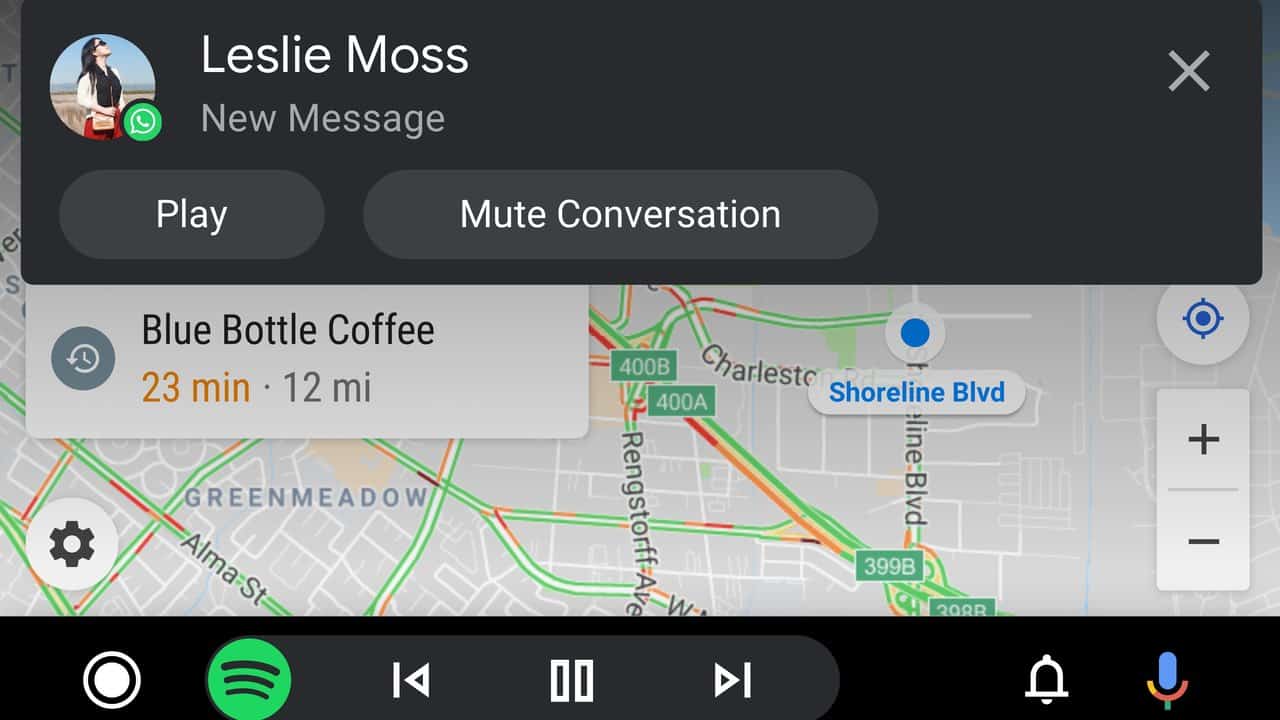
Most people connect, open Maps, and touch nothing else. A few features are worth the thirty seconds they take.
- Voice, done properly. Say “Hey Google” or hold the steering-wheel voice button to send a WhatsApp or SMS, reply to one that just arrived, call a contact, queue a playlist, or add a fuel stop, all without a tap. Replying by voice is the only sane way to handle texts while driving.
- Message read-aloud, on your terms. Tap an arriving message to have it read out and dictate a reply, or turn message notifications off entirely in the Android Auto settings and just ask Assistant to read them on demand.
- Launcher order. In the phone’s Android Auto settings, reorder apps so your real music app leads and hide the ones you never use in the car. Permanently less scrolling at a red light.
- Split-screen dashboard. On wider displays, the dashboard view shows navigation and media side by side. If yours runs one app full-screen, look for the dashboard icon in the corner of the car display.
What is a myth
- “Android Auto eats mobile data.” Navigation data is modest, and music streaming uses what it would on the phone anyway. Download offline maps for your usual area and data use drops to almost nothing.
- “You have to install the app.” Only on Android 9 and older. On modern phones it is a system component with no app-drawer icon; its settings live inside the main Settings app.
- “Wireless adapters are sketchy.” Established brands work well for most people. What no adapter can fix is a phone killing Android Auto in the background, so do fix 5 before blaming the dongle.
- “Android Auto still works on the phone screen.” That mode was retired. Google Assistant driving mode in Maps replaced part of it, but the full experience now needs a car display.
FAQ
Why does Android Auto keep disconnecting while I drive?
Over a cable, the cable or the port is the usual culprit; cables fail gradually, so a drop that follows bumps in the road is the classic sign. Wireless, check that battery saver is not switching on mid-drive, disable any VPN, and set Android Auto to Unrestricted battery use. If it started after the March 2026 Pixel update, see the bug section above.
Does Android Auto work with an iPhone?
No. Android Auto is Android-only, and the iPhone equivalent is Apple CarPlay. Most cars that support one support both, so a mixed-phone household is usually fine.
Can I use Android Auto without mobile data?
Partially. Download offline maps in Google Maps beforehand and turn-by-turn navigation works with no connection, and downloaded music and podcasts play fine. Live traffic, voice search, and streaming still need data.
Does Advanced Protection block Android Auto on every phone?
No. USB Protection ships with Advanced Protection on Pixel 6 and later, and it only blocks USB data while the screen is locked. If you have not turned Advanced Protection on, this is not your problem, and wireless connections are unaffected either way.
My car does not support Android Auto at all. What are my options?
There are two realistic paths. One is an aftermarket head unit that supports Android Auto, a mature market with plenty of choice though fitting costs vary. The other is a good phone mount plus Google Assistant, which gives you voice navigation and messaging on the phone’s own screen for far less.
Updated 18 August 2026: rebuilt around the USB Protection cause on recent Pixels, added the 2026 Play Services disconnection bug, and sourced the version and cable requirements to Google’s own support pages. Updated 19 August 2026: added a section on cars that do not support wireless Android Auto (older Toyota Entune 3.0, nav-equipped Hyundai and Kia, and GM EVs that ship without it).
Related: Bluetooth Not Connecting? How to Fix Pairing Problems on Android

A tech Journalist and Photographer, Dhawal Sharma is a technology enthusiast who loves to research the latest innovations and technology. He has contributed to the Honor Community for a very long period and has crucial expertise in writing tech news and reviewing smartphones and laptops. Analyzing and bringing the facts about any piece of tech is what he loves the most. He is a great product photographer and is the Gizmopedia of TheLeaker. Find him on Facebook and Instagram, and you can also email him at [email protected].