

Almost nobody sets up Emergency SOS on Android. It takes about ten minutes, it’s free, and the whole point is that you’ll never think about it again until the one day it matters. That day is a terrible time to be reading a menu.
The quick answer: Open Settings → Safety and emergency and work down the list. Fill in medical information and emergency contacts first. Those show on the lock screen without your PIN, so a paramedic or a stranger can read them. Then check how Emergency SOS is triggered on your phone (usually rapid power or side key presses) and decide whether you want the countdown alarm on. Add two or three emergency contacts so the phone can share your location automatically. Then test the parts you safely can: emergency sharing to your own contacts, a Safety Check, and the satellite demo mode if your phone has one. Never test by placing a real emergency call. If you trigger one by accident, stay on the line and say it was a mistake.
Start with the lock screen, not the SOS button
The single most useful thing here isn’t the emergency call feature. It’s the information a first responder can read off your locked phone.
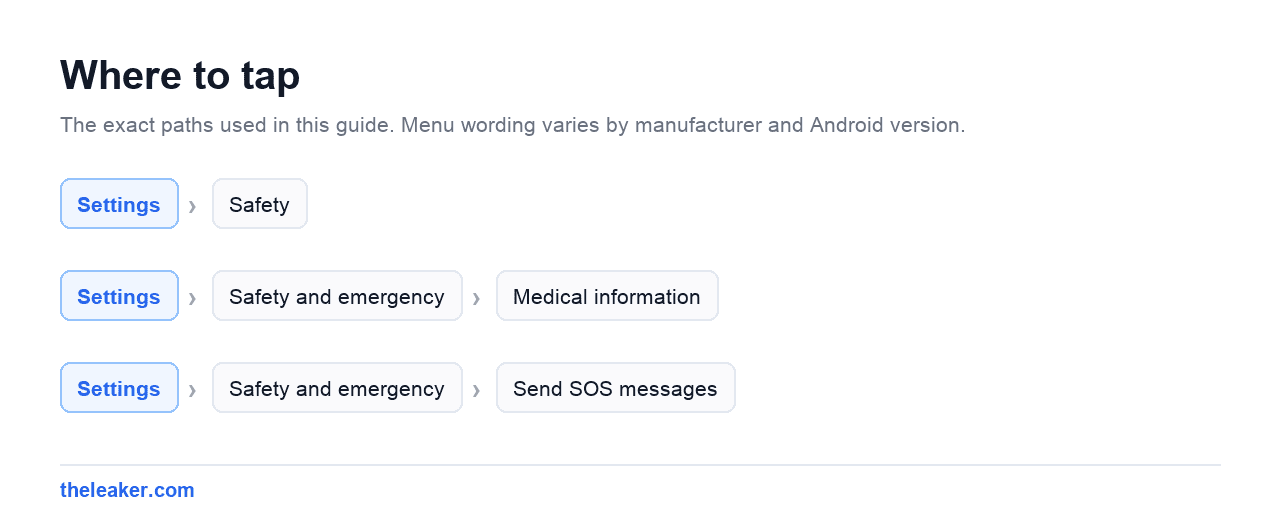
On most Android phones: Settings → Safety and emergency → Medical information. Fill in blood type, allergies, medications, medical conditions, and your organ donor preference if you want it there. Then go to Emergency contacts and add the people who should be called.
To check it works, lock the phone, tap Emergency on the lock screen or PIN pad, then look for Emergency information or View medical info. It should display without unlocking. That’s the whole point, and it’s also why you shouldn’t put anything in there you’d mind a stranger reading. Conditions and medications, yes. Your full address and your insurance number, probably not.
A note on that screen: names and numbers of emergency contacts are visible there too, and on most builds someone can call them from the lock screen. Choose contacts who’d actually be useful, and tell them they’re on the list.
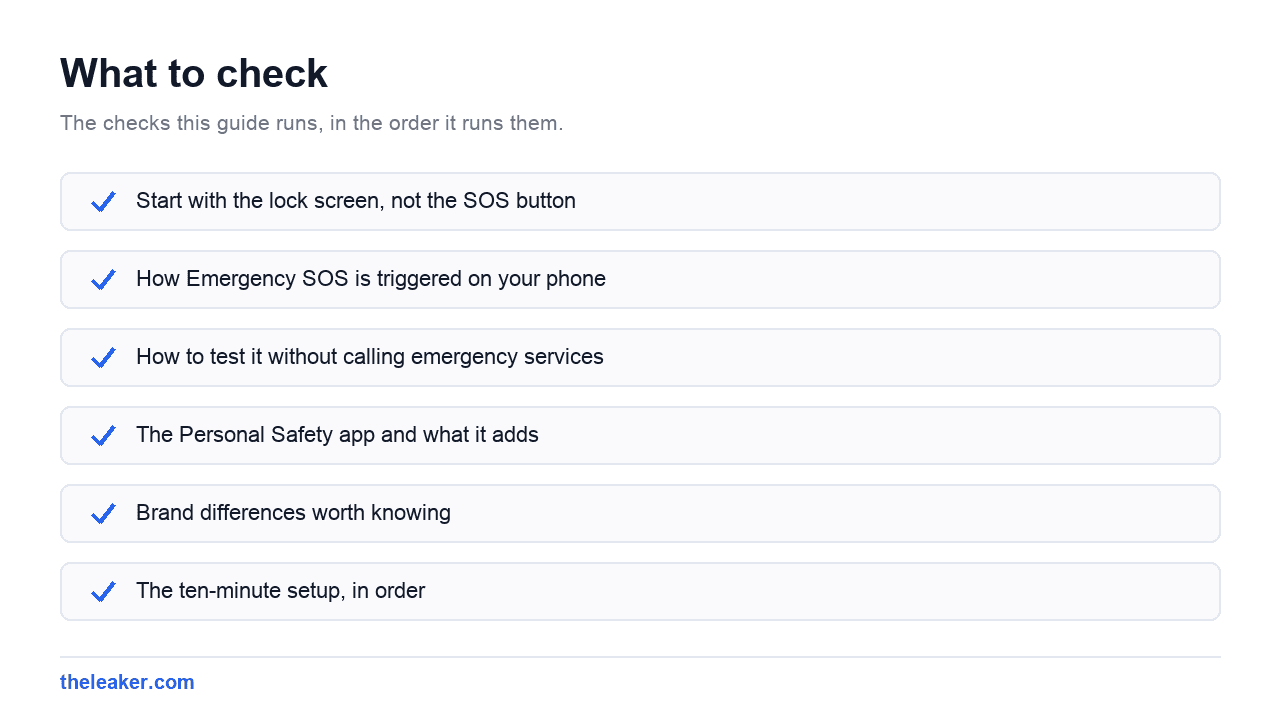
How Emergency SOS is triggered on your phone
The trigger differs by manufacturer, so check yours rather than assuming.
On stock Android and Pixel phones, Emergency SOS is typically five rapid presses of the power button. On many Samsung phones it’s three rapid presses of the side key, configured under Settings → Safety and emergency → Send SOS messages. Xiaomi, OnePlus, Motorola and others each have their own variation, usually in a similarly named menu. Some phones let you change the number of presses or disable the shortcut entirely.
Once triggered, you’ll usually get a short countdown with a loud alarm before anything happens. That countdown exists so you can cancel a mis-fire. Some people turn the alarm off because pocket triggers are embarrassing: think about that carefully, because the alarm is also what tells you the phone is about to dial when you didn’t notice you’d pressed anything.
Inside the Emergency SOS settings you’ll typically find separate toggles for what happens: call emergency services, share your location and status with your emergency contacts, and on some phones record a short video and share it. Turn on contact sharing even if you leave everything else default. It’s the part that gets a human who knows you moving.
How to test it without calling emergency services
This is the bit people get wrong, and it wastes real dispatcher time. Do not “just try it” to see what happens.
Here’s what you can test safely:
- The countdown. Trigger the shortcut, confirm the alarm and countdown appear, then cancel before it completes. This tells you the shortcut works and how long you have. Do it somewhere you won’t alarm people.
- Emergency sharing to your contacts. Many phones let you start emergency location sharing manually, separate from placing a call. Samsung’s Send SOS messages goes to the contacts you chose, not to emergency services, so a test message is a genuine end-to-end check: warn the recipients first.
- Safety Check. In Google’s Personal Safety app, start a check-in for a short activity. If you don’t respond when it ends, your contacts are notified. It exercises the same contact and location plumbing with zero risk.
- The lock screen medical info. Free to check, and the most commonly misconfigured piece.
- Satellite demo mode. Where satellite SOS is supported, Google has included a demo or practice mode so you can rehearse pointing the phone at the sky without contacting anyone. Availability varies a lot by phone, carrier and country: look in the satellite section of Safety and emergency, and if there’s no demo option, don’t improvise one.
What you should never do: place a real call to your local emergency number to test anything. If it dials by accident, don’t hang up. Hanging up usually triggers a callback and sometimes a dispatched unit. Stay on, say it was accidental, confirm you’re safe.
The Personal Safety app and what it adds
Google’s Personal Safety app comes preinstalled on Pixel phones and is available on some others. It’s the front end for several features that are otherwise scattered.
Emergency sharing broadcasts your live location and status to chosen contacts for a set period. Safety Check asks you to confirm you’re OK after an activity you scheduled, and alerts contacts if you don’t. Crisis alerts surface local emergency notifications. Car crash detection uses motion sensors, location and the microphone to detect a severe collision, then asks if you need help and calls emergency services if you don’t respond.
Two honest caveats on crash detection. It’s limited to certain phones, countries and languages, so check whether it’s actually available to you rather than assuming it’s on. And there’s no safe way to test it. You can confirm the toggle is enabled and permissions are granted, and that’s it. Treat it as a backstop, not a safety system you rely on.
Fall detection is a related feature, but on Android it generally lives on watches, Pixel Watch and Galaxy Watch models, rather than phones. If that’s the capability you want, it’s a wearable purchase, not a setting.
Emergency Location Service and why your call already sends location
Android has a feature usually called Emergency Location Service (ELS). When you call or text an emergency number, it can send a more accurate location to emergency services than the network alone provides (using GPS, Wi-Fi and mobile signals) even if location is otherwise switched off on your phone.
You’ll find the toggle under Settings → Safety and emergency. Support depends on your country and carrier, so it may be absent on some devices. Leave it on. It doesn’t track you the rest of the time; it activates for emergency calls.
While you’re in that menu, look at Wireless emergency alerts. These are the government-issued warnings for severe weather, disasters and public safety. You can usually silence the less severe categories, but leaving the top-severity ones on is sensible. If you’ve ever wondered where else your phone hides genuinely useful toggles, our roundup of hidden Android settings covers more of the same menu system.
Brand differences worth knowing
Samsung One UI. The main feature is Send SOS messages, triggered by rapid side key presses. It sends your location to chosen contacts and, depending on settings, can attach photos from both cameras and a short audio recording. There’s a separate Emergency mode that dramatically cuts battery use by limiting the phone to essentials: worth knowing about before you need it. Samsung also has its own medical information screen; fill that in as well as the Google one if both exist on your device.
Pixel. Gets Google’s safety features first and keeps them in one app. Emergency SOS, crash detection and satellite SOS where available are all reachable from Personal Safety.
Xiaomi HyperOS. Emergency SOS lives under Safety and emergency with a configurable press count. Xiaomi’s background restrictions are worth checking here, if you rely on a safety app running in the background, make sure it’s exempt from battery optimisation.
Motorola, OnePlus, Oppo. All ship variations. The menu name is nearly always some form of “Safety and emergency” or “Emergency SOS” in Settings search. Searching the settings app for “SOS” is faster than hunting.
The ten-minute setup, in order
- Fill in medical information and check it appears on the lock screen.
- Add two or three emergency contacts and tell them.
- Find your SOS trigger and try the countdown once, cancelling it.
- Turn on location sharing with emergency contacts.
- Confirm Emergency Location Service is on, if your region supports it.
- Check whether crash detection and satellite SOS exist on your device, and enable them if so.
- Run one Safety Check as a live test of contacts and location.
- Repeat the medical info step on any watch you wear.
Do it again after you switch phones, because none of this reliably carries over. If you’re mid-migration, our guide to moving everything to a new Android phone covers what does and doesn’t transfer.
Will Emergency SOS work without a SIM or without signal?
In most countries a phone without a SIM can still dial the local emergency number over any available network, though rules vary by country and carrier. No signal at all means no call. That’s the gap satellite SOS is meant to fill, and it’s only available on certain recent phones in certain regions. Don’t plan a trip around it without confirming it works where you’re going.
My phone keeps triggering SOS in my pocket. What do I do?
Go to the Emergency SOS settings and either increase the required number of presses, disable the shortcut, or make sure the countdown alarm is on so you notice. Keep the countdown enabled rather than switching to instant dialling. If a call does go through, stay on the line and tell the operator it was accidental.
Can someone see my medical information without unlocking my phone?
Yes. That’s intentional. Anyone can reach the emergency information screen from the lock screen. Put in what a paramedic needs: allergies, conditions, medications, blood type, emergency contacts. Leave out anything you’d consider sensitive or that could be used to impersonate you, like full addresses or ID numbers.
Does car crash detection work everywhere?
No. It’s restricted by device model, country and language, and it needs location, physical activity and microphone permissions to function. Check the toggle in the Personal Safety app to see whether it’s available to you at all. There’s no safe way to test it, so treat it as an extra layer rather than something to depend on.
Set it up on a quiet evening, tell the people you listed that they’re on it, and then forget about it. That’s the correct end state for every feature in this article.

Hello, folks, my name is Akshay, and from the beginning, I like to play with the latest phones, gaming consoles, PCs, Laptops’s and whatnot. When I get spare time, I like to do Photography, and you will always find me playing with Photoshop, Lightroom, Premiere Pro, etc. In Love with Gadgets, my gear Motorola Moto G5 Plus. You can contact him on akshaydua[@]theleaker.com.