
Two buttons, and most people only ever use them for one thing. These Android volume button tricks turn your volume rocker into a screenshot tool, a camera shutter, a ringer silencer, an accessibility shortcut and a way into recovery mode. Half of it is built in and switched on right now.
The quick answer: Press volume, then tap the small icon on the volume panel to expand it. That’s where the separate ring, media, alarm and call sliders live, along with the output switcher. Power plus volume down takes a screenshot on essentially every Android phone. Holding both volume keys for three seconds fires whichever accessibility shortcut you’ve assigned. In the camera app, the volume keys act as a shutter, and most camera apps let you switch them to zoom instead. Pressing either volume key silences an incoming call without rejecting it. Power plus volume down held for ten to fifteen seconds force-restarts a frozen phone. Everything else is skin-specific, so check your own settings.
The volume panel has a second half you’ve probably never opened
Press a volume key and you get a single slider. That slider controls whatever seems most relevant: usually media if something’s playing, otherwise the ringer. This is where the confusion about “I turned it down and it still rang” comes from.
Look for the small icon at the end of the panel: three dots, a settings cog or a slider symbol depending on your version. Tap it and the panel expands to show every stream separately: media, call, ring and notification, alarm. Now you can drop notifications to silent while keeping alarms at full, which is the setup most people actually want and almost nobody configures.
The same expanded panel usually holds a couple of extras. There’s an output switcher for sending audio to a speaker, headphones or a cast target without digging into Bluetooth settings. On Pixel phones there’s often a Live Caption button right there, which turns on real-time captions for whatever audio is playing.
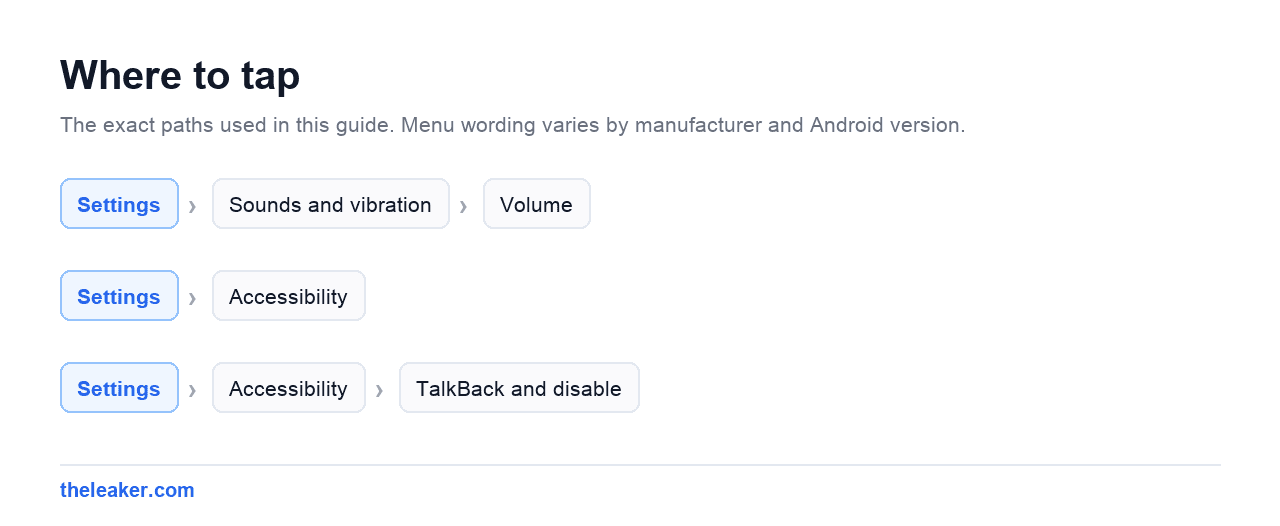
On Samsung, whether the rocker controls media first is a setting: Settings → Sounds and vibration → Volume, then look for the media volume keys option. Turn it on and the rocker always adjusts media by default, which is far more predictable than the phone guessing.
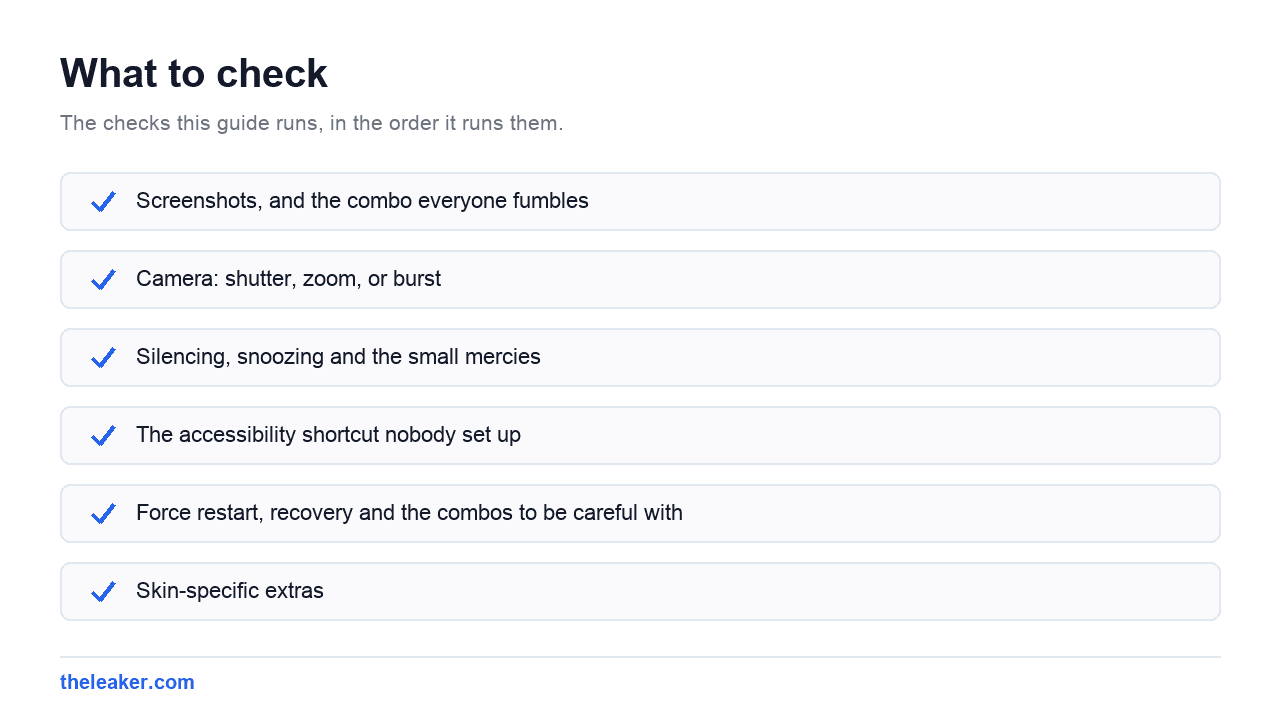
Screenshots, and the combo everyone fumbles
Power + volume down, pressed together and released quickly, takes a screenshot. That works on effectively every Android phone.
The reason people fumble it is timing. Hold it a fraction too long and you get the power menu instead, or you dim the volume. Press both at the same instant and let go straight away. If it keeps failing, use the gesture alternative: three-finger swipe down on Samsung and Xiaomi, or the screenshot button in the recent apps view on stock Android.
After the screenshot lands you get a floating preview with edit, share and, on most modern phones, a capture more or scrolling capture button for long pages. That button only appears when the app supports it, so if it’s missing, the content isn’t scrollable in the way the system needs.
Camera: shutter, zoom, or burst
In the camera app, the volume keys default to shutter on nearly every Android phone. That alone is worth knowing. It’s a far steadier way to shoot one-handed than reaching for an on-screen button, and it’s why cheap Bluetooth selfie remotes work: they just send a volume key press.
Open your camera settings and look for volume key behaviour. Most cameras offer at least shutter, zoom and video record. Zoom is genuinely useful if you shoot a lot of distant subjects. Some apps also let a long press start a burst or begin recording video without leaving photo mode.
Samsung’s camera has this under the camera app’s own settings as a “Volume key function” style option. Pixel and Xiaomi both offer equivalents in their camera settings. If you find your keys doing nothing in the camera, that’s the setting to check.
Silencing, snoozing and the small mercies
When the phone rings, pressing either volume key silences the ringer immediately without rejecting the call. The caller hears it ringing on; you get quiet. That’s usually what you want in a meeting, and it’s better than hammering the power button, which on many phones rejects the call outright.
Most phones extend the same courtesy to alarms and timers. A volume key press snoozes or silences depending on the model. Worth testing yours once so you know which you get at 6am.
Samsung and several other skins also have a “mute with gestures” option that silences calls and alarms when you place the phone face down or hold your palm over the screen. It’s usually under advanced features or motions and gestures, and it pairs well with the volume behaviour.
The accessibility shortcut nobody set up
Hold both volume keys for about three seconds and Android launches whichever accessibility service you’ve assigned to that shortcut. Out of the box it’s often unassigned or set to TalkBack, which is why people occasionally trigger the screen reader by accident and panic.
Two useful things here. First, if you’ve turned on the screen reader by accident, holding both volume keys again turns it back off. That’s the escape hatch.
Second, you can reassign the shortcut to something you’d genuinely use daily. Go to Settings → Accessibility, pick a feature, and look for its shortcut option. Magnification is the standout: assign it there and a three-second hold lets you zoom into any part of the screen, which is brilliant for tiny text, menus in badly designed apps and reading fine print in photos.
Other candidates worth assigning: Extra dim for reading in a dark room below the normal minimum brightness, or Colour inversion. Pick one, because the shortcut holds one service at a time on most builds.
Force restart, recovery and the combos to be careful with
If your phone is completely frozen (screen unresponsive, power menu won’t appear) hold power + volume down for ten to fifteen seconds. On most Android phones that forces a hardware restart, the same as pulling the battery used to be. On some Samsung models it’s power + volume down too; on a few others it’s power alone held long enough. Nothing is deleted; it’s just a hard reboot.
The other combo is power + volume up held from a powered-off state, which on many phones boots into recovery mode. That’s a menu for wiping cache, applying updates and, critically, factory resetting. Don’t go wandering in there out of curiosity. There’s nothing in recovery that a normal user needs on a working phone, and one wrong selection wipes the device.
If your phone is misbehaving rather than frozen, safe mode is the gentler diagnostic: hold the power button, then long-press the “Power off” option until safe mode is offered. That boots without third-party apps, which tells you instantly whether an app is the culprit. If the problem is slowness rather than crashing, our list of hidden settings that speed up an Android phone is a better starting point than any button combo.
Skin-specific extras
Samsung One UI. The volume behaviour is configurable in Sounds and vibration, and Samsung’s Good Lock suite adds considerably more through its sound module: per-app volume levels, and long-press-to-skip-track behaviour on the volume keys. Good Lock is a free Samsung download, available in some regions but not all. Separately, note that Samsung’s SOS shortcut is on the side key rather than the volume keys.
Xiaomi HyperOS. Xiaomi tends to expose more button customisation than most, including options for what long presses do, usually tucked under additional settings in the sound or button menus. Worth a look because the defaults are conservative.
Pixel. Fewer options, better defaults. The volume panel is the cleanest implementation, Live Caption sits right in it, and the “prevent ringing” setting lets you decide whether power + volume up mutes or vibrates.
Motorola. Moto’s gesture set is the strongest of the lot, though most of its shortcuts are chops and twists rather than button presses.
A quick sanity check on wear
One practical note since we’re talking about physical buttons: they’re mechanical, and they’re the first thing to fail on a well-used phone. If a volume key has gone mushy or intermittent, most Android phones have an on-screen assistant menu (under Accessibility, usually called Accessibility Menu) that puts volume, screenshot, power and lock controls on screen. It’s designed for people who can’t press buttons, and it works just as well for a phone with a broken one.
Thick cases are the other common cause of “my volume keys stopped working”. Before you conclude the hardware failed, take the case off and try again.
How do I stop the volume keys changing the ringer instead of media?
On Samsung, turn on the media volume keys option under Settings → Sounds and vibration → Volume. On stock Android there’s no single toggle. The rocker follows whatever is playing, so start the audio first and then adjust. Expanding the volume panel and using the individual sliders is the reliable way on any phone.
Why does holding both volume keys turn on a screen reader?
That’s the accessibility shortcut, and on many phones TalkBack is assigned to it by default. Hold both keys again for three seconds to switch it off. To stop it happening, go to Settings → Accessibility → TalkBack and disable its shortcut, or reassign the shortcut to a feature you’d rather have.
Will power plus volume down erase anything?
No. A quick press takes a screenshot; a long hold forces a restart. Neither deletes data. The combo to be careful with is booting into recovery mode from a powered-off phone, because the factory reset option lives in that menu.
Can I use the volume keys as a camera shutter for someone else’s photo?
Yes, and that’s exactly how Bluetooth remote shutters work. They emulate a volume key press. Pair a cheap remote, open the camera, and pressing its button fires the shutter. Wired headsets with volume buttons often do the same thing.
Spend two minutes in your camera settings and two more in the accessibility shortcut menu, and you’ll get more out of those two buttons than you have in years of owning the phone.

Hola everyone! I’m Sajid and I’m a typical freelance Graphic Designer with a keen interest in technology and science stuff. I actually like to write about the recent happenings around the world of technology as a part of The Leaker.